From notice to stock: an inbound, end to end
Summary
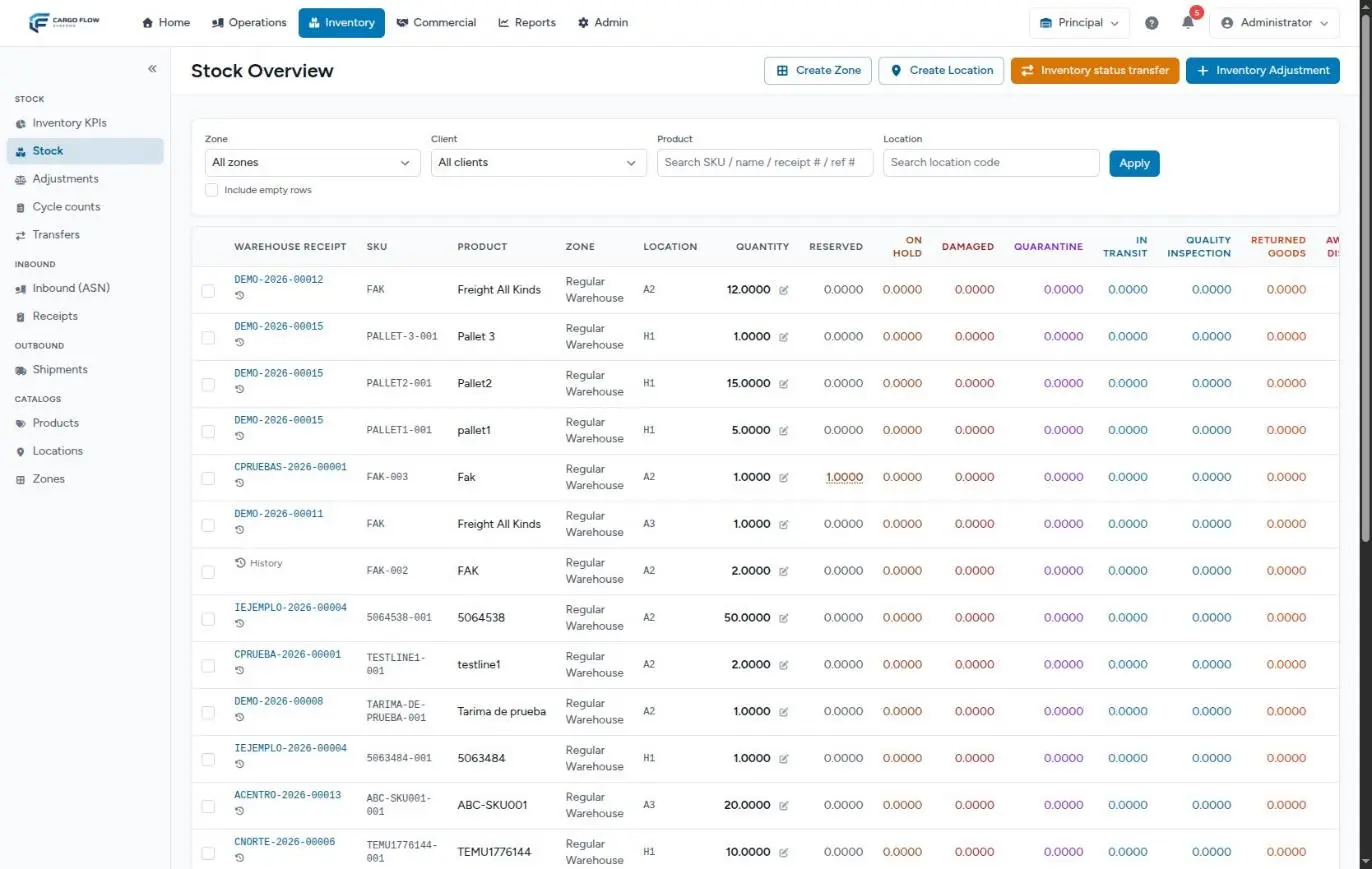
An inbound touches almost every module in the system: it starts as an advance ship notice (ASN), the driver signs in at the kiosk, the supervisor assigns a dock, the operator unloads and captures the receipt, a supervisor confirms it, and at that moment the goods enter stock, the charges are created, the email goes out to the customer and everything shows up in their client portal.
Each module has its own detailed article. This one follows a single truck from start to finish and stops at every hand-off: the point where one module passes the work to the next, which is where most things get lost.
Before you start
| What must exist | What for | Where |
|---|---|---|
| The receiving module (and the inventory module) enabled for the warehouse | Without receiving there are no notices or receipts; without inventory the receipt is confirmed but creates no stock. | Cargoflow enables it. See How the system is put together. |
| The visits module (for the kiosk) and the docks module | The driver kiosk depends on visits; the board, on docks. | See Driver registration. |
| The customer, linked to the warehouse | The whole path is per customer. | Set up a customer |
| Their products, with the same SKU the customer uses | A notice from the portal, the API or EDI rejects an SKU that does not exist. | Products and units |
| Active locations | Every line with a quantity needs one to be confirmed. | Locations and zones |
| Inbound handling in the customer's rate card | Without that row the receipt is confirmed but not billed. | Customer rates |
| Customer contacts with email, and the Notifications tab | Who gets the receipt-confirmed email. | Customer emails and reports |
The path in one table
| Step | Screen | Who (permission · default roles) | What changes |
|---|---|---|---|
| 1. Notice | Inventory › Inbound (ASN), the portal, the API or EDI | Create Arrival Notices (ASN) · admin; or the customer | Notice Sent, and a Pending receipt created automatically |
| 2. The driver arrives | Kiosk or QR | The driver, no account needed | Driver record; alert in the dock board bell |
| 3. Dock and link | Operations › Docks | Write Docks · supervisor, admin | Dock job Assigned, linked to the receipt |
| 4. Unloading and capture | My Work (operator) and the receipt capture | Capture Receipts · worker, supervisor, admin | Receipt In progress, then Captured |
| 5. Review and confirmation | Review & confirm | Confirm Receipts · supervisor, admin | Receipt Confirmed; notice Received |
| 6. Stock | Stock screen | Automatic | The goods are added at the captured location |
| 7. Charges | Commercial › Billing, unbilled services | Automatic | Inbound handling and services charged on receipt |
| 8. Alerts | Bell, email, callback to their system | Automatic | Receipt-confirmed email to the customer |
| 9. The customer sees it | Portal: Receipts and Inventory | Portal users | Receipt Confirmed and the stock in their inventory |
1. The advance ship notice
The notice says "this is coming". It can come in four ways, and all four end the same: a notice in Sent status and, at the same time, a Pending receipt with the expected lines, ready in Inventory › Receipts.
| Path | How | What it captures |
|---|---|---|
| In the system | Inventory › Inbound (ASN) › create. Save as draft leaves it in Draft (no receipt yet); Save and send sends it. A draft is sent later with Send to warehouse, as long as it has at least one line. | Customer, expected arrival, carrier, trailer, notes and lines (product, expected quantity, unit). |
| Client portal | The customer clicks Notify inbound and then Send notice. See Notify an arrival from the portal. | Also: their reference, driver, seal, PRO number, tracking number, final destination and attached documents. |
| API | The customer's system sends the notice; it comes in directly as Sent. See Connecting a system through the API. | Carrier, trailer, expected date, their reference, notes and lines by SKU. |
| EDI | A 943 or 856 document from the trading partner. See EDI: what works today and what does not. | Whatever the file carries. |
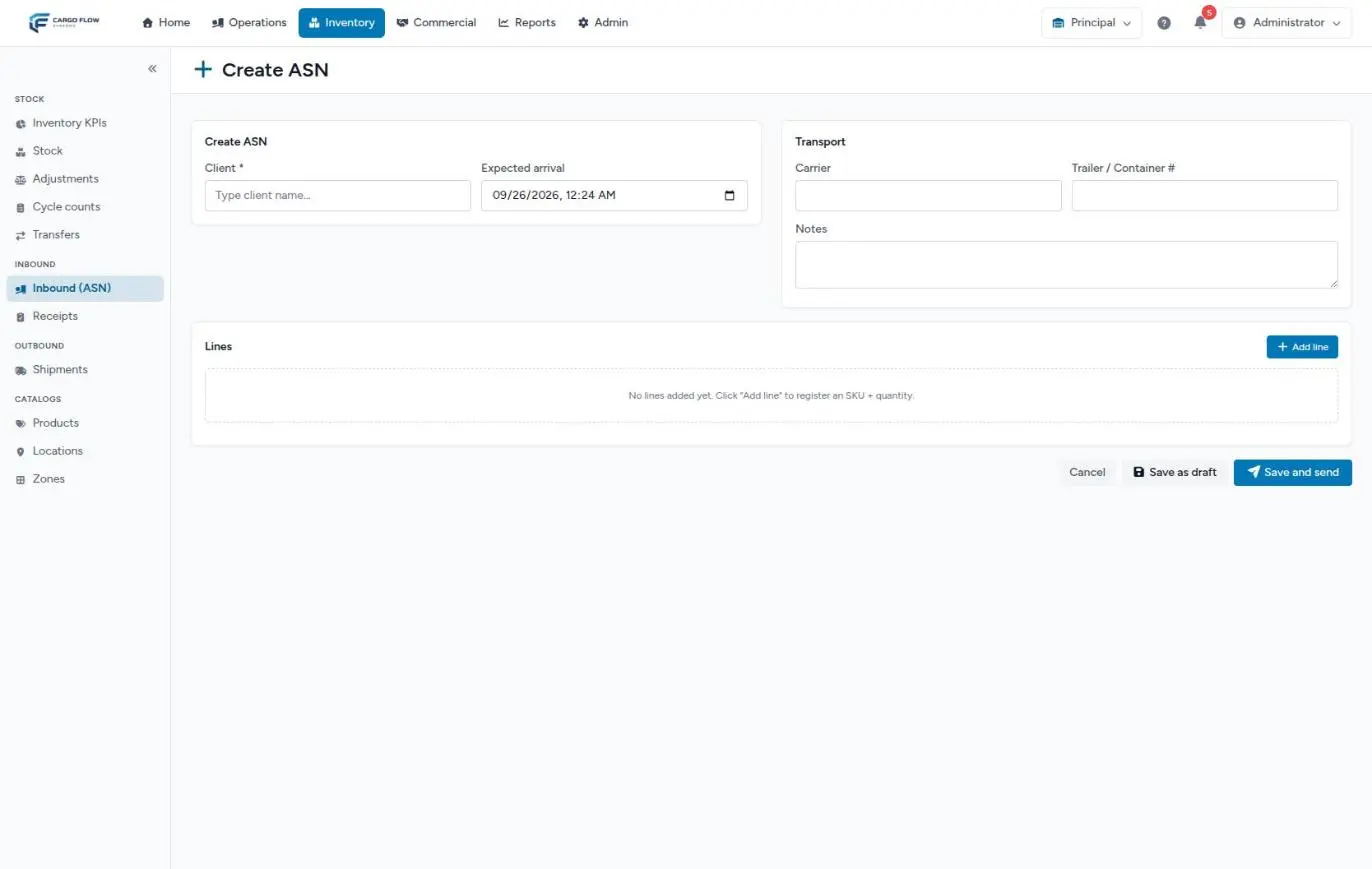
Hand-off: when the notice is sent, the receipt copies the customer, carrier, trailer, driver, seal, PRO number, tracking number, final destination and every line with its expected quantity. It does not copy the notice's notes or its expected date: if the notice carries an important instruction in its notes, the operator will not see it on the receipt.
While the receipt is still Pending with no dock job, the customer can edit or cancel from the portal a notice they sent themselves. Once the warehouse links it to a dock or starts capturing, they can no longer do so.
2. The driver arrives
The driver signs in at the warehouse kiosk (tablet, or QR code on their phone): language, Delivery type, subtype, name, company, phone number with country code, the truck details the warehouse asks for (by default: truck number, trailer number and license) and a photo. See The driver, from arrival to departure.
| The driver chooses | Where the record goes |
|---|---|
| Warehouse Delivery (unloads at a dock) | To the dock board bell: the supervisor sees "New Driver Arrival". |
| Yard Drop Off (leaves the trailer in the yard) | To the Jobs to Assign panel of the yard. The receipt is worked when the trailer moves to a dock. See Dock, yard and cross-dock. |
Hand-off: the driver record is not linked automatically to its notice. The kiosk does not ask for the notice number. The supervisor ties the truck to the receipt in the next step.
3. Dock and link to the receipt
In Operations › Docks, the supervisor opens the arrival from the bell and uses the assignment window: picks a dock, a worker and a customer and clicks Assign Dock. If they answer yes to Do you want to notify the driver?, the driver gets an SMS or WhatsApp message with the dock number.
The same window has the Link to WMS section, with three options:
- An existing receipt — the system suggests the warehouse's Pending or In progress receipts, ranked by how closely they match the truck: reference, trailer number (the strongest signal), expected date and company. With no customer chosen, it only suggests receipts that match on reference or trailer. This is the right option when there was a notice.
- Create a new receipt — creates a Pending receipt with no lines, linked to the job. It is for a truck that arrived without a notice. It requires a customer to be chosen and the Capture Receipts permission.
- No link — assigns the dock and leaves the receipt for later.
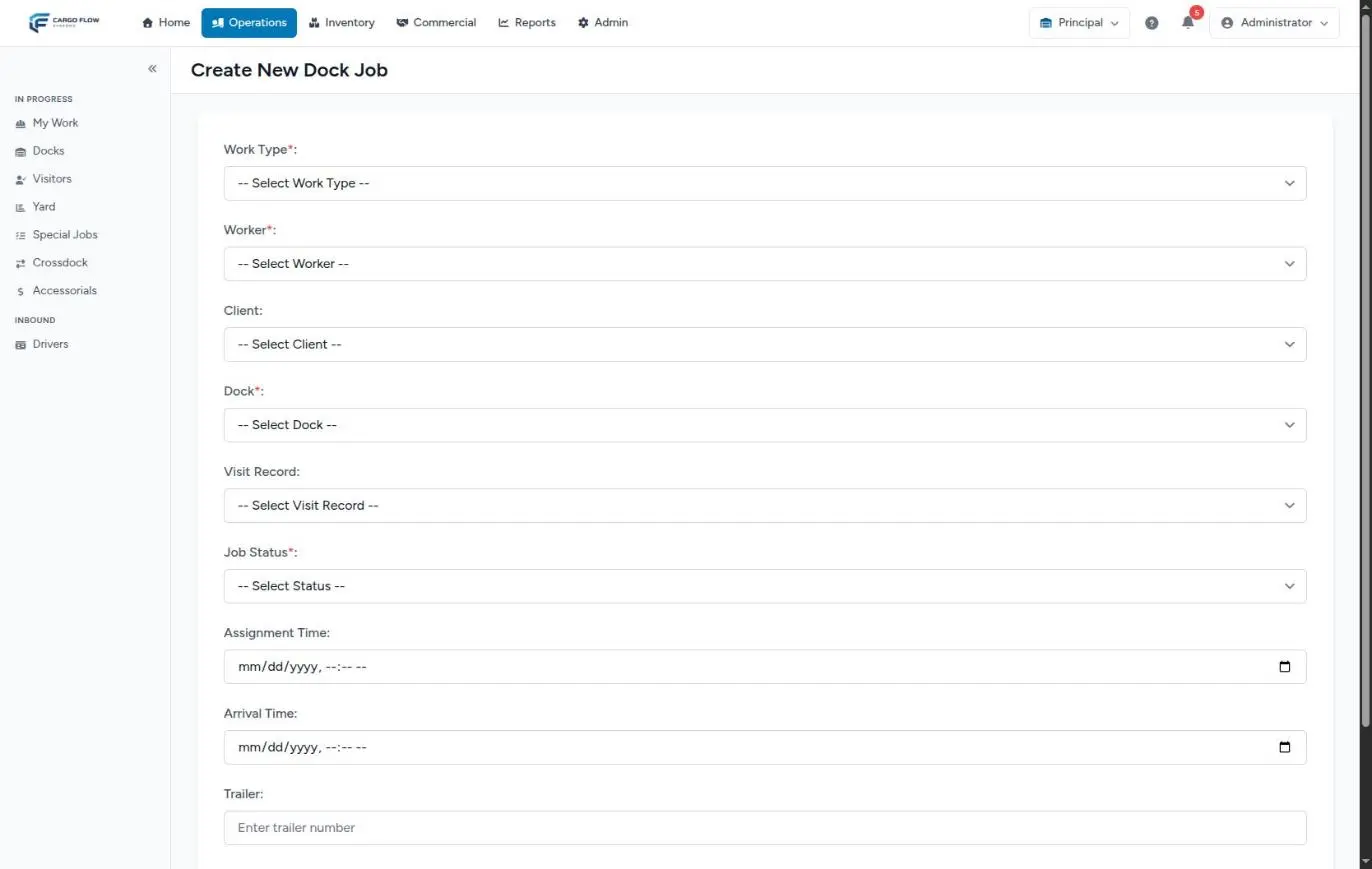
If it was not linked when assigning, it can be linked later: in the Job Details, with Create receipt & link (only while the job is Assigned or In Progress), or from the receipt screen, in its dock job card, with Link. Details in How to create a dock job.
Hand-off: a receipt can only be linked if it is Pending or In progress, belongs to the same warehouse and the same customer as the job, and is not linked to another job. When it is linked, the receipt header takes from the driver the carrier, name, trailer, seal and pickup number it is missing.
4. Unloading and capture
The operator sees the job in My Work and taps START JOB. At that moment the linked receipt moves by itself from Pending to In progress (assigning alone does not change it). See The operator app.
What is unloaded is captured in one of these places:
- The receiving panel of the operator app — received quantity and location per line, with Save receiving. It records, but never finishes the receipt.
- The receipt capture (Inventory › Receipts › the receipt › Capture receipt) — the full capture: per line, received quantity, damaged quantity, location, discrepancy type (Over-received, Short, Damaged, Wrong SKU), lot, notes, photos (images up to 5 MB), package type, pieces, dimensions and weight. At the top, the Actual arrival date and the truck details.
- The tablet scanner — scanning adds or increases lines; an SKU that is not on the receipt is rejected.
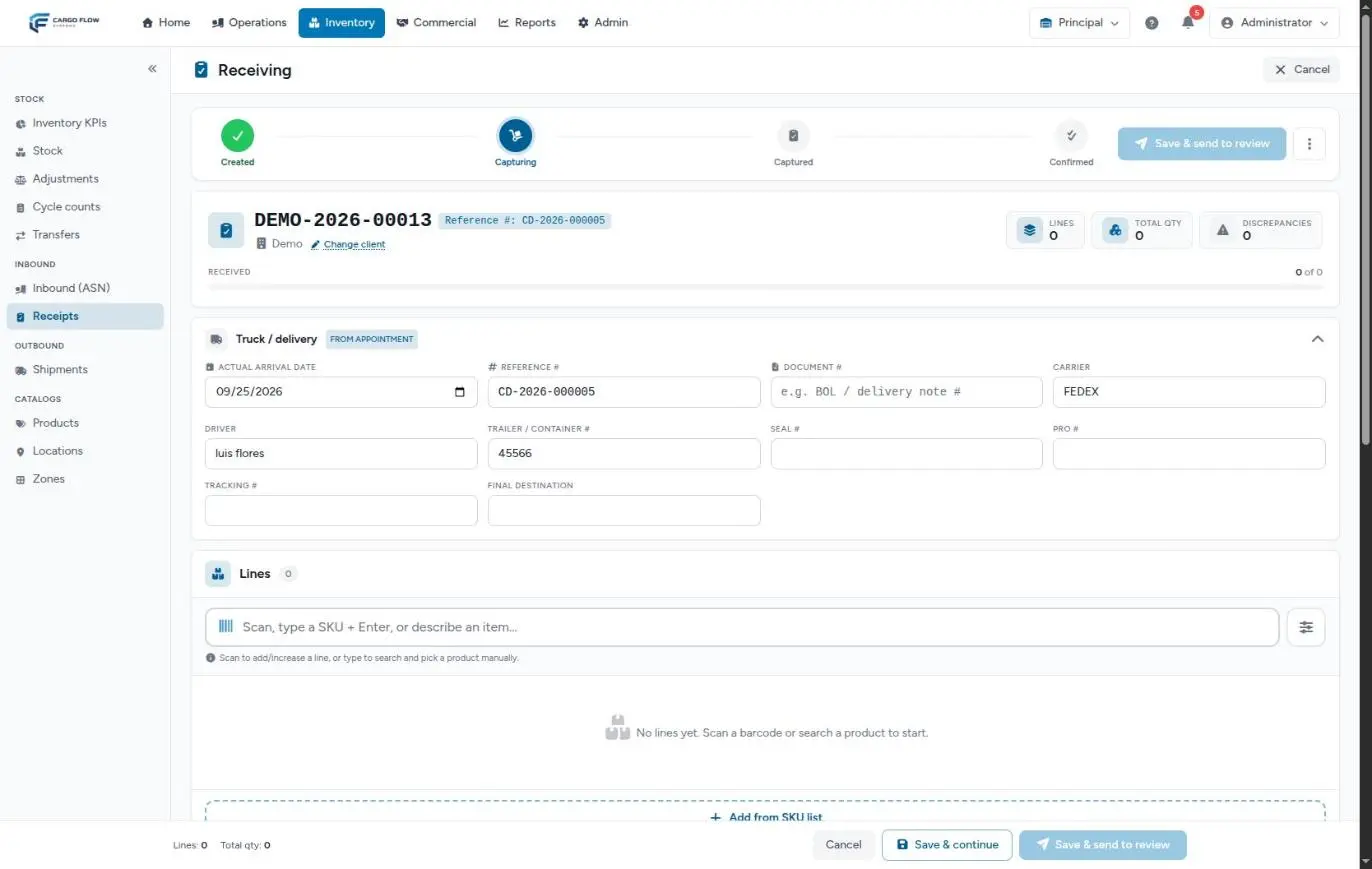
There are two buttons at the bottom: Save & continue (leaves the receipt In progress) and Save & send to review (moves it to Captured and alerts the supervisors). Someone who can also confirm lands straight on the review. Details in Capturing the lines and Capture and review.
If the warehouse set up Receiving verification items, the operator checks them (with their photos) before finishing the job. On finishing, the operator answers whether the driver leaves with the trailer: Yes, Release Dock closes the job and checks the driver out; No, Trailer Stays leaves the job in Work Finished for the supervisor to decide.
5. Review and confirmation
The supervisor opens the Captured receipt with Review & confirm. They check quantities, discrepancies and photos, correct the Actual arrival date if the truck arrived earlier, and click Confirm receipt. If something is wrong, Return to capture sends it back with a required note.
The system will not confirm if:
- the receipt is not Captured;
- a line with a discrepancy has no evidence photo;
- a line with a received quantity has no location;
- a lot-tracked product has no lot number.
The red message says what is missing and on which product. Use Edit capture, next to Confirm receipt on the review screen (or in the three-dot menu of the receipt detail), to complete it without sending it back to the operator.
6. The goods enter stock
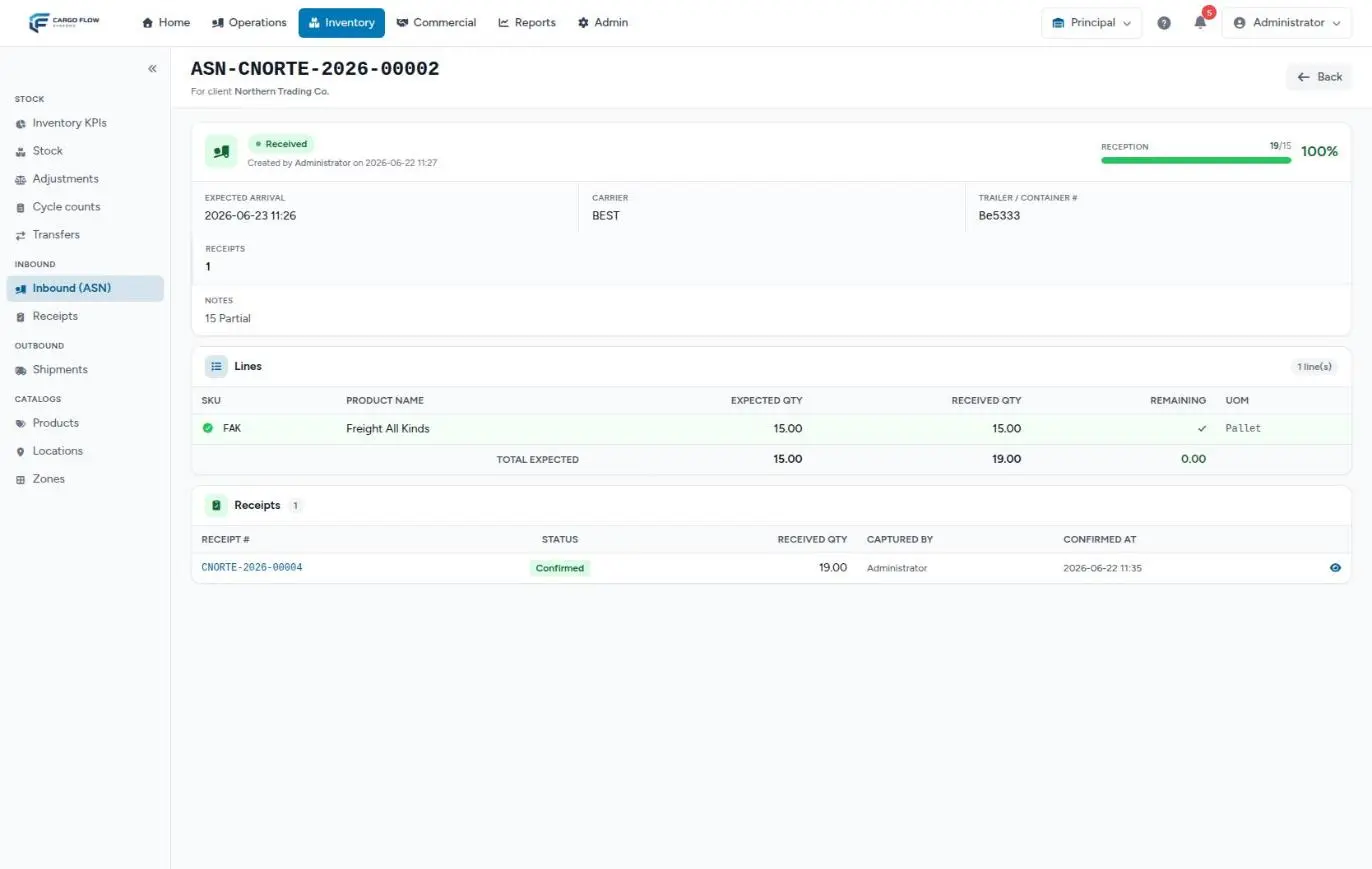
On confirmation, and only then:
- Each line adds its received quantity at the captured location and lot. The damaged part is included in the total but sits in the Damaged column; everything else is available.
- The Actual arrival date becomes the goods' arrival date: aging and storage count from it.
- Each stock line gets a Received row in its history, linked to the receipt.
- The advance ship notice becomes Received.
There is no separate put-away step: the goods are born at the captured location. If they are later moved to their final place, that is a transfer. Everything that can happen to that stock afterwards is in The life of stock.
If the warehouse does not have the inventory module, the receipt is confirmed as a record (it closes the notice, bills and notifies) but creates no stock.
7. The charges that are born
| Charge | When | Condition |
|---|---|---|
| Inbound handling | On confirmation, dated with the Actual arrival date | Only if the customer has it in their rate card. The quantity depends on how it is billed: by weight, by pallet or case (rounded up per product) or by piece. |
| Services billed on receipt | On confirmation | The customer's services set to be billed at receiving. |
| Accessorials | When captured, on the dock job or in the receipt review | See Capture an accessorial. |
| Storage | Every night (2:00) or on shipping, depending on the customer's mode | Counts from the arrival date, minus free days. |
They all land in the unbilled services pool (Commercial › Billing) and from there into the invoice. See How charges are generated.
8. Alerts and emails
| When | To whom | How |
|---|---|---|
| The receipt is created (from a notice or without one) | The warehouse's configured roles (by default: worker, supervisor and admin) | Bell and live alert |
| The receipt becomes Captured | Supervisors | Bell and live alert |
| The receipt has been idle too long (checked every 15 minutes) | The configured roles | Bell |
| The receipt is confirmed | The customer's contacts | Email "Receipt … confirmed — your goods are now in stock", with photos if configured |
| The receipt is confirmed | The customer's system, if it has a callback set up | A signed callback to its web address (see Integrations) |
The customer email goes out once; after that it is resent by hand with Send by Email on the receipt. Editing a confirmed receipt does not send it again. See Warehouse notifications and emails and Receipt photos, documents and email.
9. What the customer sees
- Portal › Receipts — the receipt with its status (Pending, In progress, Captured, Confirmed or Cancelled) and, when opened, Expected against Received per line. They only see the documents they uploaded.
- Portal › Inventory — their stock by SKU with aging.
- Emails — the receipt-confirmed email and, if enabled, the daily inventory.
- Reports you send them — the Daily Warehouse Receipt List (Reports, Read Receipt Reports permission) only counts confirmed receipts, by confirmation date.
See The client portal and WMS reports.
Full example
- Monday 9:10 — Northern Trading Co. sends notice ASN-CNORTE-2026-00031 from its portal: expected Tuesday, carrier Southern Logistics, trailer 45120, 2 lines:
CN-1001240 pieces andCN-204030 cases. Receipt CNORTE-2026-00044 is created in Pending and the bell alerts the team. - Tuesday 7:45 — The driver, Carlos Ruiz, signs in at the kiosk as Warehouse Delivery with trailer 45120. He shows up in the dock board bell.
- 7:52 — Ana López (supervisor) assigns him Dock 3 and Luis Pérez as the worker. In the link section the system suggests CNORTE-2026-00044 because the trailer matches; she picks it. The driver gets the message with his dock.
- 8:05 — Luis taps START JOB: the receipt becomes In progress. He unloads and captures:
CN-1001236 pieces at A-01-01 (4 short, with a photo);CN-204030 cases at A-02-04; since two cases are crushed, he captures that line in pieces: 360 received, 24 damaged (with a photo). He checks the verification items and clicks Save & send to review: the receipt is Captured and Ana gets the alert. - 8:40 — Luis finishes and answers Yes, Release Dock: the job is Completed and the driver checked out.
- 9:15 — Ana reviews and confirms. Stock: A-01-01 gains 236 pieces of
CN-1001; A-02-04 gains 360 pieces ofCN-2040, 24 of them in the Damaged column and 336 available. The notice becomes Received. - 9:15 — The inbound handling charge appears in unbilled services (the customer is billed per piece, so the quantity is the total received). The receipt-confirmed email goes to the customer's traffic contacts, with the photos.
- 9:16 — In the portal, the customer sees CNORTE-2026-00044 Confirmed, with 240 expected and 236 received on the first line, and the new pieces in their Inventory.
What can go wrong at each hand-off
Notice → receipt: the notice exists but there is no receipt.
The notice stayed in Draft. Open it and click Send to warehouse (it needs at least one line).
Notice → receipt: the operator did not see the instruction the customer wrote on the notice.
The notice's notes are not carried over to the receipt. Copy them into the notes of the receipt or the dock job.
Kiosk → dock: the driver signed in and nobody sees him in the bell.
He chose Yard Drop Off: he is on the yard screen. Or the board is open on another warehouse.
Dock → receipt: the receipt does not appear in the suggestions.
It is not for the customer you chose, it is no longer Pending or In progress, or it is already linked to another job. With no customer chosen, only receipts that match on reference or trailer are suggested.
Dock → capture: the operator started but the receipt is still Pending.
The receipt did not get linked. Check the Job Details and link it.
Capture → confirmation: the supervisor cannot confirm.
A photo is missing on a line with a discrepancy, or a location or a lot. The message says which.
Confirmation → charges: the handling charge did not appear.
The customer does not have inbound handling in their rate card. Add it; earlier receipts are not billed retroactively.
Confirmation → customer: the email did not arrive.
There are no recipients with email, or the Email channel is not checked. Fix it and use Send by Email.
Confirmation → portal: the customer sees damaged goods as available.
Today the portal only subtracts what is reserved. Explain the breakdown, or set the correct status before they ask.
Good practices
- Ask your customers to notify through the portal or the API: the receipt is born with the lines and the truck details.
- Always choose the customer when assigning a dock: with a customer, the link suggestions are much better.
- Link when assigning, not later: the receipt then changes status by itself and the driver details arrive without typing.
- Capture what arrived, not what the notice says, and document every discrepancy with a photo.
- Confirm the same day, with the correct Actual arrival date.
- Check the Overdue counter on the receipts list every day.
Frequently asked questions
What if the truck arrives without a notice?
The path is the same from step 2. The receipt is born at the dock (Create a new receipt when assigning, or Create receipt & link later) or in Inventory › Receipts with Create receipt. See Receiving without a notice.
What if only part of it arrives?
Confirm what arrived and, for the rest, create another receipt from the notice with Create partial receipt, which brings what is still pending per line. Note: today the notice becomes Received with the first confirmed receipt even if goods are still missing, and if you create a second partial receipt while the first is still Pending, it asks for the full quantity again. Confirm one before creating the next.
Does the driver get linked to the notice automatically?
No. The kiosk does not ask for the notice number. The supervisor makes the link when assigning a dock; the system helps by suggesting the receipt whose trailer or reference match.
Why can't my supervisor create notices?
By default, the Create Arrival Notices (ASN) permission only belongs to the admin: the notice is the customer's commitment, not the warehouse's. The supervisor can create receipts without a notice. Your admin can grant the permission to their role.
How do I undo an inbound that is already confirmed?
With Edit (the difference is applied as an adjustment) or Cancel (everything is subtracted) from the receipt, with the Confirm Receipts permission. It is not possible if that stock was already allocated, shipped or moved, or if a charge was already invoiced. Cancelling a receipt from the warehouse does not cancel its notice. See Cancel or correct a receipt.
Need help?
If something did not work as expected, our support team can help you.
Was this article helpful?