Create and edit a customer
Summary
The customer is the company that owns the goods you store. Almost everything in the system hangs off it: its receipts, shipments, stock, rates, invoices, the emails it receives and the people who sign in to its portal. It pays to set it up properly from day one, and in the right order.
Customers are managed under Commercial › Clients. A customer record has nine tabs; this article covers creating the customer, the Data tab and what happens elsewhere in the system. Each of the other tabs has its own article, linked below.
Before you start
- Permission: you need Configure Clients. By default the Admin and Superadmin roles have it; Supervisor, Worker and Accounting do not. If Commercial › Clients is missing, ask your administrator. See Roles and permissions.
- Module: customers do not depend on any contracted module; they exist in every warehouse. Some tabs and buttons do depend on modules (the portal, KPIs, document templates), and each article explains which.
- The right warehouse: the customer is created in the warehouse selected at the top of the screen. If you work with several warehouses, check it before clicking «Add New Client» (see Special cases).
- Have at hand: the legal name, a short code for its document numbers, who receives operations emails and who receives billing, and how it pays (per operation or monthly).
The customer list
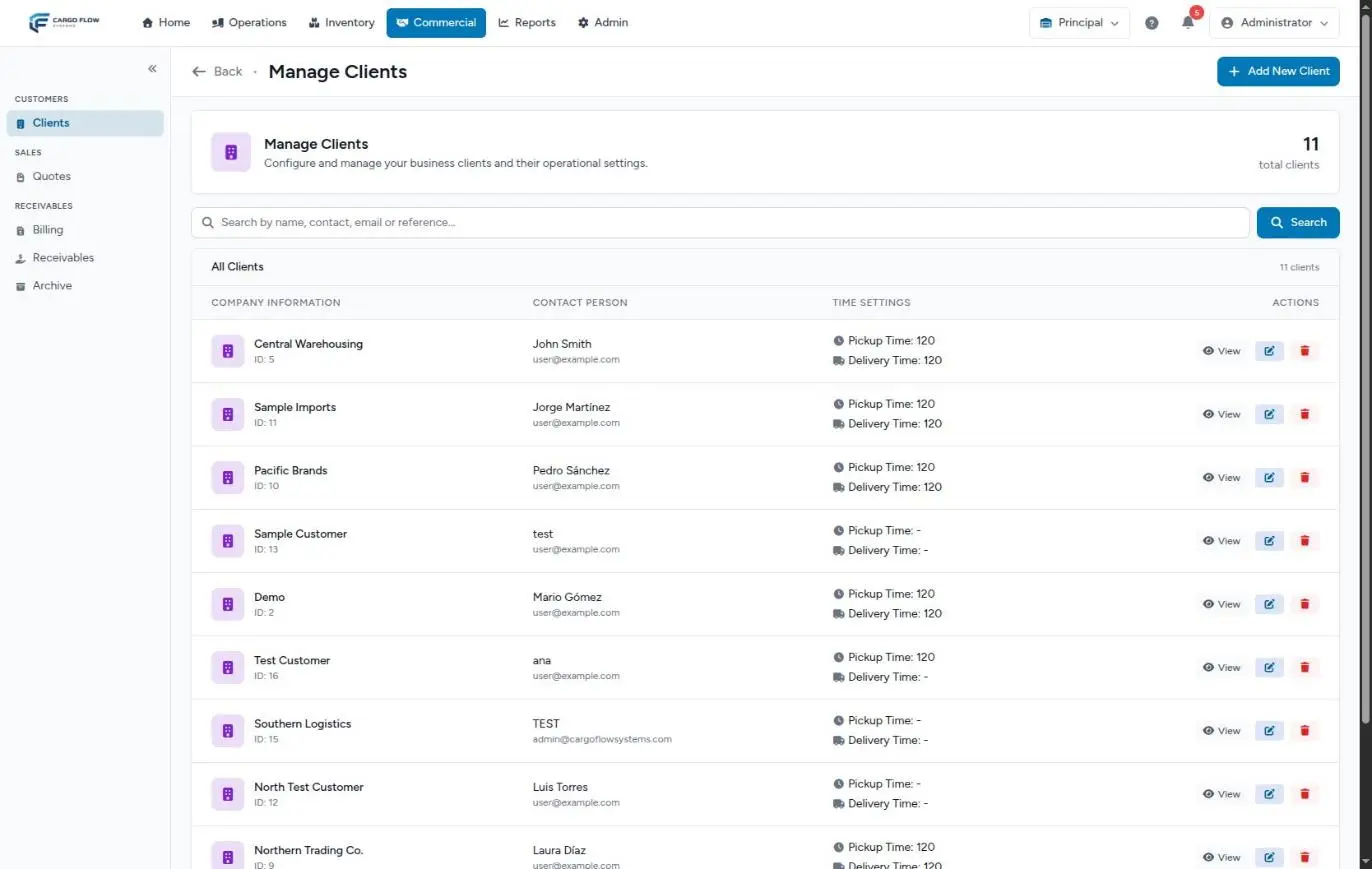
The Manage Clients screen lists the customers of the warehouse you are in, alphabetically, with contact person, email and maximum pickup and delivery times. The total count is shown at the top.
- The search box matches name, contact, email or external reference, ignoring case. Clear returns to the full list; with no matches you see «No clients match your search».
- View opens a read-only summary with name, contact, email and times.
- The pencil opens the editor with all the tabs.
- The trash can removes the customer (see below for what that really means).
Inactive customers still appear in this list, with no marker: the active checkbox only removes them from pickers. Deleted customers no longer appear.
Create a customer
- Click «Add New Client». The same tabbed screen as the editor opens, but only the Data tab works; the others show the notice «Save the client first».
- Type the company name. It is the only required field (up to 255 characters).
- Enter the contact and email if you have them, and the maximum times for pickup and delivery in whole minutes.
- Click «Create Client». You land on the customer editor, Data tab, with «Client created. Now complete the rest of the information», and every tab is unlocked.
- Check the folio code and the inventory report mode on the Data tab before anything else (see below).
- Fill in the tabs in this order: Warehouses, Contacts, Addresses, Pricing, Payment terms, Documents, Notifications and, if the customer will use the portal, Portal Users. The order matters: notifications pick from the contacts, and portal users depend on the attached warehouses.
The Data tab, field by field
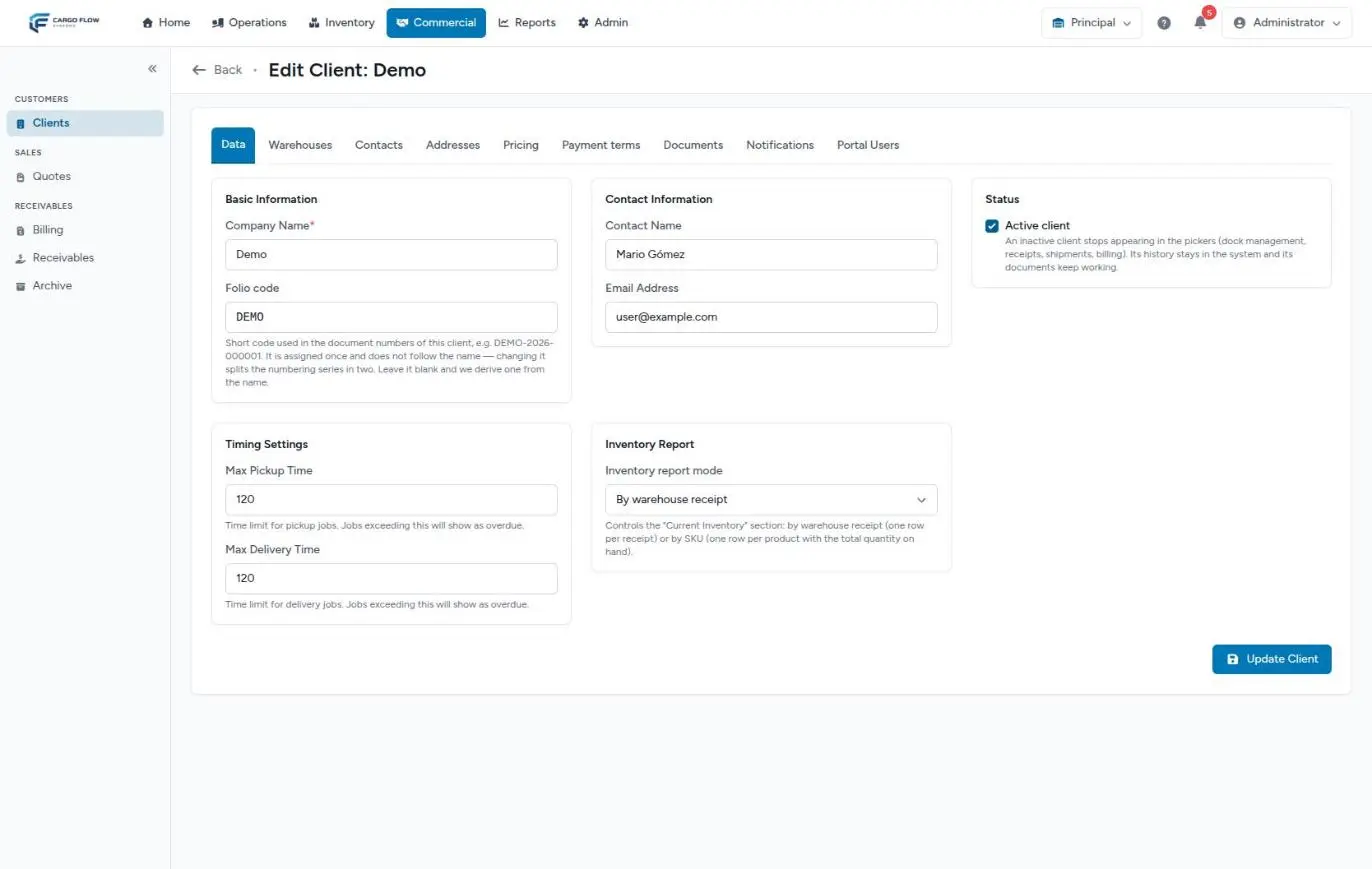
This tab holds the general data. When you are done, click Update Client; you return to the same tab with «Customer updated successfully».
| Field | Required? | Accepts | If left blank |
|---|---|---|---|
| Company Name | Yes | Text, up to 255 characters. | Not saved. |
| Folio code | No | Letters and numbers only, up to 16, unique across the whole system. Shown in upper case. | The existing code is kept. |
| Contact Name | No | Text, up to 255. | Nothing: it is reference data. |
| Email Address | No | A valid email. | Nothing: it is not used to send notifications. |
| Active client | — | Checkbox. | Unchecked = the customer leaves the pickers. |
| Max Pickup / Delivery Time | No | Whole minutes, 0 or more. | Its dock jobs are never flagged late for this reason. |
| Inventory report mode | — | «By warehouse receipt» or «By SKU (total quantity)». | Stays by receipt. |
The folio code
It is the short prefix that appears in this customer’s document numbers, for example VALLEY-2026-000001. The exact number format (year, zeros, separators) is set in Document numbering; the code is the part that identifies the customer.
- If you do not enter one when creating, the system takes the first 8 letters and numbers of the name, in upper case. If another customer already uses that code, it trims it and adds a number so they do not clash. Customers created from a quote get the same treatment.
- It is assigned once and does not follow the name. If the customer changes its legal name, the code stays, and that is correct: its numbers remain a single series.
- Clearing the field and saving does not remove the code: the system keeps the one it had.
- It is unique across the system, not per warehouse, because two customers with the same code would produce identical numbers.
Contact and email
Contact Name and Email Address are reference data: they appear in the list, in the read-only summary and can be printed on a document template. They do not receive system emails. Emails go to the people on the Contacts tab that you choose under Notifications.
Active client
If you untick Active client, the customer no longer appears in the pickers used to start something new: the dock board and dock jobs, unannounced receipts, accessorial charges, special jobs and per-customer numbering. Its history stays complete and old documents keep opening. It is the right way to «switch off» a customer that stopped working with you.
Maximum pickup and delivery times
These are minutes. They set how long a pickup or delivery dock job for this customer can run before the dock board shows it as overdue. For example, with 120 for delivery, an unload running for 2 hours and 5 minutes turns overdue. Left blank, this customer’s jobs are not flagged for this reason. Decimals and negatives are not accepted.
Inventory report mode
Controls how the «Current Inventory» section of the customer’s inventory report comes out: the one emailed every day, the one sent with «Send now» and the one downloaded from reports. See The daily inventory and the monthly KPI scorecard.
| Option | What it shows | When to use it |
|---|---|---|
| By warehouse receipt | One row per receipt that still has goods, with its carrier and entry data. | Customers that track by entry, customs document or container. |
| By SKU (total quantity) | One row per product, with the total quantity on hand. | Customers with many SKUs that only want to know how much they have. |
A change affects the next report generated; reports already sent do not change.
Handling and operations (when it comes from a quote)
If the customer was created from an accepted quote, a read-only box appears under the form, Handling and operations · From the accepted quote, with what was captured when quoting: hazardous goods, temperature control, transport type, inventory level, estimated pallets, annual boxes, floor space, storage requirements and project notes. It lets operations know how to handle the goods without asking again. It is not edited here: it changes on the source quote.
The other tabs
| Tab | What you enter | Article |
|---|---|---|
| Warehouses | Which other warehouses the customer works in and, above all, which it sees in its portal. | Attach a customer to warehouses |
| Contacts | The customer’s people, by type (Operations, Billing, Sales, Technical or other). Email recipients come from here. | Contacts and addresses |
| Addresses | Billing, shipping, physical or mailing addresses. | |
| Pricing | Negotiated prices and when each service is charged. | Customer rates |
| Payment terms | When it pays, credit days and currency. | Payment terms |
| Documents | Which documents are offered for printing, its own templates, custom fields and files. | Customer documents |
| Notifications | Which emails it gets and who gets them. | Customer emails and reports |
| Portal Users | The customer’s accounts for its portal. | Portal users |
What changes in the rest of the system
As soon as you save the customer:
- Pickers: it can be chosen on the dock board, receipts, advance ship notices, shipments, accessorial charges, special jobs, reports, billing, KPIs and per-customer numbering of this warehouse.
- Products: you can now create or import its products. See Products and units.
- Numbering: its first receipt or shipment starts the series with its code.
- Charging: until you negotiate rates, everything it is charged uses the warehouse catalog base price. See Where each charge comes from.
- Emails: until it has contacts with an email address, it receives nothing. Nothing fails or warns you: it simply does not go out.
- Portal: does not exist for it until the portal module is active in its warehouse and you create users.
The full picture of what the customer sees is in What the customer sees and when.
Example: setting up Valley Distributors
- Ana López, admin of the Principal warehouse, checks that the selector at the top reads «Principal» and clicks Add New Client.
- She enters «Valley Distributors», contact «Luis Pérez», email
user@example.com, 90 minutes for pickup and 120 for delivery, and clicks Create Client. - On Data she sees the suggested code
VALLEYDI. Because numbers are read over the phone, she changes it toVALLEY, picks «By SKU (total quantity)» because the customer handles 400 SKUs, and clicks Update Client. - Under Contacts she adds Luis Pérez as Operations and Carlos Ruiz as Billing (primary). Under Pricing she negotiates 18.50 per pallet for receiving handling. Under Payment terms she picks «Monthly» with 30 credit days.
- Under Notifications she sets Luis for receipts, shipments and daily inventory, and Carlos for invoices only.
Result: the first receipt gets number VALLEY-2026-000001 (depending on the warehouse numbering format), Luis gets the receipt confirmed email, and the month’s charges are gathered into a single invoice when the month closes, due in 30 days.
Deactivate or delete a customer
The trash can in the list asks for confirmation («Are you sure you want to delete this client?») and performs a soft delete: the customer leaves every list and is marked inactive, but its record and full history are kept, because its receipts, shipments and invoices still point to it. The message is «Customer deleted successfully».
- There is no way to truly erase a customer from the screen, nor to bring it back: once deleted it no longer appears in the list for editing.
- Its folio code stays taken: you cannot give it to another customer.
- Its portal users are not removed automatically; delete them first on the Portal Users tab.
Special cases and limits
- Several warehouses. Each customer has a home warehouse: the one where it was created. Attaching it to another warehouse on the Warehouses tab makes it appear in that warehouse’s list and pickers too, and opens that warehouse in its portal. It is still one customer, with the same code, contacts and rates. See Attach a customer to warehouses and Working with several warehouses.
- New legal name. Change the name on Data. The folio code does not move and new documents show the new name.
- Duplicate created by mistake. Two customers cannot be merged. If the duplicate has no activity yet, delete it; if it does, deactivate it and keep working with the right one.
- The internal customer. Some warehouses have a technical customer that represents the warehouse itself. It does not appear in pickers or in the portal; do not edit it.
Messages you may see
| Message | Meaning |
|---|---|
| «Client created. Now complete the rest of the information.» | Creation worked; all tabs are available. |
| «Customer updated successfully.» | The Data tab was saved. |
| The company name is required. | The name is missing. |
| The code «has already been taken». | Another customer, active or deleted, uses that code. |
| The code format is invalid. | It has spaces, dashes, accents or other symbols. Letters and numbers only. |
| The time must be an integer. | You entered decimals in the maximum times. |
Best practices
- Review the folio code on setup day, before the first receipt.
- Use a short code that is easy to read out: 4 to 8 letters.
- Create at least one Billing contact with an email: it is the fallback for emails when you choose no recipients.
- Enter maximum times if you promise a dock service time; without them the board never flags it.
- For customers that leave, untick active, switch off their automatic emails and tell the team not to pick them in shipments or manual invoices.
- Create the customer in the warehouse where it will really operate.
Troubleshooting
The tabs are locked with «Save the client first».
- You are creating the customer. Fill in the name on Data and click Create Client; saving unlocks them all.
Saving shows an error on the folio code.
- Only letters and numbers (no dashes or spaces), up to 16 characters, and another customer, even a deleted one, may already use it. Try another.
The customer does not appear when creating a receipt or a dock job.
- Is Active client ticked?
- Are you in the warehouse where it was created? Pickers only show customers of the warehouse selected at the top.
- Was it deleted? Deleted customers no longer appear.
I cannot find the customer in the list, but I know it exists.
- Switch warehouse at the top: the list only shows the selected warehouse’s customers. Clear the search too.
The maximum times are rejected.
- They are whole minutes. A value like 1.5 is not accepted.
A removed customer still gets the daily inventory.
- That is the current behaviour: removal does not stop that email. Open its Notifications tab (if it is still active) and turn it off; if it is already deleted, ask support to turn it off.
Frequently asked questions
Can I change the folio code later?
Yes, on the Data tab, but not in the middle of operations: new numbers use the new prefix and old ones keep the previous one, so the customer’s series is split in two. If it must change, do it before its first document.
Does the email on the Data tab receive notifications?
No. That email is reference data. Customer emails go to the contacts you choose on the Notifications tab, or to the Billing contact as a fallback.
Can a customer operate in several warehouses?
Yes. Attach it to each warehouse on the Warehouses tab: from then on that warehouse’s staff find it in their list and pickers, and the customer sees it in its portal. What is not shared between warehouses is what lives in each one: its SKU catalog, its stock and its document templates. See Attach a customer to warehouses.
Can a customer be deleted completely?
Not from the screen. Removal keeps its history on purpose: its receipts, shipments and invoices need it to keep opening.
Need help?
If something did not work as expected, our support team can help you.
Was this article helpful?