Dock, yard and cross-dock: how a job moves from one board to another
Summary
A truck can stay at the dock the whole time, but often it does not: the driver drops the trailer and leaves, the trailer spends the night in the yard, the next day it goes back to a dock to be loaded, and another driver takes it away. Or the goods coming off one truck go onto another without being stored. Each of those moves takes the job from one board to another, changes its status, takes or frees a spot and, sometimes, checks the driver out.
This article is the map of those moves. The detail of each screen is in The life cycle of a dock job, From the yard to the dock and back and How a cross-dock is done.
Before you start
- Modules: docks for the board, yard for the yard screen and special jobs, cross-dock to join jobs. Receiving and shipping so the cross-dock has paperwork.
- Setup: docks, yards and spots created. See Configure the yard and spots and Configuring docks and yard.
- People: supervisors and admins make the moves; yard staff carry out the yard moves from My Work. See Who can make each move.
The three places a job lives
| Screen | What it shows | Statuses you see there |
|---|---|---|
| Operations › Docks (Dock Management and FIFO View) | Active dock jobs and the day's completed ones. The FIFO View is each worker's queue. | Assigned, In Progress, Work Finished, Pending Yard |
| Operations › Yard (Spots View and Active Jobs) | The spots with their trailer, the jobs waiting for a spot (Jobs to Assign) and the queue of moves. | Moves: Waiting, Assigned, In Progress, Completed, Cancelled |
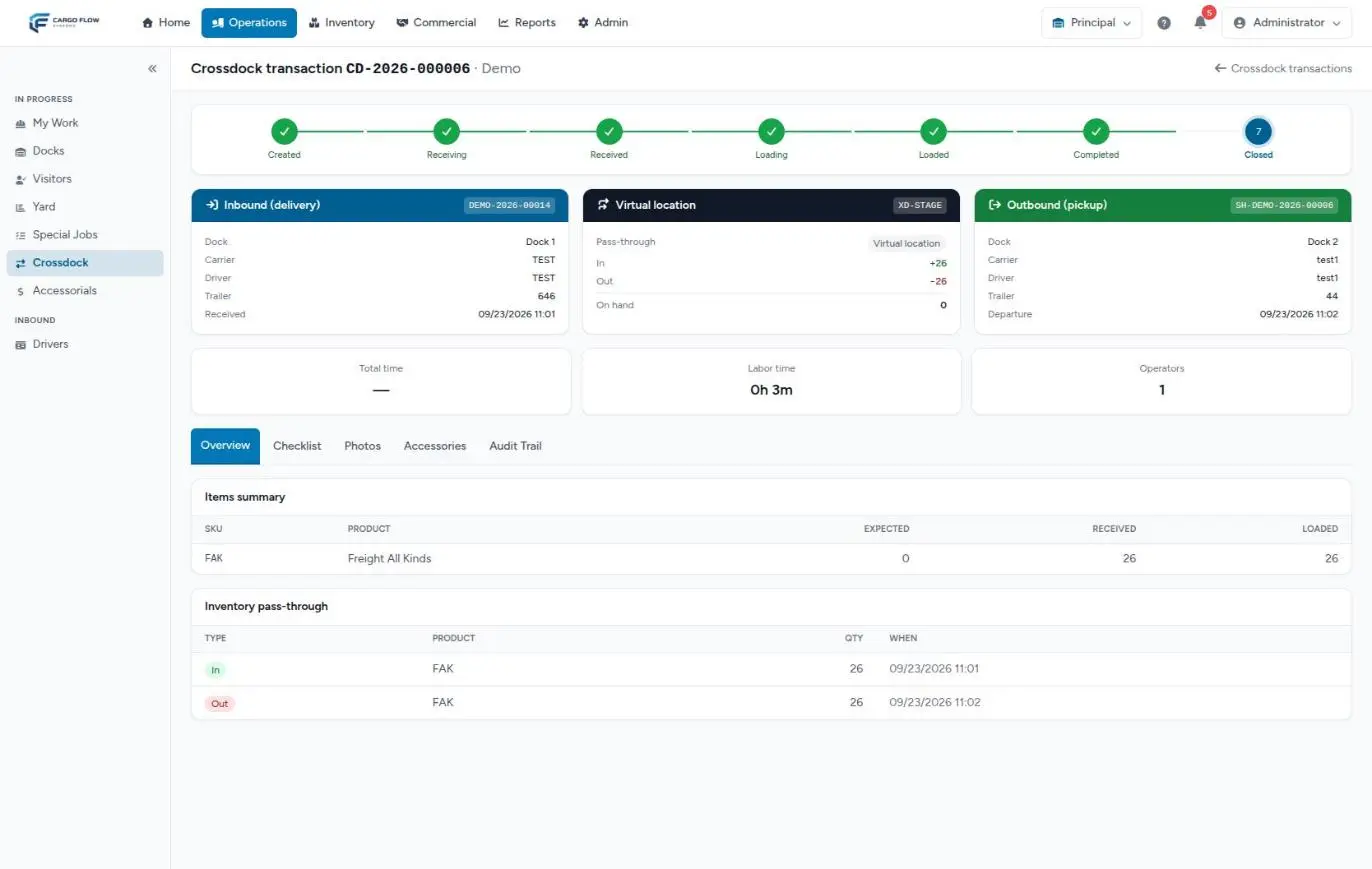
| Operations › Crossdock | Each cross-dock with its inbound, its outbound and the staging location. | Created, Receiving, Received, Loading, Loaded, Completed, Closed |
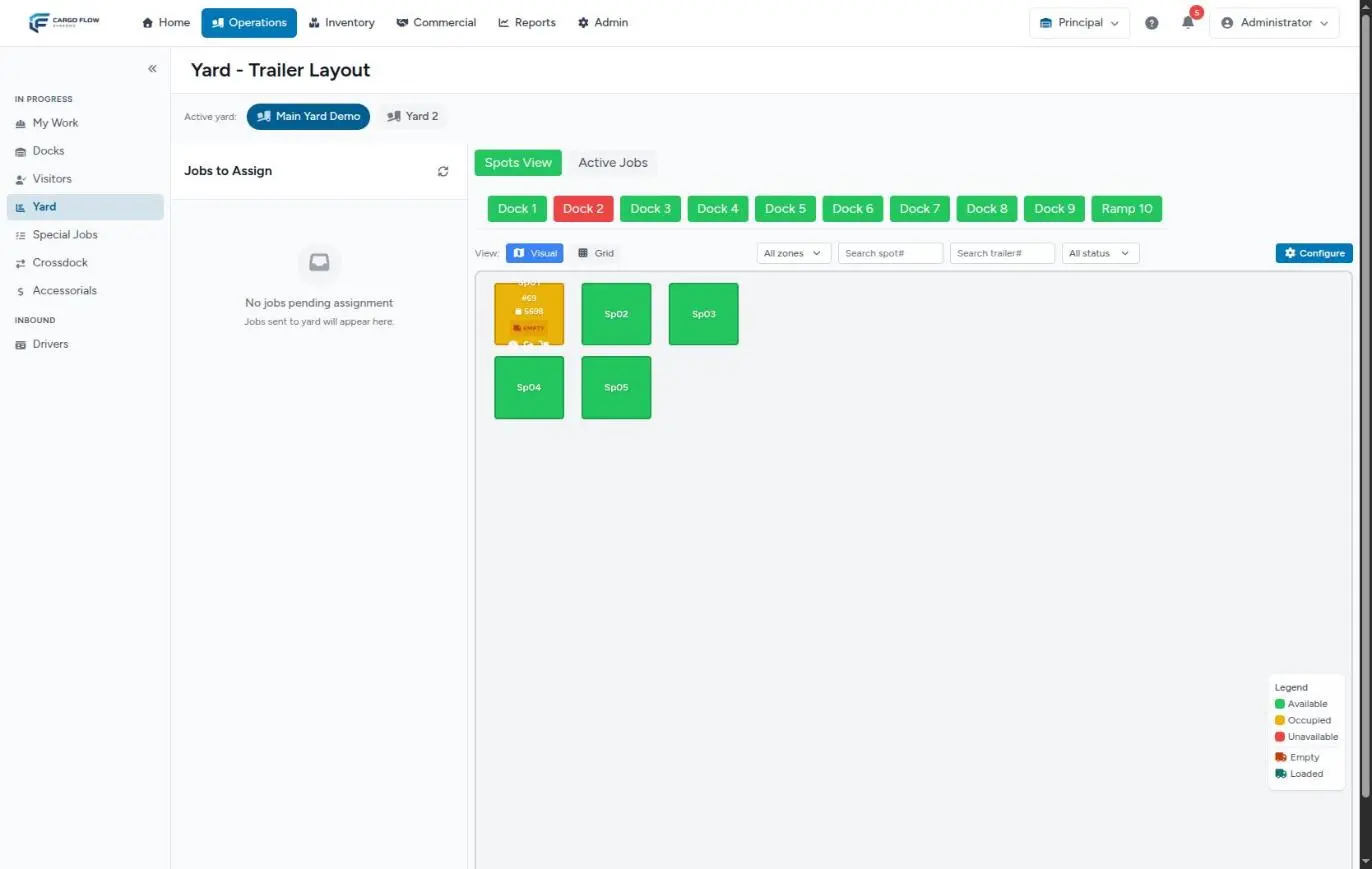
The hand-off map
| From | To | How | What happens to the dock job | What happens to the driver |
|---|---|---|---|---|
| Dock | Spot | Send to Yard › Assign to Spot | Stays Work Finished until the move starts; then it is completed | Checked out when the move starts |
| Dock | Yard, no spot | Send to Yard without a spot | Pending Yard; the trailer stays at the dock | Checked out immediately |
| Kiosk | Spot | Yard Drop Off and drag to a spot | Job on the yard's special dock, with a spot | Still counts as on site (see the warning below) |
| Spot | Spot | Drag to another spot | No change; the spot changes | — |
| Spot | Dock | Drag to the dock or Send to Dock for Loading | If still open, back to Assigned at the new dock; if already closed, a new job is created | — |
| Yard | Dock (correction) | Move to dock management | Assigned at the dock and with the type you choose; its moves are cancelled | — |
| Spot | Exit | Match Yard Pickup, or Quick Release | Completed | Checked out |
| Two dock jobs | One cross-dock | Create cross-dock on the board | The two originals are absorbed; a single job is created | The outbound driver is checked out on finish; the inbound one, on release |
From the dock to the yard
When the operator finishes and answers No, Trailer Stays, the job goes to Work Finished with the trailer marked empty (delivery) or loaded (pickup). The supervisor clicks Send to Yard and Send Trailer to Yard opens:
- Assign to Spot — pick the yard, the spot and, optionally, who moves it. The spot is reserved at once and a Dock to Spot move is created in the yard queue. When yard staff start it, the dock job is completed and the driver checked out; when they finish, the trailer is in the spot.
- Send to Yard without a spot — the job goes to Pending Yard, the driver is checked out right then and the trailer shows up in Jobs to Assign in the yard. The dock stays busy until someone gives it a spot and moves it.
If the driver has extended notifications, they get a message with the spot. See The driver, from arrival to departure.
While it is in the yard
- The spot is taken when the move is created, not when it finishes: nobody else uses it while the trailer is on its way.
- A trailer has only one active move. If you create another, the previous one is cancelled and its spot freed.
- With nobody assigned, the system offers to create the move as waiting, to just take or free the spot and dock (recorded as already done), or to go back and choose someone.
- Whoever moves it sees it in My Work before any other job, with START YARD JOB and FINISH YARD JOB (finishing requires at least one photo).
- Special jobs (washing, fumigating, restacking a trailer) are created separately and take a place in the same worker queue. See Special jobs.
Every day the system frees spots left occupied with no trailer behind them, as a safety net.
From the yard back to a dock
Drag the occupied spot to a dock in the top row, or use Send to Dock for Loading on a spot with an empty trailer. A Spot to Dock move is created. What happens to the dock job depends on whether it was still open:
| The original job… | What the system does |
|---|---|
| Was still open (Pending Yard or Work Finished) | Sets it back to Assigned at the new dock. |
| Was already Completed or Cancelled | Asks for the Job Type at Dock (load by default) and creates a new job with an internal driver record copying the original driver's details. |
When the move starts, the origin spot is freed; when it finishes, the trailer is at the dock and the job follows its normal cycle. From there you link the shipment that will be loaded, as in From order to departure.
The correction: Move to dock management
If a job ended up in the yard by mistake, in its details on the yard screen, under Corrective actions, Move to dock management cancels its yard moves, frees its spots and leaves it Assigned at the dock (it must be a real dock, not the yard's) and with the type you choose.
From the yard to the exit
A driver coming for a trailer signs in as Yard Pickup and appears in Jobs to Assign. With the match button on their card (Match Yard Pickup) you pick the trailer and click Confirm Match. A Spot to Exit move is created: if someone moves it, it enters the queue; if not, it is applied at once: the spot is freed, the job closed and the driver checked out.
If the trailer already left without a record, Quick Release on the spot frees it.
Cross-dock: a delivery and a pickup in one job
A cross-dock joins two dock jobs —the delivery bringing the goods and the pickup taking them— into a single job for the operator. It is created on the dock board with the two-arrows button.
What has to be true
- One delivery and one pickup (or load), both Assigned (not started), at real and different docks.
- The customer the paperwork is issued to and who is billed. If the jobs belong to different customers, the system asks you to confirm; if an already linked document belongs to another customer, it will not let you continue.
- The pickup's shipment cannot have a live allocation against floor stock: a cross-dock only ships what comes in through its receipt.
What happens on save
- The cross-dock is created with its own number (for example CD-2026-000006) and a single dock job of type cross-dock, at the inbound dock, with the inbound driver and the chosen worker.
- The two original jobs are absorbed and disappear from the boards. Their accessorials move to the new job.
- The delivery's receipt is adopted (or a Pending one is created) and the pickup's shipment is adopted (a draft becomes Confirmed) or an empty Confirmed one is created.
- In the FIFO View, the outbound dock shows a read-only row saying which dock the load comes in through.
How the goods pass through
The operator starts the job: unloading and loading begin together. They capture what comes off (usually at the staging location XD-STAGE), record what goes on and take at least one Unload photo and one Load photo. On finishing, the cross-dock becomes Completed and the outbound driver is checked out; the inbound one is checked out when the dock is released.
With the receiving and shipping modules, a supervisor closes both halves from the cross-dock screen: confirm the receipt (the goods enter XD-STAGE and the system fills and allocates the shipment with what was actually received) and close the shipment (they leave XD-STAGE). On close, the cross-dock becomes Closed. Without those modules, the system confirms and ships by itself when the job finishes.
Billing: the inbound half is not billed for handling; the outbound half is billed as cross-dock handling if the customer has it in their rate card (otherwise as outbound handling), and there is no storage. To cancel it, cancel its job on the board, and only while the receipt has no capture; the two original jobs go back to Assigned. See Tracking a cross-dock.
Who can make each move
| Move | Who |
|---|---|
| Send to Yard (with or without a spot), Release, Cancel Job, Move to dock management | Only the supervisor, admin or super admin roles. Move to dock management also needs Write Docks. |
| Create moves, drag, match, Quick Release | Write Yard (supervisor, admin). |
| Start and finish a move | The assigned person, from My Work. |
| Create a cross-dock and close its halves from its screen | Create Crossdock Jobs (supervisor, admin). |
| View cross-docks | View Crossdock (the worker too). |
Example: a trailer that spends the night in the yard
- Tuesday 17:30 — Luis Pérez finishes unloading Northern Trading Co.'s trailer 45120 at Dock 3 and answers No, Trailer Stays: Work Finished, trailer empty.
- 17:35 — Ana López clicks Send to Yard and picks spot Sp02 and Carlos Ruiz from the yard. Sp02 is taken and a Dock to Spot move is created.
- 17:40 — Carlos taps START YARD JOB: the dock job is completed, the driver checked out and Dock 3 freed. He moves the trailer, takes the photo and finishes: the trailer is in Sp02.
- Wednesday 9:00 — Valley Distributors wants that trailer loaded with its order. Ana drags Sp02 to Dock 6. Since the original job was already completed, the system asks for the type (load) and creates a new job with an internal driver record.
- 9:10 — Carlos moves the trailer; Sp02 is freed when he starts, and when he finishes it is at Dock 6. Ana links the shipment to the new job and Luis loads.
- 11:00 — Valley Distributors' driver arrives as Warehouse Pickup; Ana releases the job with the loaded trailer and the driver takes it.
What can go wrong at each hand-off
"The destination spot is not available".
Another move reserved that spot while your window was open. Pick another.
The dock is still busy although the trailer is in the yard.
You sent it without a spot (Pending Yard): it still needs a spot and a move.
Send to Yard and Release do not appear.
Your user has neither the supervisor nor the admin role, or the job is not Work Finished.
The cross-dock will not let me pick a job.
It is not Assigned, it has started, it is in the yard, or it is at the same dock as the other.
The cross-dock is not created: the shipment has a live allocation.
Release the shipment's allocation from its screen and try again.
The cross-dock cannot be cancelled.
The receipt already has a capture or is confirmed. Cancel or correct the receipt and the shipment first.
The yard person cannot finish.
The photo is missing, or the move is not assigned to them.
Good practices
- Send to the yard with a spot whenever you can: without one, the dock stays busy.
- Assign who moves each trailer; waiting moves get forgotten.
- Before sending a trailer back to a dock, have the shipment or receipt ready to link to the job.
- In a cross-dock, check the customer and assign a worker: without a worker it shows up for nobody.
- Confirm the receipt and close the shipment of a cross-dock on the same day.
Frequently asked questions
Why is the dock still busy if I sent the trailer to the yard?
Because the trailer is physically still there. With a spot, the dock is freed when yard staff start the move; without one, when someone assigns a spot and moves it.
Why did a new job appear when it went back to a dock?
The original job was already closed, so the system opens a new one with an internal driver record. That record also shows up in the driver log.
Does a cross-dock touch inventory?
Yes, in passing: the goods enter XD-STAGE when the receipt is confirmed and leave when the shipment is closed. XD-STAGE is not pickable and accrues no storage. See The life of stock.
How do I undo a cross-dock set up by mistake?
Cancel its job on the dock board before the receipt is captured. The cross-dock is cancelled and the two original jobs go back to Assigned, at the end of their worker's queue.
Need help?
If something did not work as expected, our support team can help you.
Was this article helpful?