Customer emails and reports
Summary
Under Commercial › Clients › (client) › Notifications you decide which emails reach that customer and which people at its company get them. Everything here is per customer: each one can receive different things, in its own language.
These emails cost nothing extra and do not depend on the messaging module. If you are looking for internal alerts for your staff or messages to the driver’s phone, see The notification systems. The full view of what the customer receives (portal, emails, reports and KPIs) is in What the customer sees and when.
Before you start
- Permission: Configure Clients (Admin and Superadmin).
- Contacts with email: recipients are chosen among the customer’s contacts that have an email. Create them first on the Contacts tab.
- Modules: receipt confirmed needs receiving; shipment shipped, shipping; daily inventory, inventory; the monthly scorecard, KPIs; invoices, billing. What the warehouse lacks simply is not sent (and some checkboxes and buttons do not appear).
- Warehouse: the «Send now» buttons use the warehouse selected at the top.
Which emails the customer receives
| When it goes out | What controls it | |
|---|---|---|
| Receipt confirmed | The first time the warehouse confirms one of its receipts. | The Email channel and the recipients. |
| Shipment shipped | When one of its shipments is closed. | The Email channel and the recipients. |
| Daily inventory | Once a day, with its stock and yesterday’s movements, as PDF and Excel. | The daily report checkbox and the recipients. |
| Monthly KPI scorecard | Once a month, with the closed month’s KPIs as PDF and Excel. | The monthly scorecard checkbox and the recipients (only with the KPIs module). |
| Invoice sent | Only when someone clicks «Send by email» on an invoice and confirms. | «Allow sending invoices by email», the Email channel and the recipients. |
The daily inventory and the monthly scorecard have their own article: The daily inventory and the monthly KPI scorecard.
Setting up the tab step by step
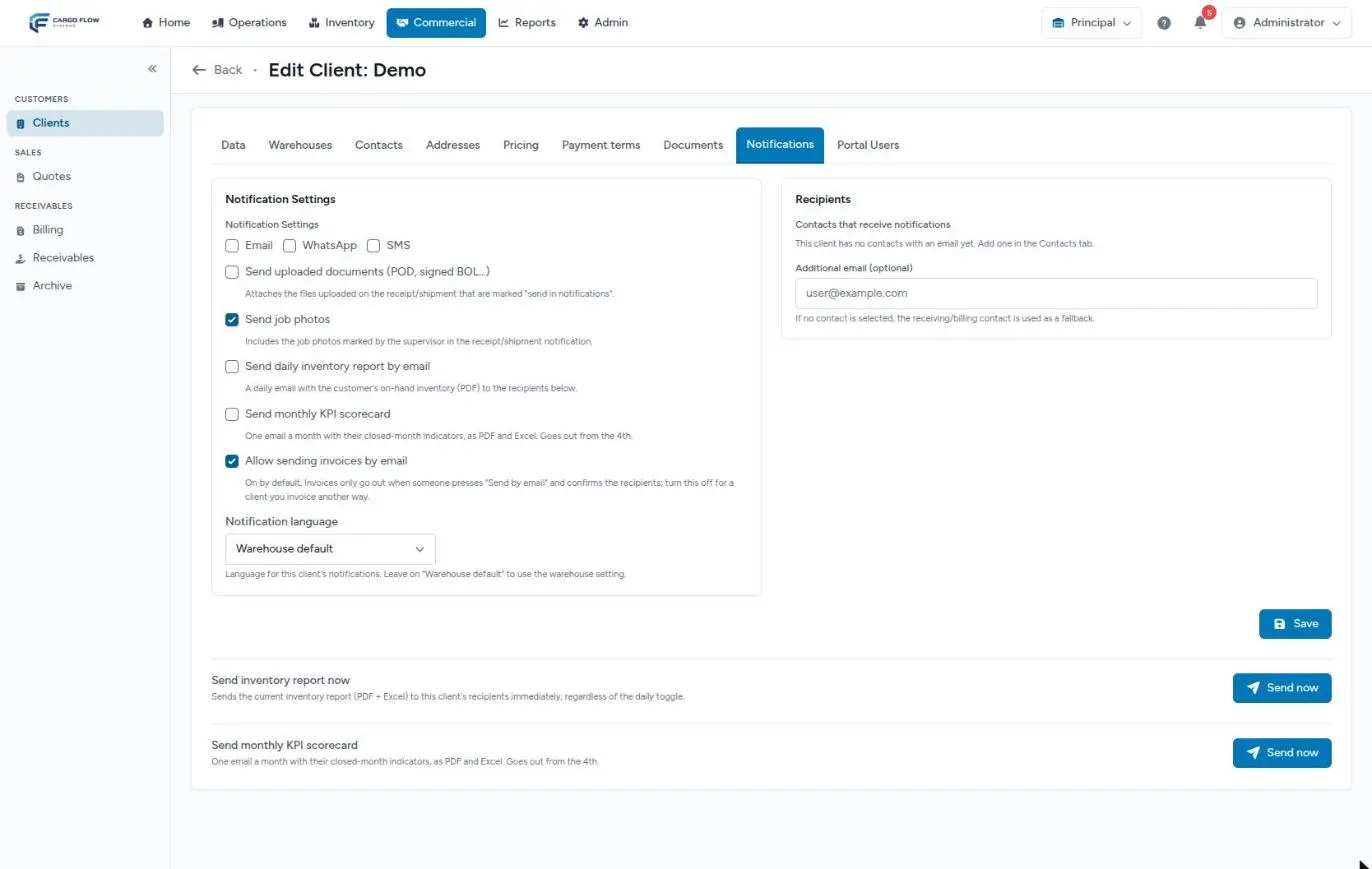
- First create the contacts on the Contacts tab, with their email. Without contacts with email, the Recipients block reads «This client has no contacts with an email yet. Add one in the Contacts tab.»
- Tick the Email channel.
- Switch on the checkboxes for what you want to send.
- Choose the language.
- Tick the recipients and, for each, whether they get everything or only some emails.
- If needed, type an additional email.
- Click «Save». The tab reloads with the green message «Notification Settings».
- Test: click «Send now» for the inventory and confirm with the customer that it arrived.
Channels
At the top there are three checkboxes: Email, WhatsApp and SMS. Only email works today.
The checkboxes
| Checkbox | Starts | What it does |
|---|---|---|
| Send uploaded documents (POD, signed BOL…) | Off | Attaches to the receipt or shipment email the files staff uploaded to that operation and left marked to be sent (proof of delivery, signed bill of lading). Files the customer uploaded from its own portal are not sent back to it. The whole email carries at most 15 MB of attachments; anything that does not fit is left out. |
| Send job photos | On | Includes in the receipt or shipment email the dock job photos the supervisor left marked. With this on, new photos start marked and the supervisor unmarks what they do not want. Each receipt or shipment can override it for that operation under «Photos in the notification». |
| Send daily inventory report by email | Off | A daily email with its inventory (PDF and Excel). |
| Send monthly KPI scorecard | Off | An email a month with the closed month’s KPIs, as PDF and Excel. Goes out from the 4th. Only appears with the KPIs module. |
| Allow sending invoices by email | On | Lets billing email invoices to it. Turn it off for a customer you invoice another way, so nobody emails it an invoice by mistake. |
Language
Notification language has three options. The first uses the warehouse default language (set by the superadmin in the warehouse settings); if the warehouse has none either, emails go out in English. The other two force English or Español for this customer, whatever the language of whoever is working. The language applies to all its emails: receipts, shipments, inventory, scorecard and invoices.
Recipients
In the Recipients block, under «Contacts that receive notifications», you see the customer’s contacts that have an email, with name, email and type. Tick those who should receive notices.
Below is Additional email (optional) for an address that is not a contact, such as a shared mailbox. That address receives everything. It must be a valid email.
«All notifications» or «Only these:»
Ticking a contact reveals two options:
- All notifications: receives every type.
- Only these:: choose among Receipt confirmed, Shipment shipped, Daily inventory, the monthly scorecard and Invoice sent. That way traffic gets receipts and shipments, and accounts payable only invoices.
clients.notifications.types.monthly_scorecard, instead of a name. That is the one: tick it if the person should get the monthly KPI scorecard. If you pick «Only these:» and leave it unticked, that person does not get it.The fallback when you choose nobody
If you tick no contact and type no additional email, the system looks for a fallback contact. In practice that fallback is the Billing contact (the primary, if there are several). An Operations contact never receives as fallback, and the Data tab email is not used either. If the customer has no Billing contact and you choose nobody, nothing is sent, with no error.
Another detail: if you did choose recipients but none of them accepts a given email type, that email goes to nobody. The system does not fall back, because that would re-add someone you excluded on purpose.
The «Send now» buttons
Below the form there are two manual sends:
- Send inventory report now: immediately sends the current inventory as PDF and Excel to the recipients, even if the daily checkbox is off. Only appears if the warehouse has the inventory module.
- Send monthly KPI scorecard: sends the closed month’s scorecard right away. Only appears with the KPIs module.
Both use the warehouse you are working in and are logged: if you send the inventory by hand today, today’s automatic send no longer repeats it; if you send the scorecard, that month’s automatic one does not either. The button is disabled while sending: do not click twice.
When each email goes out
- Receipt confirmed: when the receipt is confirmed for the first time. Emails are queued, so they may take a few minutes. To send it again, use the resend button on the receipt.
- Shipment shipped: when the shipment is closed. It can also be resent from the shipment.
- Daily inventory: the system checks every hour. From the warehouse’s configured time (7:00 local if nobody changed it), it sends to customers that have not received it that day yet.
- Monthly scorecard: every day at 6:00, from the 4th, to customers that have not yet received last month’s.
- Invoice: only when someone sends it. See Send and print invoices.
What each email contains
| Subject | Content | |
|---|---|---|
| Receipt confirmed | «Receipt … confirmed — your goods are now in stock» | The received items with Expected, Received and Damaged; a notice if there were discrepancies; notes; photos and attachments according to the checkboxes; and, if any recipient is a portal user with access, a button to view the detail online. |
| Shipment shipped | «Shipment … has shipped» | The destination, the ordered and shipped items, photos and attachments according to the checkboxes. |
| Daily inventory | «(warehouse) — Inventory & Transactions report (date)» | A summary of yesterday with the PDF and Excel attached. |
| Monthly scorecard | The month’s scorecard | The month’s KPI cards, as PDF and Excel. |
| Invoice | «Invoice …» | The amount, the detail and the PDF with its supporting documents. |
Example: Northern Trading Co.
Northern Trading Co. has three contacts with email: Luis Pérez (Operations), Carlos Ruiz (Billing) and Ana López (Sales).
- Only the Email channel is ticked, the daily inventory and monthly scorecard are switched on, and the language is English.
- Luis: «Only these:» Receipt confirmed, Shipment shipped and Daily inventory.
- Carlos: «Only these:» Invoice sent and the monthly scorecard checkbox.
- Ana: not ticked.
- Additional email: the mailbox
user@example.comof the customer’s own warehouse.
Result: on Tuesday at 7:00 Luis and the mailbox get the inventory; when an 18-pallet receipt is confirmed, Luis and the mailbox get the notice; on the 4th, Carlos and the mailbox get August’s scorecard; Ana gets nothing.
Messages you may see
| Message | Meaning |
|---|---|
| «Inventory report sent to N recipient(s).» | The manual send went out. |
| «No recipients configured for this client. Add a contact with an email or select recipients above.» | Nobody to send to: no chosen recipients, no additional email, no Billing contact. |
| «This client has no recipients configured for the scorecard.» | The same, for the monthly scorecard (or nobody has that type ticked). |
| «The inventory report could not be sent. Please try again or check the logs.» | The send failed (the same text shows if the scorecard failed). Try again in a few minutes; if it repeats, tell support. |
| Error on the additional email | It is not a valid email. |
Best practices
- Always choose recipients by hand. Do not rely on the fallback.
- Keep only the Email channel ticked.
- Use «Only these:» so each person gets what is theirs, and check the monthly scorecard box.
- Click «Send now» for the inventory after setting up: it proves everything arrives.
- Turn off «Allow sending invoices by email» for customers billed another way.
- Review this tab whenever the customer’s staff changes.
Troubleshooting
The customer says receipt emails are not arriving.
- Is the Email channel ticked? If only WhatsApp or SMS are ticked, email is off.
- Are recipients ticked, and do they accept «Receipt confirmed»?
- With no recipients, is there a Billing contact with an email?
- Had the receipt been confirmed before? The automatic one only goes out the first time; use resend.
- Ask the customer to check their spam folder.
«Send now» says there are no recipients.
- No chosen contacts, no additional email and no Billing contact. Tick at least one and save before sending again.
The monthly KPI scorecard checkbox and button are missing.
- The warehouse does not have the KPIs module contracted and active.
Today’s daily inventory did not arrive.
- Check the daily checkbox is on and saved, that the warehouse send time has passed and that the customer has goods or had activity yesterday. Meanwhile, use «Send now».
The email arrives without attachments.
- Is «Send uploaded documents» on? Is the file marked to be sent? Are the attachments over 15 MB together?
Emails arrive in the wrong language.
- The language follows the warehouse and the warehouse has none set. Choose the language on this tab.
Frequently asked questions
Can the customer get these by WhatsApp or SMS?
Not yet. The checkboxes exist on screen but are not connected. The phone messages that do work are for drivers and visitors; see Set up SMS and WhatsApp.
Do invoices go out on their own?
No. An invoice only goes out when someone clicks Send by email on it and confirms the recipients in the dialog. The checkbox on this tab only allows or blocks that send. The internal invoice copy for your team is set up separately, in Warehouse notifications and email.
Can I send a receipt email again?
Yes, from the receipt or shipment itself, with the resend button. If there is nobody to send to you see «Could not send: the client has no contact with email, or email notifications are disabled.»
Need help?
If something did not work as expected, our support team can help you.
Was this article helpful?