Warehouse reports
Overview
These are the reports about goods and money: what is in the warehouse, what came in, what went out and what was invoiced. They all live under Reports, filter by customer and dates, and download to Excel or PDF. The gate and yard reports (driver log, docks, yard, visitors) and the audit log have their own articles; how filters and downloads work in general is in Filter and export reports.
Before you start
| Report | Module needed | Permission | By default |
|---|---|---|---|
| Inventory Reports | Inventory | Read Inventory Reports | Admin and super admin |
| Daily Warehouse Receipt List | Receiving | Read Receipt Reports | Admin and super admin |
| Daily Shipment List | Shipping | Read Cargo Release Reports | Admin and super admin |
| Daily Transactions Report and Invoice Report | Billing | Read Billing Reports | Admin, super admin and accounting |
Supervisor and worker have none by default. Your company may have changed these in the role matrix; see Roles and permissions. If a card is missing, check the active warehouse first: each warehouse turns on its own modules (see Modules, permissions and access).
The report list
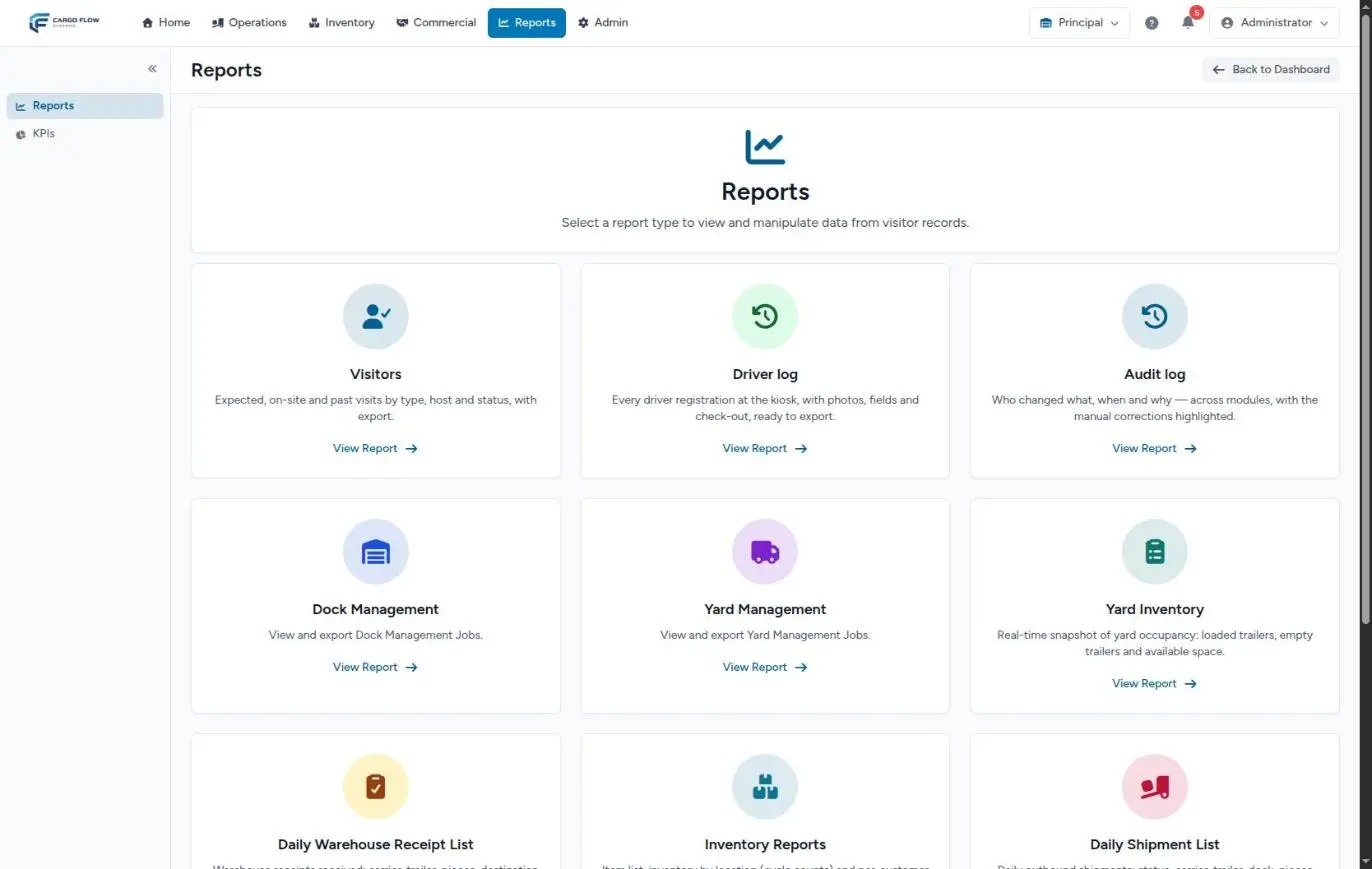
Click Reports in the top bar. Each card opens with View Report; Back to Dashboard returns to the home dashboard. Cards appear in this order: Visitors, Driver log, Audit log, Dock Management, Yard Management, Yard Inventory, Daily Warehouse Receipt List, Inventory Reports, Daily Shipment List, Daily Transactions Report and Invoice Report.
The subtitle under the heading (about visitor records) predates the warehouse reports; it does not mean there are only visit reports.
Common rules
- Active warehouse: every report shows only the warehouse you are in.
- Filters: customer, from and to dates. Choose and click Apply Filters; Reset clears them. Filters stay in the page address, so you can bookmark or share it.
- Downloads follow the filters: the file has everything filtered, not just the page you see.
- Dates: days are cut in the warehouse time zone. If the end date is before the start date there is no error: the list comes back empty.
- Imported history: receipts, shipments and transactions also include what was migrated from the previous system.
Inventory reports
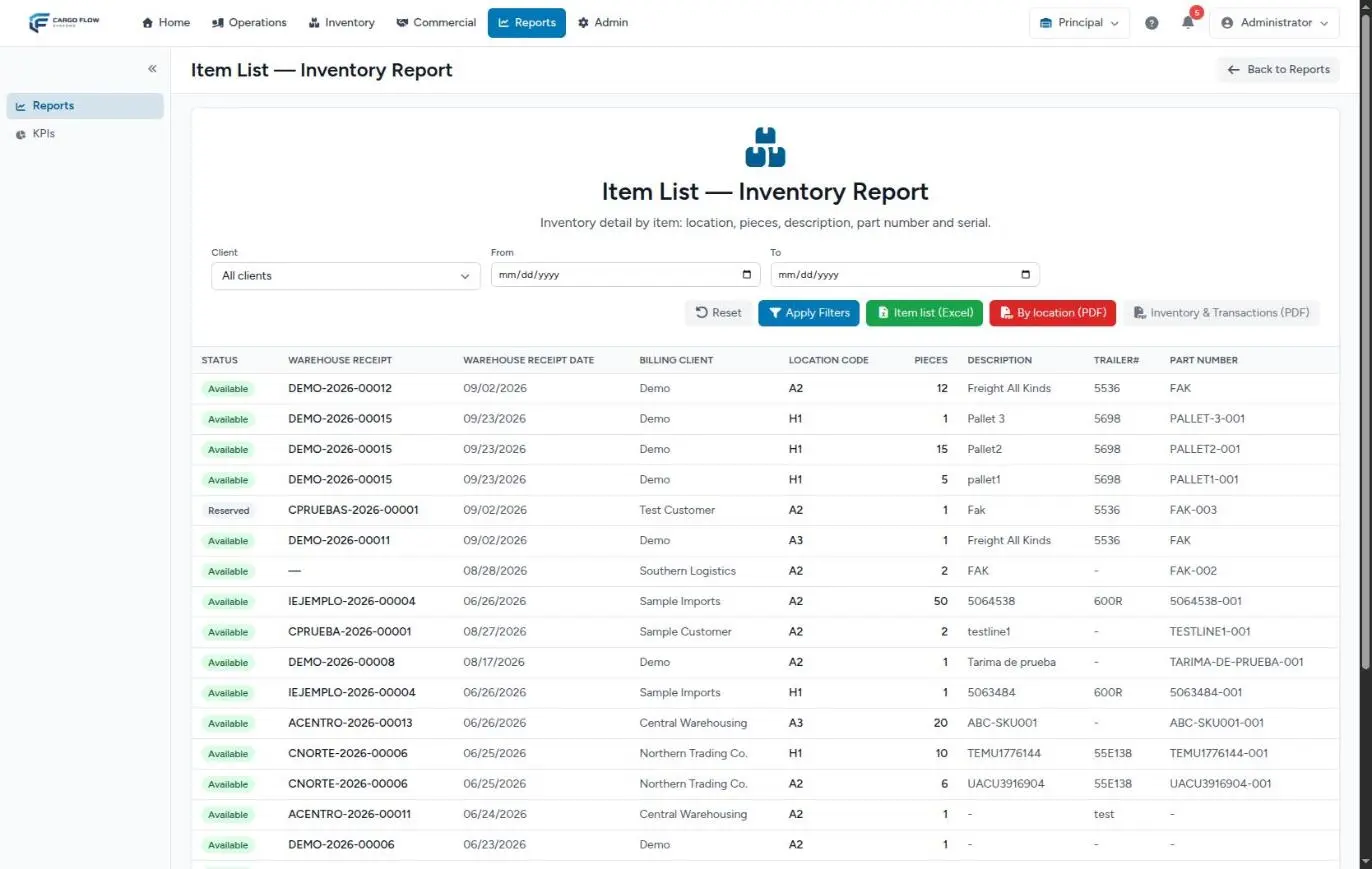
The screen is called Item List — Inventory Report and has three downloads.
Item list
A snapshot of what is on hand right now: one row per stock line with pieces, 50 per page, most recently moved first.
- Status — the line’s main state: available, reserved, on hold, damaged, quarantine, in transit, quality inspection, returned goods or pending disposal. See Change inventory status.
- Warehouse receipt and receipt date — the source receipt. For migrated stock, the date is the initial load date.
- Billing customer, location code, pieces, description, box number and part number. The last two only show on wide screens.
With no dates it shows all current stock. With dates it filters by each line’s last movement, not by receipt date: it answers "what moved this week", not "what arrived this week".
The item list Excel has the full table plus carrier, final destination and serial.
Inventory by location (PDF)
The by-location PDF is a letter-size sheet titled inventory by location for cycle counts: grouped by location code, with how many lines each location has, their pieces, a subtotal per location and the grand total. It follows the customer and date filters. It is made to print and count on the floor; see Cycle counts.
Inventory & Transactions
The typical report to send the customer. It is enabled like this:
- Choose a customer in the customer filter.
- Click Apply Filters. Before applying, the PDF button is greyed out with a hint to select a customer, and the Excel button does not appear.
- Click the Inventory & Transactions PDF or Excel button.
It has three parts:
- Current stock for the customer, with available and reserved pieces. It follows the inventory report mode setting on the customer record: by warehouse receipt (one line per receipt) or by SKU with the total quantity (one line per product).
- Yesterday’s receipts — receipts confirmed yesterday, warehouse day.
- Yesterday’s shipments — shipments that left yesterday.
Daily receipt list
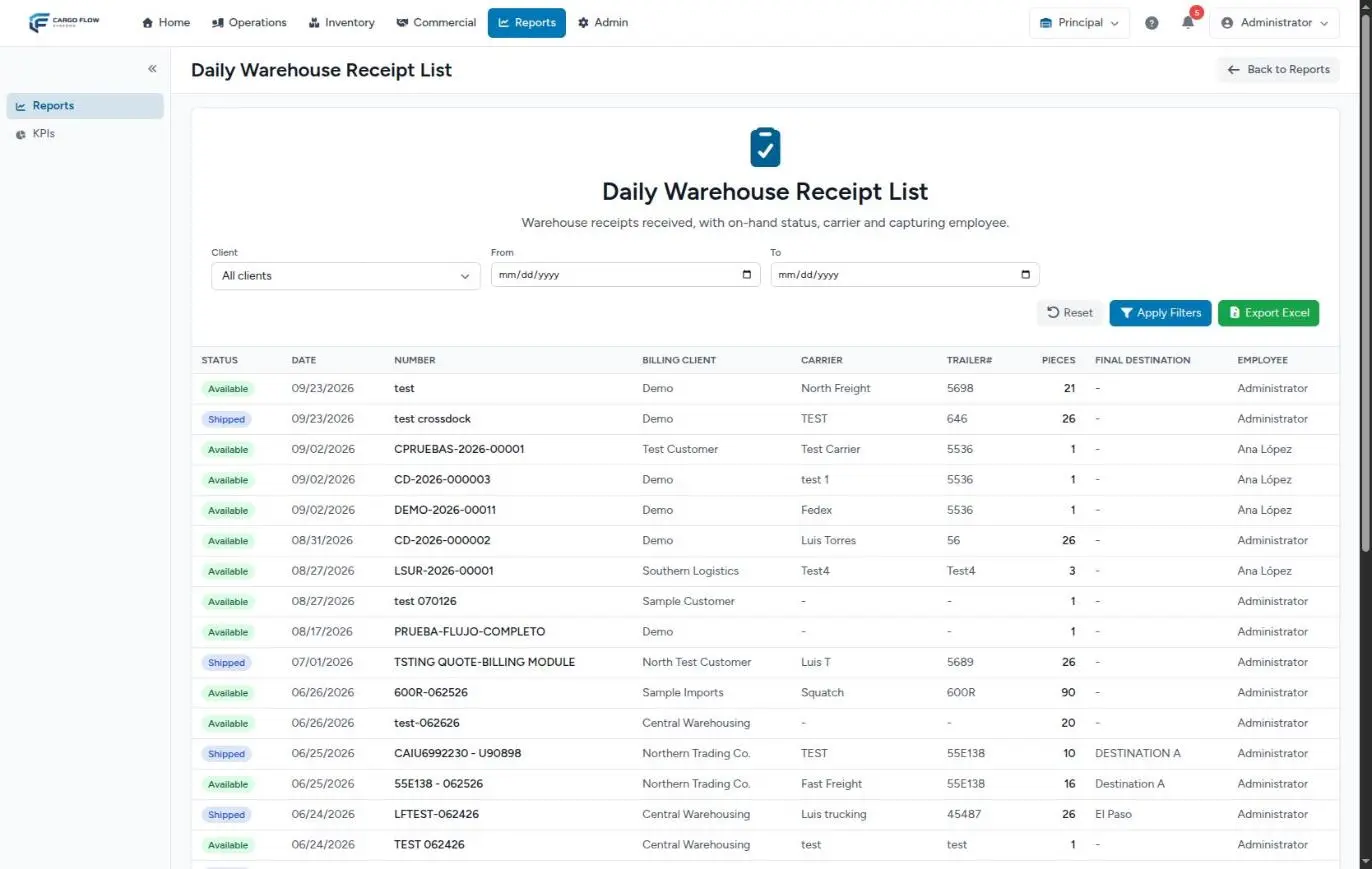
Lists confirmed receipts, newest first, 30 per page. Dates filter by confirmation day (migrated ones by their document date); with no dates it shows them all.
- Status: Available if some goods from that receipt are still on hand; Shipped if all have left (calculated first in, first out).
- Number: the receipt reference if it has one; otherwise its document number.
- Columns: date, number, billing customer, carrier, box, pieces, final destination and the employee who captured it.
- Export Excel also includes the notes.
Pending, in-capture or captured-but-unconfirmed receipts do not appear; see them under Inventory › Receipts. See Capture and review.
Daily shipment list
Lists shipments from confirmation until departure, 30 per page. Drafts and cancelled ones are excluded.
- Status: In-process (confirmed or with stock allocated), Loading or Shipped.
- Columns: release date, number (the reference, else the external reference, else the document number), released to (the customer who owns the goods), pieces, carrier, box, dock and whether it is settled.
- Dates: filter by ship date; if it has not left, by requested date; if none, by creation date.
- Download: Export Excel.
A shipment’s full journey is in From order to departure.
Daily transactions report
One row per invoice, 30 per page: invoice number, date, month, customer, transaction number, reference, up to three services (name, quantity and amount) and the total with its currency. If there are more than three services, the row says how many more.
- Period with no dates: the last 30 days by invoice date.
- Excel: adds the week, shows the month abbreviated, and repeats name, quantity and amount for each of the three services.
Invoice report
One block per invoice, 20 per page, with one row per service: invoice number, date, customer, the source document (shipment or receipt, linked), the reference (order, proof of delivery, bill of lading), the service, its amount and the invoice total.
- Period with no dates: the last 30 days by invoice date.
- Excel: one row per service with the invoice data repeated on each row; the invoice total appears only on each invoice’s first row, and it adds the currency.
The daily report emailed to the customer
The Inventory & Transactions report can also reach the customer automatically every morning:
- On the customer record, notifications tab, turn on the daily inventory report email.
- The time is set by the super admin per warehouse in the daily inventory report hour (7:00 a.m. warehouse time by default).
- The email goes out once a day, with both the PDF and the Excel attached, to customers who have stock on hand or had activity yesterday. Although the switch’s help text mentions only the PDF, both files are sent.
- The Send now button on that tab sends it immediately, even with the switch off.
See Emails and reports to the customer and What the customer sees and when.
Example: month-end for one customer
Carlos Ruiz, in accounting, closes September for Valley Distributors:
- In the Daily Warehouse Receipt List he filters the customer and September 1 to 30: 42 receipts, 3,180 pieces. He downloads the Excel.
- In the Daily Shipment List, same filters: 57 shipments, 2,940 pieces.
- In Inventory Reports, with the customer and no dates: 1,625 pieces on hand today. He downloads the item list.
- In the Invoice Report, customer and September 1 to 30: 14 invoices. He checks none is voided or a draft before adding them up.
If today’s stock does not equal receipts minus shipments, the difference is usually in adjustments or transfers: look for them in stock history. For where each charge comes from, see Where each charge comes from.
Good practices
- For month-end always set both dates; do not rely on the default 30 days.
- Use the by-location PDF for counts: it follows location order.
- Set each customer’s inventory report mode before sending their first report.
- Do not fix data in the downloaded Excel: fix the document in the system and download again.
Troubleshooting
A receipt I just captured is not in the receipt list.
- Only confirmed receipts appear. Confirm it and reload the report.
The inventory report does not match the date I filtered.
- Dates filter by each line’s last movement, not by receipt date. For the full picture, leave the dates empty.
The Inventory & Transactions button is grey, or the Excel one is missing.
- Choose a customer and click Apply Filters. Picking it in the list is not enough.
The Inventory & Transactions report ignores my dates.
- Expected: it always shows current stock and yesterday’s movements.
The list comes back empty after setting dates.
- Check that the end date is on or after the start date. The system does not report the error; it just returns an empty list.
Transactions from two months ago are missing.
- Transactions and invoices default to the last 30 days. Set the dates you need.
The invoice total in the report does not match collections.
- The report includes drafts and voided invoices. Remove them before comparing.
I don’t see a report card.
- You lack its permission or its module is off in the active warehouse.
FAQ
Can my customers see these reports?
Not from here. In their portal customers see their stock, receipts, shipments and indicators (see Stock and KPIs in the portal). They can also get the Inventory & Transactions report by email every morning.
Can I schedule a report by email?
Only two: the daily inventory report to the customer (above) and, if the warehouse has KPIs, the monthly KPI scorecard to the customer. Internal reports cannot be scheduled: download them when you need them.
Do voided invoices show up in the reports?
Yes, in both billing reports, as do drafts. Check the status before adding up.
Need help?
If something did not work as expected, our support team can help you.
Was this article helpful?