Capture an accessorial
Overview
The accessorial is recorded where the work happened and when it happened: the operator when finishing their dock job, the supervisor from the receipt, shipment, cross-dock or job. The same window serves everyone.
Before you start
- Accessorials module enabled in the warehouse.
- Capture Accessorials permission (Super Admin, Admin, Supervisor, Worker). Capturing on a document without a dock job requires Configure Accessorials (Super Admin, Admin, Supervisor).
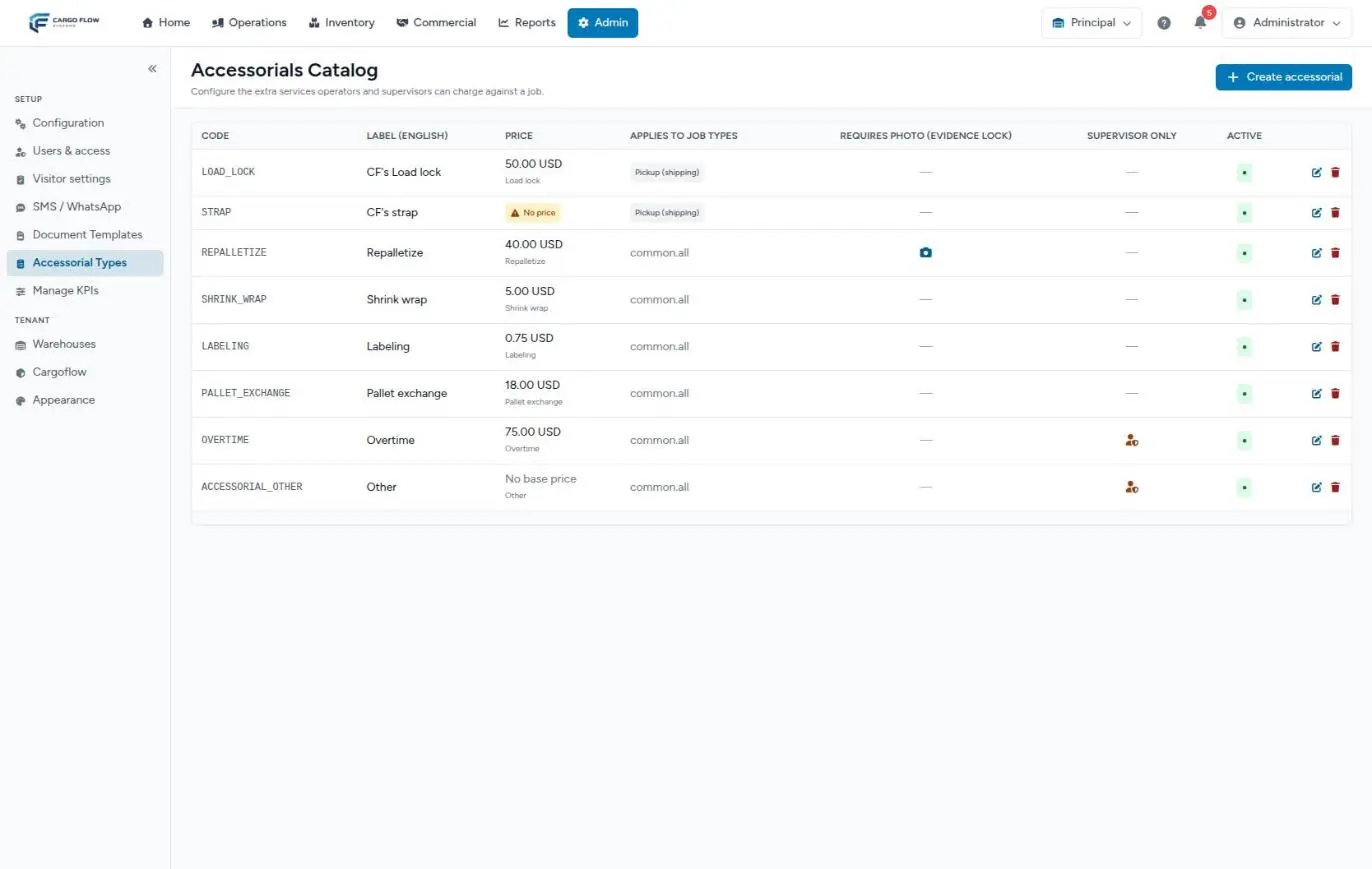
- The accessorial must exist, be active and apply to that job type. See Accessorials and extra charges.
From the operator app
- When they tap to finish the job, the close window asks “Any accessorials to add?” (“Overtime, extra handling, etc. — add them now; this is the last chance before the job closes”).
- Tap Add accessorial. The capture window opens with the accessorials that apply to that job type.
- Capture one or more and tap Done. Then finish the job.
The operator can only capture on their own job and doesn’t see supervisor-only accessorials. See The operator app.
From the receipt, the shipment or the job
- Open the detail of the receipt (or its review), the shipment, the cross-dock or the dock job.
- Find the Accessorials panel (“Extra services incurred on this job”) and click Add accessorial.
- Capture in the window and save.
If the document has a dock job, the accessorial is linked to it. If not, it is linked directly to the receipt or shipment; that capture is supervisor-only.
The capture window: field by field
- Service / accessorial — search the catalog or filter by category. Supervisors also see the rest of the warehouse’s services (except handling and storage). Change goes back to the search.
- Quantity — how many units (pallets, pieces, hours…). Required and above 0 if the accessorial requires a quantity; otherwise it is 1.
- Extra fields — if the accessorial asks for them; required ones cannot be left empty.
- Bill to client — appears when the job carries goods for several clients; choose whom to bill.
- Charge to — appears when the truck carries several documents: choose the document (“It goes on the same invoice as this document”) or The whole truck (“It gets its own invoice, separate from the documents”).
- Notes — whatever helps justify the charge (up to 1,000 characters).
- Click Save. What you captured appears under Added in this session and the window is ready for the next one. Click Done when finished.
Evidence photo
If the accessorial requires a photo, after saving the window moves to the evidence step: take or upload the photos. That step’s Save button stays disabled until you upload the configured minimum.
If you close the window without a photo, the accessorial is recorded —and its charge is created anyway— with the Evidence photo pending mark on the panel until someone uploads it. The operator job report flags it too. On the accessorials list, the camera icon shows it already has a photo.
What happens after saving
- Charge — created in Services to Invoice with the capture date, unless its shipment is still open: then it waits until the shipment is marked as shipped. See How charges are generated.
- Invoice — goes out on its document’s invoice, or on its own if charged to the whole truck. If that invoice already exists and is still open, it is added to it.
- Shipment close — the close window lists the accessorials applied.
- Cancelled shipment — its accessorials are not billed and the system tells you how many were left out.
Correct or delete an accessorial
From the same Accessorials panel of the document or job, each row has Edit and Delete.
- Edit changes quantity, extra fields, notes, the client and the document it is charged to. The pending charge updates on its own.
- Delete asks for confirmation (“Remove this accessorial?”) and removes the pending charge from Services to Invoice.
- The operator can only correct accessorials on their own job; those captured directly on a receipt or shipment can only be corrected by a supervisor.
The list of captured accessorials
Operations › Accessorials shows everything captured in the warehouse.
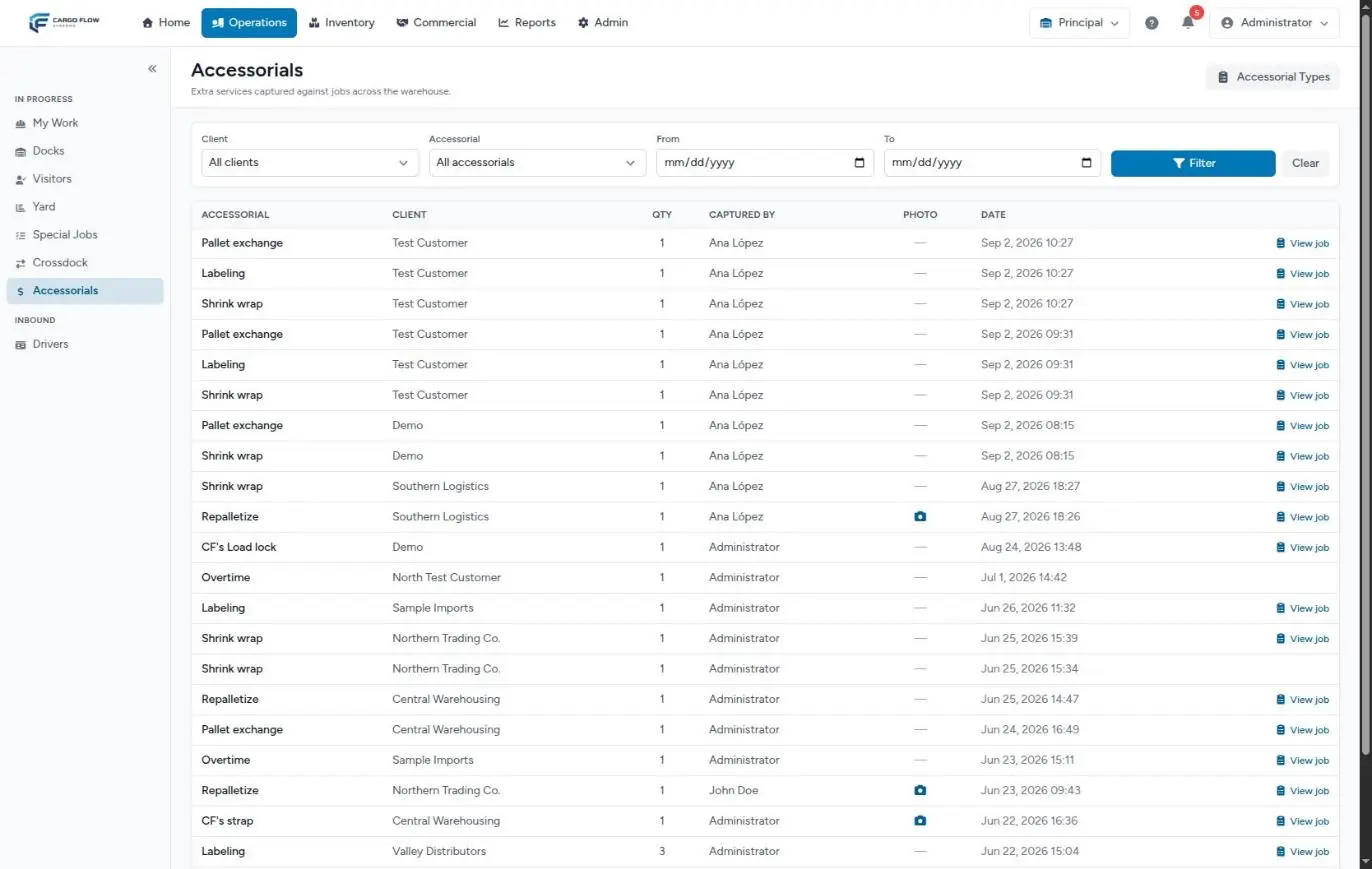
- Filters — client, accessorial, from and to; Filter and Clear.
- Columns — accessorial, client, quantity, captured by, photo (camera if it has one), date and a link to view the job (only when captured on a dock job).
The list is read-only: to correct, open the job or document.
Example: one truck with two shipments
A truck takes two shipments, one for Demo and one for Test Customer. During loading, the supervisor captures:
- Shrink wrap on 4 pallets, Charge to Demo’s shipment: it waits and goes out on that shipment’s invoice.
- 2 hours of overtime, Charge to The whole truck and Bill to client Demo: it waits for the truck’s last shipment and goes out on the truck’s own invoice.
If Test Customer’s shipment is cancelled and Demo’s ships, Demo’s charges are issued when Demo’s shipment ships.
Best practices
- Record the accessorial when the job ends, not “later”: what is left for later gets lost.
- Capture it on the right document; that decides which invoice it goes on.
- Take the photo even when not required: it backs the charge with the client.
- Review the accessorials list before the billing cutoff.
Troubleshooting
“You can only capture accessorials on your own job.”
- That job is assigned to someone else. Ask the supervisor to capture it.
“Only a supervisor can capture this accessorial.”
- The accessorial is marked supervisor-only.
“This accessorial does not apply to this job type.”
- In the catalog, the accessorial is limited to other job types.
“That document does not belong to this job.”
- The document chosen in Charge to is no longer on that truck. Reload and pick another.
The panel asks to link a dock job to record accessorials.
- The document has no linked dock job. A supervisor can capture it on the document.
I don’t see the Accessorials panel on the receipt.
- The accessorials module is not enabled, or the receipt has no dock job and your role is not a supervisor.
FAQ
Can an accessorial be added after the job is closed?
Yes, by a supervisor from the receipt, shipment or job detail. If that operation’s invoice is still open, the charge is added to it.
It was already invoiced and I deleted it — what happens to the invoice?
The line stays on the invoice. Remove it from the invoice choosing Void the charge.
Need help?
If something did not work as expected, our support team can help you.
Was this article helpful?