From order to departure: a shipment, end to end
Summary
In Cargoflow there is no separate sales order or picking order: the shipment is a single document that lives through the whole cycle. It starts as the customer's order, is confirmed, allocates stock at specific locations, is linked to the truck at the dock, the operator loads and verifies, and a supervisor closes it. The close is the key moment: it deducts stock, generates the BOL and packing list, records the charges, notifies the customer and, where applicable, their system.
This article follows one shipment from start to finish and stops at every hand-off between modules. The detail of each screen is in Shipment flow and the articles linked below.
Before you start
| What must exist | What for | Where |
|---|---|---|
| The shipping and inventory modules enabled | Without inventory the shipment closes as a record but deducts nothing; without billing no charges are created. | Cargoflow enables them. |
| Available stock for the customer | Only available, unexpired stock at pickable locations is allocated. | The life of stock |
| Docks and the docks module | To link the truck and let the operator load from the app. | Configuring docks and yard |
| The loading verification checklist (optional) | Required items block finishing the job. | The operator app |
| BOL and packing list templates in the warehouse | Without a template, the close does not generate those documents. | Manage templates |
| Outbound handling in the customer's rate card | Without that row, handling is not billed. | Customer rates |
| Contacts with email in the Notifications tab | For the shipment-shipped email. | Customer emails and reports |
The path in one table
| Step | Screen | Who (permission · default roles) | Shipment status |
|---|---|---|---|
| 1. Order | Inventory › Shipments › Create Shipment; portal; API; EDI | Create Shipments · supervisor, admin; or the customer | Draft or Confirmed |
| 2. Confirm and allocate | Shipment screen | Create Shipments | Reserved, partial or Confirmed |
| 3. Truck and dock | Operations › Docks, or the shipment's dock job card | Write Docks · supervisor, admin | No change (linked) |
| 4. Loading | My Work › Loading record | Worker with the job assigned | Loading, then Loading complete |
| 5. Close | Shipment screen › Close Shipment | Ship (Close Shipments) · supervisor, admin | Shipped |
| 6 to 9. Stock, documents, charges, customer | Automatic | — | — |
1. The order
| Path | Status it arrives in | Detail |
|---|---|---|
| In the system (Create Shipment) | Save Draft or Save & Confirm | A draft can have no lines and no date, but it needs a customer. To confirm you need the ship date and at least one line (customer, product, quantity above zero and unit). See Create a shipment. |
| Client portal (Notify shipment › Send notice) | Draft | The warehouse reviews and confirms it. The customer can edit or cancel it (with a reason) while it is still a Draft with no truck. See Request a shipment from the portal. |
| API | Confirmed, and allocated as far as stock allows | See Connecting a system through the API. |
| EDI 940 | Confirmed, and allocated as far as stock allows | See EDI: what works today and what does not. |
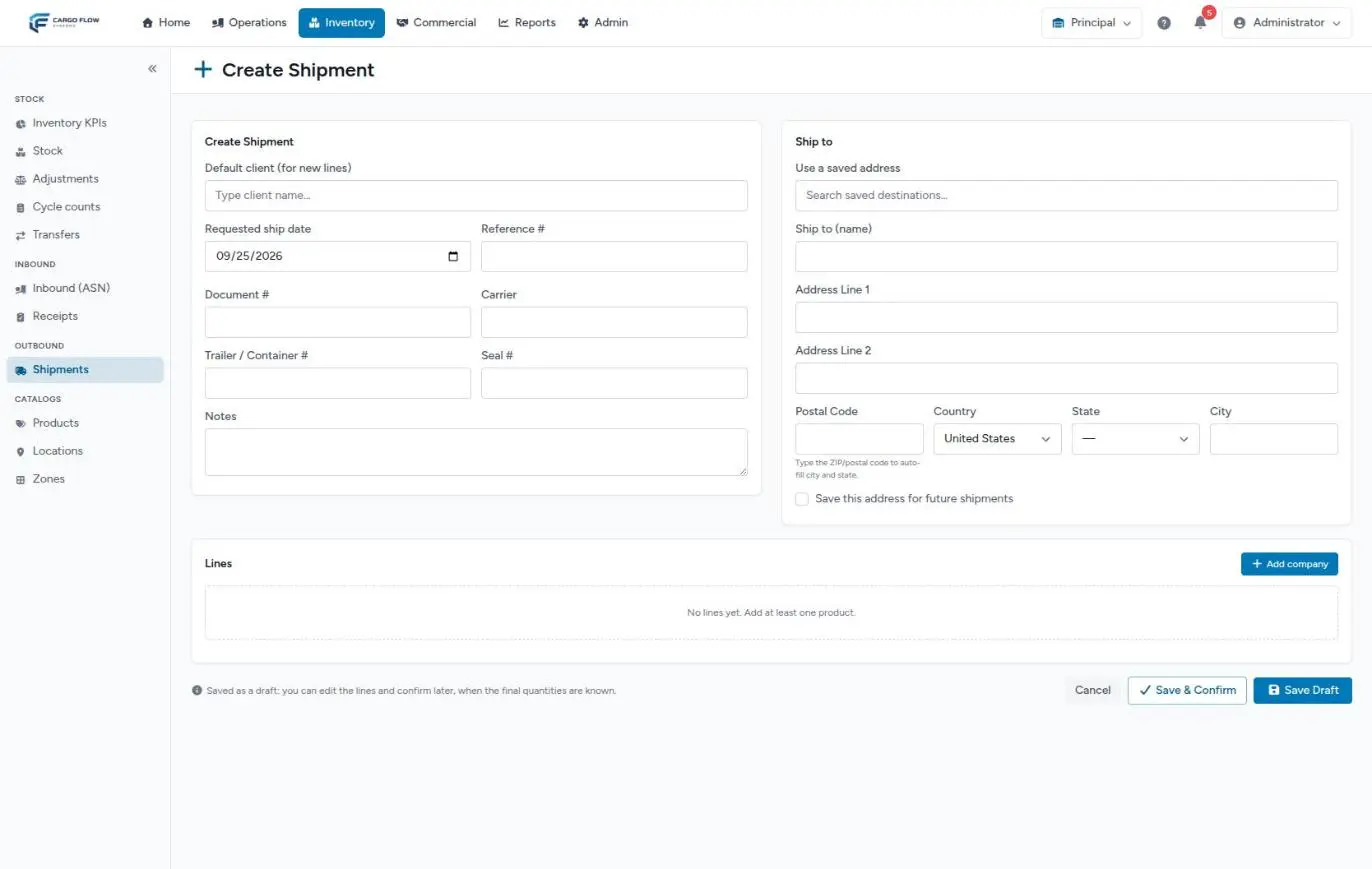
Hand-off: when the shipment becomes workable (created confirmed, confirmed, or a draft arriving from the portal), the bell alerts the warehouse's configured roles. Drafts captured by the warehouse itself do not alert.
2. Confirm and allocate
Confirm Shipment moves the shipment to Confirmed and tries to allocate right away. Allocation sets stock aside at specific locations, with these rules:
- Earliest expiry first; stock with no expiry last; on a tie, what arrived first.
- Never expired, damaged, on-hold, quarantined or otherwise blocked stock.
- Only from pickable, active locations, never from staging.
- Only the line's customer (or stock with no owner assigned). Serial-numbered stock is not allocated.
| Result | Status | What to do |
|---|---|---|
| Enough for everything | Reserved | Wait for the truck. |
| Enough for part of it | Partial (the line shows how much was allocated) | Load what is allocated, or release and allocate again when more arrives. |
| Nothing available | Confirmed, with the notice "Confirmed, but stock could not be reserved…" | Receive the goods and click the allocate button on the timeline. |
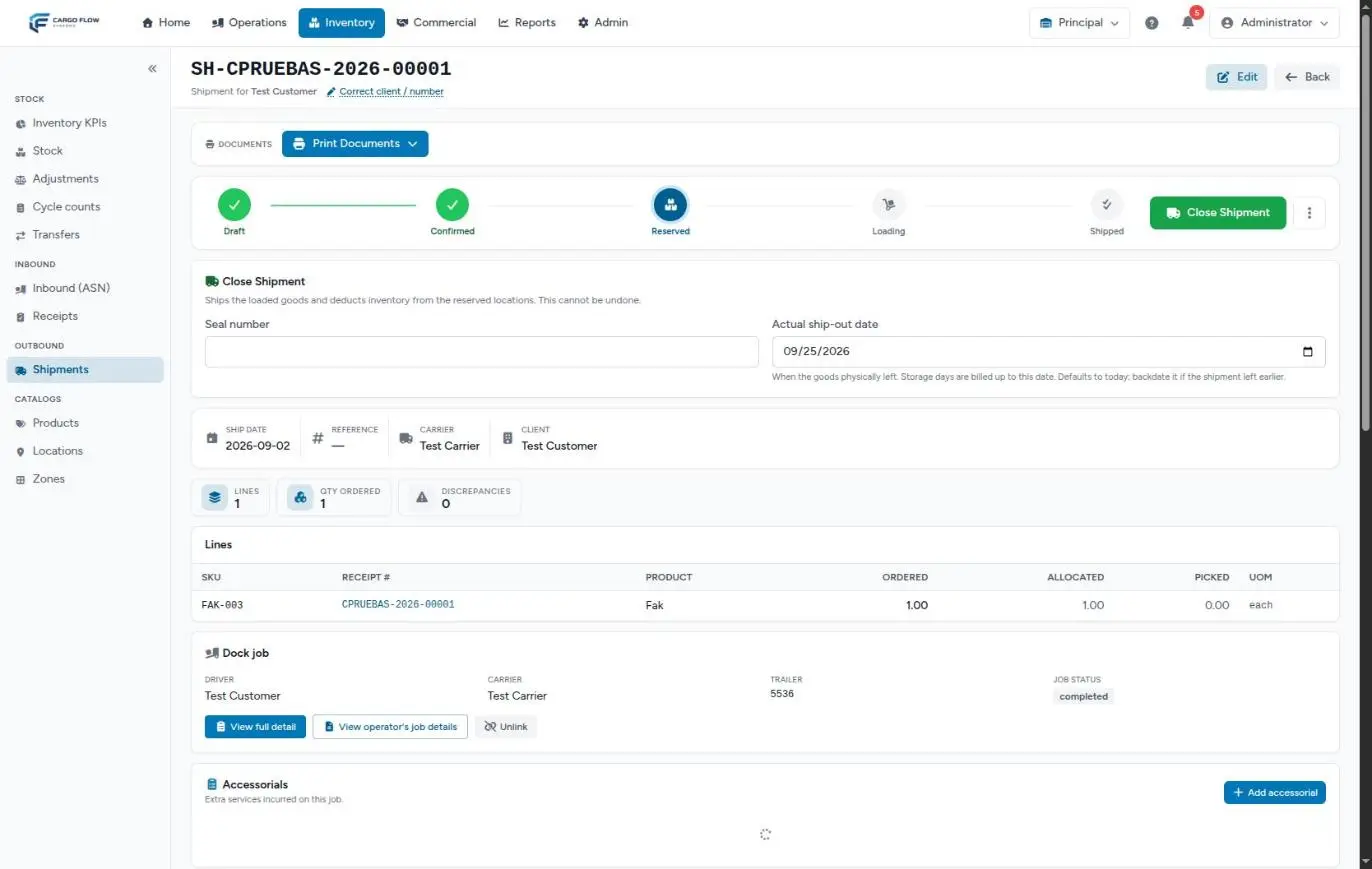
Allocation leaves no row in the stock history: its record is the allocation list at the bottom of the shipment screen. To change the lines of a confirmed or reserved shipment, Edit asks for a reason, releases the allocation and allocates again. See Cancel, release the allocation or return a shipment.
3. The truck and the dock
The driver signs in at the kiosk as Pickup (the pickup number is required by default). In Operations › Docks the supervisor assigns a dock and a worker and, in the Link to WMS section, chooses:
- An existing shipment — the chosen customer's shipments are suggested. One truck can take several (consolidation).
- Create a new shipment — a draft with the driver's details; it needs a customer on the job and the Create Shipments permission.
- No link.
It can also be linked later, from the dock job card on the shipment screen (Link / Unlink), which offers the customer's last 20 active pickup jobs. See How to create a dock job.
Hand-off: a shipment can be linked from Draft through Loading, as long as the job's customer is one of the customers on its lines. When linked, the shipment takes from the driver the carrier, name, truck, trailer, plates, pickup number and seal it is missing.
4. Loading and its verification
When the operator taps START JOB, the linked reserved shipments move to Loading, and those that were only confirmed try to allocate at that moment. A shipment in Draft does not change: it has to be confirmed first.
In the app, the Loading record panel has:
- Seal # — saved on the shipment only if it did not have one.
- Quantity loaded per line — never more than what is allocated. Each line sent is marked as verified.
- Loading verification — the items the warehouse set up, with their photos. Required items left unchecked (or without their photo) block finishing the job: a message asks to complete the checklist and names the missing items.
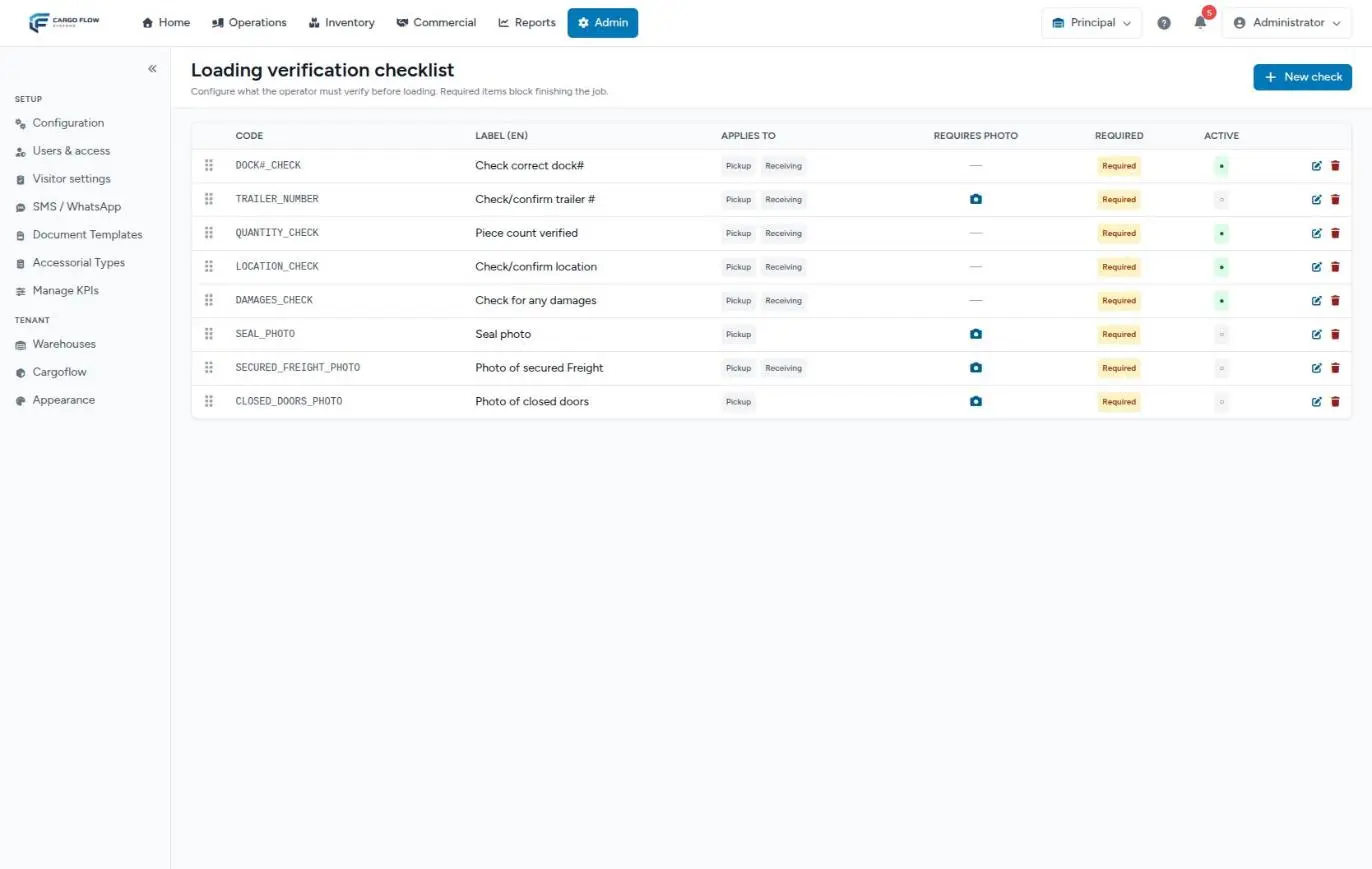
With Save loading and then FINISH JOB, the shipment timeline changes to Loading complete. The operator does not close the shipment: a supervisor does. If the driver leaves with the trailer, the operator answers Yes, Release Dock. See The operator app.
5. The close
The shipment screen shows the Close Shipment panel (in Reserved, Partial or Loading):
- Seal number — optional; only shown if the shipment has no seal yet.
- Actual ship-out date — today by default; it can be backdated, never set in the future. Storage is billed up to that date.
The system will not close if nothing is loaded, if a loaded line is not verified, or, in a cross-dock, if the inbound receipt is not confirmed. Carrier and trailer are not required. Closing cannot be undone. See Close a shipment.
6. The goods leave stock
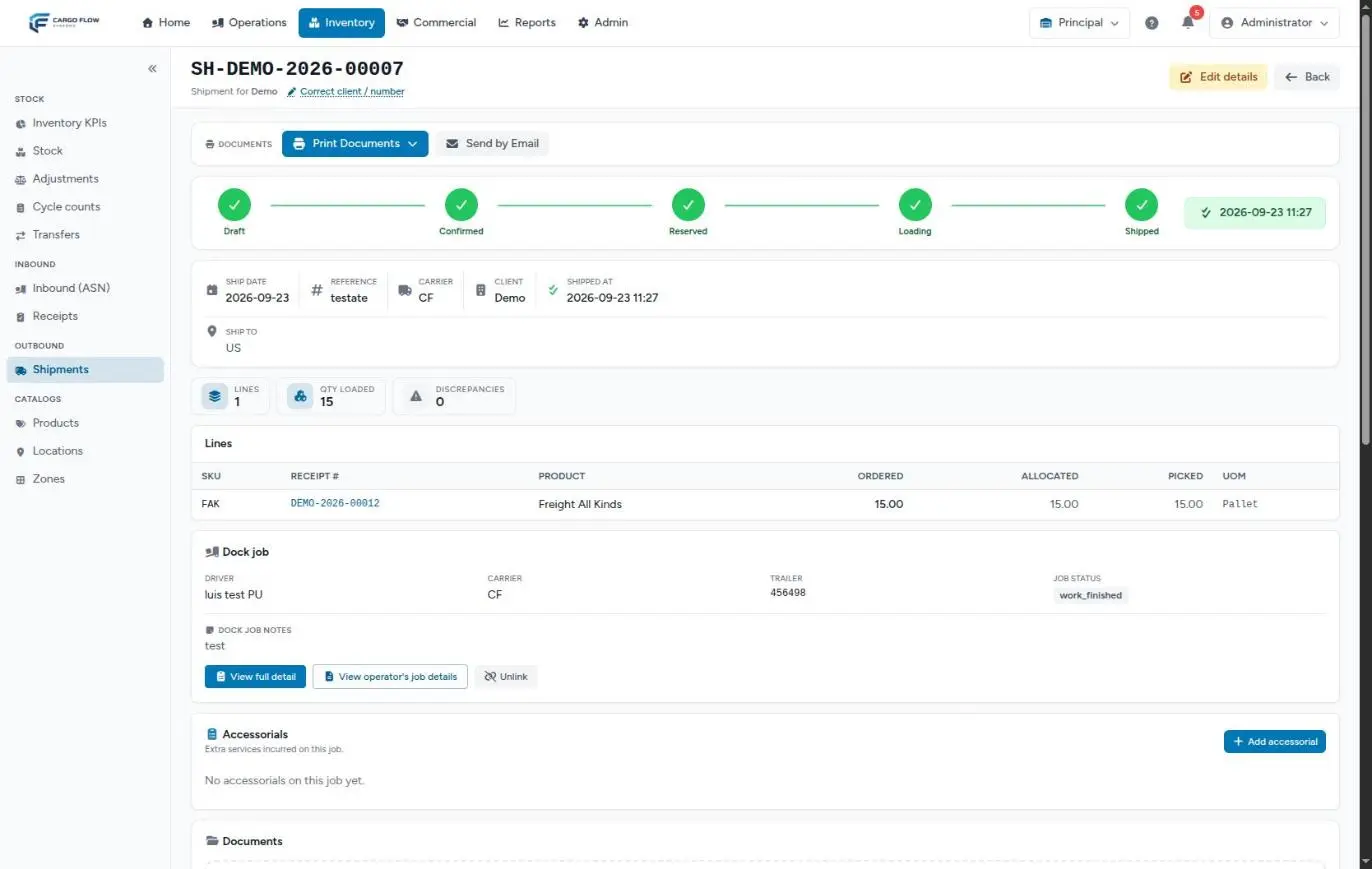
For each allocation, the close subtracts what was loaded, releases the whole allocation (whatever was not loaded becomes available again) and leaves a Shipped row in the stock line history, linked to the shipment. The shipment becomes Shipped with the departure date and time. See Stock line history.
7. Documents and email
- BOL and packing list — generated automatically on close (one per customer in a consolidated shipment) and stored on the shipment. They are only generated if the warehouse has the template; if not, there is no error. See Shipment documents.
- Print Documents — from Confirmed on: pick ticket, packing list and BOL. The pick ticket is always regenerated; the others reuse the last stored copy.
- Customer email — "Shipment … has shipped", to the contacts who accept that email, with the job photos if enabled and the uploaded files marked to be sent. The generated PDFs (BOL, packing list) are not attached. It is resent with Send by Email.
- Their system — the shipment-closed callback to their web address and, for an EDI partner, the 945 (which today is generated but not delivered automatically). See Integrations.
8. Charges and the end of storage
| Charge | How it is calculated | Condition |
|---|---|---|
| Outbound handling | On what was loaded: by catalog weight, by pallet or case (rounded up) or by piece. In a cross-dock, as cross-dock handling if the customer has it. | Only if the customer has it in their rate card. |
| Storage on shipping (the default mode) | Calendar days from the oldest arrival of what left up to the Actual ship-out date, minus free days, times the pallets shipped. | Customers not on daily accrual. |
| Daily storage | What was shipped stops counting from the next 2:00 run. | Customers on daily accrual. |
| Services on shipping | The customer's services set to be billed at departure. | — |
| Held accessorials | Those captured during loading enter the pool now, so they travel on the same invoice. | If the shipment is cancelled, they are not billed. |
Everything lands in the unbilled services pool. See How charges are generated.
9. What the customer sees
- Portal › Shipments — the shipment with its status (Draft, Confirmed, Reserved or partial, Loading, Shipped or Cancelled), the destination, carrier, tracking number and lines. They only see the documents they uploaded: the BOL and packing list do not appear in the portal.
- Portal › Inventory — their stock, without what shipped.
- Email — the shipment-shipped email.
- Reports — the Daily Shipment List (Read Cargo Release Reports permission) excludes drafts and cancelled shipments; the customer inventory report counts what shipped.
Full example
- Wednesday 16:20 — Valley Distributors orders from its portal 180 pieces of
DV-300and 12 cases ofDV-410for Thursday, ship to Central Warehousing. It arrives as draft SH-DVALLE-2026-00015 and the bell alerts the team. - 16:45 — Ana López reviews it and clicks Confirm Shipment. 180 of
DV-300are allocated (from the lot expiring first, at A-03-02) and only 10 of the 12 cases ofDV-410: it is partial. - Thursday 8:00 — An inbound with more
DV-410arrives. Ana releases the allocation and allocates again: now fully Reserved. - 10:30 — The driver signs in as Pickup with his pickup number. Ana assigns Dock 6 and Luis Pérez, and links SH-DVALLE-2026-00015. The shipment takes the trailer and seal from the record.
- 10:40 — Luis starts: the shipment becomes Loading. He records 180 and 12, checks the required items with the seal and closed-doors photos, saves the loading and finishes with Yes, Release Dock.
- 11:30 — Ana closes with today as the Actual ship-out date. 180 pieces leave A-03-02 and 12 cases leave their locations; the BOL and packing list are generated; outbound handling and storage for what left are created (it arrived 41 days ago with 30 free days: 11 days for the pallets shipped); the email goes to the customer with the photos.
- 11:31 — In the portal, the customer sees the shipment Shipped and their inventory with 180 pieces and 12 cases fewer.
What can go wrong at each hand-off
Order → allocation: it stayed Confirmed with a yellow warning.
There was no available stock for the customer: the goods have not arrived, are blocked, expired or at a non-pickable location. Receive or fix it and allocate again.
Allocation → dock: the shipment does not appear for linking.
The job's customer is not one of the customers on the lines, or the shipment is already Shipped or Cancelled.
Dock → loading: the operator started and the shipment did not move to Loading.
It was in Draft, or it did not get linked. Confirm it and check the dock job card.
Loading → close: the operator cannot finish.
Required loading verification items or their photos are missing.
Loading → close: Close Shipment does not appear.
The shipment is not Reserved, Partial or Loading, or your user lacks the Ship (Close Shipments) permission.
The dock job was cancelled mid-loading.
The shipment goes back to its previous status and keeps its allocation, but it also keeps what the operator had already recorded as loaded. Check the quantities before loading again.
Close → documents: there is no BOL.
The warehouse has no BOL template. Create it and use Print Documents.
Close → customer: the email did not arrive.
Check recipients and channel in their Notifications tab and resend with Send by Email.
Good practices
- Confirm as soon as the order is firm: allocation prevents promising the same goods twice.
- Link the truck when assigning the dock, with the customer chosen.
- Ask the operator to record the loading line by line, with the seal and photos, as it happens.
- Before closing, compare what was allocated against what was picked on each line.
- Close on the day the truck leaves; if not, backdate the Actual ship-out date.
- Have the BOL and packing list templates ready before the first shipment.
Frequently asked questions
Why does a portal order arrive as a Draft?
So the warehouse reviews it before committing stock. Orders arriving through the API or EDI, on the other hand, come in confirmed and allocated, because they come from the customer's own system.
Can one truck take several shipments?
Yes. They are all linked to the same dock job and each one is closed separately. The truck's accessorials wait for the last one.
Can a close be undone?
No. After the close only general details can be corrected with Edit details. Goods that come back enter with a new receipt. See Cancel, release the allocation or return a shipment.
Why was no BOL generated on close?
Because the warehouse has no BOL template. Also, if someone printed the BOL before the close and no automatic one was generated, later prints reuse that copy, with pre-close data. Check the document's date.
The screen says FIFO; isn't it by expiry?
The message says FIFO, but allocation follows expiry: earliest expiry first and, on a tie or with no expiry, first in.
Need help?
If something did not work as expected, our support team can help you.
Was this article helpful?