The driver, from arrival to departure
Summary
The driver has no account in the system, yet passes through almost every operations module: signs in at the kiosk, becomes a visit in the warehouse log, gets messages on their phone, waits at a dock or leaves the trailer in a yard spot, an operator loads or unloads, and the check-out is recorded automatically when the job is closed. It all ends up in the driver log.
This article follows a driver from the gate to departure and says, at each step, which screen moves it, who can do it and what the driver is told.
Before you start
| What you need | What for |
|---|---|
| Visits module | The kiosk depends on it: without visits, the kiosk address returns "not found". |
| Docks module, yard module or both | They decide where the record goes and which subtypes the driver sees. |
| External notifications module | For SMS and WhatsApp. See Configure SMS and WhatsApp. |
| Kiosks and fields set up | In Admin › Visitor settings: the Kiosks, Fields and Messages tabs. See Configure kiosks. |
| Staff permissions | Assign a dock: Write Docks (supervisor, admin). Yard: Write Yard (supervisor, admin). Operator: Read Own Jobs (worker). Driver log: Read History Reports (admin). |
The path in one table
| Step | Where | Who | What the driver is told |
|---|---|---|---|
| 1. Sign-in | Kiosk or QR | The driver | Arrival confirmation (if enabled) |
| 2. Shows up in operations | Dock board bell, or the yard's Jobs to Assign | Automatic | — |
| 3. Dock | Operations › Docks › Assign Dock | Supervisor | Dock number |
| 3b. Yard | Operations › Yard | Supervisor or yard staff | Trailer moves (extended notifications only) |
| 4. Loading or unloading | My Work | Operator | — |
| 5. Check-out | When the job is closed | Operator or supervisor | Job finished (extended notifications only) |
| 6. Review | Reports › Driver log | Admin | — |
1. Signing in at the kiosk
The driver uses the gate tablet or scans the QR code with their phone. They choose a language (English or Spanish: the same one their messages will use), a type (Delivery or Pickup) and, if the warehouse has docks and a yard, a subtype:
| Subtype | What for |
|---|---|
| Warehouse Delivery | Unloads at a dock. |
| Yard Drop Off | Leaves the trailer in the yard. |
| Warehouse Pickup | Loads at a dock. |
| Yard Pickup | Takes a trailer that is already in the yard. |
If the warehouse only has one of the two modules, the subtype is filled in automatically. A kiosk can limit which types it accepts; if someone tries another, the kiosk rejects it.
What is asked
| Field | Required? | What it accepts |
|---|---|---|
| Full Name | Yes | Text. |
| Company Name | Yes, unless the installation turns it off | The carrier. |
| Phone Number | Yes | Starts with + and has 7 to 15 digits, no spaces or dashes (for example +15551234567). |
| I agree to receive notifications via SMS | The screen asks for it | Checkbox. Some installations accept it automatically. |
| Warehouse fields | As configured | With no configuration: truck number, trailer number and license (required) and plate (optional). For pickups, also the Pickup Number (required). |
| Photo | The screen asks for it, except in installations that make it optional | A real image up to 2 MB; otherwise the kiosk rejects it. |
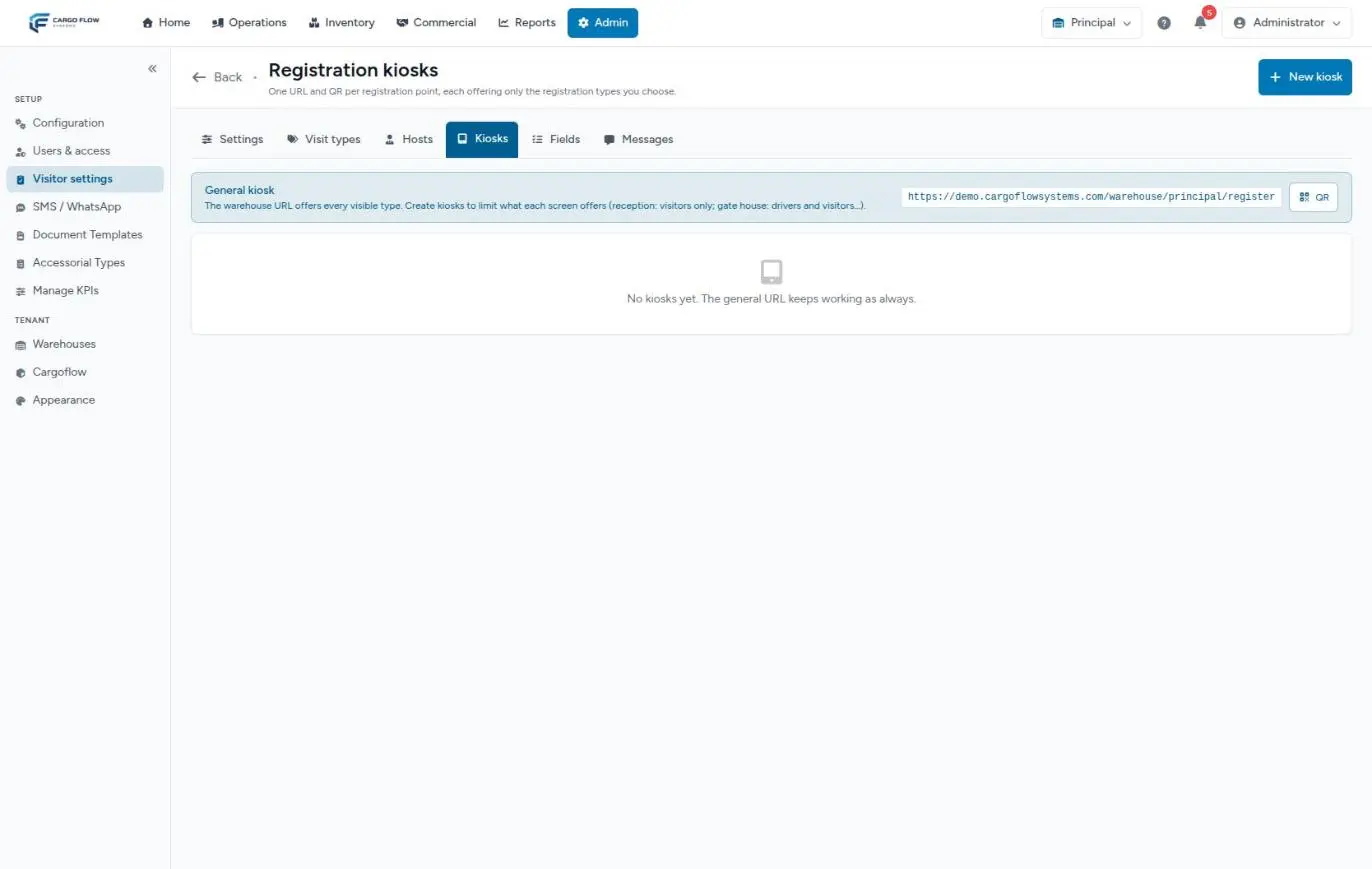
The warehouse fields (trailer, seal, pickup number) are not decoration: they are copied automatically to the receipt or the shipment when the supervisor links the job. Details in Driver registration.
2. What signing in creates
- The driver record, in checked-in status. This is what shows in the driver log.
- Their visit, if the warehouse has visits: it appears on the visits board with a number and dock management as its source, and its check-out stays in sync with the record's. If that copy ever failed, the driver record does not fail. See How visitor control works.
- The alert to operations, depending on the subtype:
- Warehouse Delivery or Pickup: the dock board bell shows "New Driver Arrival" and, with the board open, the assignment window opens.
- Yard Drop Off or Yard Pickup: it appears in Jobs to Assign on the yard screen, already as a job assigned to the yard's special dock. If the warehouse has no such dock, it lands in the bell like any other.
- Without the docks module: only the record is kept.
The record is not linked automatically to an advance ship notice or a shipment: the supervisor makes that link when assigning a dock.
3. Messages to the driver
They go by SMS or WhatsApp depending on the phone's country code, as long as the warehouse has the module, the master switch is on, that message type is enabled and the country code is on one of the two lists. They are set up in Admin › SMS / WhatsApp.
| Message | When it goes out | Extra condition |
|---|---|---|
| Arrival confirmation | On signing in at the kiosk | Visits module, the message enabled (it ships off) and the SMS box checked. |
| Dock Assignment | When a dock is assigned, if the supervisor answers yes to Do you want to notify the driver? | Only for regular docks, not the yard's. |
| Dock Update | When the job's dock is changed and Do you want to notify the driver about the dock change? is accepted | — |
| Job Completion | When the driver is released | Only in installations with extended driver notifications. |
| Trailer moves | When the trailer is sent to the yard, enters a spot, goes back to a dock or is released from the yard | Extended notifications only. |
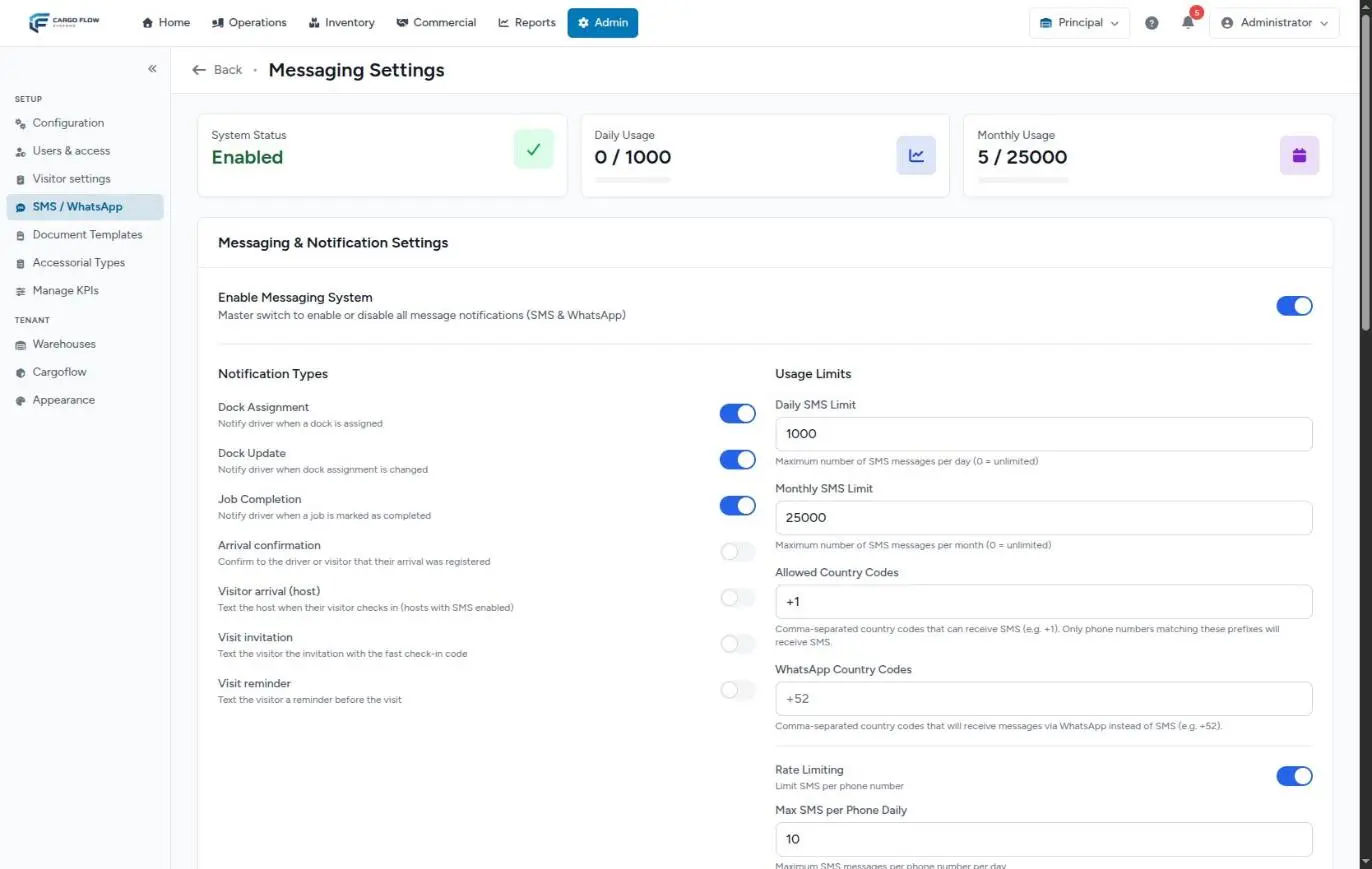
There is no message on check-out, and no "call to dock" message other than the dock assignment. See SMS and WhatsApp notifications to the driver.
4. Dock or yard
To a dock
The supervisor opens the arrival in the bell: Assign dock and worker to driver. They choose a dock, a worker (optional), a customer (optional, but needed to link documents) and notes, and link the receipt or the shipment. Clicking Assign Dock creates the dock job in Assigned, at the end of the worker's queue. If the driver already has an active job, the system does not create another: "This driver already has an active job". See How to create a dock job.
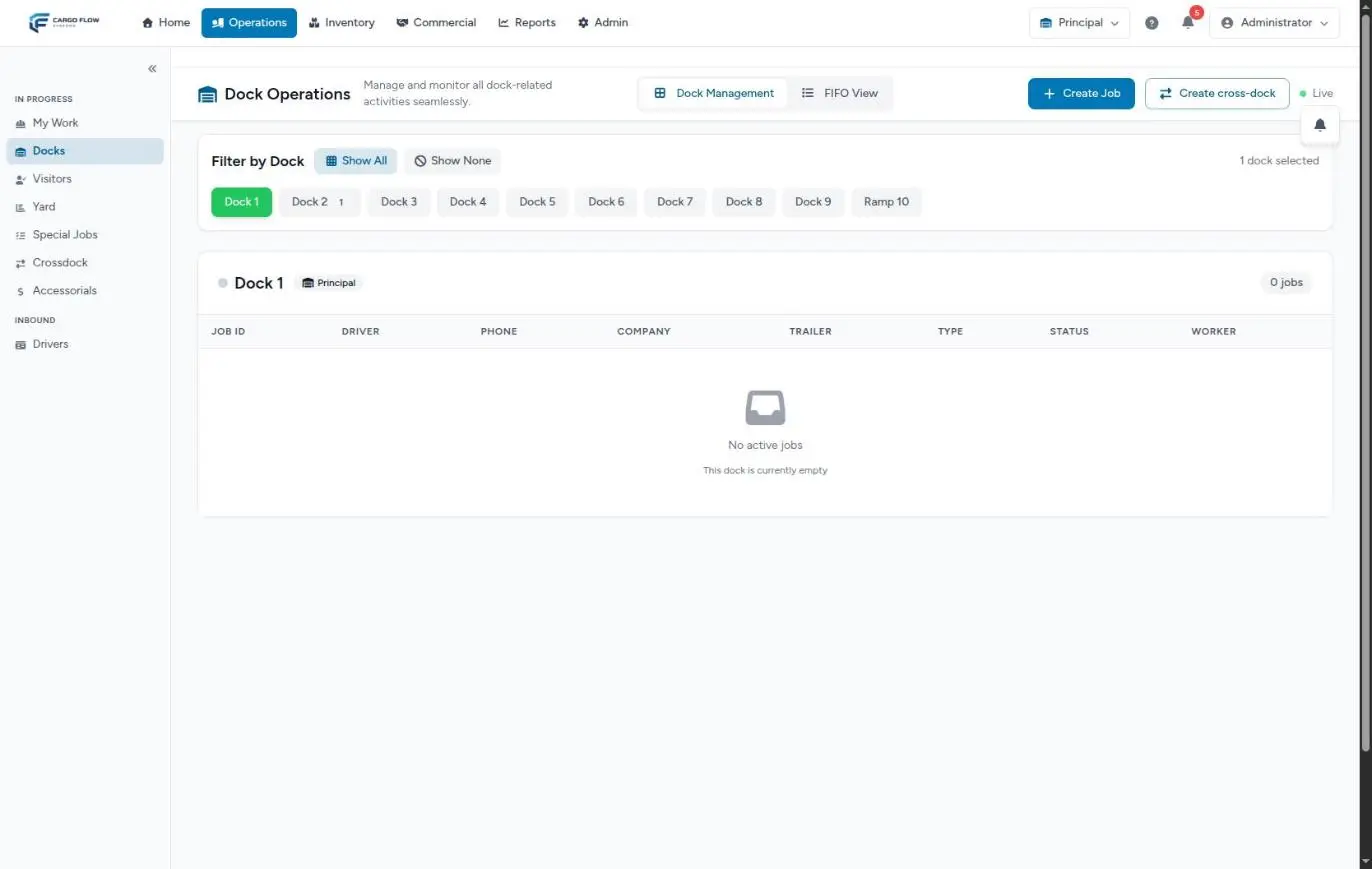
To the yard
If they chose Yard Drop Off, someone in the yard drags their card from Jobs to Assign to a free spot: the Entrance to Spot move is recorded as already done and the spot is taken by that trailer. If they chose Yard Pickup, they are matched with the trailer they are taking (Match Yard Pickup). The trailer's path is in Dock, yard and cross-dock.
5. The operator's job
The operator sees the job in My Work when it is first in their queue (a yard move assigned to them always comes first). They tap START JOB, load or unload, fill in the receiving or loading panels and the checklist, and tap FINISH JOB. The system then asks Release the Dock?:
- Yes, Release Dock — the driver leaves with the trailer: the job becomes Completed and the driver is checked out.
- No, Trailer Stays — the trailer stays: the job goes to Work Finished, marked empty (delivery) or loaded (pickup), and the driver stays checked in until the supervisor decides.
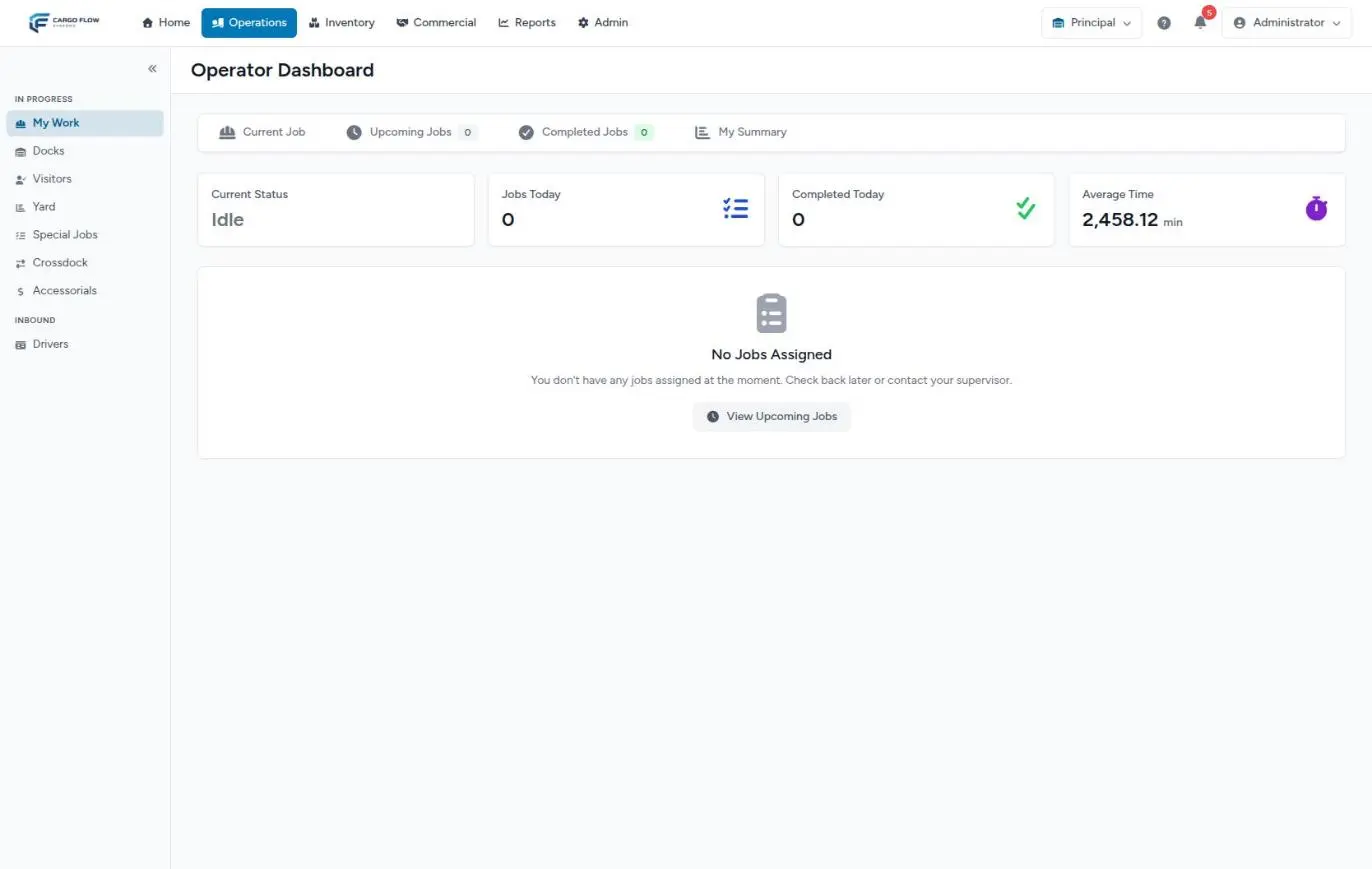
See The operator app and The life cycle of a dock job.
6. Checking out
A delivery or pickup driver is not checked out by hand: the check-out is recorded when their job is closed. All of these paths do it:
| Path | Who | What happens to the trailer |
|---|---|---|
| Yes, Release Dock | Operator | Leaves with the driver. |
| Release on the board (Work Finished or Pending Yard jobs) | Supervisor or admin | Leaves with the driver; pending yard moves are cancelled and the spot is freed. |
| Send to Yard without a spot | Supervisor or admin | Stays at the dock waiting for a spot; the driver is checked out right then. |
| Send to Yard to a spot | Supervisor or admin | The driver is checked out when yard staff start the move. |
| The trailer leaves the yard, or a pickup is matched with nobody to move it | Yard | Leaves with the driver. |
| Cancel Job | Supervisor or admin | — |
| Visits auto check-out with "Include drivers" | The system, at the configured time | — |
If a job is restarted, the driver counts as checked in again.
7. The driver log
In Reports › Driver log (Read History Reports permission; by default, admin) you find every record: photo, visit type, name, company, phone, the warehouse fields, check-in time, status and check-out time, 15 per page. Search by name, company, phone or type; filter by visit type and dates; export to Excel. View Details opens the record. The check-out button only appears on visit records. See WMS reports.
Example: two drivers in one morning
- 7:40 — Carlos Ruiz (Southern Logistics) signs in at the gate as Warehouse Delivery, phone +15551234567, trailer 45120. He shows up in the bell and on the visits board with his number. Arrival confirmation is off, so he gets no message.
- 7:48 — Ana López assigns him Dock 3, worker Luis Pérez, customer Northern Trading Co., and links the notice's receipt. She agrees to notify: Carlos gets an SMS (his +1 code is on the SMS list) "Please proceed to #3…".
- 8:05 to 8:40 — Luis unloads and, since Carlos takes his empty trailer, answers Yes, Release Dock. The job becomes Completed and Carlos is checked out at 8:40; his visit closes too.
- 9:10 — Another driver signs in as Yard Drop Off with trailer 77310. He shows up in the yard's Jobs to Assign. Yard staff drag him to spot Sp04 and the driver leaves. Since his record is still open, reception checks him out from Visits.
- Next day — The admin exports the day's driver log: two records, with check-in, check-out and each one's trailer.
What can go wrong at each hand-off
Kiosk: "page not found".
The warehouse does not have the visits module enabled.
Kiosk: the phone number is not accepted.
The + and country code are missing, or it has spaces or dashes.
Kiosk → board: nobody sees the driver.
They chose a yard subtype (they are in Jobs to Assign), or the board is on another warehouse.
Board → driver: the dock number did not arrive.
The supervisor answered no to notifying, the message type is off, the country code is on neither list or a limit was reached. The message log on the SMS / WhatsApp screen says which.
Operator → check-out: the dock is still busy although the truck left.
The job stayed in Work Finished or Pending Yard, or the driver was checked out from Visits without closing the job. Release it on the board.
Driver log: the driver shows as still on site.
Their job has not been closed. Find it on the dock board or in the yard.
Driver log: an "internal" record appears that nobody created.
When a trailer whose job was already closed goes back to a dock, the system creates an internal record with the original driver's details for the new job. That is expected.
Good practices
- Print the QR code and post it at the gate: the driver signs in from the cab.
- Ask only for the fields you use, and make them the ones copied to the receipt and the shipment (trailer, seal, pickup number).
- Write clear instructions in Messages about where to wait.
- Assign the dock with the customer chosen and link the document in the same window.
- Close every job on the board: that is what checks the driver out and frees the dock.
- Send a test SMS to your phone after changing any messaging setting.
Frequently asked questions
What if they sign in twice?
If they repeat with the same phone, type and subtype within 5 minutes and have not checked out, the system does not create another record: it shows the same confirmation.
The driver replied STOP and still gets messages
Today a STOP reply does not opt the number out. Until that is fixed, remove or change their phone in the Job Details and answer no when asked to notify.
Can I check them out from Visits?
Yes, but it only closes their record and their visit, not their dock jobs. For a delivery or pickup driver, the right way is to close their job on the board.
Can I register the driver without the kiosk?
Yes: open the kiosk for them from Drivers in the Operations menu (the record is the same as if they did it), or create the job directly with Create Job on the board (faster, but with no truck details, no photo and no message). The manual registration in Visits does not work for drivers.
Need help?
If something did not work as expected, our support team can help you.
Was this article helpful?