Warehouse notifications and email
Summary
The Notifications & email screen has two independent panels, each with its own save button:
- Operational alerts — receipt, shipment and visit alerts for warehouse staff, in the bell and live.
- Internal invoice copy — who on your team gets a copy of every invoice emailed to a customer.
Everything on this screen is per warehouse. For the map of every alert in the system, see The notification systems.
Before you start: who can see it
The screen opens if you have the Configure Users permission or the Manage Billing permission. But each panel has its own rule:
| Panel | Module the warehouse needs | Permission | Who has it by default |
|---|---|---|---|
| Operational alerts | Receiving | Configure Users | Only the super administrator |
| Internal invoice copy | Billing | Configure Users or Manage Billing | Super administrator, Admin and Accounting |
So someone in accounting can adjust who gets the invoice copy without being able to touch the operational bell. If no panel applies (for example, a warehouse with neither receiving nor billing), the screen answers «not found». How modules and permissions are handed out: Modules, permissions and access and Roles and permissions.
How to get there
- Pick the warehouse you are going to set up at the top.
- Go to Admin › Configuration and click the Notifications & email card.
- From Commercial › Billing there is also a shortcut: the Email settings button above the invoice list.
The warehouse name appears to the right of the title: it is the one you are editing.
The Operational alerts panel
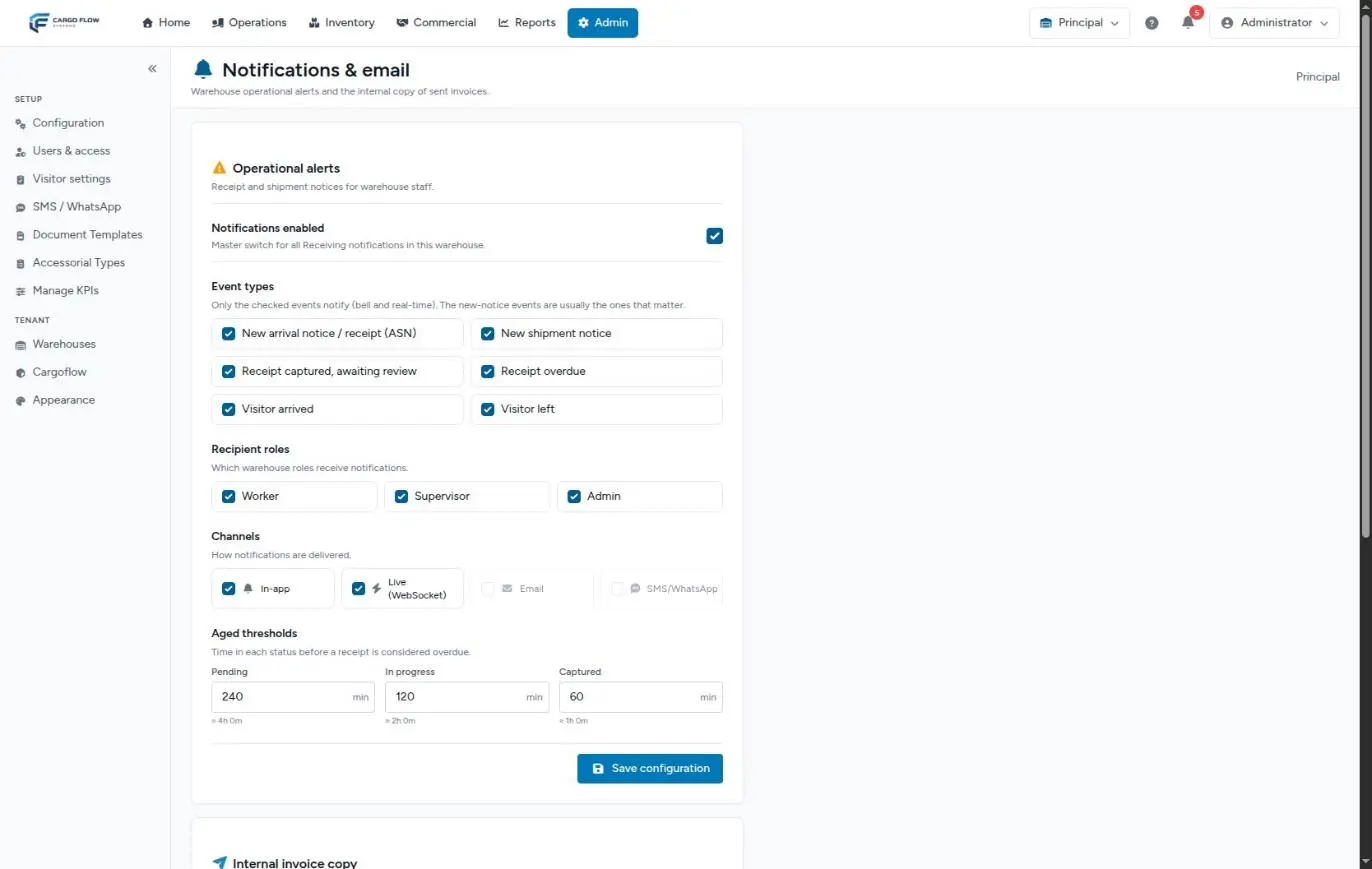
Notifications enabled
The panel’s master switch. When it is off, no receipt or shipment alert goes out in this warehouse and the bell stops listening for live alerts, whatever else is set. It also stops the warehouse’s overdue receipt check.
Event types
Which situations create an alert. Each is turned on separately:
| Event | When it fires |
|---|---|
| New arrival notice / receipt (ASN) | When a receipt is created: by hand, walk-in, or from an advance ship notice sent through the portal, the API or EDI. |
| New shipment notice | When a shipment is created, including those the customer requests from the portal. |
| Receipt captured, awaiting review | When an operator finishes capturing a receipt and it waits for review. See Capture and review. |
| Receipt overdue | When a receipt spends more time than allowed in a status (see thresholds). Checked every 15 minutes. |
| Visitor arrived and Visitor left | Only shown if the warehouse has the visits module. They decide whether those alerts arrive live in the bell. |
Recipient roles
Worker, Supervisor and Admin. It is by role, not by person: ticking Supervisor alerts every active supervisor of this warehouse. What counts is the role each person holds in this warehouse, not in another one. At least one must be ticked.
- Receipt captured, awaiting review only goes to Supervisor and Admin, even if you tick Worker: workers cannot confirm a receipt.
- The Accounting role is not offered here: it does not get operational alerts.
- The super administrator sees live alerts even without any of the ticked roles.
Channels
How the alert is delivered. There are four boxes:
- In-app (bell icon) — the alert is stored in the bell.
- Live (lightning icon) — the alert appears instantly, without reloading.
- Email and SMS/WhatsApp — greyed out and not selectable: they are not connected for these alerts yet.
At least one channel must stay ticked. The difference between the first two is explained in The bell and live alerts.
Aged thresholds
How many minutes a receipt can stay in each status before it counts as overdue:
| Status | Starting value | What an overdue usually means |
|---|---|---|
| Pending | 240 minutes (4 h) | The announced truck has not arrived, or nobody has started the receipt. |
| In progress | 120 minutes (2 h) | Unloading or counting was left half done. |
| Captured | 60 minutes (1 h) | Nobody has reviewed or confirmed the capture. |
They accept 1 to 43200 minutes (30 days). Below each field you see the equivalent in hours and minutes. Time is counted from the receipt’s last change.
When you are done, click Save configuration. The message «Operational alerts updated.» appears.
The Internal invoice copy panel
When someone emails an invoice to a customer, this panel decides whether your team gets a separate copy. Its fields are:
- Send an internal copy to accounting — the switch.
- Roles that receive the copy — Accounting, Admin and Supervisor, among this warehouse’s users.
- Additional addresses — up to 10, for an external accountant or a shared mailbox.
- Recipients right now — the real list of who would get it today.
It is saved with its own Save button and shows «Internal invoice copy updated.» Full details with examples: The internal copy of sent invoices.
What happens when you save
- Each panel saves only its own fields. Saving the alerts never changes the invoice copy, and vice versa.
- The change applies to the next event. Alerts already in each person’s bell stay there.
- For someone who already had the system open to hear the new types live, they need to reload the page.
- A new threshold applies in the next 15-minute check.
Example setup
The Principal warehouse receives about 30 trucks a day for Northern Trading Co. and Central Warehousing. The super administrator sets it up like this:
- Notifications enabled: on.
- Event types: new arrival notice, new shipment notice, receipt captured and receipt overdue. Visits are left out because reception already watches them on its own screen.
- Roles: Supervisor and Admin. Workers get their work through the operator app, not the bell.
- Channels: both available ones.
- Thresholds: Pending 180, In progress 90, Captured 30, because the contract with its customers promises same-day confirmation.
Result: if Ana López (supervisor) leaves a captured receipt unreviewed at 16:00, at 16:30 or 16:45 she and the admins get a «receipt overdue» alert.
What this screen does not control
- Customer emails: set on each customer record. See Emails and reports to the customer.
- SMS and WhatsApp to drivers and visitors: Set up SMS and WhatsApp.
- Visit emails and alerts to the host and reception: Visitor settings. The visit boxes in this panel only filter what arrives live.
- The daily lots nearing expiry and late shipments alerts: they go to all active staff and bypass this panel.
Best practices
- Keep at least the new arrival and new shipment alerts on: those are the ones the team needs to see right away.
- Tune the thresholds to your real operation; if the overdue alert fires all day, nobody will read it.
- Check the «Recipients right now» list whenever you change user roles.
- Set up each warehouse separately; when you open a new one, review this screen on day one.
Troubleshooting
The Notifications & email card is missing.
- You need Configure Users or Manage Billing, and the selected warehouse must have receiving or billing.
I see the screen but not the alerts panel.
- You lack Configure Users (only the super administrator has it), or the warehouse has no receiving module.
Everything is on and nobody gets alerts.
- Check that event types are ticked and that someone in this warehouse holds the ticked roles and is active there.
I cannot tick Email or SMS/WhatsApp.
- That is expected: those channels do not exist yet for internal alerts.
Saving shows an error on the thresholds.
- Each threshold must be a whole number between 1 and 43200. Blank or zero is not accepted.
Saving says I must pick at least one role or channel.
- The panel requires at least one recipient role and at least one ticked channel.
Frequently asked questions
I only see one panel
The screen shows panels according to what your warehouse has and your permissions. A warehouse with billing and no receiving shows only the invoice copy panel; so does someone in accounting. Nothing is missing.
Do the settings apply to all my warehouses?
No. Each warehouse has its own. Switch warehouses with the selector at the top and set up each one. See Working with several warehouses.
What if I never saved this screen?
The warehouse runs on the starting values: everything on, all three roles, both available channels and the 240, 120 and 60 minute thresholds. The internal invoice copy, on the other hand, starts off.
Need help?
If something did not work as expected, our support team can help you.
Was this article helpful?