Driver registration
Summary
When a driver arrives at the warehouse, they check themselves in at a kiosk: a tablet at the gate or at reception, or their own phone by scanning a QR code. They pick their language, say what they came for (deliver or pick up), enter their name, company, phone and truck details, and take a photo. The registration shows up instantly on the dock board —or on the yard screen, if they came to drop or collect a parked trailer— so a supervisor can assign them a dock.
Registration is the first step of the driver’s visit. The full path, all the way to departure, is in The driver, from gate to departure.
Before you start
- Visitors module: the kiosk belongs to the Visitors module. If the warehouse does not have it, the kiosk address returns “page not found”. See Modules, permissions and access.
- Docks or yard: the driver options (Delivery and Pickup) only appear if the warehouse has the Docks module, the Yard module or both. With neither, the kiosk only offers visitor types.
- Driver types shown: on the warehouse’s general address, the driver tiles appear only if Show driver types (delivery / pickup) is on under Admin › Visitor settings, Settings tab. On a dedicated kiosk, that kiosk’s own list of types rules.
- Active types: the Delivery and Pickup types must be active in the Visit types tab.
- To configure: the Configure Visitor Registration permission (Admin and Super Admin by default). To open the kiosk from the system menu: the Docks module and the Write Docks permission.
- To receive text messages: the messaging system must be set up (see Driver notifications by SMS and WhatsApp).
Where the driver registers
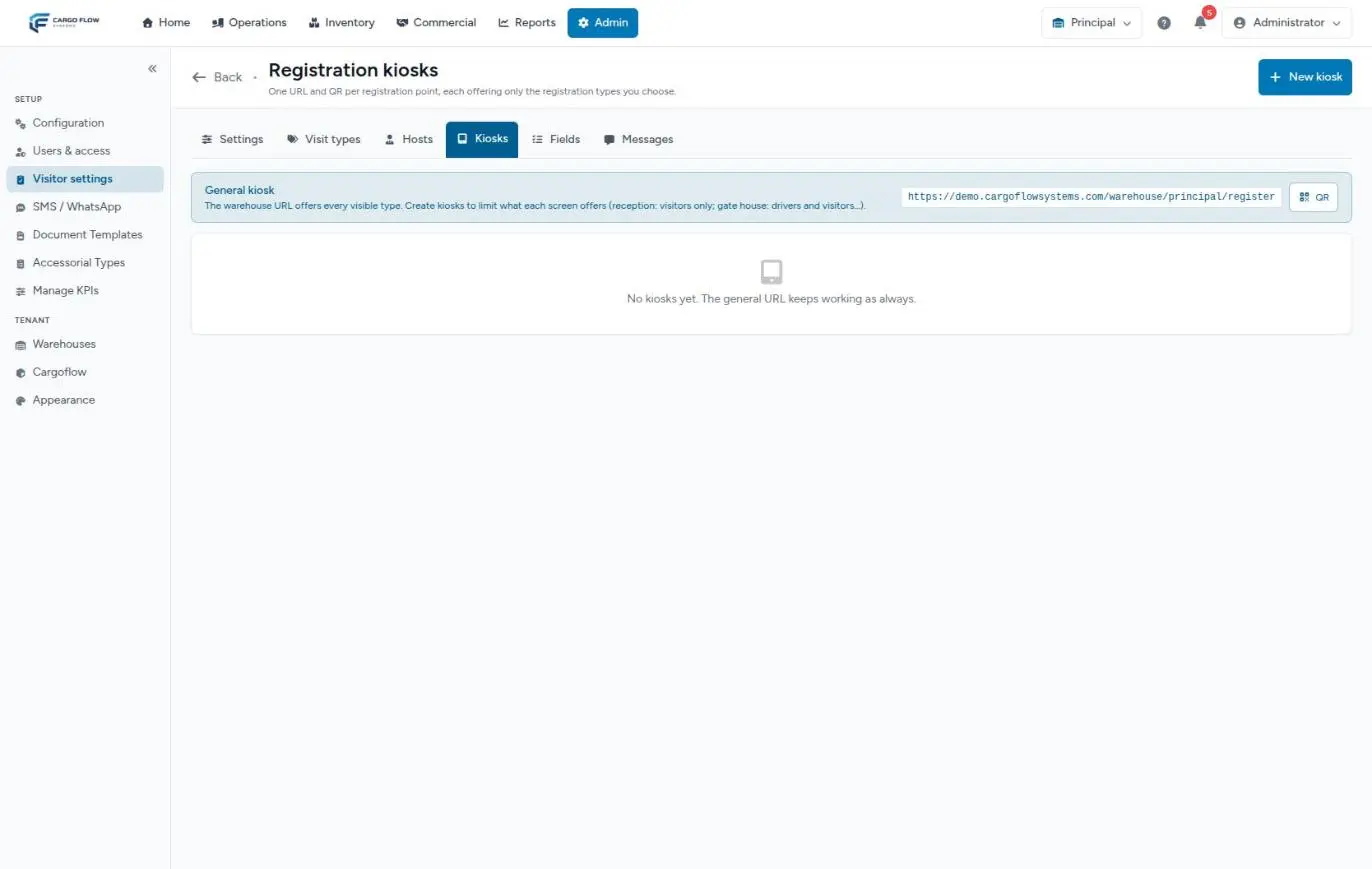
Each warehouse has a general registration address that offers every active visit type. You can also create kiosks, each with its own address, its own QR code, its languages, its welcome message and only the types and subtypes you want (for example, the gate for drivers only and reception for visitors only).
All of this lives under Admin › Visitor settings, Kiosks tab, along with the QR button to print the code. See Setting up kiosks.
Staff can also open the kiosk from the system: the Drivers option in the Operations menu (Inbound section) opens the kiosk start screen for the active warehouse in the browser.
The kiosk start screen shows a QR code (Scan to register) so other drivers can register from their phones without waiting in line. It can be hidden per kiosk, for example on a tablet staffed by a guard.
Step by step at the kiosk
- Start — the kiosk shows one tile per type it offers: Delivery, Pickup and the visitor types. If the kiosk offers a single type and no extra options, it jumps straight to that type.
- Language — the driver picks Spanish or English (if the kiosk has only one language configured, it is not asked). That language is used on every screen, in error messages and in any messages they receive later.
- Registration type — Delivery or Pickup. Tapping a visitor type goes to the Visitors module registration, which does not create a dock job.
- Subtype — only if the warehouse has both docks and a yard (see below).
- Form — their details and the truck’s (see below).
- Photo — the camera counts down and takes the photo on its own. The driver taps Complete or Retake Photo. In some installations the photo is optional. Images up to 2 MB are accepted.
- Confirmation — the instructions message set up by the warehouse appears (for example, “wait in the parking lot until we call you”). After 10 seconds the kiosk returns to the start, ready for the next driver; there is also a Register Another Visit button.
Warehouse or yard: the subtype
| Subtype | Offered when | Meaning |
|---|---|---|
| Warehouse Delivery | Docks module | They came to unload at a dock. |
| Yard Drop Off | Yard module | They came to leave their trailer in a yard spot and go. |
| Warehouse Pickup | Docks module | They came to load at a dock. |
| Yard Pickup | Yard module | They came to take a trailer that is parked in the yard. |
The kiosk asks for the subtype only when the warehouse has both modules (and the kiosk offers both subtypes). With just one module, the system sets it automatically: Docks only means warehouse, Yard only means yard.
The data requested
| Field | Required | What it accepts |
|---|---|---|
| Full Name | Yes | Free text. |
| Company Name | Yes (some installations don’t collect it) | The carrier. It is copied as the carrier on the receipt or shipment. |
| Phone Number | Yes | With a country selector (United States/Canada or Mexico). It must start with + and have 7 to 15 digits, no spaces or dashes; for example +15551234567. |
| I agree to receive notifications via SMS | Yes | Checkbox. If unchecked, You must agree to continue. appears. In some installations it is accepted automatically once a phone is entered and is not shown. |
| Warehouse fields | Depends on setup | Whatever the warehouse configures in the Fields tab, per registration type. |
If the warehouse has not configured its own fields, these are asked by default:
| Field | Delivery | Pickup |
|---|---|---|
| Truck Number | Required | Required |
| Trailer Number | Required | Required |
| Driver License Number | Required | Required |
| Trailer Plate Number | Optional | — |
| Pickup Number | — | Required |
The trailer number is especially useful: it shows on the board, on the yard map and on the linked document, and it helps the system suggest the right receipt or shipment.
Where the registration goes
| The driver chose | The registration appears in |
|---|---|
| Warehouse Delivery or Warehouse Pickup | The dock board bell, where the supervisor assigns the customer, dock and operator. If the board is open, the assignment window opens by itself. See Assigning a driver from the bell. |
| Yard Drop Off or Yard Pickup | The Jobs to Assign panel on the yard screen. The system instantly creates a job on the yard’s internal dock; that is where a spot is assigned or a trailer is matched. See From the yard to the dock and back. |
- If the warehouse has the Yard module but no yard has been created yet (so the internal dock does not exist), yard registrations fall back to the dock board bell.
- If the warehouse does not have the Docks module, the registration is only stored in the driver log and in Visitors: no job or notification is created.
What happens in other modules
- Visitors: every driver registration also creates a visit in the visitor log, with its number if the warehouse numbers visits, and it appears on the visitors board if Show drivers on the visitor board is on.
- Driver log: the registration is kept under Reports › Driver log with the photo and every field. See Driver check-out and the driver log.
- Receiving and shipping: when the job is linked to a receipt or shipment, the company, name, truck, trailer, plates, seal and pickup number entered by the driver are copied (only into the document’s empty fields). See Linking the job to its receipt or shipment.
- Messages: the messaging consent and the registration language decide whether, and in which language, the driver gets dock notifications.
- KPIs: the registration time becomes the job’s arrival time; carrier wait time is calculated from it.
When staff register the driver
- Open the kiosk for them — from Drivers in the Operations menu, and fill in the form with their details. This is the best option: the registration is the same as if the driver had done it, with photo, truck details and arrival time.
- Create the job directly — with Create Job on the dock board, entering name, company and phone. It is faster, but it does not ask for truck details or a photo, does not store an arrival time and does not text the driver. See How to create a dock job.
Correcting the driver’s data
If the driver mistyped the trailer, the seal or another field, open their job on the dock board and correct the Additional Driver Fields; save with Update Job. This requires the Write Docks permission. Name, company and phone cannot be corrected there. A document that already had a value is not overwritten by the correction: if needed, fix it on the receipt or shipment too.
Setting up registration
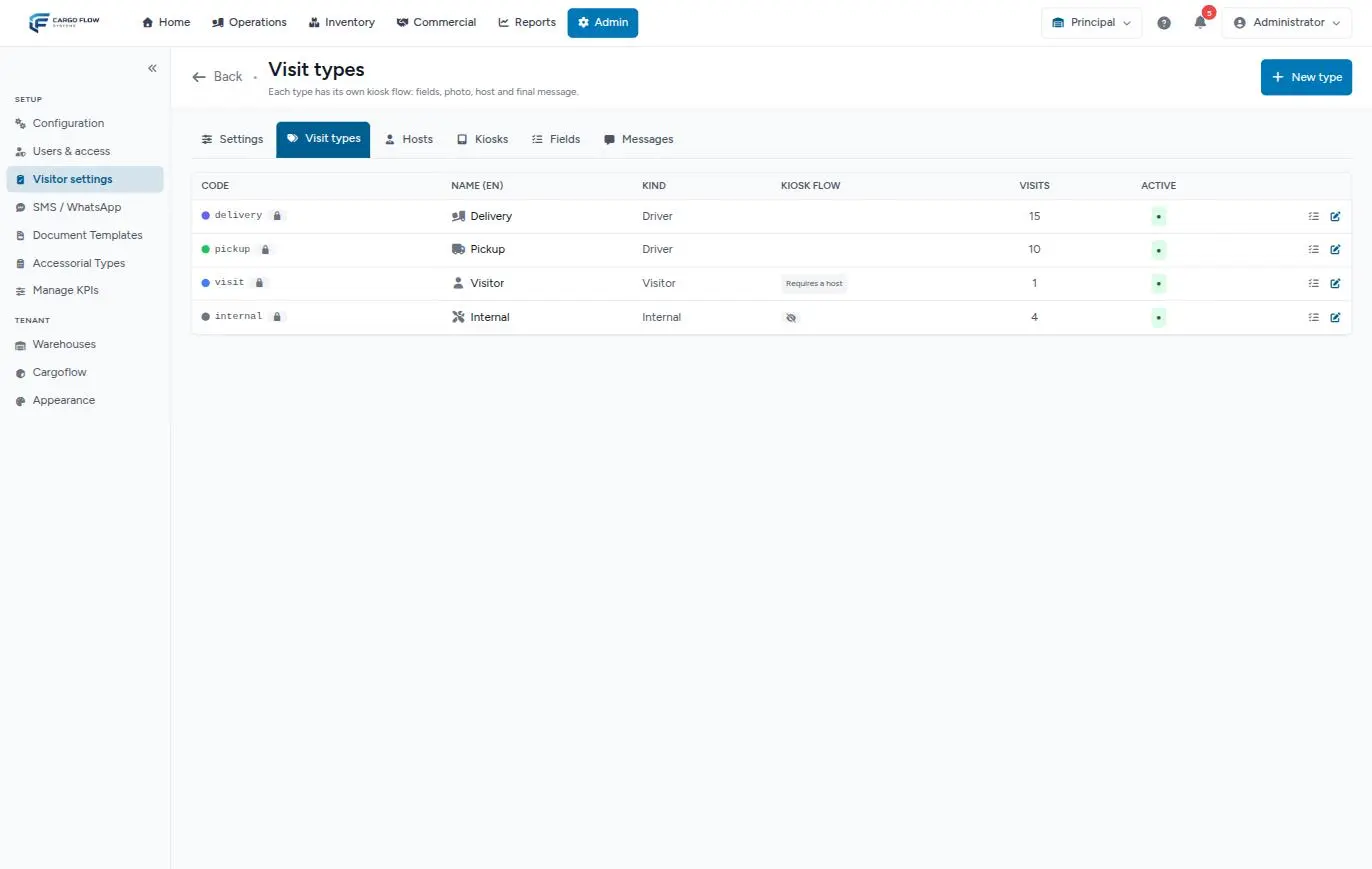
Everything lives under Admin › Visitor settings:
- Visit types — Delivery and Pickup are the types of kind Driver. They carry a lock: they cannot be deleted and their code and kind cannot be changed, because the dock board and the yard depend on them. You can change their name, color and icon, and deactivate them (an inactive type disappears from the kiosk). New types of kind Driver cannot be created.
- Fields — which extra data is asked for each type and which fields are required.
- Messages — the confirmation screen text, per type and per language.
- Kiosks — the registration points, which types and subtypes each one offers, its languages and whether it shows the QR code.
- Settings — show driver types on the general address, show drivers on the visitors board, and automatic check-out (with the option to include drivers).
The details are in Setting up kiosks and Visitor settings.
Example
Luis Pérez arrives at the gate at 7:40 AM with a delivery for Northern Trading Co. He scans the QR code taped to the window, picks English, taps Delivery and, since the warehouse has docks and a yard, picks Warehouse Delivery. He enters his name, North Freight Lines, +15551234567, truck U-114, trailer 48213 and license LF-990031, accepts messages and takes his photo. He sees “Wait in parking lot 2; we will text you”. In the office, the Assign Driver window opens by itself; at 7:42 the supervisor gives him dock 4 and Luis receives the text with the dock number.
Special cases and limits
- Double registration: if the same phone repeats the same type and subtype within 5 minutes, and that registration is still on site, the system does not create another one: it shows the same confirmation. This covers the double tap, a slow network or a driver who goes back and resubmits.
- Kiosk with limited types: a kiosk only accepts the types and subtypes it offers; anything else is rejected.
- Several warehouses: each warehouse has its own address; the registration only reaches that kiosk’s warehouse.
- What is not possible: the driver does not choose the dock or the customer; the supervisor decides that.
Messages the driver may see
| Message | Meaning |
|---|---|
| You must agree to continue. | The messaging checkbox is not checked. |
| Invalid warehouse. | The kiosk address belongs to a warehouse that doesn’t exist or is inactive. Check the printed QR code. |
| Invalid image (JPEG/PNG/WEBP up to 2MB). | The photo could not be read or is larger than 2 MB. Retaking it usually fixes it. |
| There was an error submitting the form. | Connection or server failure. Have the driver try again: if the registration did go through, it will not be duplicated. |
| A message next to a field | A required field is empty or the phone is missing the + and country code. |
Best practices
- Post the printed QR code at the gate: drivers register from their cab and skip the line.
- Set up the confirmation message with clear instructions on where to wait.
- Ask only for the fields you really use (trailer, seal, pickup number): they are copied automatically to the receipt or shipment.
- Make sure drivers enter their country code: without it they will not get dock notifications.
- If a warehouse has docks and a yard, explain at the gate the difference between “warehouse” and “yard”: the wrong subtype sends the registration to the wrong screen.
Troubleshooting
The kiosk address or the Drivers option shows “page not found”.
- The warehouse does not have the Visitors module, which the kiosk depends on. Ask Cargoflow to turn it on.
Delivery and Pickup do not appear at the kiosk.
- The warehouse has neither Docks nor Yard, the types are inactive, Show driver types is off (general address), or the kiosk does not offer them.
I don’t see Drivers in the menu.
- It needs the Docks module and the Write Docks permission.
The phone number is rejected.
- It must start with
+and the country code, no spaces or dashes, 7 to 15 digits.
The driver registered but is not in the bell.
- If they chose a yard subtype, they are on the yard screen. Otherwise, check that the board is on the right warehouse and that the registration is from today.
Frequently asked questions
What if the driver registers twice?
If they repeat the registration with the same phone, type and subtype within 5 minutes, the system does not create a duplicate: it shows the same confirmation. After 5 minutes a new registration is created.
Does the driver get an arrival confirmation?
Only if the Arrival confirmation notification is on under SMS / WhatsApp (it ships off), the driver accepted messages and registered at the kiosk (not when staff create the job with Create Job). See Driver notifications by SMS and WhatsApp.
What if the same driver comes back in the afternoon for another load?
They register again at the kiosk. After the 5 minutes have passed, or if their previous registration is already checked out, it is a new registration with its own job.
Need help?
If something did not work as expected, our support team can help you.
Was this article helpful?