The operator app (My Work)
Summary
My Work is the operator’s screen. It is built for a phone or tablet at the dock: it shows one job at a time (the one that is up), with large buttons to start and finish, the camera for photos, and the panels where the operator records what was loaded or unloaded. The operator does not decide the order of the jobs: the supervisor does, from the dock board.
The same app serves three kinds of work: dock jobs (loading and unloading), yard moves (taking a trailer from one place to another) and special jobs (cleaning, repacking, counts).
Before you start
- Permission: Read Own Jobs. By default the Worker, Supervisor and Admin roles have it. Accounting and Client Portal do not.
- Module: dock jobs need the Docks module; yard moves and special jobs need the Yard module.
- For special jobs: also Read Own Special Jobs (Worker) or Write Special Jobs (Supervisor and Admin).
- To record receiving from the app: the Capture Receipts permission. To record loose items: the Inventory module and the View Inventory permission.
- Device: any modern browser with a camera. Nothing to install. The browser must be allowed to use the camera on this site.
- A supervisor who assigns jobs (see Assigning a driver from the bell).
How to open it
In the Operations menu, choose My Work. Users with the Worker role land directly on this screen when they sign in and when they switch warehouses. If you work in several warehouses, check the warehouse selector in the top bar: each warehouse has its own job line-up.
The main screen
The screen is called Operator Dashboard and has four tabs: Current Job, Upcoming Jobs, Completed Jobs and My Summary.
Below them, four indicators:
- Current Status — Working if a job is in progress, Ready if one is assigned but not started, Idle if there is nothing.
- Jobs Today — jobs assigned today, adding up dock jobs, special jobs and yard moves.
- Completed Today — the ones closed today, of all three kinds. A dock job waiting for the supervisor to release it does not count yet.
- Average Time — average minutes from start to finish of the operator’s dock jobs over the last 30 days.
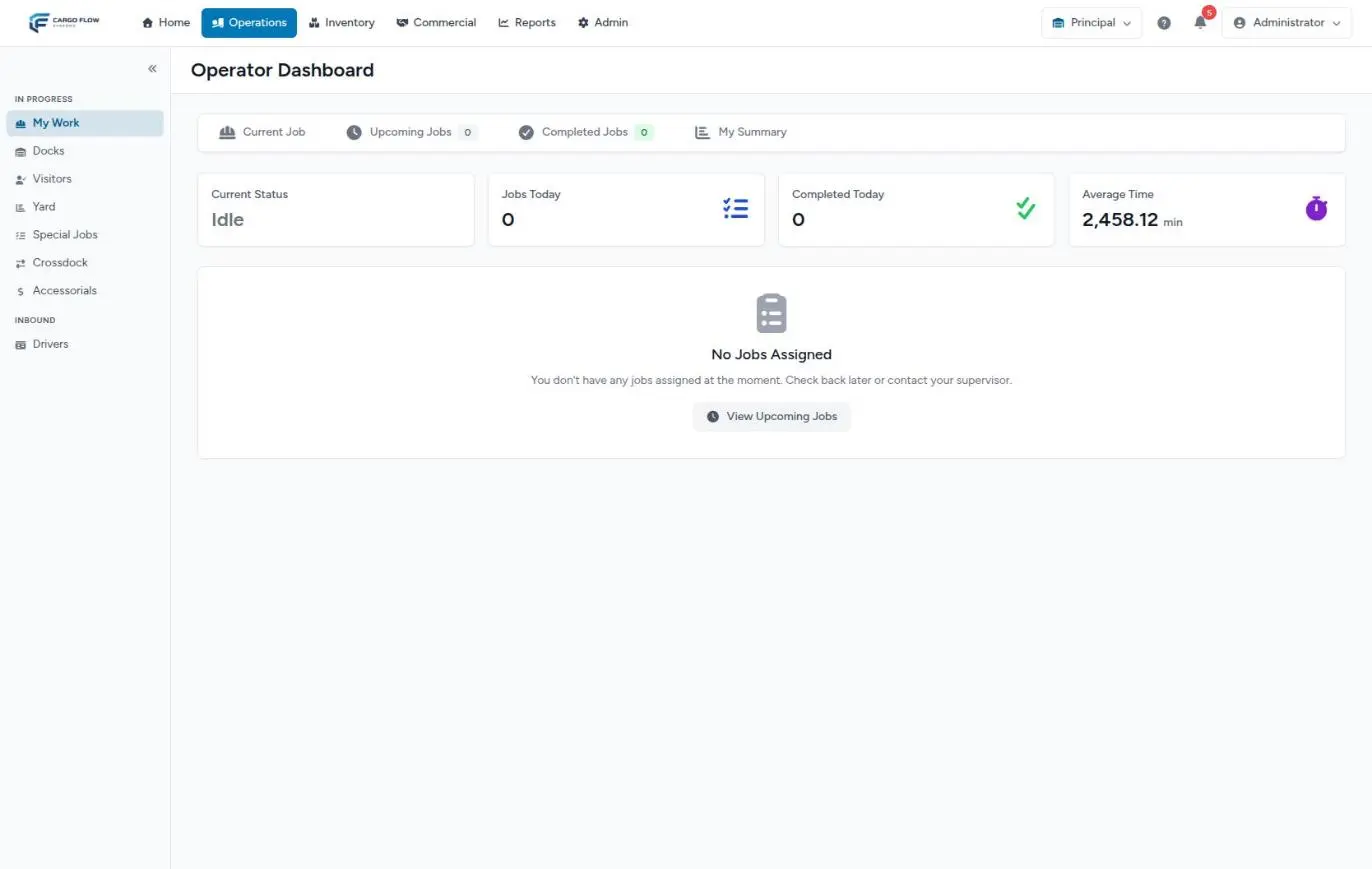
With no work, it shows No Jobs Assigned. With work, the Your Current Assignment card appears with the Go to Job button.
Which job the operator gets
Each operator has a numbered line-up that combines their dock jobs and their special jobs. The system picks the current job like this:
- Yard moves first. If the person has a yard move assigned or in progress, it comes before everything else.
- Then the lowest number in the line-up, comparing the next dock job with the next special job. On a tie, the dock job wins.
The supervisor changes that order by dragging rows in the FIFO view. When the operator finishes a job, the rest of the line-up renumbers itself and the next job becomes current.
The current job screen
- Header — the dock, the status (Job Pending or Job In Progress), the driver and the trailer number.
- Timer — how long the job has been running since it started. The bar is green up to 60 minutes (Good pace - keep it up!), amber from 60 to 90 (Pay attention to time) and red after 90 (Time exceeded - finish as soon as possible), with a sound when the color changes. This timer uses those fixed limits; the supervisor’s board uses the customer’s maximum time instead.
- Details — priority, carrier, seal, pickup number, driver phone, assignment, arrival and start times, and the Job Notes left by the supervisor. It is open until the job starts and folds once it is running (Details / Hide).
- Work panels — depending on the job type and the warehouse’s modules (see below).
- The big button fixed at the bottom: START JOB (green) or FINISH JOB (red).
Step by step: from start to finish
- Check the details — make sure the trailer and dock match the truck in front of you.
- START JOB — the job moves to In Progress, the clock starts and, if a receipt or shipment is linked, it moves to in progress or loading. You can only start a job assigned to you that is still Assigned.
- Work the panels — depending on the job you will see:
- Receiving (deliveries with a linked receipt): received quantity and location per line, with Save receiving.
- Loading record (pickups with a linked shipment): seal number and loaded quantity per line, with Save loading.
- Items & Inventory: loose items (description, quantity, weight, dimensions, location) and seal.
- The verification list, the photos and your notes.
- FINISH JOB — see Finishing and releasing the dock.
On a cross-dock job the unloading panel (to the receipt) and the loading panel (to the shipment) show at the same time, each with its own photo button: Unload photo (to receipt) and Load photo (to shipment). At least one photo of each is needed to finish. See How a cross-dock is done.
Photos and notes
- Photos — the camera button opens the camera full screen (Take Photo, Save or Retake, and an optional photo name). Photos are stored on the phone first and upload on their own; with no signal you will see Saved locally — will upload automatically. Each photo shows whether it is Local or In the cloud. The supervisor sees them in the job details and they appear in the operator report.
- My Notes (Trailer/Work) — free text for trailer condition, damage or any observation. It saves itself when you stop typing (Notes are automatically saved when you stop typing). These notes appear on the job card inside the receipt or shipment and in the operator report.
If the warehouse has no verification list for that job type, at least one photo is required to finish: the button warns You must take at least one photo before finishing the job.
Finishing and releasing the dock
- Tap FINISH JOB. Finish Job? opens and shows how many photos are included. If the warehouse uses accessorials, you can record extra services here (optional; a pending photo does not block finishing). See Recording an accessorial. Tap Yes, Finish Job.
- Answer Release the Dock? — the question means “is the driver leaving with the trailer?”:
- Yes, Release Dock — the job closes as Completed, the driver is checked out and the dock is free.
- No, Trailer Stays — the job stays in Work Finished and the supervisor later decides whether to release the driver or send the trailer to the yard.
Either way: the system checks the verification list is complete, stores the finish time, marks the trailer as empty (deliveries) or loaded (pickups and loads), pushes the recorded items to the linked receipt, and makes the next job current. The app returns to the Operator Dashboard.
Upcoming Jobs, Completed Jobs and My Summary
- Upcoming Jobs — the line-up in order: assigned dock jobs, assigned special jobs and assigned yard moves (these always on top). It shows totals of pending, high-priority, pickups and deliveries. Each card has the dock, type, driver, trailer, pickup number, carrier and customer. It refreshes every 30 seconds.
- Completed Jobs — what you closed today, this week or this month, with total hours, average time and the On-Time Rate (a dock job counts as on time if it took 90 minutes or less). Each job has its photo gallery.
- My Summary — your numbers for the day, week or month (dock jobs): total, average, hours, on-time percentage, a daily activity chart and the breakdown by job type.
Yard moves and special jobs
- Current Yard Job — shows the move (Origin and Destination), the trailer and the associated dock job, with START YARD JOB and FINISH YARD JOB. At least one photo is needed to finish (Take at least one photo of the completed work). You can only start and finish your own moves. See From yard to dock and back.
- Current Special Job — shows the description, Your Role (principal or assistant), the Team and the Max Time, with Start Work and Complete Work. It also asks for at least one photo. See Special jobs.
The verification list, in short
If the warehouse set up a verification list, while the job is running the app shows Loading verification (pickups and loads) or Receiving verification (deliveries). Items marked Required must be checked, and items that ask for photos need them, before the job can be finished. Checkboxes are saved when you tap Save loading or when the job is finished; each item’s photos upload immediately.
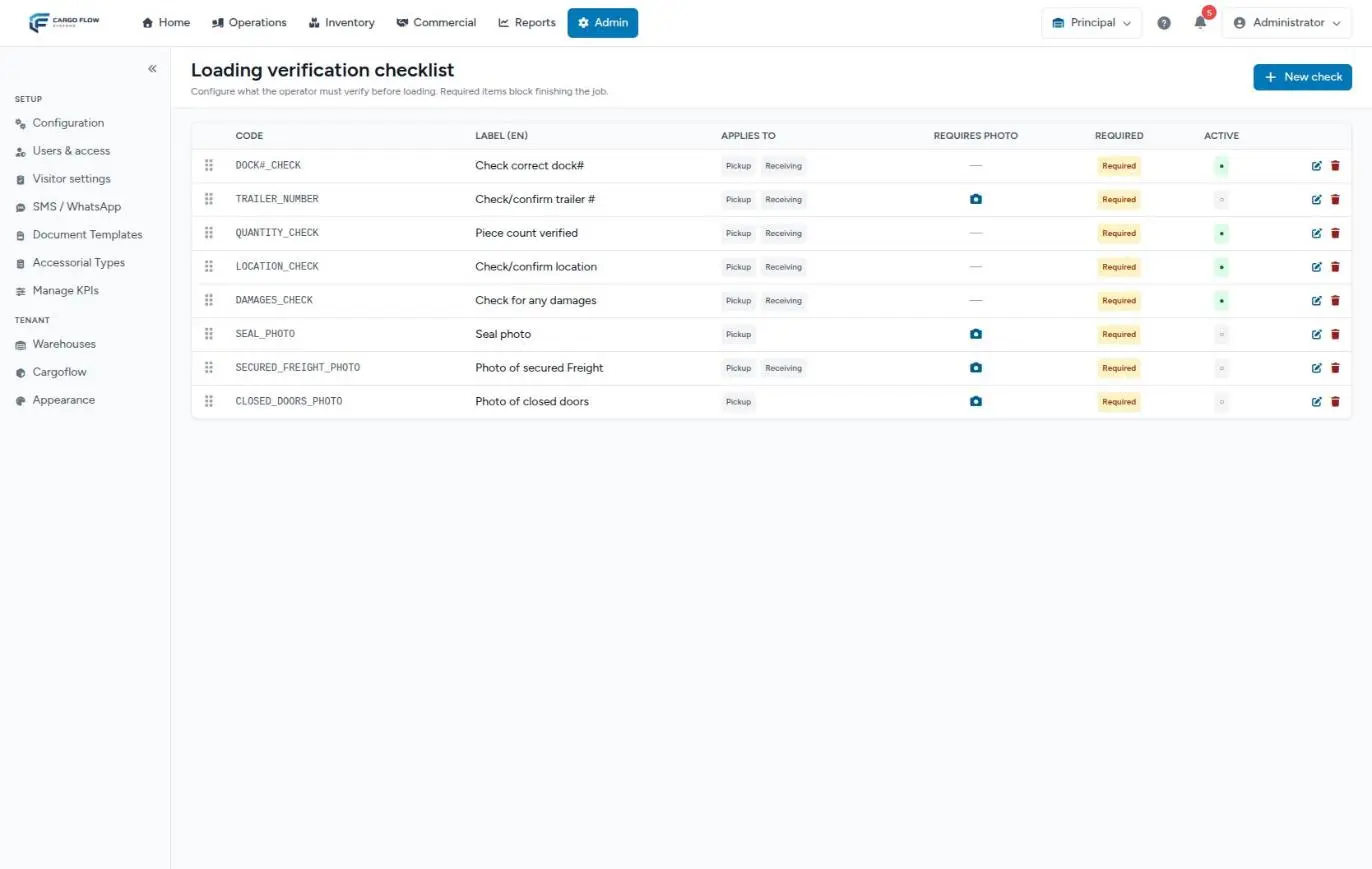
How it is configured, what the system enforces and which messages appear is covered in The operator’s loading record and verification.
What happens in other modules
- Dock board: every button the operator taps changes the row on the board instantly (Assigned → In Progress → Work Finished or Completed).
- Receiving: on start, the linked receipt moves to in progress; what is recorded in Receiving and Items & Inventory lands on the receipt, which a supervisor then reviews and confirms. Stock does not change until that confirmation. See From notice to stock.
- Shipping: on start, the shipment is allocated if needed and moves to loading; the loading record pre-fills the close, which a supervisor does. See From order to departure.
- Billing: accessorials recorded on finish become charges to the job’s customer.
- Visitors: with Yes, Release Dock, the driver’s visit is closed.
- Reports and KPIs: start and finish times feed the dock cycle time on the KPI panel and the operator report.
Example: Ana’s shift
Ana López clocks in at 7:00 and lands on her Operator Dashboard: Current Status Ready, Jobs Today 3. Her current job is an unload for Northern Trading Co. at dock 4. She taps START JOB at 7:12; receipt REC-01288 moves to in progress. In Receiving she records 40 cases at location A-01-02, takes three photos of the seal and trailer, checks the four required Receiving verification items and writes in her notes “rear corner dented”. At 7:58 (timer still green) she taps FINISH JOB, records a “Stretch wrap” accessorial and answers No, Trailer Stays. The job stays in Work Finished · Empty, and her next job —a repacking special job— becomes current.
Special cases and limits
- Jobs without an operator: they show up for nobody until the supervisor assigns them.
- A job started from the board: the supervisor can also start from the FIFO view; the operator will see it already In Progress.
- Reassignments: if the supervisor changes a job’s operator, it disappears from the previous operator’s app and goes to the end of the new one’s line-up.
- Internal jobs: no verification list, and the trailer is not marked empty or loaded. See Internal jobs.
- What the operator cannot do: reorder their line-up, release a job left in Work Finished, send the trailer to the yard, cancel, or close the receipt or shipment. All of that belongs to the supervisor.
Messages the operator may see
| Message | What it means and what to do |
|---|---|
| This job is not assigned to you. | The supervisor reassigned it or someone else already started it. Go back to the dashboard. |
| You don’t have a current job to work on. | Nothing is assigned; check Upcoming Jobs or talk to your supervisor. |
| You must take at least one photo before finishing the job | There is no verification list for this job, so a loose photo is required. |
| Complete the verification checklist before finishing: … | Required items or their photos are missing. The message names them. |
| Take at least one photo of each leg before finishing. Missing: … | On a cross-dock, the unload or the load photo is missing. |
| Camera permission denied… | Allow the camera for this site in the browser settings and reload. |
| Error finishing job. Please try again. | The connection failed. Check the signal; if the job already shows as finished on the dashboard, don’t repeat it. |
Best practices
- Tap START when you actually open the trailer: the customer’s time is measured from there.
- Photograph the seal and any damage before moving the freight.
- Tap Save loading or Save receiving now and then on long jobs so nothing is lost if the page closes.
- Choose No, Trailer Stays when in doubt: the supervisor can release later, but a driver released by mistake has already left.
- Write in your notes anything a customer might dispute later: it prints on the operator report.
Troubleshooting
No job shows up although the supervisor says it was assigned.
- It may be under Upcoming Jobs: the supervisor has to put it first in your line-up.
- Check you are in the right warehouse.
- If you have a pending yard move, it shows before any dock job.
The FINISH JOB button is gray.
- A photo is missing: without a verification list at least one photo is needed; on a cross-dock, one per leg.
On finishing, a message says verification is incomplete.
- The message names the missing items: check the required ones and take their minimum photos.
The camera does not open.
- The browser has no camera permission. Allow it for this site and reload.
A special job the supervisor cancelled shows up as my current job.
- This is a known defect with cancelled special jobs. Don’t start it: tell your supervisor (see Special jobs).
Frequently asked questions
What happens to photos if the signal drops?
General photos are kept on the phone and upload on their own when the connection returns. Verification-list photos upload at the moment they are taken, so they need signal. Don’t clear the browser data while photos still show Local.
Does the operator close the shipment?
No. The operator records what was loaded and the seal; a supervisor closes the shipment from Shipping. See Closing a shipment.
Can a job finished by mistake be undone?
Not by the operator. The supervisor can open the job on the board and tap Restart Job, which sets it back to Assigned (see The life cycle of a dock job).
Need help?
If something did not work as expected, our support team can help you.
Was this article helpful?