Products and packaging levels
Overview
Everything that comes in and goes out of the warehouse is recorded against a catalog product. Each product belongs to a customer (or is global to the warehouse) and defines its base unit, dimensions, weight and packaging levels: how many pieces a pack holds and how many packs make a pallet. Those levels are not decorative: billing uses them to charge per pallet and per case, the scanner uses them to read case barcodes and shipments copy their dimensions.
The catalog lives in Inventory › Products (Catalogs group). If you are setting up your first SKU, start with the illustrated guide Set up a SKU step by step. To load many products at once, see Importing products from CSV.
Before you start
- Module: Inventory enabled for the warehouse.
- Permission: Manage Inventory Catalogs. By default Super Admin and Admin have it; a Supervisor cannot edit the catalog unless it is added.
- Unit cost: also View Inventory Valuation (Super Admin and Admin).
- Customer: if the product belongs to a customer, the customer must exist and operate in this warehouse (see Setting up a customer).
- Each warehouse has its own catalog. A product created in one warehouse does not exist in another; if the customer operates in two warehouses, its SKUs are created in each.
The product list
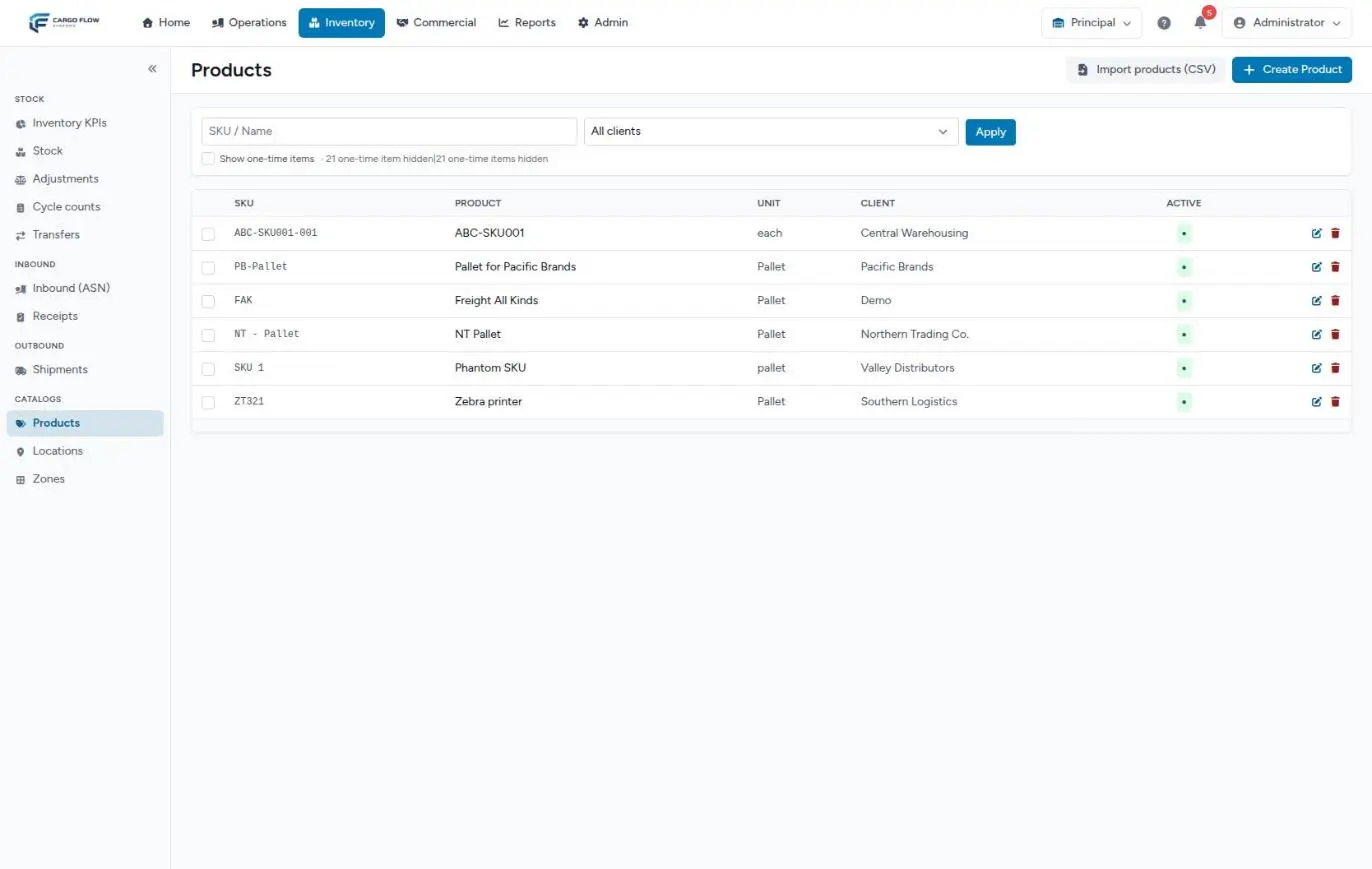
- SKU / Name search and customer filter — narrow the list; Apply runs the search.
- Show one-time items — reveals the items created on the fly during a receipt. Next to it you see how many are hidden. See One-time items.
- Columns: SKU, Product, Unit (the base unit), Client and Active, with the pencil to edit and the bin to delete. 50 products per page, sorted by SKU.
- Header buttons: Import products (CSV) and Create Product.
Creating or editing a product
- Click Create Product — or the pencil of an existing product.
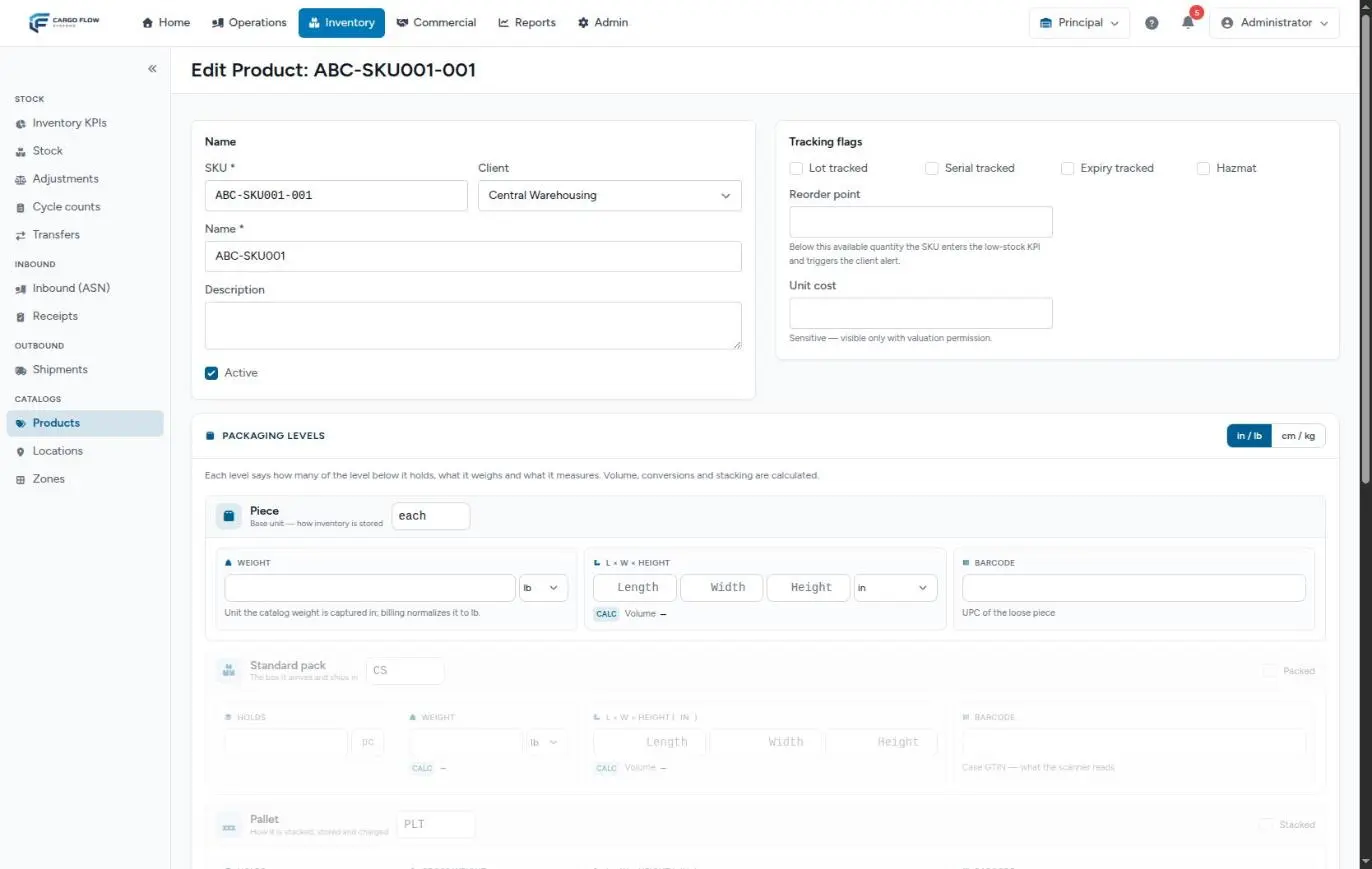
- SKU (required) — the product code, up to 64 characters. It cannot repeat within the same customer in the same warehouse, not even with a product that was deleted.
- Client — the owner of the goods. The list offers this warehouse’s customers and those attached to it on their Warehouses tab. Choose Global (no specific client) only if the product belongs to the warehouse and every customer can use it.
- Name (required, up to 200 characters) and Description (free text) — what the operator reads at the dock and what appears on documents. A clear name avoids mix-ups.
- Active — ticked by default. Clear it to retire a product without erasing its history: it stops appearing in the ASN, receipt, shipment and adjustment searches.
- Tracking flags, reorder point and cost — see the next section.
- Packaging levels — the base unit with its weight and dimensions, and optionally the pack and pallet. See below.
- Photos and documents — can be attached at creation; when editing, each file uploads with its own button.
- Save — when creating, the system takes you to the new product’s edit screen so you can continue with packaging, photos and documents. When editing, you stay on the same screen to check the recalculated equivalences.
Tracking, reorder point and cost
- Lot tracked — the receipt requires the lot number on each line before it can be confirmed, and stock is kept separate by lot. It is the only flag that changes operations today.
- Expiry tracked, Serial tracked and Hazmat — they are saved with the product, but today no screen asks for an expiry date or serial numbers, and the hazmat flag changes nothing in receipts, shipments or documents. Details in Lots, serial numbers and expiry.
- Reorder point — a number of zero or more, in base unit. When the product’s available quantity across the warehouse drops below it, the SKU counts as low stock. Empty means never low. See Reorder point and low stock.
- Unit cost — sensitive data: only users with View Inventory Valuation see and enter it. Without the permission, the field does not appear.
Packaging levels
The Packaging levels section describes the product as a three-step ladder. Each level says how many of the level below it holds, how much it weighs and its dimensions; volume, equivalences and pallet stacking are calculated. The Units switch in the corner flips the whole screen between inches and pounds or centimeters and kilos: all levels are entered in the same system.
- Piece — the base unit: this is how inventory lives, and every stock quantity is in this unit. It carries the unit code (required, up to 16 characters;
eachby default), the weight with its unit, length × width × height and the barcode of the loose piece. With all three dimensions, volume is calculated in cubic feet. - Standard pack — the case it arrives and is picked in. Tick Packed and enter its code (
CSby default), how many pieces it Holds (whole number, at least 1), its weight, dimensions and the case barcode (the one the scanner reads). - Pallet — how it is stacked, stored and charged. Tick Stacked and enter its code, how many packs it holds (or pieces, if there is no pack), gross weight, dimensions and the pallet label.
With a level switched on, its code and quantity are required; with the level off, whatever was typed is discarded on save. With the pallet and pack dimensions, the Stacking box tells you how many packs fit per layer, how many layers and whether it fits the declared height, or warns you when the quantity does not fill whole layers or the pack does not fit.
PLT, pallet, SKID). Billing, storage and the capacity warning recognize the level by its place on the ladder, not by its text; use the code that is clear to the operator and the customer.How it will be charged
Below the levels, the How it will be charged box tells you in plain words what billing will do with this product:
- With a pallet level: “charges pallets” and how many pieces each holds. Without it, it warns no pallet level: it would charge loose pieces.
- With a standard pack: “charges packs”. Without it, the same: loose pieces.
- With a piece weight: weight-based charges use it. Without it, it warns the piece weight is missing.
Photos, documents and other units
- Product photos — help identify it at receiving. JPG, PNG or WEBP up to 10 MB each.
- Documents — spec sheets, safety data sheets, etc. PDF or image up to 10 MB.
- Files are kept in private storage; they open from the product page with a signed-in session.
- Other units — units outside the ladder (kilo, roll, bundle). They can be used on documents but do not take part in per-pallet or per-case charges.
Full example
Northern Trading Co. sends its oil CN-ACE-1L. You set it up like this:
| Field | Value |
|---|---|
| SKU / Client | CN-ACE-1L / Northern Trading Co. |
| Name | Vegetable oil 1 L |
| Lot tracked | Ticked (the customer tracks production lots) |
| Reorder point | 1,440 (two pallets) |
| Piece | each, 2.1 lb, 3 × 3 × 10 in |
| Standard pack | CS, holds 12, 26 lb, 12 × 9 × 10.5 in |
| Pallet | pallet, holds 60 packs, 1,610 lb, 48 × 40 × 57 in |
Equivalences: 1 pallet = 60 packs = 720 pieces. The Stacking box shows how many packs fit per layer and how many layers fit in 57 inches of height. How it will be charged: pallets of 720 pieces, packs of 12 and the piece weight. If 2,160 pieces arrive, storage counts 3 pallets.
What other modules use from the product
- ASNs and receipts: the search offers only active products of the customer plus global ones; the case barcode lets operators scan cases; with Lot tracked the receipt asks for the lot. See Capturing lines.
- Shipments: when the product is chosen, its dimensions are copied to the shipment line. See Creating a shipment.
- Billing: packaging levels and weight decide how per-pallet, per-case and weight charges are calculated. See How charges are generated.
- Locations: the capacity warning converts pieces to pallets with the pallet level.
- Client portal: the customer sees their SKUs and names in their inventory and can pick them when ordering a shipment or sending a notice.
- KPIs: the reorder point feeds the low stock KPI.
Quick add from other screens
The product searches on ASNs, receipts, shipments and adjustments offer to create a product with just SKU and name, without leaving the screen (the Quick add product window). The product is born active, with base unit each, no packaging, no weight and no flags. Complete it here later: until then it is charged per piece. During receipt capture, what gets created on the fly is usually a one-time item.
Deactivating and deleting products
The bin deletes a product; you can also tick several and use Delete selected. With a customer or search filter on, the header checkbox offers Select all SKUs matching the filter, not just the ones on the page: useful when a customer leaves and its catalog must be cleaned up. Without a filter that option does not exist, so the whole catalog cannot be wiped in one click.
A product with stock cannot be deleted: first move it, ship it or bring it to zero. In a bulk delete, products with stock are skipped and the message says how many were left out.
Special cases and limits
- Changing the customer of a product that has stock: the system allows it, but existing lines keep the previous customer. Do not do it with goods in the warehouse; create the SKU for the new customer and move the goods with documented adjustments.
- Changing the base unit: stock is not converted. If the product lived in pieces and you switch it to cases, the stored quantities stay the same figures, now read as cases.
- Global product: any customer in the warehouse can use it; when received, the line is recorded under the receipt’s customer.
Best practices
- Create products before the truck arrives, so the ASN and the receipt flow without emergency setups.
- Set up the standard pack and pallet of every product charged per case or per pallet.
- Enter the piece weight if the customer has weight-based services.
- Enter the case barcode: operators scan cases, not pieces.
- Prefer deactivating over deleting when a product stops being used.
Troubleshooting
On save it says the SKU has already been taken.
- There is already a product with that SKU for the same customer in this warehouse. Look it up with the customer filter (it may be inactive); if it does not show, it was deleted and the code is still taken: use a variant of the SKU.
A per-pallet charge was calculated per piece.
- The product has no pallet level. Switch it on with Stacked, enter how many packs it holds and correct the charge before invoicing.
Storage charged thousands of pallets for a product that takes up a few.
- The product has no pallet level and each piece counted as one. Tick Stacked with its count and review the charges already created with billing: they are not recalculated on their own.
A required-field message appears on the pack or pallet when saving.
- You switched the level on without entering its code or quantity. Complete them or switch the level off.
I cannot delete a product.
- It still has stock. Transfer, ship or adjust it to zero and try again.
I do not see the unit cost field.
- It requires View Inventory Valuation.
The product does not show when capturing a receipt.
- It is inactive, or it belongs to another customer. Activate it or check the product’s customer.
Frequently asked questions
Can two customers use the same SKU?
Yes. The SKU is unique per customer within the warehouse: two customers can use the same code without conflict and their inventories stay separate.
What are one-time items?
Items created on the fly while capturing a receipt with goods that were not in the catalog. They are not catalog SKUs, so the list hides them; tick Show one-time items to see them. See One-time items.
What happens if I do not set up the pallet level?
Services charged per pallet are calculated on loose pieces, because the system does not know how many pieces make a pallet. The How it will be charged box warns you.
Can I change the packaging of a product with stock?
Yes. Stock is kept in pieces, so it does not change; what changes is how it converts to cases and pallets from then on. Storage charges on the following nights use the new packaging; those already created are not recalculated.
Need help?
If something did not work as expected, our support team can help you.
Was this article helpful?