From quote to first invoice
Summary
This article follows a new customer from the moment you send the price proposal until they pay their first invoice. In Cargoflow that path is chained together: the won quote becomes the customer and their rate card; operations (receipts, shipments, accessorials) create charges on their own using those rates; charges are grouped into invoices; invoices are emailed and collected. Nobody retypes prices along the way.
What you do by hand are the gaps between one module and the next: completing the customer record, telling the system who gets the emails, opening the portal and reviewing what is pending before the cutoff. Each step below says which screen it uses, which permission it needs and which article has the detail.
The route map
| Step | Screen | Who, by default | What it leaves ready |
|---|---|---|---|
| 1. Quote | Commercial › Quotes | Super Admin, Admin | The proposal with the negotiated services and prices |
| 2. Win | «Accept & create client» button | Super Admin | The customer, their contact, address, warehouse and one rate per service |
| 3. Complete the record | Commercial › Clients › (customer) | Super Admin, Admin | Document number code, contacts, email recipients, payment terms |
| 4. Portal | Portal Users tab | Super Admin, Admin | The accounts the customer uses to see their operation |
| 5. Catalogs | Inventory › Products and Locations | Super Admin, Admin | Their products with units and weight; the locations where they are stored |
| 6. First receipt | Inventory › Receipts | Capture: down to Worker. Confirm: Supervisor and up | Stock, receiving handling charge, goods receipt note, email to the customer |
| 7. First shipment | Inventory › Shipments | Supervisor and up | Stock out, shipping handling, storage and accessorial charges, bill of lading and packing list, email to the customer |
| 8. Review | Commercial › Billing › Services to Invoice | Super Admin, Admin, Accounting | Confidence that what will be billed is right |
| 9. Invoice | «Generate invoices» button or the 2:30 AM run | Super Admin, Admin, Accounting | Invoices with a number and a due date |
| 10. Send | Invoice detail › «Send by email» | Super Admin, Admin, Accounting | The PDF in the customer’s inbox, with its backup |
| 11. Collect | «Record payment» and Commercial › Receivables | Super Admin, Admin, Accounting | An up-to-date balance and receivables aging |
Before you start
Modules the warehouse needs. Quotes (steps 1 and 2), Inventory, Receiving and Shipping (steps 5 to 7) and Billing (steps 8 to 11). The client portal, accessorials and documents are optional, but if they are not on, their part of the path simply does not appear. If a menu is missing, see Modules, permissions and access.
What must exist first.
- The warehouse service catalog with base prices (Admin › Configuration › Services). The quote is built from it. See Service catalog.
- Document numbers reviewed and saved in Configuration › Folios / Numbering: the first receipt and the first invoice already take a number. See Document numbers and documents across the flow.
- The locations where the goods will be stored.
- An active goods receipt note, bill of lading, packing list and invoice template, if the warehouse uses the documents module.
1. Quote
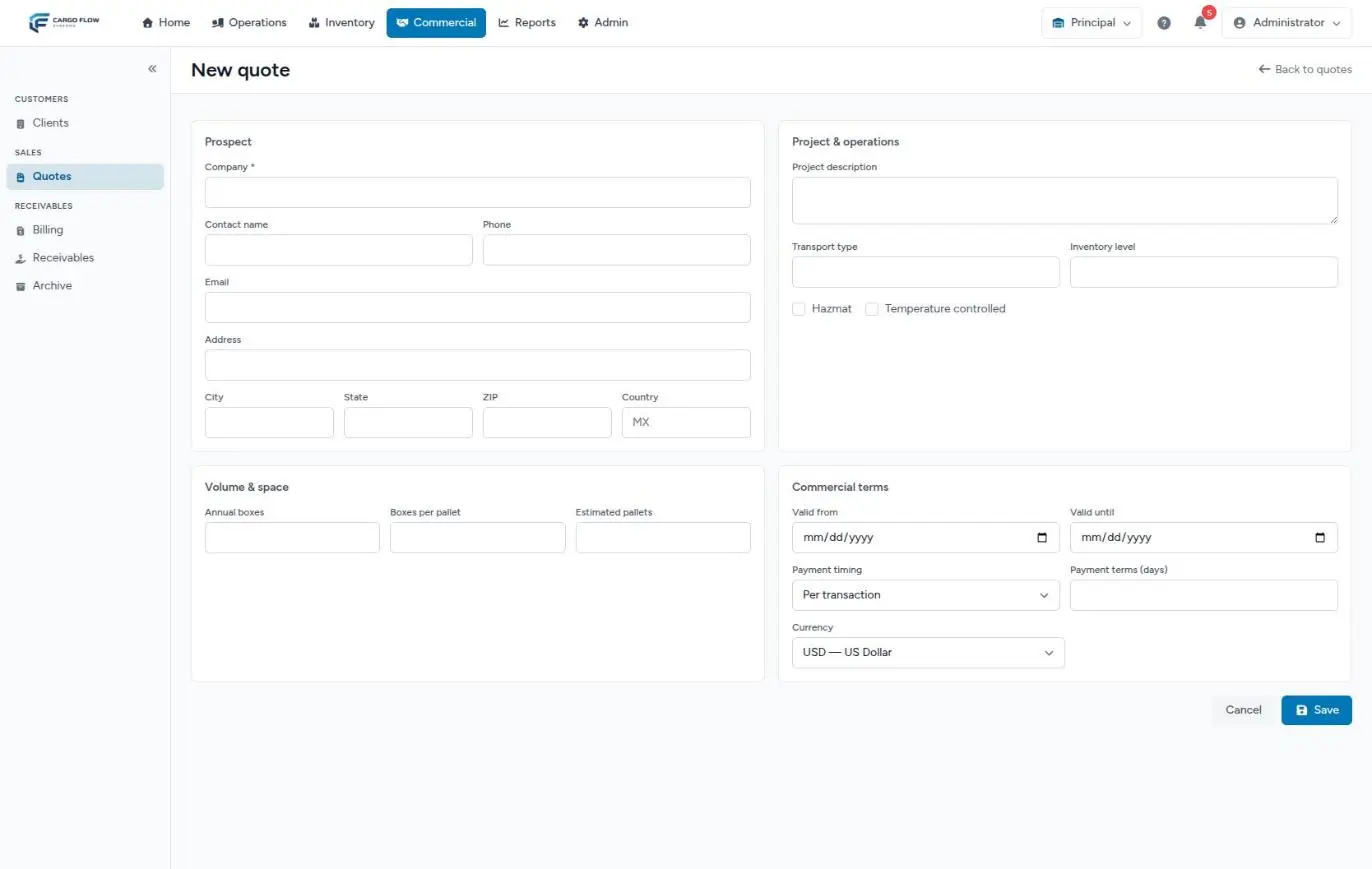
- Go to Commercial › Quotes and click «New quote». You need the manage quotes permission.
- Fill in the prospect. Only the company is required, but everything you enter here later passes to the customer: contact, email, phone, address.
- Fill in the commercial terms. Currency, validity, payment timing and payment term in days. When you win, they become the customer’s payment terms.
- Save and build the lines. The editor preloads the catalog; include the services you will charge, with their rate, minimum, maximum and free days.
- Send the proposal. Download the PDF or Excel and change the status to Sent.
Editor, templates and statuses are covered in Quoting and winning a customer and Quote templates.
2. Win the quote
When the customer accepts, open the quote and click «Accept & create client». The dialog tells you how many rates it will set up and how many new services it will add; confirm with «Accept & create». By default only the Super Admin has this permission.
In a single operation the system:
- Marks the quote as Won, with no way back.
- Creates the customer with the prospect’s company name, contact and email.
- Assigns a document number code derived from the name: the first eight letters and digits, uppercase. «Valley Distributors» becomes
VALLEYDI. - Adds a primary contact of type Operations and a physical address, if the prospect had them.
- Links the customer to the quote’s warehouse.
- Creates one rate per included line, with its minimum, maximum, free days and currency, effective today and with a note saying which quote it came from.
- Turns custom lines into services exclusive to that customer.
- Saves the operations profile (hazardous materials, temperature, volume) and the payment terms: payment timing, credit days and billing currency.
You land on the customer record, on the Pricing tab.
What the quote does not set up
| Missing | What happens if you skip it | Where to fix it |
|---|---|---|
| A contact of type Billing | The customer gets no automatic email: the fallback recipient is a Billing contact, and the one the quote created is Operations. | Contacts and Notifications tabs |
| A short, final document number code | Their numbers use the derived code (VALLEYDI-2026-00001), and changing it later splits the series. | Data tab |
| Portal users | The customer cannot send advance ship notices or see their stock. | Portal Users tab |
| Their products | Their first receipt cannot be captured by SKU. | Inventory › Products |
| Other warehouses | The customer stays in the quote’s warehouse. | See Working with several warehouses |
3. Complete the customer record
Do it the same day, before their first document. You need the configure clients permission (Super Admin and Admin by default). Go through the tabs in this order:
- Data. Change the document number code to a short, clear one (letters and digits, up to 16, unique), for example
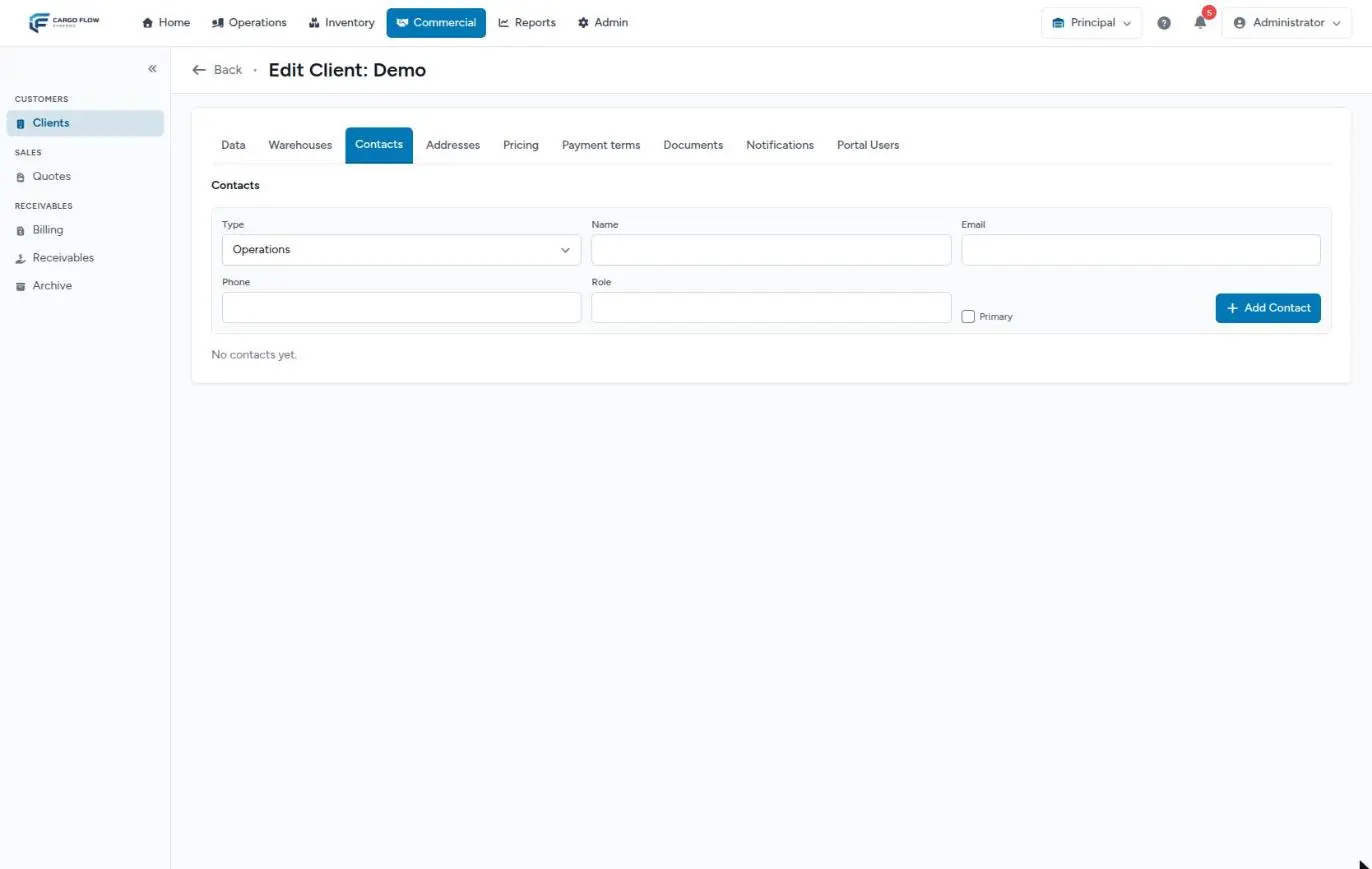
DVALLE. Set the inventory report mode and the maximum dock times if they apply. Click «Update Client». - Contacts. Add at least one contact of type Billing with an email, marked as primary. It is the fallback for every email.
- Pricing. Check that receiving handling, shipping handling and storage are there as negotiated. Anything left empty is charged at the catalog base price. See Customer rates.
- Payment terms. Confirm «When this client pays», credit days and currency. They decide how the invoices are grouped and when they fall due.
- Notifications. Tick the Email channel, choose the recipients (and what each one gets), the language, and decide whether to send photos, uploaded documents, daily inventory and the monthly summary. Click «Save» and test with the inventory «Send now». See Customer emails and reports.
- Documents. If the customer only uses certain formats, tick them in «Documents this client uses»; if they have their own format, create their template.
4. Open the portal
If the warehouse has the client portal, on the Portal Users tab create one account per person: name, email, a password of at least 8 characters and the access to each section (no access, read or write). Whoever sends advance ship notices or requests shipments needs write access to Receipts or Shipments. The email cannot be in use by any other account in the system.
If the tab shows the notice that the portal is not enabled in any of the customer’s warehouses, it has to be turned on first in the Cargoflow panel. What the customer sees in each section and what reaches them by email is in What the customer sees, and when.
5. Their products and where they go
In Inventory › Products, add their products by hand or with the import. For charges to come out right, each product needs:
- Its pallet unit (how many pieces fit on a pallet), if the customer pays handling or storage per pallet.
- Its catalog weight, if anything is charged by weight.
If the customer sends advance ship notices from the portal, they can create new products themselves while filling in the notice. See Products and units and Locations and zones.
6. The first receipt
Goods come in through an advance ship notice (from the portal, through the API or entered by the warehouse) or directly, without one. The worker captures what arrived and a supervisor confirms the receipt. The detailed path, with dock, yard and driver, is in From notice to stock.
On confirmation, right away or within the next few minutes, all of this happens:
| Module | What happens |
|---|---|
| Inventory | The goods enter stock at their location, with their entry date (the one storage counts from). |
| Billing | A Receiving handling charge is created for what was received, if the customer has it on their rate card, plus any services set to be charged at receipt. They go to Services to Invoice with the actual receiving date. |
| Documents | The goods receipt note is generated and stored with the customer’s template or the global one. |
| The «Receipt confirmed» notice goes to the customer’s recipients, with their lines, the selected photos and the uploaded documents if configured. | |
| Portal | The customer sees their receipt as Confirmed and the goods in their inventory. |
See The receiving flow.
7. The first shipment
The customer requests the outbound from the portal (it arrives as a draft) or the warehouse creates the shipment. It is confirmed, the goods are allocated, loaded at the dock and marked as shipped. The complete path is in From order to departure.
When it is marked as shipped:
- The goods leave stock.
- Shipping handling (for what was picked) is charged, plus Storage for what left if the customer pays storage at shipment (calendar days from entry to shipment, minus free days), plus any services set to be charged at shipment.
- The accessorials captured during loading, which were waiting for the departure, enter the pool.
- The bill of lading and the packing list are generated.
- The «Shipment shipped» email goes out.
See Closing a shipment and Where every charge comes from.
8. Review what will be billed
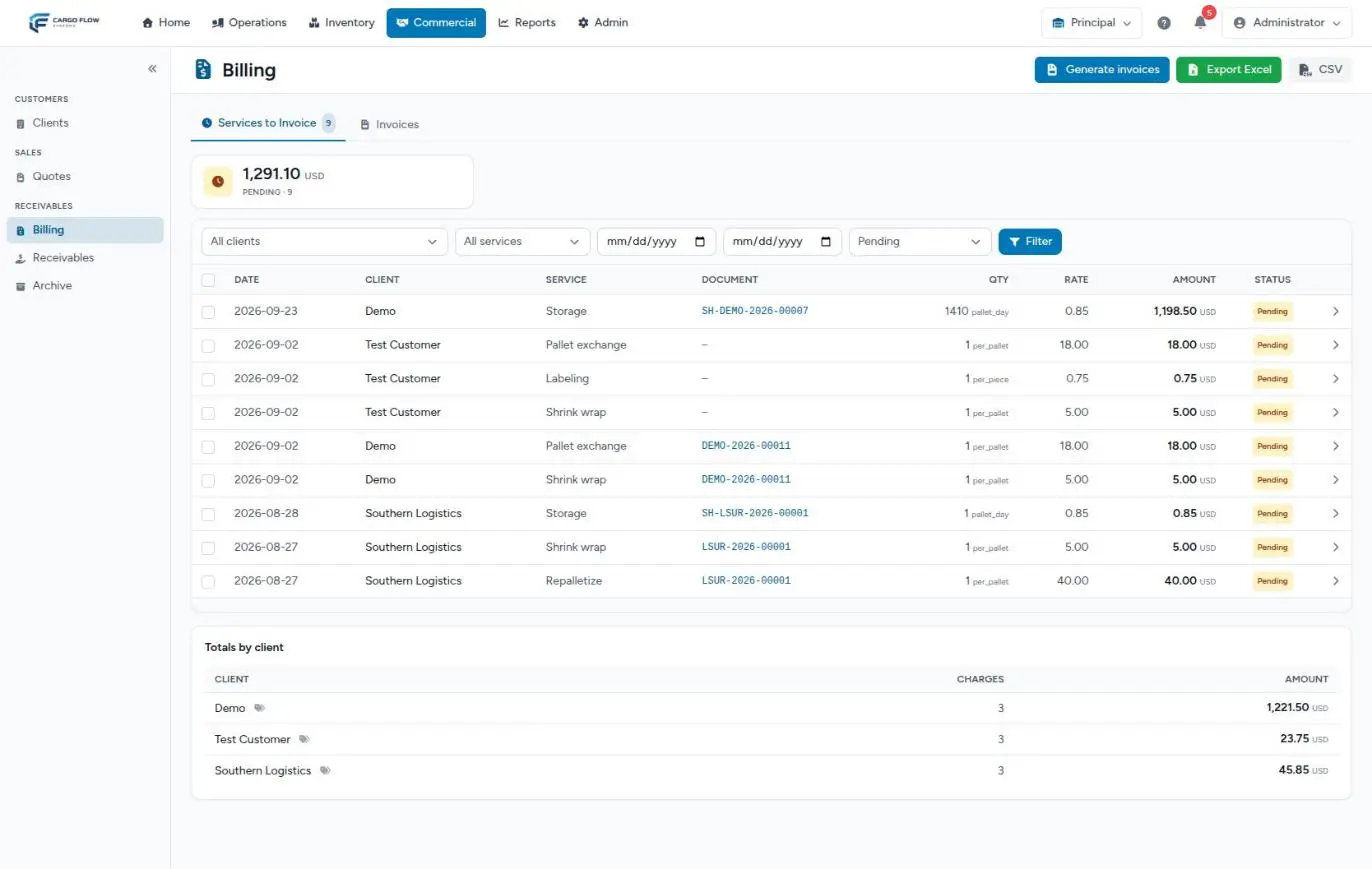
In Commercial › Billing, on the Services to Invoice tab, filter by the customer and review row by row: service, document, quantity, rate and amount. The arrow at the end opens the charge detail with the rate that was applied. If something is wrong, fix it at its source (rate card, receipt, accessorial) before invoicing. See Generating invoices.
9. Generate the invoice
You do not have to click anything: every night at 2:30 AM the system groups pending charges into invoices. If you want it earlier, click «Generate invoices» (it invoices everything pending in the warehouse) or select the charges and click «Generate invoice from selected».
How they are grouped depends on «When this client pays»:
| Option | Invoices | Due date |
|---|---|---|
| Per transaction | One per operation: the receipt on one, the shipment with its storage and accessorials on another | Operation date + credit days |
| On arrival | One per operation | First entry in the group + credit days |
| On departure | One per operation | Last departure in the group + credit days |
| Monthly | One per closed month with the whole period | End of month + credit days |
The invoice date is the operation date, not the day it was generated. The number comes from the warehouse’s document numbering settings.
10. Send it to the customer
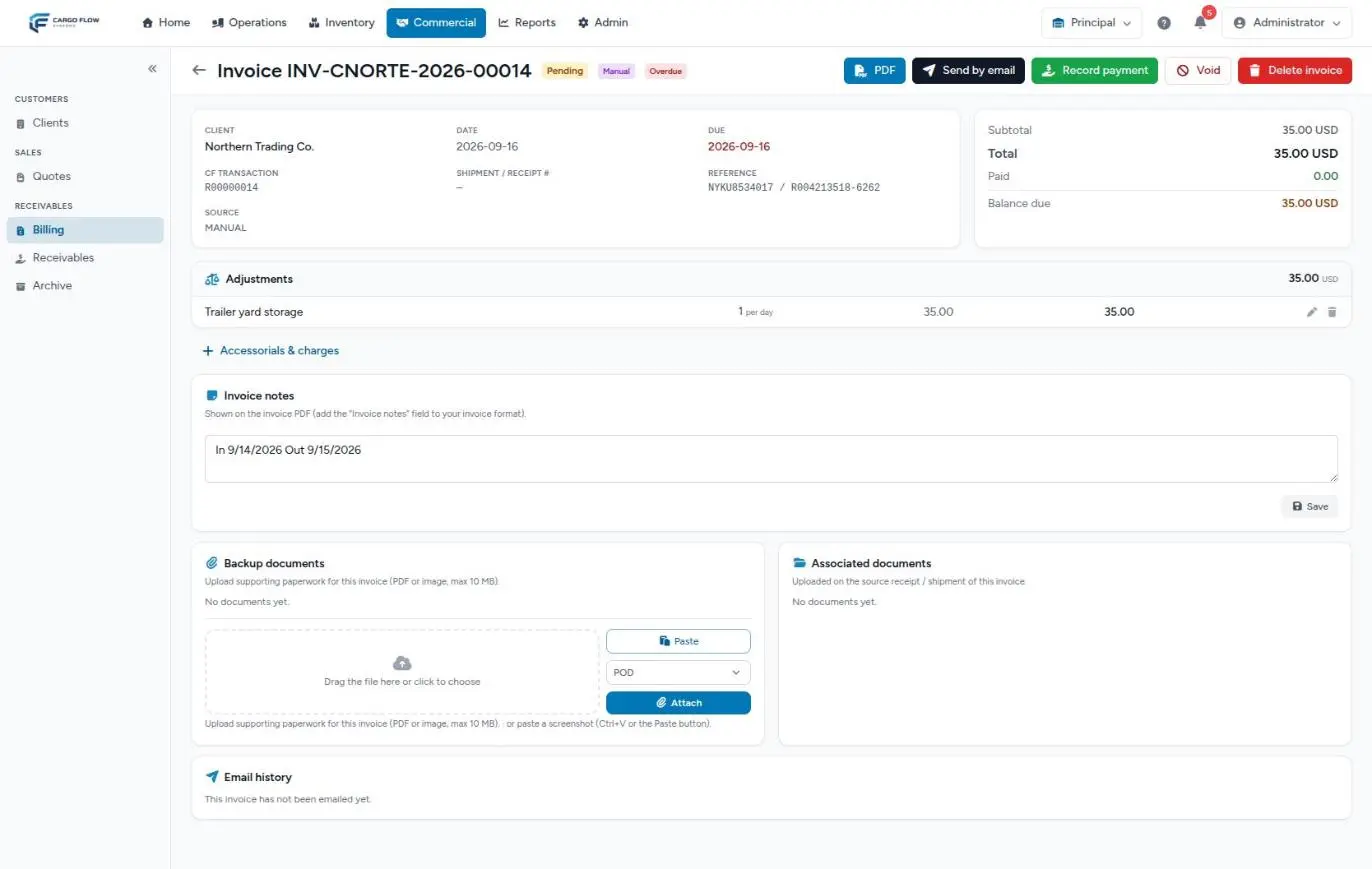
Invoices are not sent automatically. Open the invoice (or select several in the list) and click «Send by email». The dialog tells you who each invoice goes to and what cannot be sent. The email carries a single PDF with the invoice and, after it, its backup documents and the files uploaded on the receipt or shipment that are marked to be sent. See Sending and printing invoices.
11. Record the payment
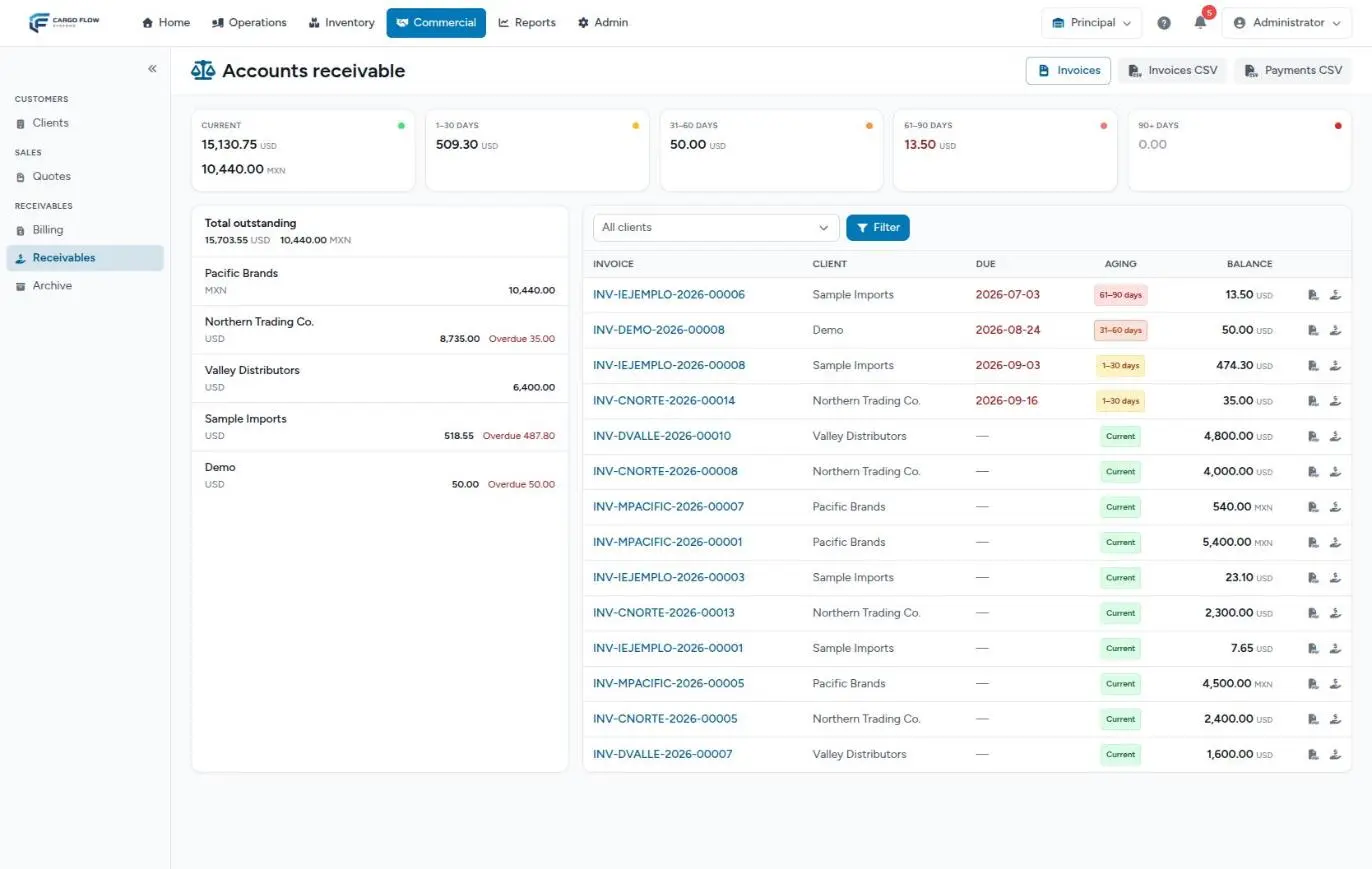
When the money arrives, click «Record payment» on the invoice. The amount comes filled with the balance; change it for a partial payment. A fully paid invoice moves to Commercial › Archive; a partial one stays in Receivables with its balance. If accounting uses QuickBooks, the CSV is downloaded from the invoice list or from Receivables. See Collections: payments and receivables and Exporting to QuickBooks.
Full example
Valley Distributors accepts quote QT-2026-0012 in US dollars, paying «Per transaction» at 15 days. Included lines: Receiving handling 12.00 per pallet, Shipping handling 12.00 per pallet and Storage 0.70 per pallet per day with 5 free days. Shrink wrap was not quoted.
| Date | What happens | Result |
|---|---|---|
| Sep 1 | The Super Admin clicks «Accept & create client» | Customer with code VALLEYDI, Operations contact Luis Pérez and three rates |
| Sep 1 | The Admin completes the record | Code DVALLE; Billing contact Ana López (user@example.com); Email ticked; one portal account with write access to Receipts |
| Sep 2 | Receipt DVALLE-2026-00001 with 20 pallets is confirmed | Receiving handling 20 × 12.00 = 240.00; «Receipt confirmed» email |
| Sep 3, 2:30 AM | Automatic run | Invoice for the receipt, 240.00, dated Sep 2, due Sep 17 |
| Sep 16 | 8 shrink wraps are captured during loading; SH-DVALLE-2026-00001 with 8 pallets is marked shipped | Shipping handling 8 × 12.00 = 96.00; Storage 8 pallets × (14 days − 5 free) = 72 pallet-days × 0.70 = 50.40; Shrink wrap 8 × 5.00 (base price) = 40.00 |
| Sep 17, 2:30 AM | Automatic run | Invoice for the shipment, 186.40, dated Sep 16, due Oct 1 |
| Sep 17 | Accounting sends both invoices as «one email per customer» | Ana López receives one email with both PDFs |
| Sep 25 | A 240.00 transfer arrives | The receipt invoice becomes Paid and moves to the Archive; the other stays in Receivables as Current |
What can go wrong
I do not see the «Accept & create client» button.
- Your role lacks the win quotes permission; by default only the Super Admin has it.
- If the button is greyed out, the quote has no included service.
The new customer gets no receipt or shipment emails.
- They have no Billing contact and nobody chose recipients under Notifications. The contact the quote creates is Operations and is never a fallback.
- WhatsApp or SMS is ticked without Email: that turns email off.
The receipt was confirmed and no handling charge appeared.
- Handling was not in the quote. Add it on the Pricing tab; the already confirmed receipt is not charged retroactively: add the charge on its invoice.
The document numbers came out with an odd customer code.
- The code derived from the name was kept. Change it on Data; documents already issued keep the old one.
Storage on the first shipment came out very high.
- A product has no pallet unit and every piece counted as a pallet. Add the unit to the product and correct the line on the invoice.
I clicked «Generate invoices» and the customer’s invoice did not appear.
- The customer is monthly: their charges wait for the month to close.
- The charges are still held because the shipment has not been marked as shipped.
The send dialog says the customer has no contact with an email.
- Add a contact with an email and select it for «Invoice sent» under Notifications.
Best practices
- Build the quote from a template that already includes handling: you will never forget it.
- Complete the record before telling the customer they can start sending goods.
- Set the final document number code the same day you win the quote.
- Test the emails with the inventory «Send now» before the first receipt.
- Review the customer’s Services to Invoice after their first receipt and first shipment: rate mistakes show up there first.
- Record payments the day they arrive.
Frequently asked questions
Can I get to an invoice without a quote?
Yes. Create the customer in Commercial › Clients and enter their rates by hand on the Pricing tab; from step 3 on the path is the same. What you lose is the trace of where each price came from. See Creating and editing a customer.
What if the customer renegotiates prices?
Whoever has the win quotes permission can reopen the converted quote and change prices: the customer’s rates are updated and the previous one is kept as history. Existing charges keep their price.
Does the first invoice go out on its own?
It is generated on its own overnight, but it is not sent on its own: someone has to click «Send by email» and confirm the recipients.
What if the customer wants one invoice a month?
Choose «Monthly» in «When this client pays» (or in the quote’s payment timing). Their charges stay in the pool until the month closes and go out on a single invoice. For one-off cases there is consolidation: see Consolidating several invoices into one.
Need help?
If something did not work as expected, our support team can help you.
Was this article helpful?