Document numbers and documents across the flow
Summary
Along the flow two things show up that are worth keeping apart. The document number is the visible number of a document (receipt DVALLE-2026-00001, invoice INV-2026-00031) and comes from the warehouse’s numbering settings. The document is the paper: the goods receipt note, labels, bill of lading, packing list, pick ticket, invoice; it comes from a template in the document designer. This article walks through operations step by step and says, at each one, which number is created and which paper is generated.
The map, step by step
| Step | Number created | Document | Automatic? |
|---|---|---|---|
| A quote is saved | Quote (QT-…) | Proposal in PDF or Excel (fixed layout, not a template) | On demand |
| A visit is registered or someone is invited | Visit (V-…), if on | — | — |
| An advance ship notice is created (portal, API, EDI or by hand) | Advance ship notice (ASN-customer-…) | — | — |
| The receipt is created (from the notice or without one) | Receipt (customer-year-…) | — | — |
| A dock job is created | Dock job (JOB-…), only if turned on | Receiving record form, from the job | On demand |
| The receipt is captured | — | Pallet labels (master, per pallet or per unit) and product labels | On demand |
| The receipt is confirmed | — | Goods receipt note (master or individual) | Yes, on confirmation; redone if the receipt is corrected |
| The shipment is created | Shipment (SH-customer-…) | — | — |
| Picking | — | Pick ticket | On demand; always redone |
| Marked shipped | — | Bill of lading and packing list | Yes |
| A cross-dock is created | Cross-dock (CD-…) plus the numbers of its receipt and shipment | Those of the receipt and shipment | As above |
| A special job is created | Special job (SVC-…), only if turned on | — | — |
| An invoice is generated or created | Invoice and transaction number | Invoice PDF | On demand (when downloading, printing or sending) |
| Invoices are consolidated | A new invoice number | PDF of the consolidated invoice | On demand |
Before you start
- Numbers: Admin › Configuration › Folios / Numbering; needs the Configure Document Numbers permission (Super Admin and Admin). It does not depend on any module.
- Templates: admin menu › Document Templates; needs the documents module and the manage templates permission (Super Admin and Admin).
- Printing: the «Print Documents» button on receipts and shipments needs the documents module and the generate documents permission (all operational roles).
- Everything is per warehouse: one warehouse’s numbers and templates are not seen in another.
Document numbers
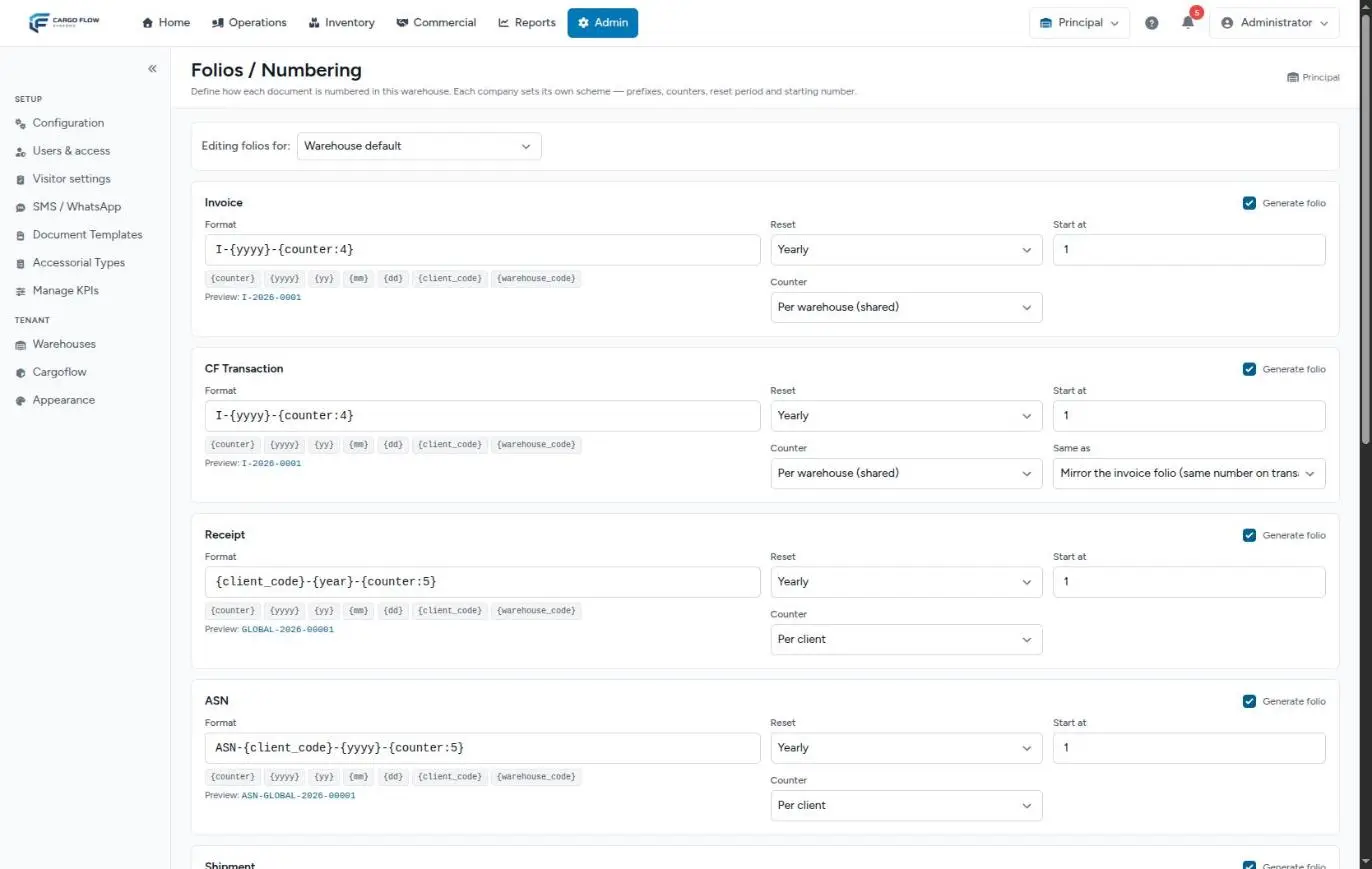
Each document has its format (fixed text plus variables such as {client_code}, {yyyy} and {counter:5}), its reset (never, yearly, monthly or daily), its starting number and its counter: per warehouse (shared by all customers, usual for invoices) or per customer (each with its own series, usual for receipts, notices and shipments). Each field is covered in Document numbering.
When a number is used up
- When the document is created, not when it is confirmed: a receipt gets its number even if it is never confirmed.
- A cancelled document keeps its number. The counter is not reused.
- A voided invoice keeps its number; a consolidated one takes a new number and the originals are voided with theirs.
- Correcting the customer of a receipt or shipment gives it a new number from the right customer’s series.
- Dock jobs and special jobs come turned off: without a number, they are identified by their internal ID. Visits come turned on.
- The transaction number of each invoice mirrors the invoice number by default.
Watch the first invoice number
INV-{yyyy}-{counter:5}, but the first invoice generated uses another factory format, I-{yyyy}-{counter:4} (for example I-2026-0001), and from then on the card shows that one. To get the series you want from the first invoice, review the card, type the format and click «Save settings» before invoicing.The documents
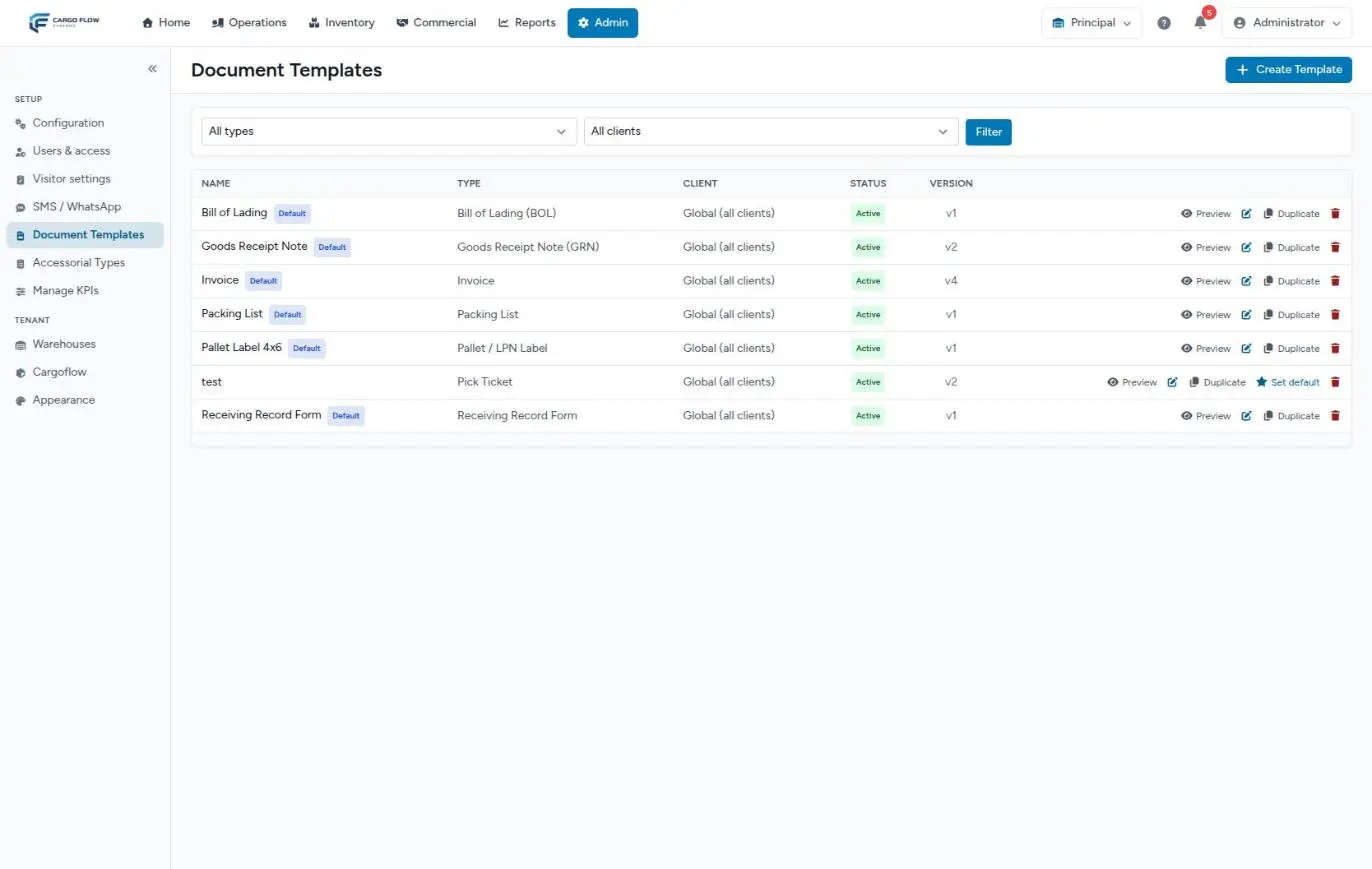
Which template is used
- The document’s customer’s, if they have their own active templates of that type (the default one, if several).
- The active global one of that type, starting with the default.
- If there is none: when printing by hand the system creates a factory one; in automatic generation, the document is simply not created. The invoice, in that case, comes out with a built-in fixed layout.
It is chosen by the document’s customer, not the dock job’s: it matters on a cross-dock between two customers. See Managing document templates and Designing a template.
Automatic and on demand
- Automatic: the goods receipt note when the receipt is confirmed, and the bill of lading and packing list when the shipment is marked shipped. They are generated in the background, so they may take a few minutes to appear under «Generated documents».
- On demand: from «Print Documents» on the receipt or shipment you pick one or several and each opens in its own tab. Printing reuses the current document; «Regenerate» makes a new one with the current template. The pick ticket is always redone.
- Versions: each PDF records which template version it came from. Changing the design does not redo issued documents, except the goods receipt note of a receipt that is corrected.
Everything that can be set per customer
| What | Where | Effect |
|---|---|---|
| Document number code | Record › Data | The {client_code} in their numbers. Changing it splits their series |
| Own number format | Folios / Numbering › Editing folios for › the customer | Their documents use that format and their own counter |
| Documents they use | Record › Documents › Documents this client uses | Which types are offered when printing; empty = all |
| Own templates | Record › Documents › This client’s templates, or the template list | They win over the global ones for that customer only |
| Custom fields | Record › Documents › Custom fields | Captured per line when receiving and printable as columns |
| Customer logo | Template editor, Image element | Stored on the customer and shown in every template that uses it |
Which paperwork reaches the customer
- Receipt and shipment emails: they do not carry the generated PDFs; they carry files uploaded and marked «Send in notifications», if the customer has that checkbox on.
- Invoice email: one PDF with the invoice (from its template) followed by its backup documents and those of the receipt or shipment marked to be sent.
- Portal: only the documents the customer uploaded.
See What the customer sees, and when.
Example
Pacific Brands asks for their receipts to carry the prefix from their own system, MP-REC-, and for their bill of lading to carry their logo.
- Code: on their record, Data, the document number code is
MPACIFIC. - Own format: in Folios / Numbering, Pacific Brands is picked in «Editing folios for» and
MP-REC-{yyyy}-{counter:5}is typed on Receipt. The rest is left empty: it follows the general settings. - Template: the global bill of lading is duplicated, the customer is assigned, an image element with «Client logo» is added and the logo is uploaded. It is set as default.
- Result: their next receipt is
MP-REC-2026-00001(their own series from 1), their shipment staysSH-MPACIFIC-2026-…and, when marked shipped, the automatic bill of lading carries their logo. Other customers do not change.
What can go wrong
Saving a receipt or shipment gives a duplicate number error.
- The format is per customer and lacks
{client_code}, or it resets without the date. Fix the format.
The first invoice came out with a number different from the preview.
- The numbering screen had never been saved. See the notice above.
Confirming the receipt did not generate the goods receipt note.
- There is no active template of that type, or the documents module is off. Print it by hand once and the system creates the factory one.
- Wait a few minutes: it is generated in the background.
A customer still comes out with the old layout.
- They have their own template, which wins over the global one, or the document was already issued: use «Regenerate».
The option to print a certain document is missing.
- That type is not in «Documents this client uses», your user lacks the generate documents permission, or the documents module is off.
I changed the numbers and another warehouse still shows the old ones.
- They are per warehouse. Set up each one.
Best practices
- Save each warehouse’s numbering screen before the first document, even if you keep the factory formats.
- Give each customer their final code on the day they are created.
- Do not edit the global template for one customer: duplicate it and assign the customer.
- Check a template’s preview with a real document before making it the default.
- If the customer needs a paper in their email, upload it as an attachment marked to be sent.
Frequently asked questions
Does a cancelled document free up its number?
No. The counter moves on and the cancelled document keeps its number, so the series has no unexplained gaps or duplicates.
I changed the template: are old documents redone?
No. Each PDF keeps the version it was issued with. To redo one, use «Regenerate» on its receipt or shipment.
I captured a receipt under the wrong customer: what happens to its number?
With «Correct client / number» the receipt moves to the right customer and takes a new number from their series; the old one is not reused. It needs the correct document identity permission (Super Admin, Admin and Supervisor). See Cancelling or correcting a receipt.
Need help?
If something did not work as expected, our support team can help you.
Was this article helpful?