Receiving workflow: from notice to stock
Summary
Every item that enters the warehouse goes through a receipt. The receipt records what arrived, how much, in what condition and where it was put away. It always follows the same path: it is created, an operator captures it on the floor, a supervisor reviews it and confirms it. Only confirmation puts the goods into stock, notifies the customer, stores the receipt note and generates the receiving charges.
A receipt can come from an advance ship notice (ASN) sent by the customer (from the WMS, their portal, the API or EDI), from a dock appointment, or be created directly in the warehouse when goods arrive without notice. For the whole journey, from the moment a truck is announced until the goods are available, read From notice to stock.
Before you start
| What you need | Why |
|---|---|
| Receiving module enabled for the warehouse | Without it, the ASN and receipt menus do not appear. See Modules, permissions and access. |
| Inventory module (recommended) | Without inventory, a receipt is confirmed as a plain record: it closes the notice and emails the customer, but creates no stock and asks for no location or lot. |
| Billing module (optional) | Without it, confirming generates no charges. |
| The customer, active and set up in the warehouse | Only operational customers of the warehouse you are in appear in the pickers. See Setting up a customer. |
| The customer’s products | Each line is a product from that customer’s catalog. Anything that does not exist can be added as a manual item during capture. See Products and units. |
| Active locations | Every line with a received quantity needs a location to be confirmed. See Locations and zones. |
| Customer rates (if receiving is billed) | The receiving charge is only created when the customer’s rate card includes it. See Customer rates. |
| Contacts with email | The receipt-confirmed email goes to the customer’s chosen contacts. See Receipt confirmation email. |
Where to find it
Everything related to receiving lives under the Inventory menu, in the Inbound section of the sidebar:
- Inventory › Inbound (ASN) — the customers’ advance ship notices. Visible with “View Receiving” or “Create Arrival Notices (ASN)”.
- Inventory › Receipts — receipts in every status. Visible with “View Receiving”, “Capture Receipts” or “Confirm Receipts”.
If you do not see these options, your warehouse does not have the receiving module or your user has none of those permissions. Also check that you are in the right warehouse with the warehouse selector at the top right.
How a receipt is created
| Origin (“Origin” column) | How it is created | What is already filled in |
|---|---|---|
| Advance ship notice (the column shows the ASN number as a link; if there is also a dock appointment, a warehouse icon next to it) | When a notice is sent (from the WMS, the client portal, the API or EDI), the system creates a Pending receipt automatically. One notice can have more receipts through Create partial receipt. | The notice lines with their expected quantity and the notice’s transport details. |
| Dock appointment (blue label with a warehouse icon) | When a dock is assigned to a delivery driver, the supervisor creates or links the receipt from the assignment. See Creating a dock job. | Driver, carrier, trailer or container and seal, taken from the driver’s registration. If the dock operator filled in the receiving record, its rows arrive as lines when the job is finished. |
| Walk-in (yellow label with a walking person) | Someone in the warehouse clicks Create receipt on the receipts list. | Only the customer, reference, document number and date. Lines are added during capture. |
See: Advance ship notices (ASN), Partial receipts and Receiving goods without a notice.
The cycle step by step
- The receipt is created — through any of the paths. It starts as Pending and the configured staff are notified (except for partial receipts, which send no alert).
- The operator captures — opens the receipt with Capture receipt, scans or searches each product, and records quantities, location, lot, damage and photos. Partial work can be saved with Save & continue (the receipt becomes In progress).
- Sends it to review — Save & send to review moves the receipt to Captured and notifies supervisors and admins.
- The supervisor reviews — opens Review & confirm, checks the capture, adds accessorials for any extra services, adjusts the actual arrival date and, if something is wrong, fixes it with Edit capture or returns it to capture with notes.
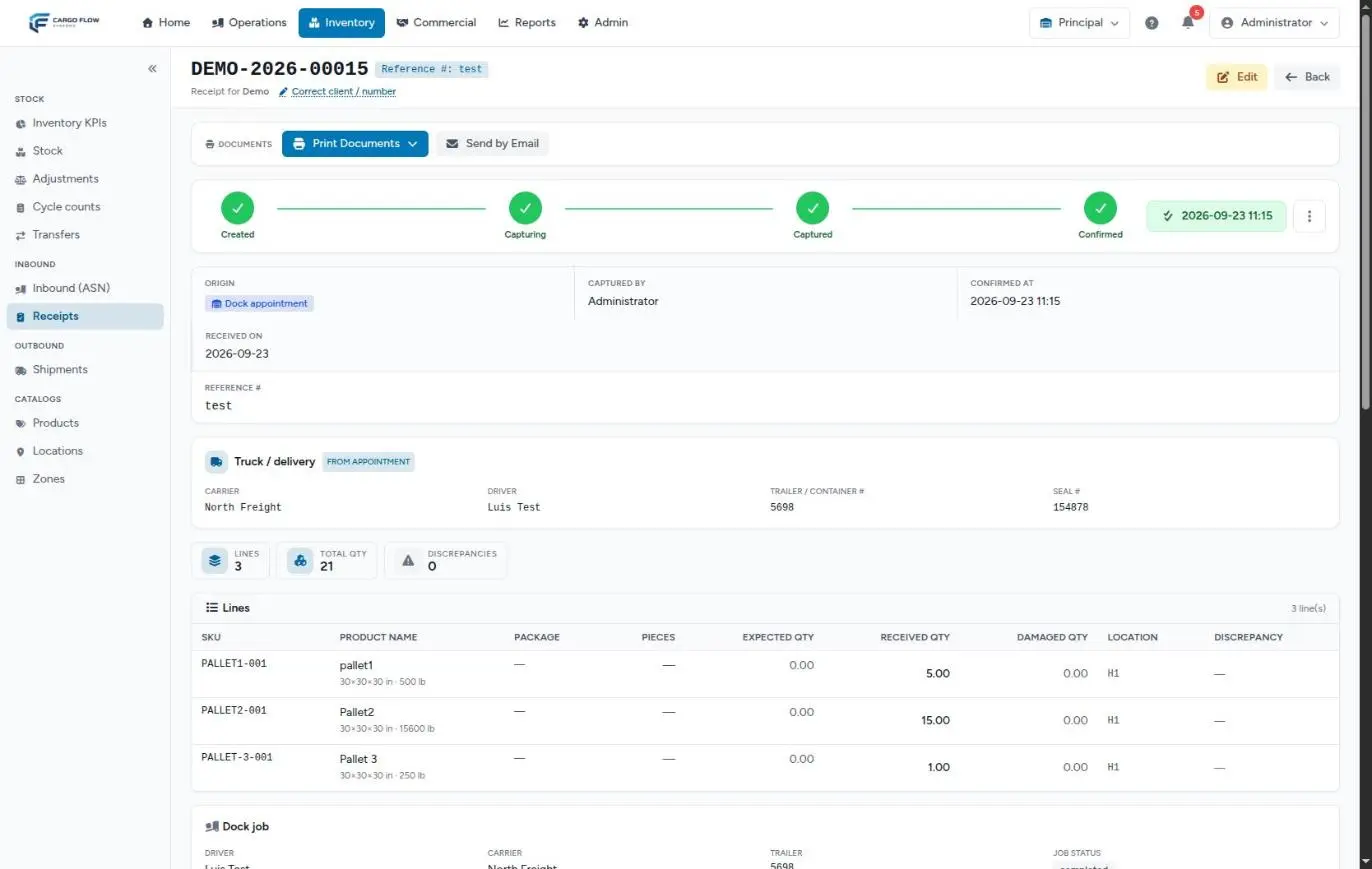
- Confirms — Confirm receipt puts the goods into stock, the receipt becomes Confirmed and the customer gets their email.
Receipt statuses
| Status | Meaning | What you can do |
|---|---|---|
| Pending | The receipt exists but nobody has started capturing. | Capture, link to a dock job, cancel. |
| In progress | Being captured: someone saved progress, the supervisor returned it, or the linked dock job already pushed its rows. | Continue capture, link or unlink the dock job, cancel. |
| Captured | The operator finished; it is waiting for supervisor review. | Review and confirm, return to capture, edit the capture, cancel. |
| Confirmed | The goods are in stock. | Print documents, resend the email, edit with a reason, correct the client or number, cancel (with reversal). |
| Cancelled | The receipt does not count. It keeps who cancelled it, when and why. | View only. It cannot be reopened. |
If the linked dock job is cancelled, receipts that had only just started (In progress, capture not yet submitted) go back to Pending to be worked later.
The receipts list
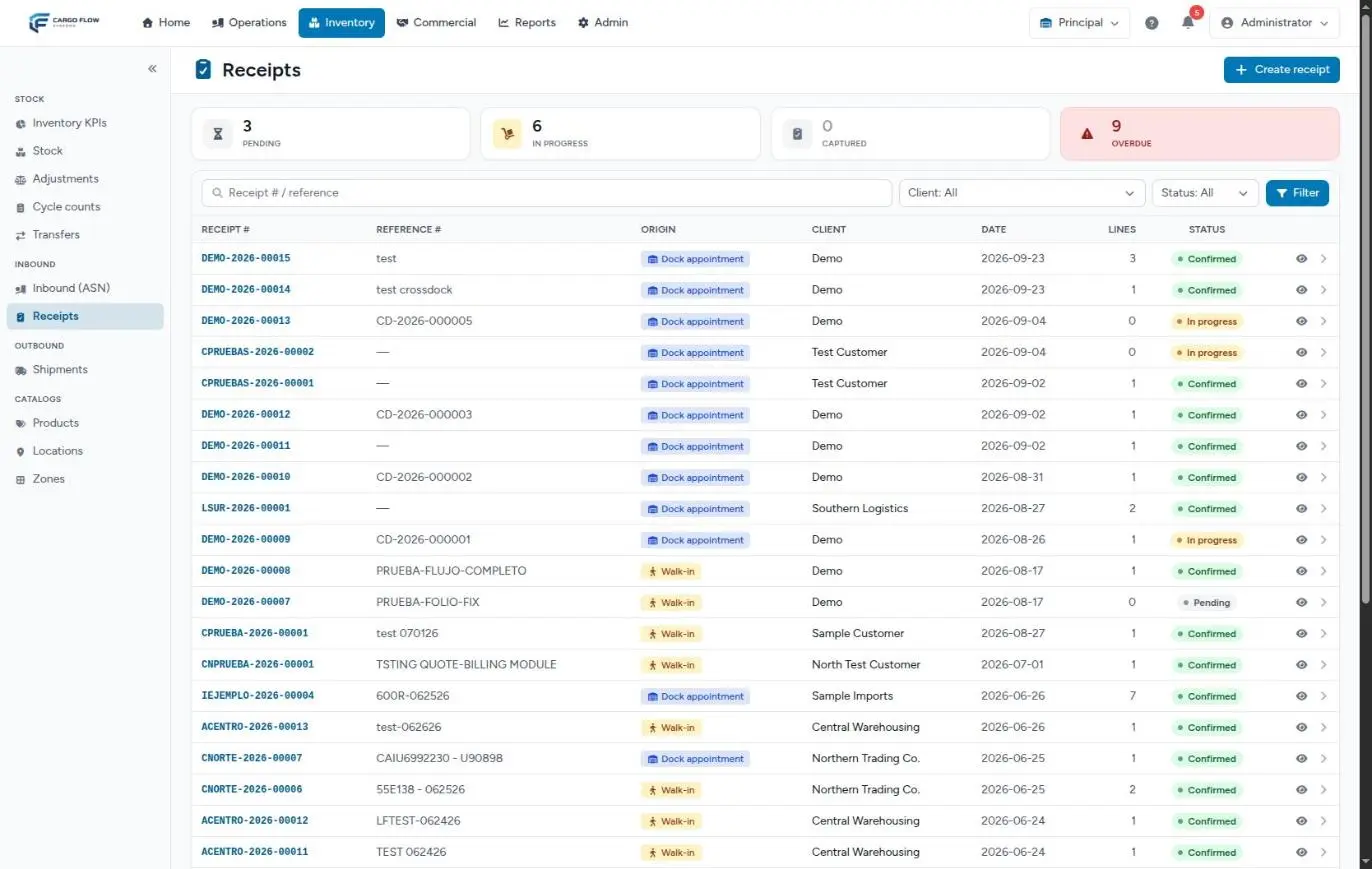
- Counters — Pending, In progress, Captured and Overdue. They update live, without reloading the page.
- Search — by part of the receipt number or the reference.
- Filters — by client and status; click Filter to apply.
- Columns — Receipt #, Reference #, Origin, Client, Date, Lines and Status. The eye icon opens the detail. Newest first, 30 per page.
- Create receipt — opens the walk-in receipt form (requires “Capture Receipts”).
The receipt number (for example CNORTE-2026-00015) is assigned by the system from each customer’s sequence; you do not type it. Numbering is set up in Document numbers.
What confirming does, module by module
| Where | What happens |
|---|---|
| Inventory | Each line adds its received quantity at the captured location, converted to the product’s base unit, as an inbound movement with the receipt as its source. The damaged quantity is set aside at the same location and is not available for picking. See Stock history and The life of stock. |
| Aging and storage | The Actual arrival date becomes the goods’ entry date; aging and billable storage count from it. |
| Advance ship notice | If the receipt came from a notice, the notice moves to Received. |
| Billing | If the customer’s rate card has a receiving charge (or services billed on receipt), the charges land on the Services to Invoice tab, dated with the actual arrival date. With no rate, nothing is billed. See Where each charge comes from. |
| Customer email | Sent once, automatically, to the chosen contacts. After that it is resent manually. See Receipt confirmation email. |
| Documents | With the documents module, the system generates and stores the goods receipt note PDF by itself (it shows under Generated documents). See Labels and receipt note. |
| Client portal | The customer sees the confirmed receipt and the new stock in their portal. See What the customer sees and when. |
| Integrations | If the customer’s system is connected by API with automatic notifications, it receives the receipt.confirmed event with the expected, received and damaged quantities of each line. |
| Reports and KPIs | The receipt appears in the Daily Warehouse Receipt List and counts in the receiving KPIs (on-time arrivals, receiving accuracy, damaged units, discrepancies by type). See Reading the KPI panel. |
| Cross-dock | If the receipt is the inbound leg of a cross-dock, the goods are reserved for their outbound on confirmation and the receiving charge is not billed here (it is billed when the outbound closes). See How a cross-dock works. |
End-to-end example
Northern Trading Co. notifies from its portal that a truck arrives on Tuesday with three products: 40 cases of cookies, 120 pieces of juice and 10 bags of sugar.
- Monday 4:00 pm — the customer clicks Send notice. Notice
ASN-CNORTE-2026-00031and receiptCNORTE-2026-00087are created, the receipt Pending with three lines and their expected quantities. Workers get the alert in the bell. - Tuesday 9:10 am — Luis Pérez opens the receipt, clicks Capture receipt and scans. He counts 40 cases of cookies, 118 pieces of juice (2 short) and 10 bags of sugar, 1 of them torn. He puts everything in location
REC-01, takes two photos and sends it to review. - Tuesday 9:45 am — Ana López (supervisor) gets “Receipt captured, awaiting review”. She sees the amber discrepancy banner, checks that the juice marked Short and the sugar marked Damaged have photos, leaves the actual arrival date on Tuesday and confirms.
- Result — stock at
REC-01goes up by 40, 118 and 10 (with 1 bag of sugar set aside as damaged); the notice moves to Received; if the rate card bills receiving per piece, a charge for 168 units lands on Services to Invoice; the customer gets the email with the Expected/Received table and the discrepancy warning.
Special cases and limits
- The load arrives in several trips — one receipt per trip, with Create partial receipt on the same notice.
- One truck carries goods from several notices — the dock job can be linked to several receipts; each is captured and confirmed separately.
- Warehouse without the inventory module — the receipt is confirmed, closes the notice and sends the email, but creates no stock. It does not require location or lot either (discrepancy photos are still required).
- Changing the client or number — possible in any status with the amend identity permission. See Cancelling or correcting a receipt.
- What you cannot do — confirm without going through Captured, reopen a cancelled receipt, unlink a confirmed receipt from its dock job, or set a future actual arrival date.
Who does what (permissions)
| Permission | What it allows | Roles that have it by default |
|---|---|---|
| View Receiving | See notices and receipts. | Super Admin, Admin, Supervisor, Worker, Accounting |
| Create Arrival Notices (ASN) | Create and send notices from the WMS and create partial receipts. | Super Admin, Admin |
| Capture Receipts | Create walk-in receipts, capture lines, add manual items, link or unlink the dock job. | Super Admin, Admin, Supervisor, Worker |
| Confirm Receipts | Review, confirm, return to capture, cancel, edit a confirmed receipt, resend the email, choose the email photos. | Super Admin, Admin, Supervisor |
| Amend Document Identity | Change a receipt’s client or number. | Super Admin, Admin, Supervisor |
| Generate Documents | Print documents and upload attachments (requires the documents module). | Super Admin, Admin, Supervisor, Worker |
| Read Receipt Reports | Open the Daily Warehouse Receipt List. | Depends on your company’s role setup. |
Roles can be adjusted in Roles and permissions.
Staff alerts and overdue receipts
The warehouse decides who hears about each step in Admin › Configuration › Notifications & email, Operational alerts section:
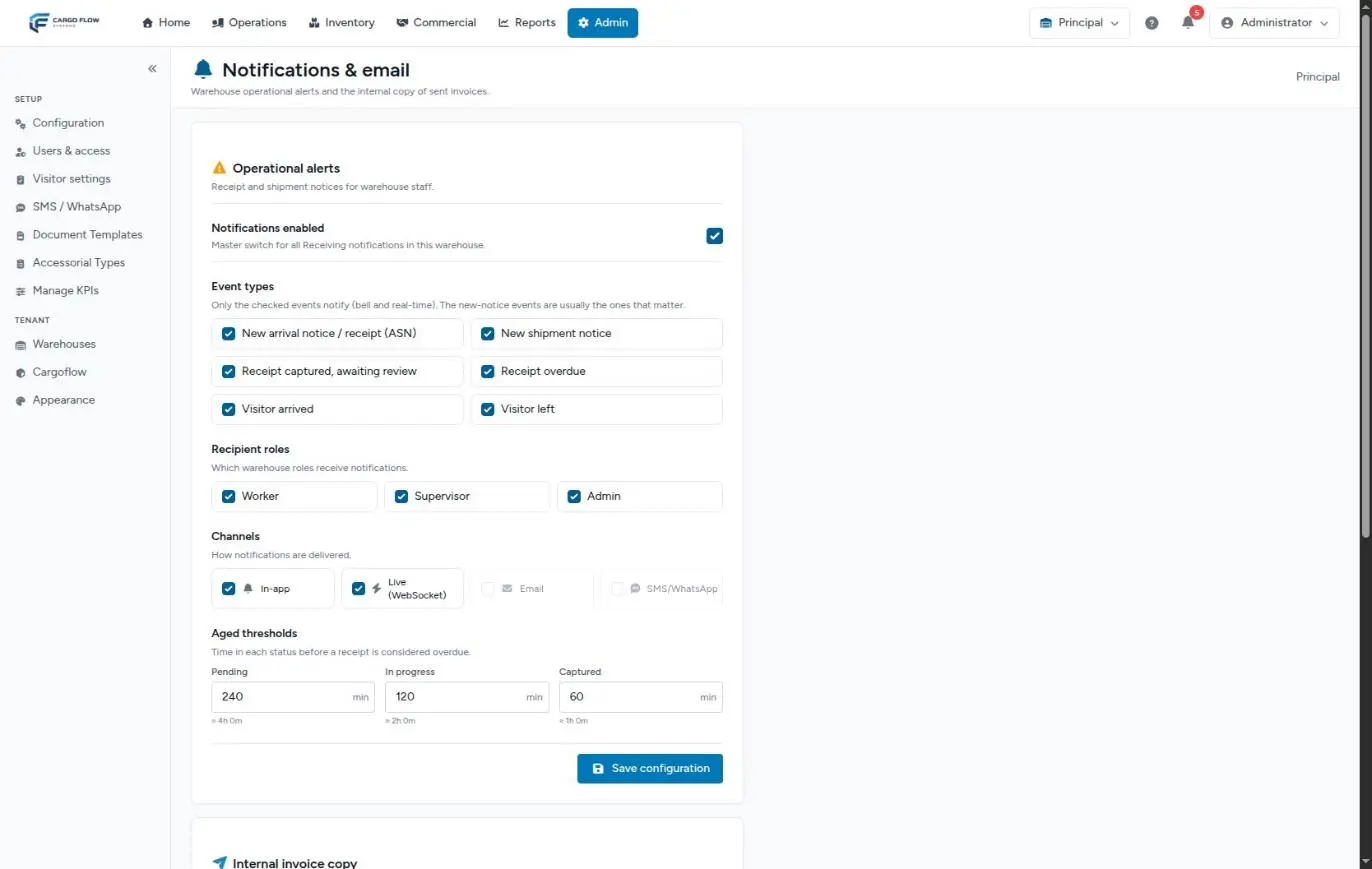
- New arrival notice / receipt (ASN) — goes to the chosen roles when a receipt is created.
- Receipt captured, awaiting review — goes only to supervisors and admins among the chosen roles.
- Receipt overdue — every 15 minutes the system looks for receipts that have been Pending (4 h by default), In progress (2 h) or Captured (1 h) longer than allowed, and alerts once each time a receipt gets stuck.
Channels are in-app (bell), live, email and SMS or WhatsApp. See Notifications per warehouse.
Best practices
- Ask your customers to notify in advance: the receipt is born with its lines and the operator only confirms quantities.
- Capture what actually arrived, not what the notice says: a documented difference protects the warehouse.
- Confirm the same day: until the receipt is confirmed, the goods cannot be picked.
- If the trailer arrived before it was confirmed in the system, correct the Actual arrival date so storage is billed from the right day.
- Check the Overdue counter daily and tune the thresholds to your real operation.
- Give supervisors “Create Arrival Notices (ASN)” if they create partial receipts: by default only admins have it.
Troubleshooting
We unloaded the goods but they do not show in stock.
- The receipt is not confirmed. Find it in Inventory › Receipts: if it is Captured, the supervisor review is missing; if it is Pending or In progress, the capture is not finished.
- If it is confirmed and there is still no stock, the warehouse does not have the inventory module.
The supervisor cannot confirm: a red message appears on Confirm receipt.
- The message says what is missing and for which product: an evidence photo on a discrepancy line, a location or a lot number. Use Edit capture (next to Confirm receipt) to complete it. See Reviewing and confirming.
The driver details do not appear on the receipt.
- The receipt is not linked to the dock job. On the receipt detail, in the dock job card, pick the active job and click Link.
The customer says they never got the receipt-confirmed email.
- Check that the customer has the email channel on and contacts with email. Then use Send by Email on the receipt detail. See Receipt confirmation email.
There is no receiving charge on Services to Invoice.
- The customer’s rate card does not include the receiving service, or the receipt is the inbound leg of a cross-dock. Check Customer rates.
Frequently asked questions
What if the quantities differ from the notice?
Capture what arrived. The system compares against the expected quantity and flags the line as Short or Over-received. Every discrepancy line needs at least one evidence photo before it can be confirmed. See Discrepancies and damaged goods.
Can I receive goods without a notice?
Yes, with Create receipt on the receipts list. Capture and confirmation are the same. See Receiving goods without a notice.
When do the goods enter stock?
Only when the receipt is confirmed. While Pending, In progress or Captured, the goods do not exist in stock and cannot be reserved for a shipment.
Can I fix a receipt that is already confirmed?
Yes. The Edit button opens the same capture editor; saving asks for a reason and the changes are posted as traceable stock adjustments. You can also correct the client or number, or cancel the receipt with a reversal. See Cancelling or correcting a receipt.
What does “Overdue” mean?
Receipts that have been Pending, In progress or Captured longer than allowed. Time is measured from the receipt’s last change, so saving progress restarts the clock. Each warehouse sets the thresholds in Operational alerts.
Can the same person capture and confirm?
Yes, if they have both permissions (a supervisor has them by default). The receipt records separately who captured and who reviewed.
Need help?
If something did not work as expected, our support team can help you.
Was this article helpful?