Quote templates
Overview
A template is a reusable set of services with their rates. Instead of building every quote from scratch, you apply the template for the type of operation and adjust what is specific to the prospect. Templates belong to the warehouse: anyone who manages quotes there sees and uses them.
Before you start
- Permission — Manage Quotes (Super Admin and Admin by default). Someone who can only view quotes cannot open the manager.
- Module — Quotes enabled in the warehouse.
- Catalog — lines come from the active services in the warehouse’s general catalog. Services exclusive to a client are never offered.
The template manager
Open it from Commercial › Sales › Quotes › Manage templates, or with the gear in the quote editor.
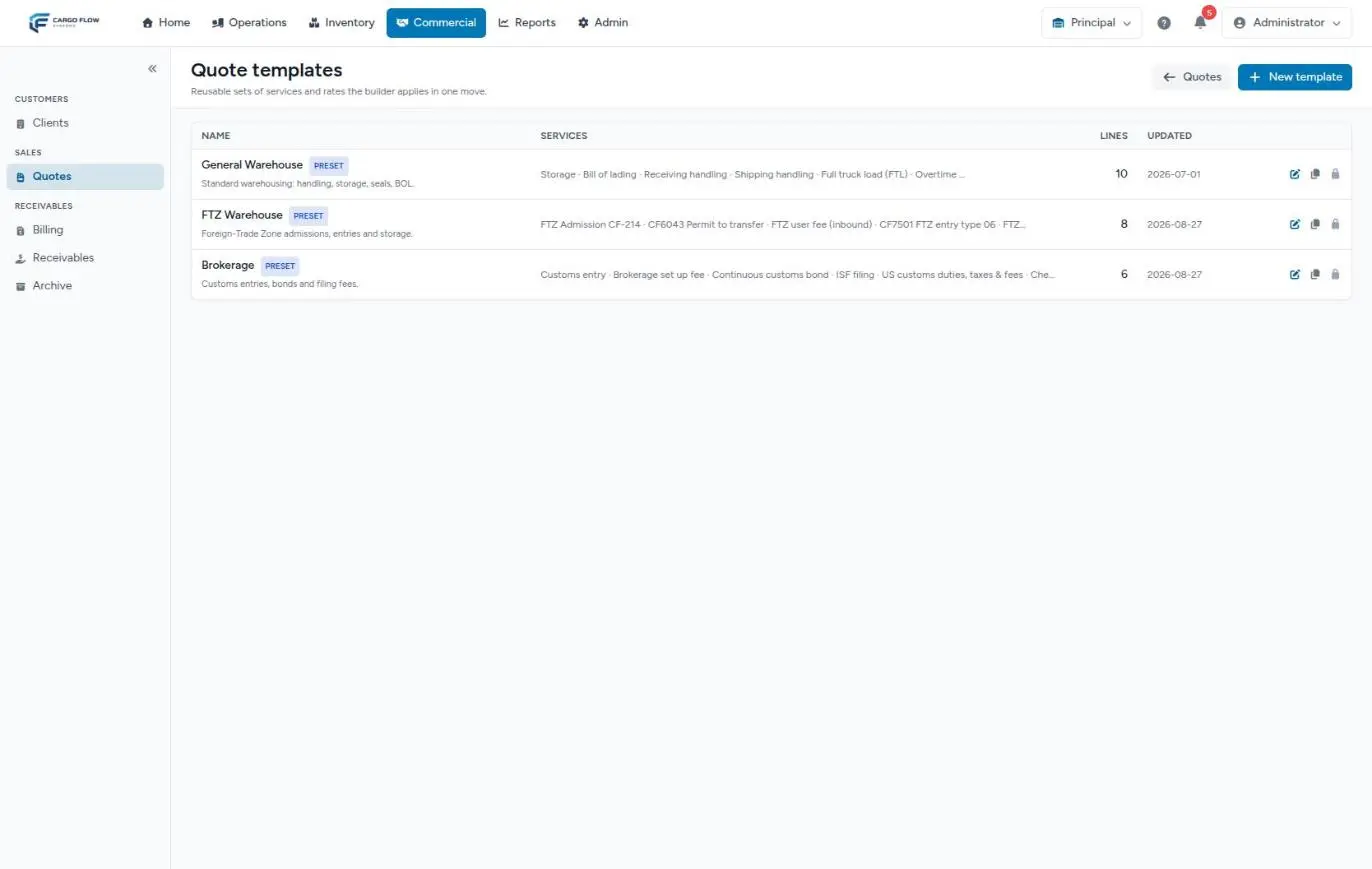
- Name — with the Preset badge on the ones the system provides, and the description below.
- Services — the names of its lines, on a single row.
- Lines and Updated.
- Actions — pencil (edit), copy (duplicate) and bin (delete). Presets show a padlock instead of the bin.
- On top: Quotes (back) and New template.
The preset templates
The first time someone opens the manager or a quote editor, the system creates up to three templates in the warehouse, using only the services that exist in its catalog:
- General Warehouse — receiving and shipping handling, full truck load, storage, overtime, seal, bill of lading, pictures, load lock and strap.
- FTZ Warehouse — Foreign-Trade Zone admission, transfer permits, fees, entries and storage.
- Brokerage — customs entry, brokerage set-up fee, continuous bond, ISF filing, duties and check advance fee.
If the warehouse has none of a preset’s services, that preset is not created. Preset lines do not set a price: when applied, the current catalog base price is used.
On a preset you can adjust rates, descriptions, minimums, maximums, free days and order, but you cannot remove lines or delete it: the system keeps it in sync with the catalog and would recreate what you delete. When a matching service is added to the catalog, it is added to the preset on its own. To customize it fully, duplicate it.
Create a template
- Click New template.
- Type the Name (required, up to 120 characters) and the Description (optional, up to 255).
- Click Create. You land in the editor with “Template created. Now add its services.”
The editor: field by field
On top, the template name and description (on presets, a notice explains their rules). Below, Template lines, with these columns:
| Column | What it is | Empty means |
|---|---|---|
| Service | The name the line will carry and, below, its description. | The name cannot be empty; the description can. |
| Basis | The rate basis (per pallet, per piece, flat rate…). | — |
| Rate | The price that will be applied. | “Use the catalog base price when applied.” |
| Min / Max | The line’s minimum and maximum charge. | The quote line keeps its own. |
| Free days | For storage. | The quote line keeps its own. |
| Order | Position within the template. | — |
To add lines:
- Add from catalog — pick a service and click Add. It comes in with the catalog values; a service already in the template is not duplicated.
- Custom line — an item that is not in the catalog. Below its name you will see “custom”.
To remove a line, click Remove line: it gets marked and you can undo with Keep line before saving. Nothing applies until you click Save template (“Template saved”).
Apply a template to a quote
- In the quote editor, open the Apply template… selector above the catalog. Presets carry a star.
- Pick the template. It is applied instantly and the selector resets.
For each template line:
- If the service is already in the quote (included or not), it is included and takes from the template the rate, basis, description, minimum, maximum and free days that the template has filled in. Whatever the template leaves empty, the line keeps.
- If the service no longer exists in the catalog, it comes in as a custom line at the end (and becomes an exclusive service of the client when you win).
- Services you had already included that are not in the template stay as they were.
You can apply several templates in a row: they add up. You can only apply while the quote is Draft, Sent or Negotiating.
Save a quote as a template
- In the editor, click the bookmark button Save as template (next to the selector). It is grey if the quote has no included services.
- Type the Template name.
- Click Save (or press Enter). The template shows up in the selector right away.
The template takes the included services, in order, with their negotiated rates, bases, minimums, maximums and free days. It is created without a description; add one from the manager.
Services exclusive to a client are not copied, so their negotiated price does not leak to other prospects. This option is also available when renegotiating a won quote, for users with the win permission.
Duplicate and delete
- Duplicate creates a copy named “… — copy”, never a preset, and takes you to edit it (“Template duplicated. You are editing the copy.”).
- Delete asks for confirmation: “Delete this template? Quotes it was applied to are not affected.” Presets cannot be deleted (“Presets cannot be deleted. Duplicate it to customize.”).
Volume and estimated space
The quote’s Volume & space section stores annual boxes, boxes per pallet and estimated pallets. The system has the formula to estimate space:
- Pallets = annual boxes ÷ boxes per pallet, rounded up (without boxes per pallet, the entered estimated pallets are kept).
- Square feet single stack = pallets × 12.
- Square feet double stack = half the pallets (rounded up) × 12.
When those figures exist, they appear below the section. Everything passes to the client’s operating profile when you win.
Example
Your warehouse sells a lot of simple storage to importers. You duplicate General Warehouse, call it “Standard importer”, remove full truck load, load lock and strap, set receiving handling at 13.00, storage at 0.70 with 5 free days and a 50.00 minimum, and leave the bill of lading rate empty so it always takes the base price. When Sample Imports arrives, you create the quote, apply “Standard importer” and only adjust what the prospect negotiated.
Best practices
- Keep one template per type of operation you sell.
- Leave the template rate empty when you want it to always take the current base price.
- When you close a good quote, save it as a template for the next similar one.
- Duplicate the presets instead of fighting their fixed lines.
- Write clear descriptions in the template: they pass to the quote and from there to the client document.
Troubleshooting
The system won’t let me delete a template.
- It is a preset. Duplicate it if you need another version.
“Preset lines cannot be removed.”
- Duplicate the template and remove the lines on the copy.
The Apply template selector is missing.
- The quote is already Won, Lost or Expired.
One of the three presets is missing.
- The warehouse catalog has none of its services. Add at least one and open the manager again.
An exclusive service was not saved into the template.
- That is by design: a client’s exclusive services never travel to templates.
FAQ
If I change a template, do the quotes that used it change?
No. Applying a template copies its values into the quote; later template changes only affect future quotes.
Are templates mine or everyone’s?
The warehouse’s: anyone with permission to manage quotes in that warehouse sees and uses them. Another warehouse has its own.
Why do the presets have names in another language?
Their name is fixed in the language of the person who first opened the manager in that warehouse. If it bothers you, duplicate the preset and give the copy the name you want.
Need help?
If something did not work as expected, our support team can help you.
Was this article helpful?