What the customer sees, and when
Summary
Your customer finds out what happens to their goods in two ways: the portal, where they sign in whenever they want to check, and emails, which arrive when something happens or at a fixed time. Both are set up on their record (Commercial › Clients › customer), but they also depend on the warehouse’s modules. This article puts in one place what the customer gets at each moment and which switch controls it, so you can answer «why didn’t I get it?» without guessing.
Event by event
| Event | What the customer gets | What controls it |
|---|---|---|
| They send an advance ship notice or request a shipment from their portal | They see it in their list as Pending or Draft; they can edit it until the warehouse starts working on it | Write access to Receipts or Shipments |
| Their receipt is confirmed | «Receipt confirmed» email with expected versus received lines, discrepancies, photos and the chosen attachments; in the portal it becomes Confirmed | Email channel, recipients who accept «Receipt confirmed», photo and document checkboxes |
| Their shipment is marked shipped | «Shipment shipped» email with destination, carrier, ordered versus shipped lines, photos and attachments; in the portal it becomes Shipped | Same, with «Shipment shipped» |
| Someone sends their invoice | An email with one PDF combining the invoice and its backup | «Allow sending invoices by email» and recipients of «Invoice sent»; always manual |
| Every day at the warehouse’s hour | Daily inventory in PDF and Excel | Daily inventory checkbox; inventory module |
| From the 4th of each month | Monthly KPI summary in PDF and Excel | Monthly summary checkbox; KPI module; cards published to the portal |
| Whenever they want | Their portal: live inventory, receipts, shipments, KPIs | Portal module, each section’s module and their account’s access |
Before you start
- Permission: everything in this article is set on the customer record and needs the configure clients permission (Super Admin and Admin by default).
- Contacts: emails go to customer contacts with an email. Add them first on the Contacts tab.
- Modules: the portal needs the client portal module on in the warehouse; the daily inventory, the inventory module; the monthly summary, the KPI module.
The portal
The customer signs in on the same login page as your team and lands on the Summary page, which is always available. The rest of the menu depends on two keys: the section must be on in the selected warehouse and the account must have access.
| Section | Module it needs | Read | Write |
|---|---|---|---|
| KPIs | KPIs | The published cards, with their own data | Does not exist |
| Inventory | Inventory | Stock and aging | Does not exist |
| Receipts | Receiving | Their receipts and documents | Send advance ship notices, edit or cancel them and upload documents |
| Shipments | Shipping | Their shipments | Request shipments, edit or cancel them and upload documents |
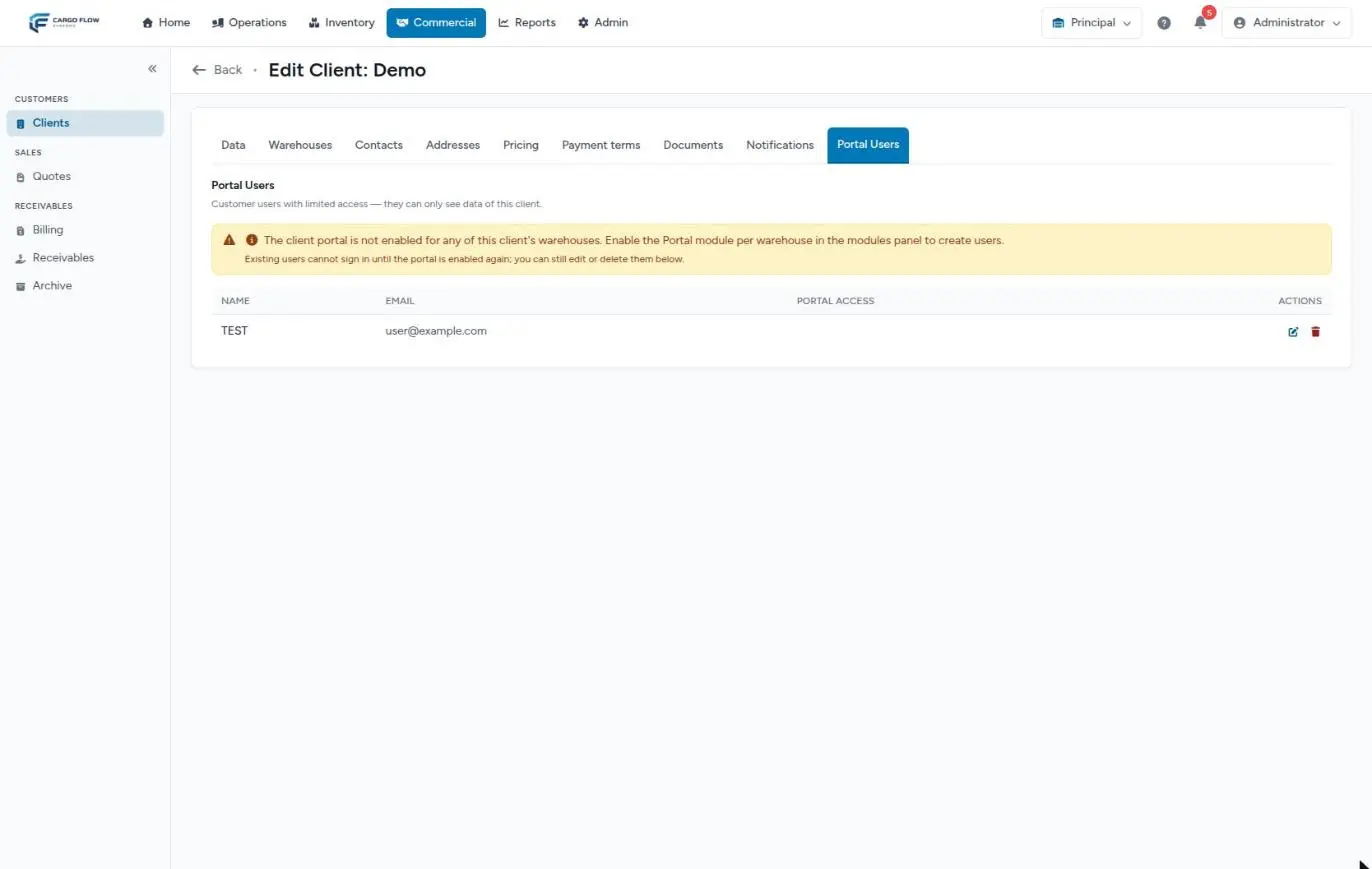
Opening a section without access shows the «You do not have access to this page» page; a section whose module is off responds as if it did not exist. Invoices and quotes are not part of the portal. See The client portal and Portal users.
The emails
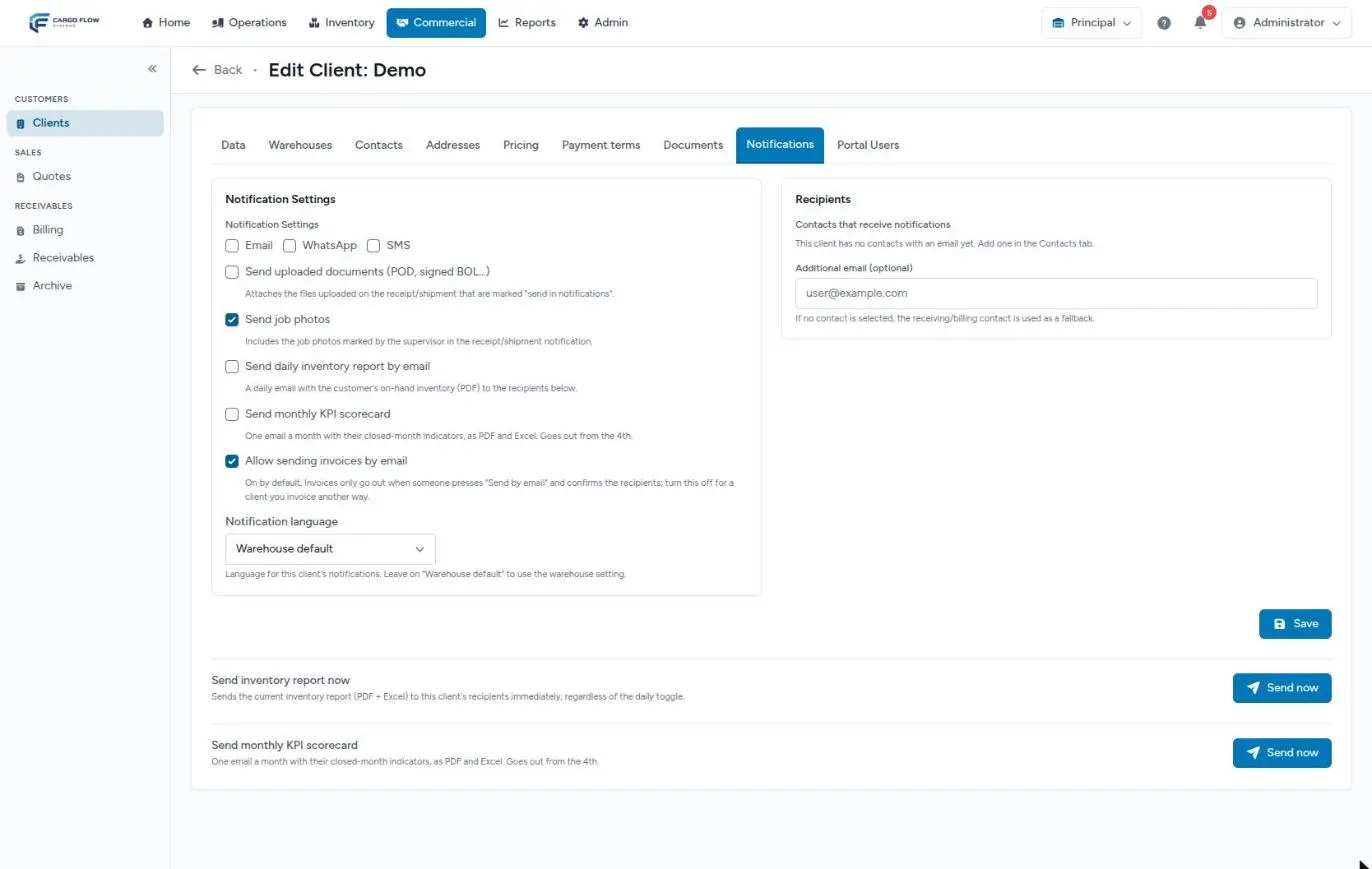
They are set on the record’s Notifications tab. Receipt and shipment emails go out on their own when confirmed or marked shipped (they are queued: they can take a few minutes); the invoice goes out only when someone sends it. Receipt and shipment emails include a button to open the detail in the portal only if one of the recipients is a portal user with access to that section.
Who gets them
- The chosen recipients. Each ticked contact gets everything or «Only these:» (receipt confirmed, shipment shipped, daily inventory, monthly summary, invoice sent). The additional email gets everything.
- If nobody is chosen, a fallback contact: the Billing-type contact (the primary one if there are several). An Operations contact is never a fallback.
- If you chose people but none accepts that type, that email goes to nobody. The system does not fall back, so as not to include someone you excluded.
Which language
The customer decides the language, not the person who confirms the receipt: first the language chosen on their Notifications tab; if they left the warehouse default, the warehouse’s notification language (set when creating or editing it under the admin menu › Warehouses); if the warehouse has none either, English.
Photos and documents in emails
| What | Controlled by | Detail |
|---|---|---|
| Dock job photos | «Send job photos» checkbox (on by default) | On the receipt or shipment, each photo can be added to or removed from the notification, and «Photos in the notification» forces yes or no for that document |
| Files uploaded to the receipt or shipment | «Send uploaded documents» checkbox (off by default) | Only files marked «Send in notifications»: proof of delivery, signed bill of lading, supplier packing list |
| Invoice backup | Always, when the invoice is sent | The invoice’s backup documents and those of the source receipt or shipment marked to be sent, combined into the PDF |
The PDFs the system generates from templates (goods receipt note, bill of lading, packing list) are internal paperwork and are not attached to receipt and shipment emails. If the customer wants the signed bill of lading, upload it as an attachment and mark it to be sent. Each email has a cap of about 15 MB of attachments; what does not fit is left out. See Receipt photos and documents.
Daily inventory and monthly summary
- Daily inventory: the system checks every hour and, from the hour set for the warehouse (7:00 AM local time if nobody changed it), sends to whoever is still missing it that day. It carries the customer’s inventory and their receipts and shipments of the previous day, in PDF and Excel, using the report mode chosen on their Data tab (by receipt or by SKU). It only goes to customers with stock or with activity the previous day.
- Monthly KPI summary: goes out from the 4th with the previous month closed. It includes the KPI dashboard cards marked «Show in client portal», calculated with their data only. See Building a KPI dashboard.
Both have a «Send now» button at the bottom of the Notifications tab that sends immediately regardless of the checkbox. A manual send of the month’s summary counts as sent: the automatic one does not repeat it.
What the customer does not get
- Invoices or balances in the portal: collections go by email.
- WhatsApp or SMS messages: mobile messages are for drivers and visitors.
- The generated goods receipt note, bill of lading or packing list, unless uploaded as an attachment.
- Low-stock alerts: the system has the alert, but today there is no screen to turn it on for a customer.
- Quotes in the portal.
Example: one week of one customer
Sample Imports has Email, photos, uploaded documents, daily inventory and monthly summary ticked. Recipients: Carlos Ruiz (traffic) with «Only these: Receipt confirmed, Shipment shipped, Daily inventory» and Ana López (accounts payable) with «Only these: Invoice sent». Carlos has a portal account with write access to Receipts.
| Day | What happens | What each person gets |
|---|---|---|
| Monday 7:00 AM | Daily inventory run | Carlos: inventory PDF and Excel. Ana: nothing |
| Monday 10:00 AM | Carlos sends an advance ship notice from the portal | He sees it as Pending; the warehouse gets the bell alert |
| Tuesday | The receipt is confirmed; the supervisor uploaded the proof of delivery marked to be sent | Carlos: «Receipt confirmed» with photos, the proof attached and the portal button |
| Thursday | A shipment is marked shipped | Carlos: «Shipment shipped» |
| Friday | Accounting sends the week’s invoices | Ana: one email with each invoice PDF and its backup |
| The 4th of next month | Monthly summary run | Nobody: neither has the monthly summary selected. Add it to Carlos or Ana |
What can go wrong
The customer says the receipt emails are not arriving.
- Is Email ticked? Are there recipients who accept «Receipt confirmed»? If there are no recipients, is there a Billing contact?
- The email is queued; if the warehouse just confirmed, wait a few minutes.
- Ask them to check their spam folder.
The customer says the email came in English and they wanted Spanish.
- Neither their record nor the warehouse has a notification language: the system uses English. Choose Spanish on their Notifications tab.
The photos were missing.
- The photos checkbox is off, the document has «Do not send for this document», or the photos are not marked for the notification.
The proof of delivery was missing.
- «Send uploaded documents» is off, the file was not marked «Send in notifications», or it was too large to fit in the email.
The customer does not see the inventory section in their portal.
- Their account has «No access» for that section, or the section is not on in the warehouse they have selected.
In a contact’s list of types a technical text appears instead of «Monthly summary».
- It is a translation detail on that screen: that fifth type is the monthly KPI summary. Tick it for whoever should get it.
Best practices
- Always choose recipients by hand and use «Only these:» so each person gets what is theirs.
- Set the customer’s language; do not rely on the warehouse’s.
- Click the inventory «Send now» when you finish setting up: it proves everything arrives.
- Mark to be sent only the attachments the customer needs; large ones may be left out.
- Publish to the portal only KPIs you have already reviewed with the customer.
Frequently asked questions
Can I send a receipt email again?
Yes. On the confirmed receipt (or the shipped shipment), the «Send by Email» button next to Print Documents sends it again to the current recipients. It needs the confirm receipts or ship permission, and next to it you see when it was last sent.
Does the customer get the goods receipt note or the bill of lading?
Not automatically. Those PDFs stay in the system. If the customer needs them, download them and upload them as an attachment marked to be sent, or send them separately.
Can one customer see anything of another?
No. The portal filters everything by the account’s customer, and emails are built customer by customer, even when you send invoices for several at once.
Need help?
If something did not work as expected, our support team can help you.
Was this article helpful?