Generate invoices from Services to Invoice
Overview
Every charge created by operations lands on the Services to Invoice tab (menu Commercial › Billing). It is the “to invoice” pool: there you review what is pending and turn it into numbered invoices, all at once or only what you select. The system also generates invoices on its own every night.
Before you start
- Permissions — viewing the screen: View Billing (Super Admin, Admin, Accounting). Generating invoices and creating manual invoices: Manage Billing (Super Admin, Admin, Accounting). Exporting: Export Billing (Super Admin, Accounting).
- Module Billing enabled in the active warehouse.
- Each client’s payment terms entered: they decide the grouping. See Payment terms and due dates.
- Invoice number format set in Admin › Configuration › Folios / Numbering (by default
INV-2026-00001). See Document numbers.
The screen
The Billing menu opens the Invoices tab; switch to the Services to Invoice tab (next to its name, how many charges are pending).
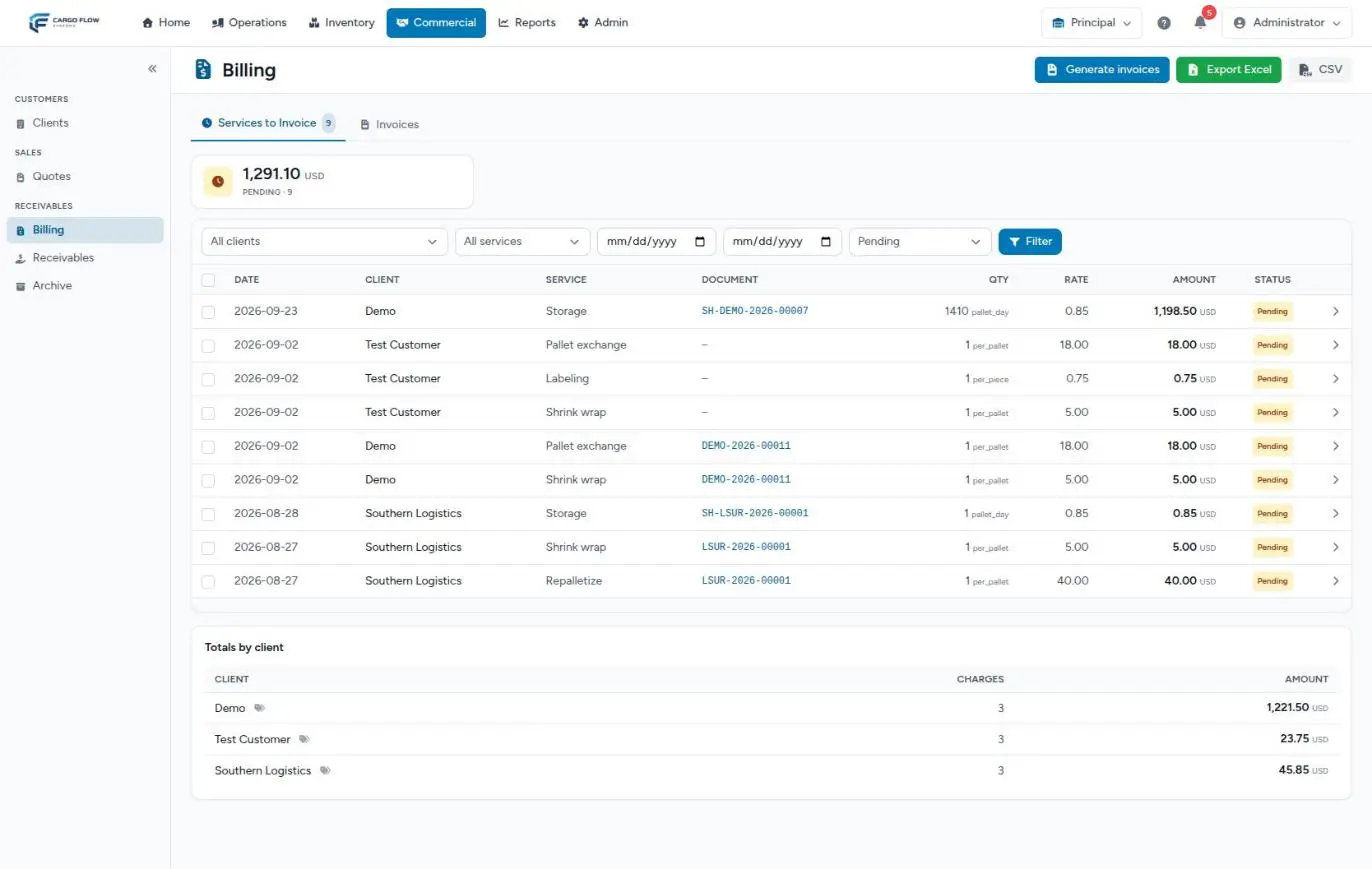
- Pending card — the pending amount and how many charges make it up, one card per currency, with minimums and maximums already applied.
- Charges list — Date, Client, Service, Document (the receipt or shipment number, linked), Qty with its unit, Rate, Amount and Status. The arrow at the end opens the charge detail. 30 per page, newest first.
- Totals by client — at the bottom, how many charges and how much each client has with the filters applied. The tags icon next to the name opens their rates.
- Header buttons — Generate invoices, Export Excel and CSV.
Filter and review
- Pick the client under “All clients”, or leave it open to see the whole warehouse.
- Pick the service to review one item (for example, storage only).
- Set the date range in the two date fields (the charge date).
- Pick the status: Pending (what shows on entry), Billed or All (pending + billed).
- Click Filter. The X next to the button clears the filters.
Check on each row that the client, quantity and rate are right. An amount with the Minimum or Cap mark already has the service’s minimum or maximum applied. “No rate” in the Rate column means there is no price on the client or in the catalog.
Generate all invoices
- Click Generate invoices in the header.
- Confirm the prompt (“Group the unbilled charges of this warehouse into invoices? Running it again will not duplicate anything.”). The system groups all pending charges in the warehouse into invoices.
- You land on the Invoices tab with a message saying how many were generated.
Generate only the selection
- Tick the charges you want to invoice. The header checkbox ticks all pending charges on the page.
- A bar appears with “N selected”. Click Generate invoice from selected.
- Confirm. If the selection spans several documents, several invoices come out: the grouping is the same as the general button’s.
With monthly clients, selecting current-month charges doesn’t invoice them: they keep waiting for month end.
How charges are grouped into invoices
The grouping depends on When this client pays, on their Payment terms tab:
| Option | How it is invoiced |
|---|---|
| Per transaction, On arrival, On departure | One invoice per operation |
| Monthly | A single invoice per client per closed month with everything in the period |
“Operation” means, in this order: the special job, the shipment, the receipt or, if the charge has no document, the dock job. In practice:
- A shipment’s handling, its accessorials, its at-shipment services and its storage go out together.
- A truck taking several shipments produces one invoice per shipment; accessorials captured against “the whole truck” go out on their own invoice.
- The receipt and shipment of a cross-dock go out on the same invoice.
- Daily-accrual storage is grouped per client and day.
- Currency always splits invoices.
- “No rate” charges in the new version stay out until resolved.
Each invoice takes its number from the invoice sequence and, in the transaction column, the same number (unless the warehouse sets up another sequence). The date is that of the group’s latest charge; the due date comes from the payment terms.
Late charges
A charge created after its operation was invoiced —an accessorial captured days later, the one held for a truck’s last shipment— is added to the open invoice of that same operation, as long as it is not voided or exported to accounting. The invoice recalculates minimums, maximums and total. If it was already exported or voided, the charge goes out on a new invoice.
The assembled-invoices view
In warehouses on the new billing version, Services to Invoice doesn’t show loose charges but the invoices already assembled, with the same grouping the generator will use:
- Each group shows the client, the document (linked) or “Monthly invoice · month”, the total and its charges.
- Pass to invoice generates that invoice.
- Current-month groups for monthly clients say “Current month — invoiced at cutoff”.
- If the group has unpriced charges, a note says how many will stay out of the invoice until resolved.
The automatic nightly run
Besides the button, the system runs the same generation every night at 2:30, in every warehouse with Billing, after accruing the day’s storage. It is normal to arrive in the morning and find the pool almost empty and the invoices already built. What remains pending is usually current-month charges of monthly clients or unpriced charges. See The overnight billing processes.
Create a manual invoice
To bill something that didn’t come from operations, on the Invoices tab click New invoice:
- Client — search and pick from the list (“Pick a client from the list”). Only clients of the warehouse.
- Invoice date — required; the due date comes from it (+ the client’s credit days).
- Currency — only those enabled in the warehouse.
- Reference and Notes — optional.
Click Create invoice. It starts blank, with a system number and the Manual badge, and you land on its detail (“Invoice … created — capture its charges here”) to add catalog charges. See Invoices: edit and correct.
Export to Excel or CSV
Export Excel and CSV download the list with the filters you have set, including status. They are for reviewing the run outside the system or sending it to the client before invoicing. Exporting doesn’t mark anything as exported to accounting (the QuickBooks CSV does that).
What happens after generating
- Charges become Billed and disappear from the pending view.
- Invoices appear on the Invoices tab as Pending payment and in Receivables.
- The shipment whose handling was invoiced becomes settled on the releases report.
- Nobody gets an email: invoices are sent when someone clicks Send by email. See Send and print invoices.
- The Daily Transactions Report and the Invoice Report already include them.
Example of a billing run
On Monday at 10:00 there are 9 pending charges: 3 for Demo (a shipment), 3 for Test Customer (accessorials with no document) and 3 for Southern Logistics (a shipment with storage). Accounting reviews, sees a 1,410 pallet-day storage charge that doesn’t match what the client has on the floor, fixes the product’s packaging and leaves that charge out: they tick the other 8 and click Generate invoice from selected. 4 invoices come out: Demo’s shipment, one for Test Customer’s truck accessorials, and Southern Logistics’. The doubtful charge is fixed on its invoice after the nightly run.
Best practices
- Review totals by client before generating: an unusual amount is usually a wrongly entered rate or unit.
- To invoice a single client, filter, tick the header checkbox and use Generate invoice from selected.
- Confirm each client’s Payment terms: they decide whether they get one invoice per operation or one a month.
- Fix rates on the client’s rate card before the run, not after.
Troubleshooting
I clicked Generate invoices and some charges are still pending.
- They belong to a monthly client and the current month: they are invoiced at month end.
- In the new version, they are unpriced charges.
I filtered one client, generated, and invoices came out for everyone.
- The header button invoices the whole warehouse. If other clients’ invoices shouldn’t have gone out yet, void them: their charges return to the pool.
I don’t see the Export Excel and CSV buttons.
- Your role lacks the export billing permission. By default only Super Admin and Accounting.
I don’t see the Generate invoices button.
- Your role lacks Manage Billing.
A charge went out on a separate invoice instead of with its shipment.
- It was captured against “the whole truck” on a truck with several documents, or the shipment’s invoice was already exported or voided when the charge arrived.
“The currency is not enabled for this warehouse” when creating a manual invoice.
- Pick a currency from the list or enable it with the catalog’s Currencies button.
FAQ
What if I click Generate invoices twice?
Nothing bad. An invoiced charge is no longer pending, so the second time it isn’t picked up again. It doesn’t duplicate with the automatic run either: if two runs coincide, the second finds the charges already taken.
Can pesos and dollars be on the same invoice?
No. Currency always splits invoices: USD and MXN charges from the same operation go out on separate invoices. See Currencies.
Who can generate invoices?
Whoever has the manage billing permission: by default Super Admin, Admin and Accounting.
Need help?
If something did not work as expected, our support team can help you.
Was this article helpful?