Send and print invoices
Overview
Once generated, the invoice can be downloaded as a PDF, printed or emailed to the client from the system itself. Before sending, a window tells you exactly who receives what; afterwards, the email history keeps the record. Sending an invoice doesn’t change its payment status.
Before you start
- View, download and print: View Billing (Super Admin, Admin, Accounting).
- Send by email and upload documents: Manage Billing (Super Admin, Admin, Accounting).
- Change the invoice format: Documents module enabled and permission to manage templates (Super Admin, Admin).
- Client contacts with an email and their Notifications tab reviewed. See Client emails and reports.
The invoice list
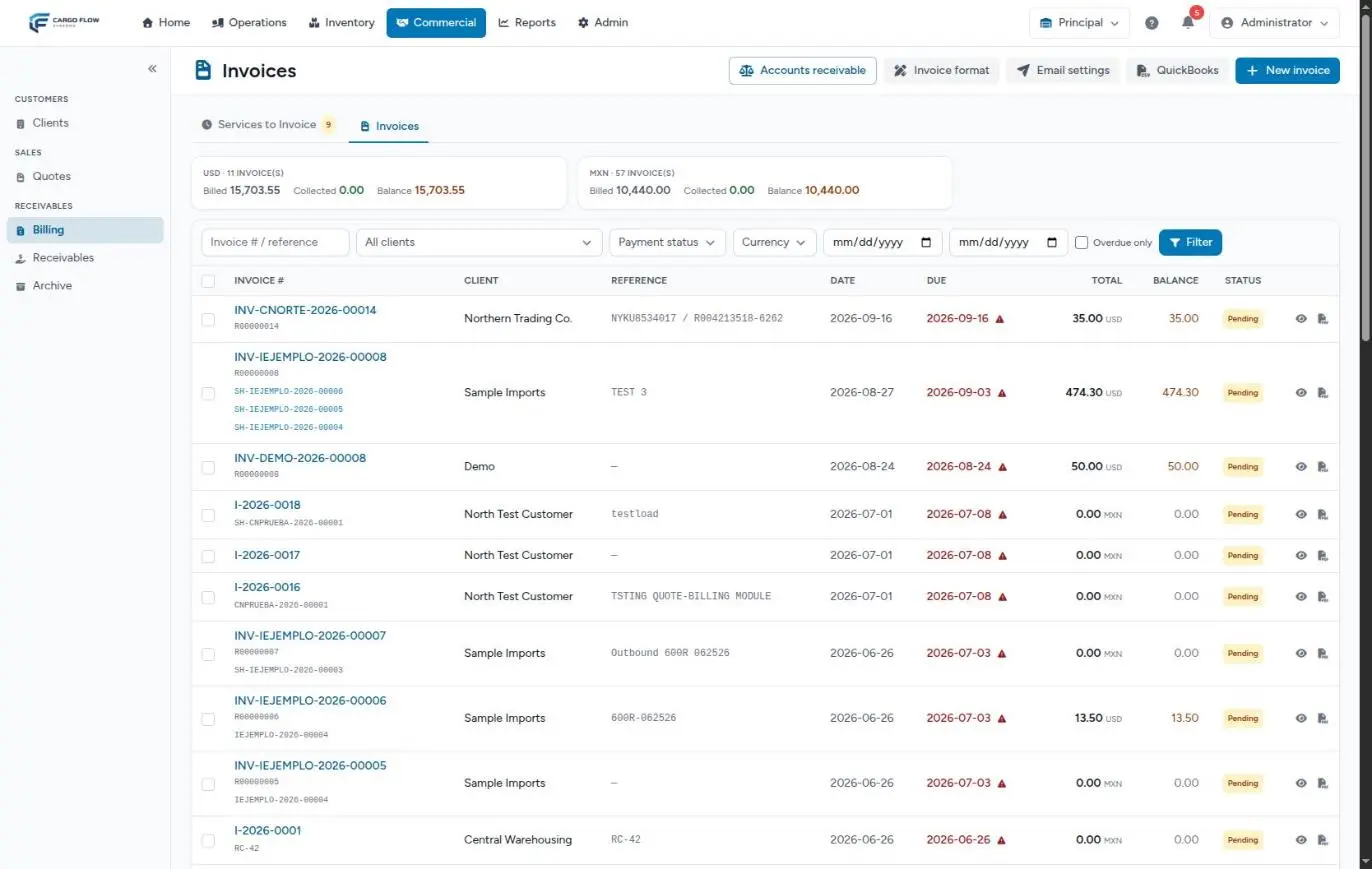
- Cards per currency — how many invoices, how much billed, collected and balance, with the filters applied.
- Filters — invoice number, transaction or reference; client; payment status (pending, partial, void); currency (if there is more than one); date range and Overdue only.
- Columns — invoice number (with the transaction and source document numbers below), client, reference, date, due date (red with an alert if overdue), total, balance and status. At the end, the eye opens the detail and the document icon downloads the PDF. 30 per page.
- Header buttons — Accounts receivable, Invoice format, Email settings, QuickBooks and New invoice (each according to your permissions).
Only unpaid invoices live here (including voided ones). Paid ones move to Commercial › Archive; if you search for an invoice number that is already paid, the list tells you and offers the jump.
The PDF and the invoice format
The PDF button on the detail (or the list icon) downloads the invoice as Invoice-number.pdf. Its design comes from the invoice-type document template in the document designer: the Invoice format button takes you there. A client can have its own format; otherwise the warehouse’s is used, and if the warehouse never set one up, the system creates the built-in format. See Design a template and Manage templates.
If a template is broken and can’t be drawn, the system delivers the invoice with the fixed built-in format instead of failing. The downloaded PDF comes out in the language of whoever downloads it; the one sent by email, in the client’s notification language.
Notes and backup documents
- Invoice notes — free text printed on the PDF only if your invoice format includes the “Invoice notes” field. Type and click Save (“Notes saved”).
- Backup documents — upload supporting paperwork (PDF, JPG or PNG, max 10 MB): drag the file, click to pick it or paste a screenshot with Ctrl+V or the Paste button. Pick the document type (POD, bill of lading, etc.) and click Attach.
- Associated documents — those uploaded on the source receipt or shipment. Visible from the invoice without having to look for them.
Send by email
- Choose what to send — from the detail, click Send by email; or on the list (or the Archive), tick several invoices and click Send by email on the selection bar.
- Review the window — “Resolving recipients…” and then, client by client, which invoices go out and to which addresses. What can’t be sent appears under Will not be sent with its reason. Below, if set up, the internal copy.
- Choose the mode — One email per invoice (the number goes in the subject) or One email per client, all their invoices together (the body lists number, reference, dates and amount). The window tells you how many emails will go out.
- Confirm several clients — if the selection spans more than one client, tick “I understand and confirm sending to N different clients”.
- Click Send. Emails are queued and the message says how many invoices were queued and how many couldn’t be sent.
What the client receives
- One email per invoice — subject “Invoice number”, a greeting, “Attached is invoice … for …”, the line detail and the notes; attached, the PDF and the backup documents (the invoice’s and those from the source receipt or shipment marked to be sent).
- One email per client — subject “client Invoices” and a summary; each attachment is a single PDF per invoice with its backup documents merged inside.
- A single email’s attachments add up to about 15 MB: beyond that, the system leaves out the backup documents that don’t fit (the invoice PDF always goes).
- The email arrives in the client’s notification language.
Who receives the email
Recipients are set on the client record, Notifications tab:
- The chosen contacts who accept the “Invoice sent” notice (each contact can receive all notifications or only some), plus the additional email if entered.
- If nobody was chosen, the fallback is a contact of type Billing with an email (the primary one, if there are several).
An invoice doesn’t go out when:
- “The client has no contact with an email address” — no recipients resolved. It happens, for example, with a client created from a quote, whose only contact is Operations.
- “The client has email turned off as a channel.”
- “The client has invoice emails turned off” — the Allow sending invoices by email switch (on by default; turn it off for a client you invoice another way).
- “The invoice is voided.”
- “The invoice has no client assigned.”
Internal copy to accounting
The Email settings button opens the warehouse’s Notifications & email screen; the copy is in the Internal invoice copy section.
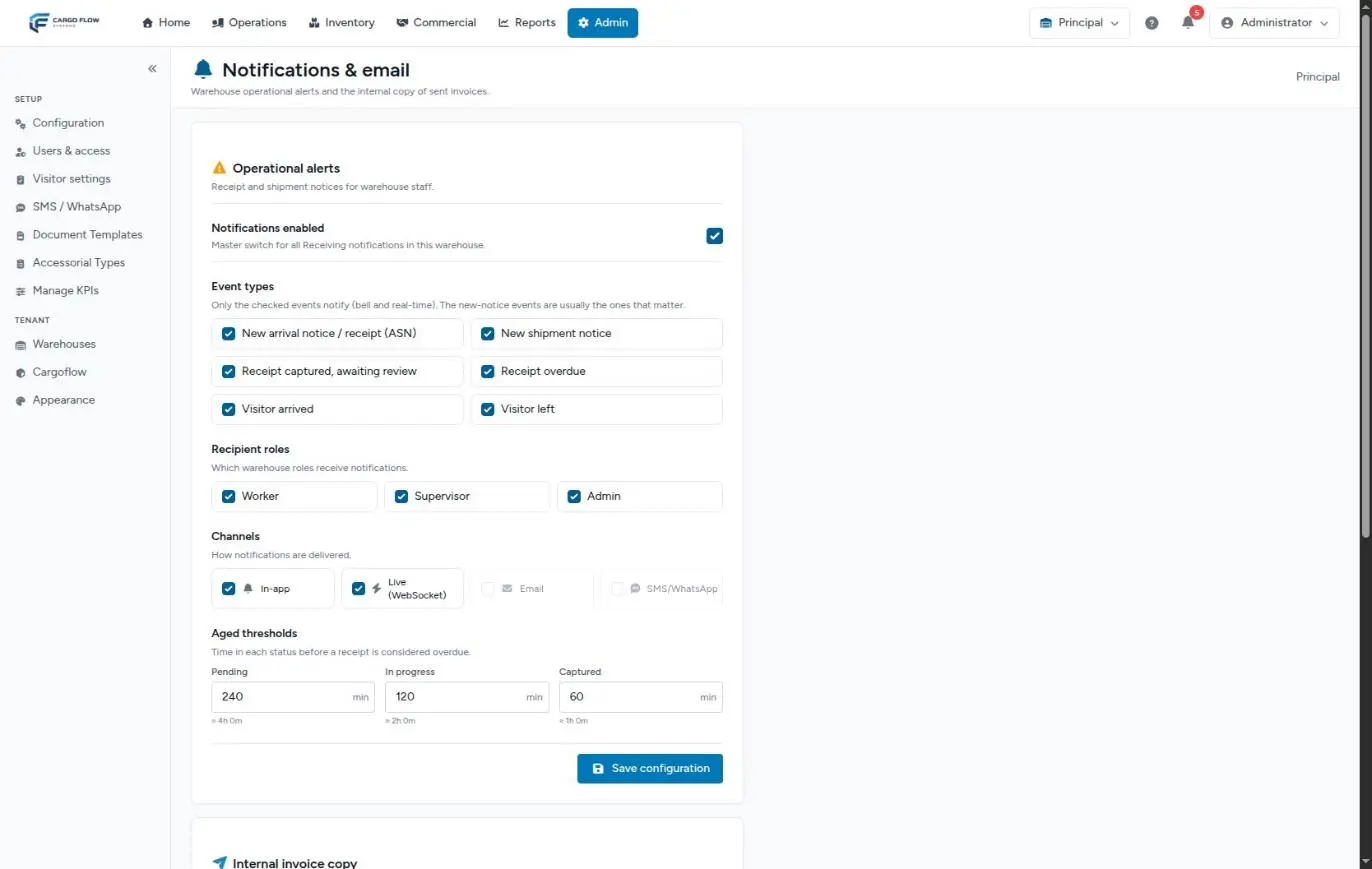
Turn on Send an internal copy to accounting, choose the roles whose users in this warehouse receive it and add additional addresses (an external accountant, a shared mailbox). The screen shows who would receive it right now. The copy goes as a separate email, with the subject “[Copy] Invoice number — client”: the client never sees those addresses. Access requires the manage billing permission or the users permission. See also Warehouse notifications.
Email history
At the bottom of the detail, Email history lists each email: to whom (Client or Internal copy), when, who sent it and whether it was Sent or Failed. “This invoice has not been emailed yet” if there are none. Emails are retried up to three times before being marked failed.
Print several invoices
- On the list or in the Archive, tick the invoices (up to 50 at a time). The header checkbox ticks those on the page.
- Click Print selected (PDF).
- A single PDF downloads with one invoice per page, sorted by number.
If some invoices use a format with a different page size (because of a client’s own format), the PDF comes out with the majority format and a notice, shown when you reload the list, says which numbers to print separately.
Example: month-end close
On October 1, accounting filters September’s invoices, ticks the month’s 40 and clicks Send by email. The window shows 12 clients; one appears under “Will not be sent: The client has no contact with an email address”. They choose “One email per client”, confirm sending to several clients and send: 11 emails go out plus an internal copy for each to user@example.com. Then they add the missing client’s billing contact and send their invoices from the detail.
Best practices
- Before the first send, check on the client’s Notifications tab who receives “Invoice sent”.
- Attach the proof of delivery or the signed bill of lading as a backup document: it travels with the email.
- Use “one email per client” for month-end closes and “one per invoice” for clients who file invoice by invoice.
- Check the email history when the client says it didn’t arrive.
Troubleshooting
The window says “The client has no contact with an email address”.
- Add a Billing contact with an email on the client’s Contacts tab, or choose it under Notifications.
“The client has invoice emails turned off.”
- Turn on “Allow sending invoices by email” on the client’s Notifications tab.
“None of the selected invoices can be emailed.”
- They are all blocked by one of the reasons above.
The history says Failed.
- Check the address. If it is right, contact support with the invoice number.
A backup document didn’t arrive.
- The email was over the size limit, or the receipt or shipment document was marked not to be sent.
Notes don’t show on the PDF.
- Your invoice format doesn’t have the “Invoice notes” field. Add it in the document designer.
FAQ
Are invoices sent automatically?
No. They only go out when someone clicks Send by email and confirms the recipients. The nightly run sends nothing.
Can a client receive another client’s invoices?
No. Sending is grouped by client: each email carries only that client’s invoices, even if you selected several.
Does the client see their invoices in the portal?
No. The portal shows operations, not collections. See What the client sees and when.
Need help?
If something did not work as expected, our support team can help you.
Was this article helpful?