Modules, permissions and access
Summary
Whether a person sees a screen depends on several keys checked in order: the warehouse they are working in, whether that screen’s module is contracted and on in that warehouse, and whether their role (or an extra permission) lets them open it. In the client portal there is one more key: their account’s access to each section. If one fails, the system hides the menu option; if someone arrives through a direct link, they see a «not found» page or a «no access» page, depending on which key failed.
This article gathers the keys in one place and ends with a guide to fix «I don’t see…» by cause.
The keys, in order
| Key | Where it is set | Who changes it | If it fails |
|---|---|---|---|
| 1. Warehouse access | User record, Access block › Warehouses (with its Active checkbox) | Whoever manages users | Not in the switcher; if their session was in it, «You do not have access to this page» |
| 2. Module contracted | The Cargoflow plan | Cargoflow | The module cannot be turned on in any warehouse |
| 3. Module on in the warehouse | Admin menu › Cargoflow, per warehouse | Super Admin | The menu disappears; a direct link gives page not found (404) |
| 4. Permission | Roles and permissions, or extra permissions on the user record | Super Admin, out of the box | The menu disappears; a direct link gives «You do not have access to this page» (403) |
| 5. Per-section access (portal only) | Customer record › Portal Users | Whoever configures clients | The section does not appear; a direct link gives access denied |
The modules and what they turn on
| Module | What it adds to the menu | What else it turns on |
|---|---|---|
| Docks | Operations › My Work, Docks, Drivers | Configuration › Loading Docks; the home dashboard |
| Yard | Operations › Yard, Special Jobs | Parking Areas and Special Job Types in Configuration |
| Visitors | Operations › Visitors; admin › Visitor settings | Kiosks, invitations, visitor arrival and departure alerts |
| External notifications (SMS / WhatsApp) | Admin › SMS / WhatsApp | Mobile messages to drivers and visitors |
| Inventory | Inventory › KPIs, stock, adjustments, cycle counts, transfers, products, locations, zones | Portal Inventory section; daily inventory email; inventory report |
| Receiving | Inventory › Inbound (ASN), Receipts | Portal Receipts section; operational alerts; receipts report |
| Shipping | Inventory › Shipments | Portal Shipments section; loading checklist; shipments report |
| Cross-dock | Operations › Cross-dock | Cross-dock handling |
| Accessorials | Operations › Accessorials; admin › Accessorial Types | The Accessorials panel on receipts, shipments and jobs |
| Billing | Commercial › Billing, Receivables, Archive | Configuration › Services; charges from all operations; internal invoice copy |
| Quotes | Commercial › Quotes | Converting a quote into a customer |
| Documents | Admin › Document Templates | Print documents on receipts and shipments; automatic goods receipt note, bill of lading and packing list |
| KPIs | Reports › KPIs; admin › Manage KPIs | Portal KPIs section; monthly summary email |
| Client portal | Nothing in the warehouse menu | The portal and the Portal Users tab |
| API and EDI | API keys in the menu under your name | Notices and orders coming in through integrations |
Clients, Users & access, Configuration, Reports and Folios do not depend on a module: only the permission controls them. Each report, however, only appears if its module is on.
Turning a module on or off
- Sign in as Super Admin, open the admin menu and click Cargoflow (at the end of the menu, in the account group).
- Check the contracted plan. Only contracted modules can be turned on; the rest show as not contracted.
- For the warehouse you want, click Activate or Deactivate on the module. The change applies on each person’s next click.
- Switch to that warehouse and confirm the menu shows what you expected.
Some modules work better together: Billing without Inventory charges handling but not storage; the portal without Receiving lists no receipts; Accessorials without Billing captures but does not charge.
The factory roles
This is how the six system roles come. Your company may have adjusted them in Roles and permissions.
| Area | Super Admin | Admin | Supervisor | Worker | Accounting |
|---|---|---|---|---|---|
| Users, roles, modules, warehouses | Yes | No | No | No | No |
| Customers and their rates | Yes | Yes | No | No | No |
| Docks and yard: operate | Yes | Yes | Yes | Own jobs only | No |
| Receipts: capture / confirm | Yes / Yes | Yes / Yes | Yes / Yes | Yes / No | View only |
| Advance ship notices (ASN) | Yes | Yes | No | No | No |
| Shipments: create and ship | Yes | Yes | Yes | View only | View only |
| Inventory: adjust, transfer, approve counts | Yes | Yes | Yes | Count only | No |
| Products, locations, zones | Yes | Yes | No | No | No |
| Quotes: view / edit / win | Yes / Yes / Yes | Yes / Yes / No | Yes / No / No | No | Yes / No / No |
| Billing: operate / void / export the pool | Yes / Yes / Yes | Yes / Yes / No | No | No | Yes / No / Yes |
| Document templates / generate documents | Yes / Yes | Yes / Yes | No / Yes | No / Yes | No |
| KPIs: view / manage | Yes / Yes | Yes / Yes | Yes / No | No | No |
| Reports in the Reports section | All | All | None | None | Transactions and invoices |
| Document numbers, appearance | Yes | Yes | No | No | No |
The sixth role, client portal, is for your customers’ accounts and is never assigned from Users & access. See User roles and Roles and permissions.
Permissions that surprise people
- Loading Docks in Configuration needs, besides configure docks, the configure users permission. That is why the Admin sees the tile but the screen denies access.
- SMS / WhatsApp and Special Job Types also need configure users: out of the box, only the Super Admin.
- Docks and Drivers in the menu need write docks; the worker, who only reads, reaches their work through My Work.
- Winning a quote is Super Admin only out of the box, even though the Admin can build the whole quote.
- Exporting the billing pool to Excel or CSV is for Super Admin and Accounting; the Admin does not have it.
- Creating an exclusive service for a customer also needs manage pricing.
- Correcting the client or number of a receipt or shipment is for Super Admin, Admin and Supervisor.
- Inventory value in KPIs needs the valuation permission; billing cards need view billing.
The per-warehouse role
Permissions come from the person’s global role: the same in all their warehouses. Even so, the Super Admin’s Warehouses screen (admin menu › Warehouses › a warehouse’s users) keeps a role per warehouse. That role grants no permissions, but it decides two things:
- Who gets the bell alerts in that warehouse (receiving, shipping and visitor alerts go by role).
- Who shows up to be assigned jobs: someone registered in a warehouse as accounting does not show up as a worker there, even if their global role allows it.
When the user record is saved, that per-warehouse role is set to the chosen role. See Working with several warehouses.
Portal access
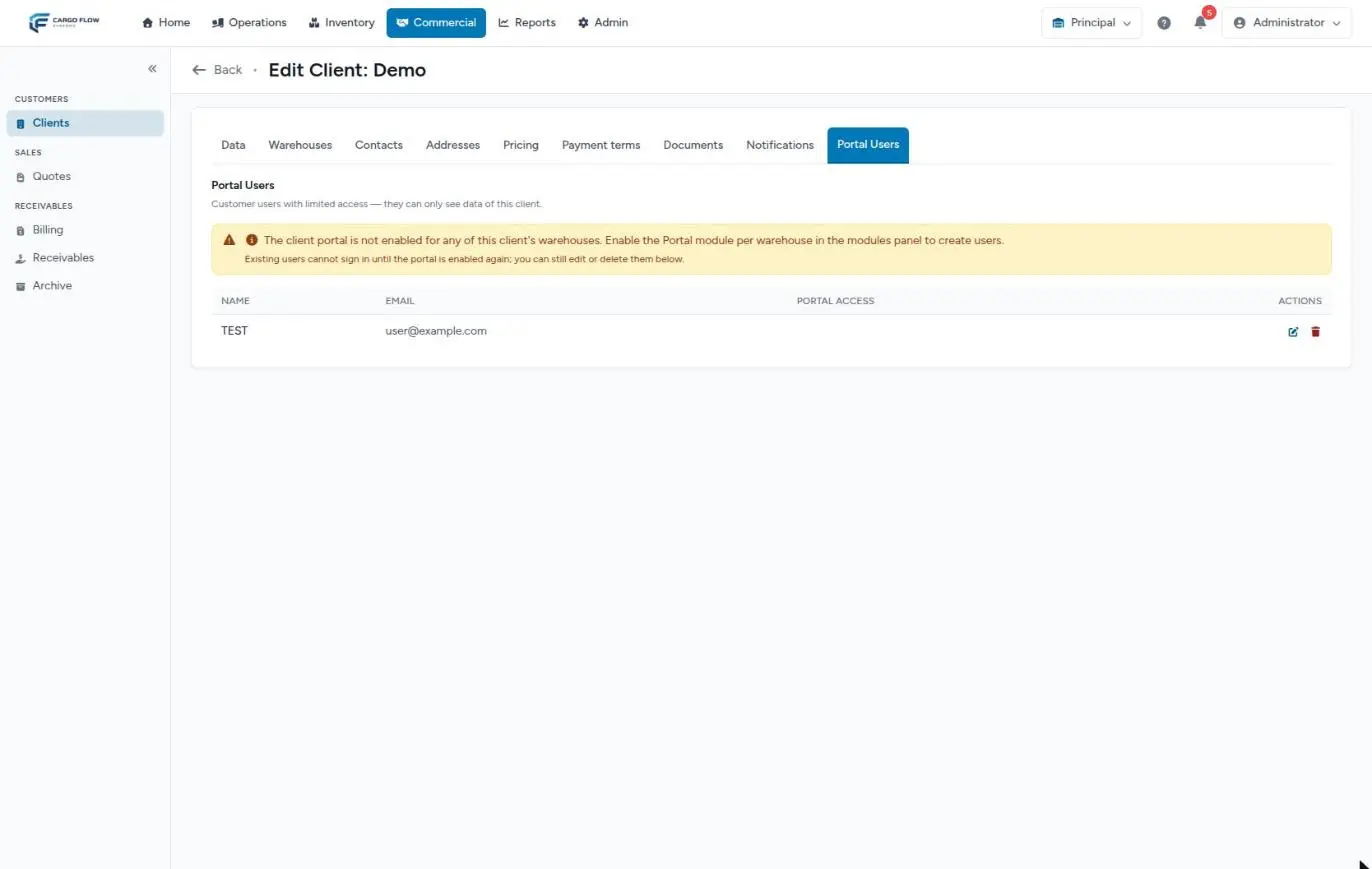
The portal has its own keys: the portal module on in the warehouse, each section’s module (inventory, receiving, shipping, KPIs) on in the warehouse the customer has selected, and their account’s access to that section: no access, read or write. The Portal Users tab only offers sections that are on in one of the customer’s warehouses. If the customer later contracts a new section, their existing accounts stay at «No access» for it until you edit them.
Guide to «I don’t see…»
A menu option my colleague has is missing for me.
- Are you in the same warehouse? Compare the name in the top bar.
- Do you have the same role? Do they have an extra permission?
- Is the module on in your warehouse?
I open a link and get a 404 page not found error.
- That screen’s module is off in the warehouse you are in. Switch to the right warehouse and open it again.
- The document belongs to another warehouse: receipts, shipments and customers only open from their own warehouse.
I get «You do not have access to this page».
- Your role lacks that screen’s permission. Ask for it on your role or as an extra permission.
- Your access to that warehouse is deactivated.
- You are staff and opened a portal link to a document you cannot see; with permission, the system takes you to the warehouse view.
I see the tile in Configuration but opening it denies access.
- That screen needs a second permission (typical of Loading Docks). See the list above.
A button is missing inside a screen I can open.
- Buttons have their own permission: «Void» needs void invoices; «Accept & create client», win quotes; «Print Documents», generate documents and the documents module; «Export Excel», export billing.
I granted the permission and the person still does not see it.
- The module is off in their warehouse, or the screen needs another permission too. Have them reload the page.
The customer signs in to the portal and gets page not found.
- The portal is not on in any of their warehouses.
The customer does not see a section or the button to send a notice.
- Their account has «No access» or read-only, or the section is not on in the warehouse they have selected.
Example
Luis Pérez is a Worker in the Principal warehouse. He is asked to confirm receipts on the night shift in the Test 2 warehouse.
- Warehouse: on his record, under Access › Warehouses, Test 2 is ticked with Active. He now sees it in the switcher.
- Module: the Super Admin confirms in the Cargoflow panel that Test 2 has Receiving on.
- Permission: confirming receipts is not in the Worker role. Since it is one person, it is added as an extra permission on his record instead of changing the role for everyone.
- Test: Luis switches to Test 2, opens Inventory › Receipts and now sees the confirm button on a captured receipt.
The extra permission applies in all his warehouses: he will also be able to confirm in Principal. If that is not wanted, the alternative is a second account or a different role.
Best practices
- Turn on in each warehouse only the modules that will be used: the menu stays clean.
- Give the lowest role that does the job and go up with extra permissions only for exceptions.
- If several people need the same thing, create a custom role.
- When someone reports they «can’t see something», ask for the warehouse name in their top bar and the page address.
- Review portal access every time a customer contracts a new section.
Frequently asked questions
Does turning a module off delete data?
No. It only hides its screens and stops its background work in that warehouse. When you turn it on again, everything is still there.
Why is it sometimes «not found» and sometimes «no access»?
On purpose: a module that is off responds as if the screen did not exist, so it does not show what is not contracted. A missing permission responds that you have no access.
Who can turn modules on?
Only the Super Admin, and only within the contracted plan. To contract a new module, write to us.
Need help?
If something did not work as expected, our support team can help you.
Was this article helpful?