Quote and win a client
Overview
A quote is not a standalone document: it is the draft rate card of the future client. You build it from the warehouse’s service catalog and, when you win it, the system creates the client, its contact, its address and one rate for every included service. Nobody re-enters prices and what was quoted stays tied to what gets billed.
The complete journey —from the won quote to the first paid invoice— is in From quote to first invoice. This article stays on the Quotes screen.
Before you start
- Module — the warehouse must have the Quotes module. Without it the menu does not appear and the screen’s addresses answer “not found”. For the seeded rates to be of any use, the warehouse also needs the Billing module.
- Permissions — viewing quotes requires View Quotes; creating and editing them, Manage Quotes; winning and renegotiating them, Win/Lose Quotes. The who can do what table shows which role carries each.
- Service catalog — the quote is built from the active services in Admin › Configuration › Services. Review base prices, rate bases and descriptions before quoting: that is what gets preloaded. See Service catalog.
- Currencies — the quote currency is chosen among those enabled in the warehouse (the catalog’s Currencies button). See Currencies.
- Active warehouse — the quote belongs to the warehouse you are working in. If you work with several, switch to the right one before creating it.
The quotes list
Go to Commercial › Sales › Quotes.
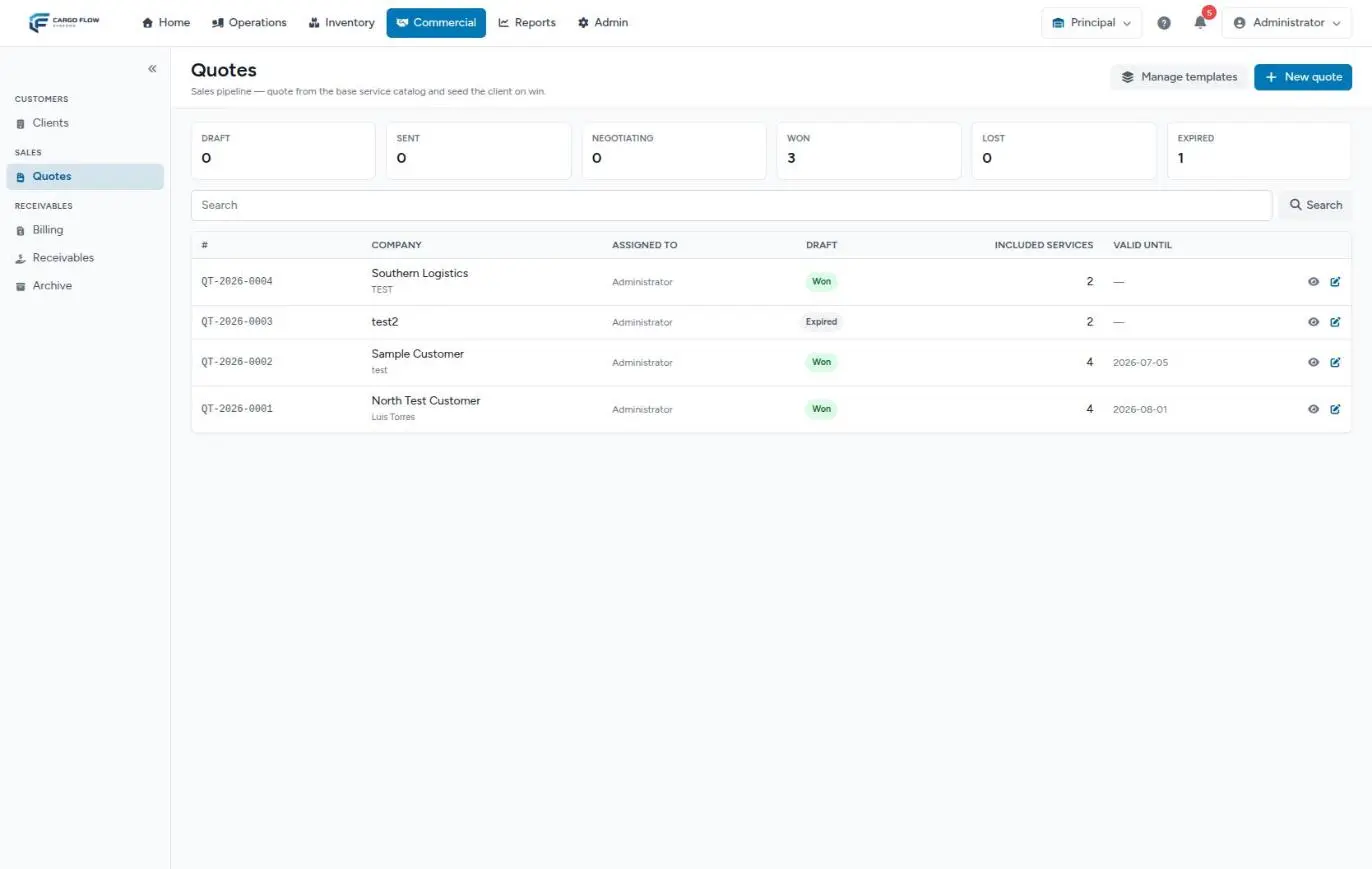
- Counters — Draft, Sent, Negotiating, Won, Lost and Expired. Each card is a filter: click it and the list shows only that status, with the card highlighted.
- Search — by quote number, company or contact name, case-insensitive. Clear removes the search and the filter.
- Columns — number, company (with the contact below), who it is assigned to, status, how many services it includes and valid-until date. A red clock next to the date warns that it already expired but the overnight process has not moved it to Expired yet.
- Actions — the eye opens the document view; the pencil opens the editor (only if you can manage quotes).
- Buttons — Manage templates and New quote, visible to whoever manages quotes.
20 per page, newest first.
Create a quote: field by field
Click New quote. The form has four blocks.
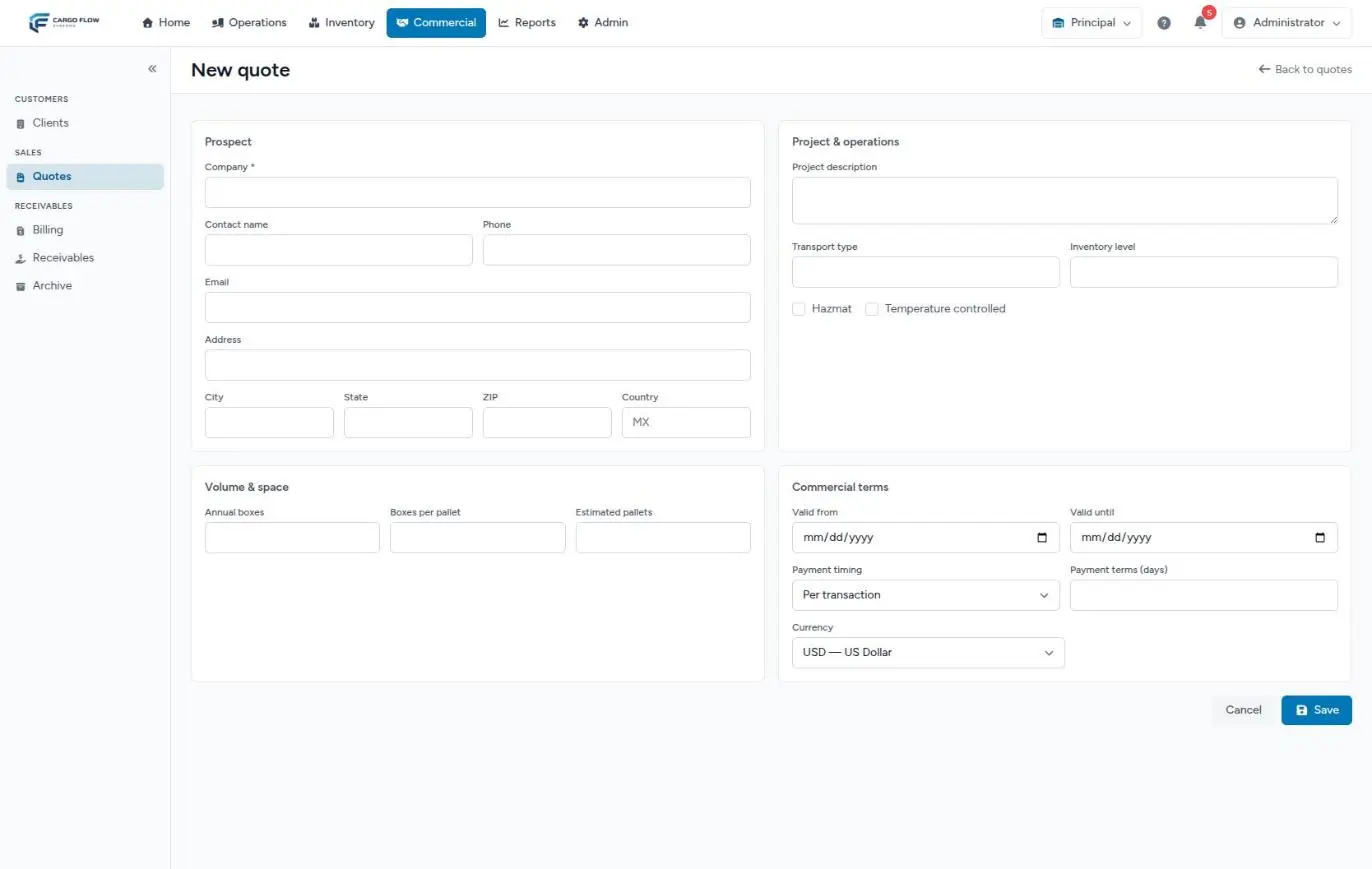
| Field | What it is | Rules |
|---|---|---|
| Company | The prospect’s name. It becomes the client name when you win. | Required, up to 160 characters. |
| Contact name, Phone, Email | The person you negotiate with. Becomes the client’s primary contact. | Optional. The email must be valid. |
| Address, City, State, ZIP, Country | The prospect’s address. | Optional. Country as a two-letter code (MX, US); if empty, the client address is created with MX. |
| Project description | Scope, requirements, what the client asked for. | Up to 2,000 characters. Printed on the document as “Comments, project scope, or customer requirements”. |
| Transport type, Inventory level | Free reference text for operations. | Up to 40 characters each. |
| Hazmat, Temperature controlled | Operating profile checkboxes. | They pass to the client profile when you win. |
| Annual boxes, Boxes per pallet, Estimated pallets | Expected volume. | Whole numbers, zero or more. See Quote templates, space section. |
| Valid from / Valid until | How long the offer stands. | “Until” cannot be before “from”. With “until” filled, the quote expires on its own once the date passes. |
| Payment timing | Per transaction, On arrival, On departure or Monthly. | Defaults to Per transaction. It passes to the client and decides how their invoices are grouped. |
| Payment terms (days) | Credit days. | 0 to 365. Empty = the invoice is due the day it is issued. |
| Currency | The currency you quote in. | Only currencies enabled in the warehouse. Choose it carefully now (see limits). |
Click Save. The system assigns a number (using the format set in Document numbers; by default QT-2026-0001), assigns it to you, sets it to Draft, logs “Quote created” in the history and preloads every active service in the warehouse catalog as candidate lines, not yet included. You land straight in the editor.
If the company is missing or a value breaks its rule, the form comes back with the list of errors on top and what you typed is still there.
The two-panel editor
The editor fits on one screen:
- Top bar — on the left, the company with the contact below (or “Add contact / details”); clicking it opens the Customer & terms panel. On the right, the save indicator, the status selector and the green Accept & create client button.
- Left: Service catalog — grouped by category (each can be collapsed), with a search by name or code and the “N in quote” counter. On top, the Apply template… selector, the bookmark button (Save as template) and the gear that opens the template manager.
- Right: This quote — the included lines, in the order the client will read them, and the + Custom line button.
Clicking a service in the catalog includes it: it appears at the end of the right-hand list and gets a check mark in the catalog. Remove takes it out of the quote (the line stays in the catalog, not included, with whatever you had changed). Drag each line’s handle to reorder.
Changes save on their own: you will see “Saving…” and then “Saved”. If something fails you get “Save failed”: reload the page and check the last change. There is no discard button.
What you edit on each line
| Item | Meaning | If left empty |
|---|---|---|
| Rate | The unit price the client will be charged. It starts at the catalog base price. | Saved as 0. Once won, a 0 on the client rate card means “use the catalog base price”. |
| Unit | Below the rate, what it is charged per (per pallet, per piece, per hour…). It comes from the catalog and is not changed here. | — |
| Description | The text the client reads on the document: what it includes and what it doesn’t. | The document uses the catalog description. |
| Min charge | The minimum charged for that service on each invoice. | No minimum. |
| Max charge | The cap for that service on each invoice. | No cap. |
| Free days | Only shown on storage services: days not charged from arrival. | 0. |
Minimum, maximum and free days are inherited from the catalog when the line is preloaded; change them if you negotiated otherwise. How they apply at billing time: How charges are generated.
Services that are not in the catalog
+ Custom line opens Add an extra service or accessorial:
- Name (required, up to 120 characters) and Description.
- Type — Billable service or Accessorial.
- Per — the rate basis (flat rate by default).
- Rate.
Click Add. The line comes in included, at the end. It is quoted here and created for that client when you win the quote, as a service exclusive to them: a billable service becomes “quote only” (billed by capturing it); an accessorial is also added to the accessorials catalog, ready to be captured on jobs. See Accessorials and extra charges.
Customer & terms
Clicking the company in the top bar opens, on the right, the Customer & terms panel: the same four blocks as the new-quote form, with their Save button, and below them the Status history (date, previous → new status and who did it).
You can only save while the quote is Draft, Sent or Negotiating. In any other status the panel shows a padlock with the message “This quote was already converted to a client and is locked” —even when the quote is Lost or Expired and was never converted—: move it back to Negotiating with the selector if you need to fix the details.
The client document
In the editor header: PDF and Excel download the proposal (Quote-QT-2026-0001.pdf); Preview shows it on screen with Download PDF, Download Excel and a link back to the editor.
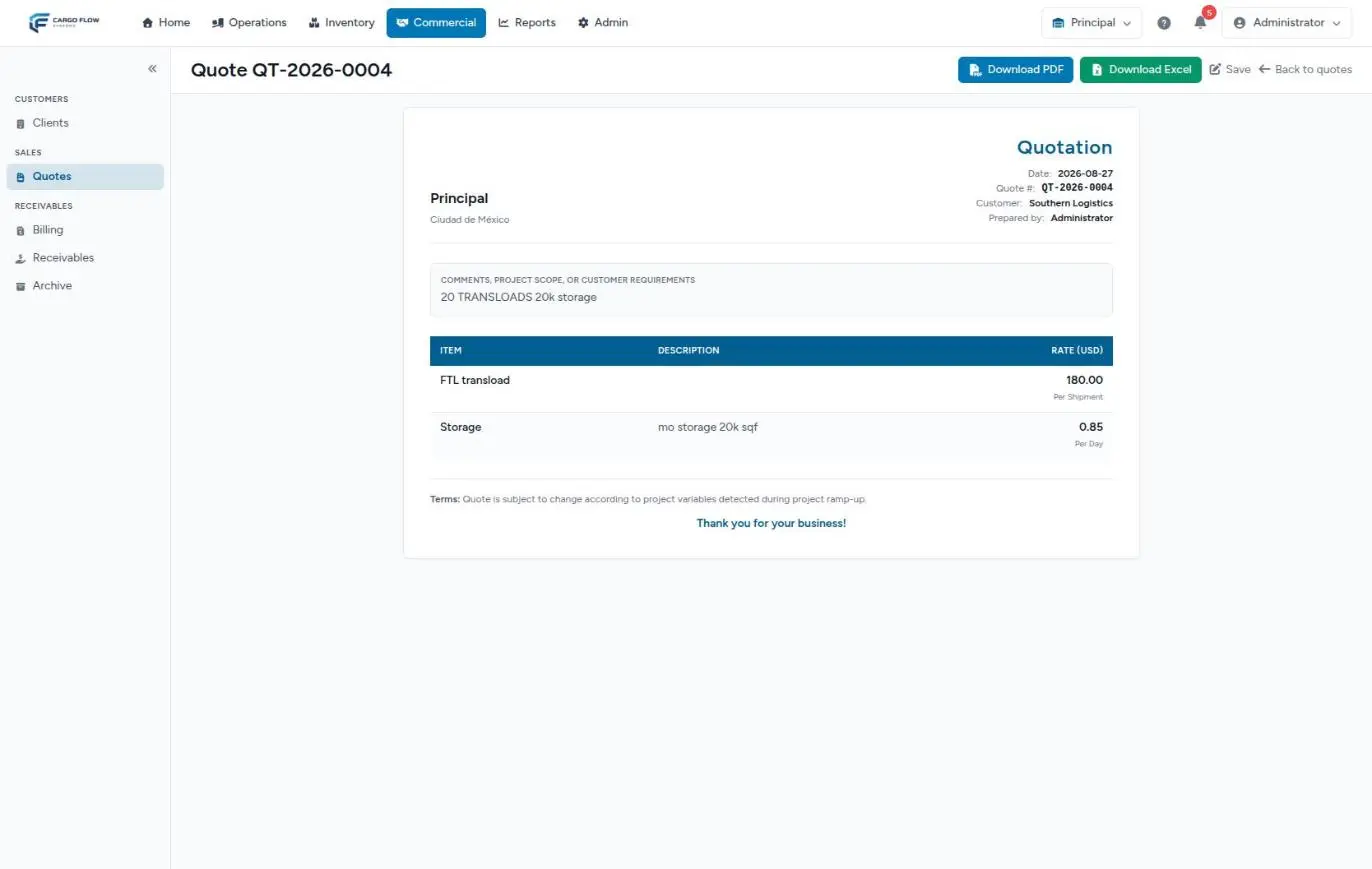
- Header — the warehouse logo, name, address, phone and email (from its settings).
- Details — creation date, number, the customer’s company, valid until (if filled) and “Prepared by” (who created it).
- Comments — the project description, if any.
- Table — Item, Description and Rate (with the currency in the column header). Below each rate, its unit and, when they apply, “Min”, “Max” and the free days.
- Footer — the terms (“subject to change according to project variables”) and the thank-you line.
It is a rate card, not a pro forma invoice: it has no quantities and no total, because what gets billed is the actual activity. The document’s headings come out in the language of whoever downloads it; the service names, in the language of whoever created the quote (they are copied from the catalog at that moment).
Win it: accept and create the client
- Review the lines, the terms and the currency.
- Click Accept & create client. It is greyed out while the quote has no included service.
- The window shows the company, how many rates will be configured, how many new services will be added to the catalog (with their names), the contact and the address.
- Click Accept & create.
In a single operation the quote becomes Won (the history says “Accepted — client created”), is marked Converted, and the system creates:
- The client, with the company name and a short code derived from the name (the one used in document numbers).
- A primary contact of type Operations with name, email and phone (if you entered any).
- A default physical address (if you entered an address or a city).
- Its link to the warehouse, active.
- One rate per included line, effective today, with its basis, minimum, maximum, free days, currency and the note “Seeded from quote QT-…” (plus any note the line had).
- The extras as services exclusive to the client.
- The payment terms (payment timing and credit days) and the billing currency.
- The operating profile: description, transport, inventory, hazmat, temperature and volume.
You land on the client record, Pricing tab, with the message “Client … created with its prices seeded”.
What happens next, in other modules
- Clients — the client now appears in Commercial › Clients, active in the warehouse. Complete what the quote does not bring: billing contacts, notifications and portal users. See Set up a client.
- Pricing — every included line is a row on their rate card. Receiving and shipping handling are charged automatically because they are already on the rate card. See Rate card and prices.
- Operations — from then on you can create notices, receipts and shipments for them; confirming them creates charges at the quoted rates. See Where each charge comes from.
- Billing — invoices are grouped by the payment timing you quoted and fall due after the credit days. See Payment terms and due dates.
- Document numbers — the client code goes into the numbers of their receipts and shipments. See Document numbers and documents across the flow.
- Nobody is notified: winning, losing or converting a quote sends no email or notification.
Full example
Northern Trading Co. wants to store 1,200 boxes a year, 40 boxes per pallet, in US dollars, paying monthly at 30 days.
- New quote: Company “Northern Trading Co.”, contact Ana López,
user@example.com, valid until October 31, Payment timing Monthly, terms 30, currency USD. Save. - In the editor you apply the General Warehouse template and adjust: receiving handling 14.00 per pallet, shipping handling 14.00 per pallet, storage 0.70 per pallet per day with 5 free days and a 50.00 minimum.
- You add a custom line “Labeling with the client’s barcode”, type Accessorial, per piece, 0.45.
- You download the PDF, send it and set the status to Sent. The client asks for 13.50 on handling; you move to Negotiating and change both rates.
- On October 20 you click Accept & create client: 4 rates, 1 new service.
Result: the client Northern Trading Co. exists with its own code, contact Ana López, Monthly terms at 30 days, and on its rate card handling at 13.50, storage at 0.70 with 5 free days and a 50.00 minimum, and the exclusive labeling at 0.45. Its first November receipt, 10 pallets, creates a 135.00 USD handling charge; its November invoice is built on December 1 and falls due November 30 + 30 days.
Special cases and limits
- The currency is fixed at creation. Lines take the quote currency when they are preloaded. If you later change the currency in Customer & terms, the lines keep the original currency and the client rates will be seeded in it, even though the document shows the new one.
- There is no exchange-rate conversion. The catalog base price is copied as is: if the catalog is in USD and you quote in MXN, 15.00 is still 15.00, now in pesos. Check every rate.
- One quote = one warehouse. For a client who will operate in two warehouses, quote in each, or add the second warehouse later from the client record.
- Exclusive services of other clients never appear in the editor catalog.
- Catalog services added after creation do not appear on their own in an existing quote.
- Changing the status is free-form: the selector offers all six statuses in any order. See Quote statuses.
Who can do what
| Action | Permission | Default roles |
|---|---|---|
| View the list, the preview and download PDF or Excel | View Quotes | Super Admin, Admin, Supervisor, Accounting |
| Create, edit, change status and manage templates | Manage Quotes | Super Admin, Admin |
| Accept & create client, renegotiate a won quote | Win/Lose Quotes | Super Admin |
Permissions are changed per role under Admin › Users & access. See Roles and permissions and Modules, permissions and access.
Best practices
- Start from a template: it saves time and keeps you from forgetting services.
- Write in each line’s description what the client needs to understand (what it includes, what it doesn’t).
- Always set a valid-until date so forgotten quotes expire on their own.
- Set currency, payment timing and terms before winning: they pass to the client as they are.
- Move the status as the negotiation advances; the list counters are your sales funnel.
- After winning, complete the client’s billing contact and notifications on their record.
Troubleshooting
I don’t see the Quotes menu.
- The module is not enabled in the active warehouse, or your role lacks View Quotes.
I don’t see the Accept & create client button.
- Your role lacks Win/Lose Quotes. By default only Super Admin has it.
- The quote is already converted: View client shows instead.
The button is grey.
- The quote has no included service.
“Add a company name before accepting.”
- Fill in the company (or the contact name) in Customer & terms and save.
“Add at least one service before accepting.”
- Include at least one catalog line or one custom line.
“This quote can no longer be edited in its current status.”
- It is Won, Lost or Expired. Move it back to Negotiating with the selector (if it was not converted) or renegotiate (if it was).
The top bar says “Save failed”.
- The session or connection dropped. Reload, check the last line you touched and enter it again.
The client was created but invoices don’t reach them.
- They need a billing contact with an email, or recipients chosen in their Notifications tab.
FAQ
Can my client see quotes in their portal?
No. Quotes are not separated by client: whoever has the permission sees all of them. That is why access was removed from the portal, where a client would see other prospects and prices.
An extra service’s code came out different from what I typed
The code is built from the name. If it already existed in the warehouse, the system adds a suffix (_2, _3…) to avoid a clash. The name the client sees does not change.
Why doesn’t the document show a total?
Because it is a rate card: the client pays for each month’s actual activity, not a fixed amount. The system keeps the sum of rates internally, but it is not printed and has no commercial meaning.
How do I change who a quote is assigned to?
The quote is assigned to whoever creates it and the screen offers no field to reassign it. If someone else should own it, have them create it.
Can I delete a quote?
Not from the screen. A quote that went nowhere is marked Lost: it stays in the history and leaves the active funnel.
Need help?
If something did not work as expected, our support team can help you.
Was this article helpful?