Close a shipment
Overview
Closing the shipment tells the system “this has left”. It is the only thing that deducts inventory, records the customer’s charges, generates the documents and sends the notice. It is done by someone with the Ship (Close Shipments) permission (default: Admin and Supervisor) from the shipment screen, and it can’t be undone.
Before closing
- The shipment is Reserved or Loading. If the timeline says Loading complete, the worker has finished.
- The worker saved their Loading record with the real quantities and the seal. Compare each line’s picked column with what really went on (see the warning below).
- The job’s accessorials (shrink wrap, pallets, labeling…) are captured in the Accessorials panel on the same screen.
- The transport details are right and there is no trailer mismatch notice. If something is missing, use Edit details before closing.
- If it is a cross-dock shipment, its receipt is already confirmed.
Where the quantities come from
The close panel deliberately shows no quantities: what leaves inventory is what the worker recorded at the dock. For each line the close uses:
- The loaded quantity the worker recorded, if it is above zero.
- If there is no record, the reserved quantity.
- If there is no reservation either, the ordered quantity.
A line with a reservation never ships more than was reserved. Details in The loading record and shortages.
Closing, step by step
- Open the shipment from Inventory › Shipments.
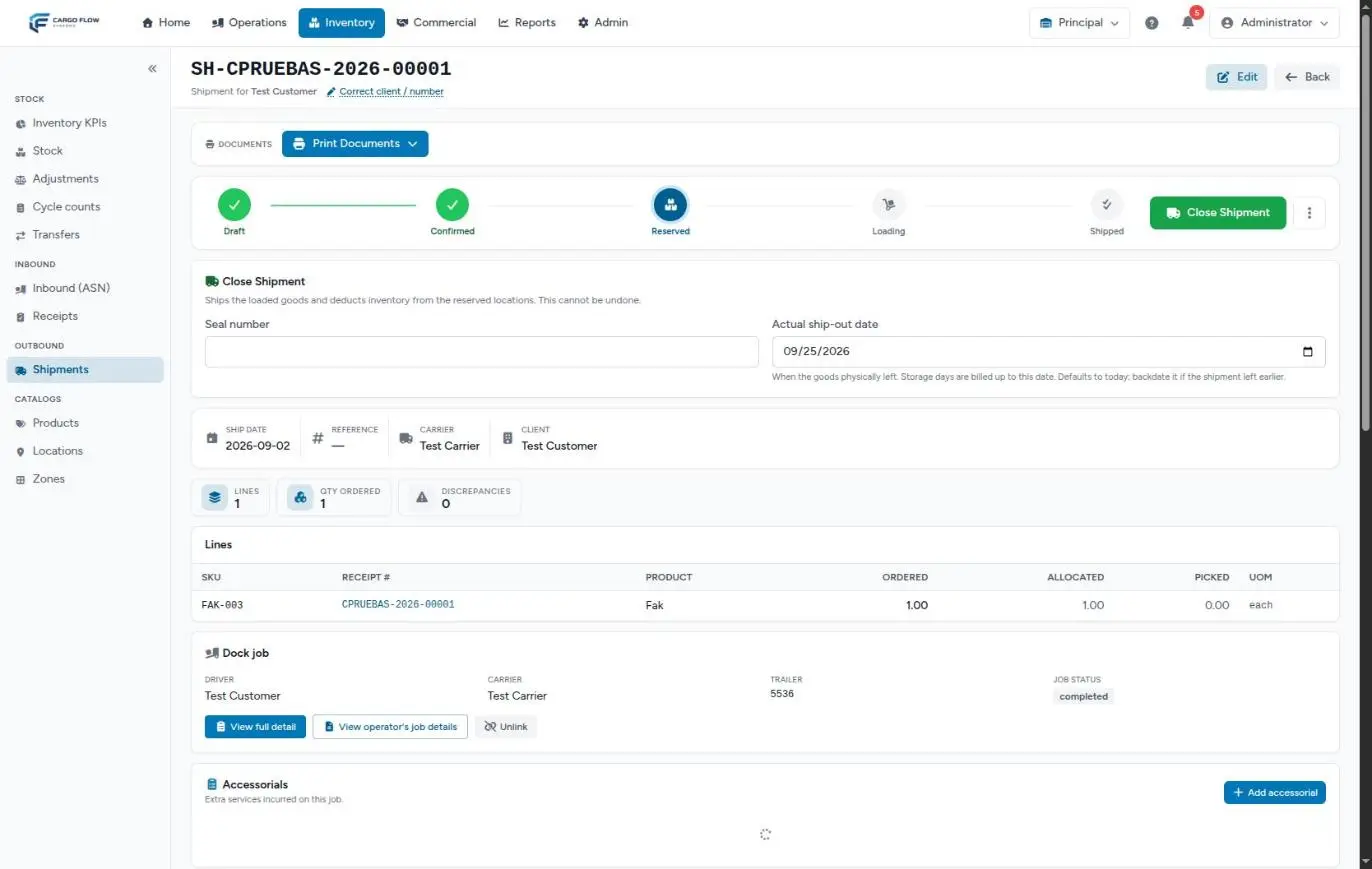
- Under the timeline the Close Shipment panel reads “Ships the loaded goods and deducts inventory from the reserved locations. This cannot be undone.”
- If the shipment has no seal yet, enter the Seal number (up to 64 characters; optional). If it already has one, the field doesn’t show.
- Check the Actual ship-out date. It defaults to today and doesn’t accept future dates.
- Click Close Shipment, the green button to the right of the timeline.
When done you’ll see the green message “Shipment closed…”, all five steps green and the ship-out date and time next to the timeline.
The actual ship-out date
It is the day the goods physically left. It matters for three reasons:
- It is the date the outbound inventory movements are recorded with.
- If the customer is billed storage at ship-out, storage days are counted up to this date.
- It is what on-time shipping measures against (compared with the requested date).
If the truck left days ago and you are only closing it now, backdate it. With today’s date the exact time of the close is stored; with an earlier date, the start of that day.
What happens on close
| Where | What happens |
|---|---|
| Inventory | The loaded quantity leaves each reserved location and lot, under the line’s customer. What was reserved and not loaded is released and available. Each reservation ends as Shipped or Short. See The life of your stock. |
| Shipment | Moves to Shipped, with the ship-out date and who closed it. The summary shows the loaded quantity. |
| Billing | Outbound handling (if the customer’s rate card has it; with no rate nothing is billed), extra services billed at ship-out, storage at ship-out if that is their model, and the accessorials held until the close. Everything lands in the unbilled pool. See Where each charge comes from. |
| Documents | The BOL and packing list are generated and stored (one per customer if the shipment has several), if the warehouse has the documents module and a template exists. It takes a few seconds because they are generated in the background. |
| Shipment-closed email to the customer’s configured contact, in their language, with transport details, destination, ordered and shipped per line, and the chosen loading photos. See Customer emails and reports. | |
| EDI and API | Shipping advice (945) if the customer uses EDI; a shipment-closed notice if they have an API integration. |
| Portal | The customer sees the shipment as shipped. |
| Cross-dock | If the shipment belongs to a cross-dock whose receipt is confirmed, the cross-dock moves to Closed. |
| KPIs | It counts in shipments, units shipped, on-time shipping, complete and on time, short lines and fill rate. |
Example
Pacific Brands’ truck left on Friday the 12th at 18:00, but nobody closed the shipment. On Monday the 15th, Luis Pérez opens it (it reads Loading complete), checks the worker recorded 120 of 120, changes the Actual ship-out date to the 12th and closes. Because the customer pays storage at ship-out, days are counted up to Friday the 12th and not Monday the 15th: three fewer days billed. The BOL and packing list show up in the documents panel within seconds and the customer gets their email.
Special cases
- No dock job: it can be closed from Reserved. With no loading record, the reserved quantity ships.
- Warehouse without inventory: it closes from Confirmed as a paper record; nothing is deducted.
- Several shipments on one truck: each one is closed separately.
- Cross-dock: it can’t be closed before its receipt is confirmed. See Tracking and closing a cross-dock.
What you can’t do
- Undo the close. There is no button. If the goods didn’t really leave, correct with an adjustment and fix the line on the invoice.
- Change quantities or lines after closing.
- Change the customer after closing (the shipment number can still be corrected).
- Close from Draft or Confirmed with inventory on: reserve first.
Error messages and troubleshooting
“Only allocated or loading shipments can be closed (current status: …)”
- The shipment is Draft or Confirmed. The status shows its internal code (
draft,confirmed). Confirm and allocate it first.
“No loaded quantities to ship — record the loaded quantities first.”
- No line has a quantity. Check the reservation isn’t zero.
“N loaded line(s) have not been verified. Check them off to close.”
- Some lines have a quantity nobody checked off. Ask the worker to complete the loading record.
A message asks you to confirm the cross-dock’s receipt first.
- It is a cross-dock shipment and its receipt isn’t confirmed. Confirm it first.
The customer didn’t get the email.
- The customer has no contact with an email for the shipment-closed notice, or has the email channel turned off. Fix it on their record and use Send by Email.
No handling charge was created.
- The customer’s rate card has no outbound handling. See Customer rates; add the charge by hand if it applies.
Best practices
- Close the same day the truck leaves.
- Before closing, check the picked column against what the worker told you.
- Capture accessorials before closing so they land on the same invoice.
- Resolve the trailer mismatch notice: whatever stays on the shipment is what prints on the BOL.
FAQ
Where do I capture accessorials?
In the Accessorials panel of the shipment screen (Add accessorial button) or from the worker’s console. While the shipment is open they are held and sent to billing on close. See Capture an accessorial.
I closed a shipment with a wrong detail, what now?
Header details (reference, document, ship-to, carrier, driver, trailer, seal, PRO number, tracking and notes) are fixed with Edit details: the status doesn’t change and the email isn’t resent. Quantities can’t be changed. If you fix something printed on the BOL, regenerate it from the documents panel and, if you like, resend the email.
What if the warehouse doesn’t use the inventory module?
Then there is no reservation and the shipment closes from Confirmed as a paper record, without touching stock.
I closed it and the BOL isn’t there yet
It is generated in the background; reload the page in a few seconds. If it still isn’t there, generate it from the documents panel with Generate PDF.
Need help?
If something did not work as expected, our support team can help you.
Was this article helpful?