Collections: payments and accounts receivable
Overview
Each payment received is recorded against its invoice. The system tracks the balance, sets the status to Partial or Paid and feeds Accounts receivable, where you see how much is owed, who owes it and how long ago it fell due. Paid invoices move to the Archive.
Before you start
- Viewing receivables and the Archive: View Billing (Super Admin, Admin, Accounting).
- Recording payments and downloading the CSVs: Manage Billing (Super Admin, Admin, Accounting).
- Each client’s payment terms set the due dates. See Payment terms and due dates.
Record a payment
- Open the invoice and click Record payment (only shown if there is a balance), or in Accounts receivable use the payment icon on its row.
- The amount comes filled with the balance, in the invoice’s currency. Change it for a partial payment: it must be above 0 and not above the balance.
- Confirm with Record payment: “Payment recorded.”
Each payment goes on the detail’s payment list with the amount, the capture date and time and who recorded it. A payment can’t be recorded on a voided invoice (“This invoice is already void”).
Payment statuses
| Status | Meaning | Where it shows |
|---|---|---|
| Pending | No payments | Invoices and Accounts receivable |
| Partial | Payments that don’t cover the total | Invoices and Accounts receivable |
| Paid | Payments equal to the total | Archive |
| Void | Undone; its charges went back to the pool | Invoices (Void filter) |
A paid invoice that gets a new charge goes back to Partial and returns to Invoices.
Accounts receivable
Go to Commercial › Receivables › Receivables or use the button of the same name on the invoice list.
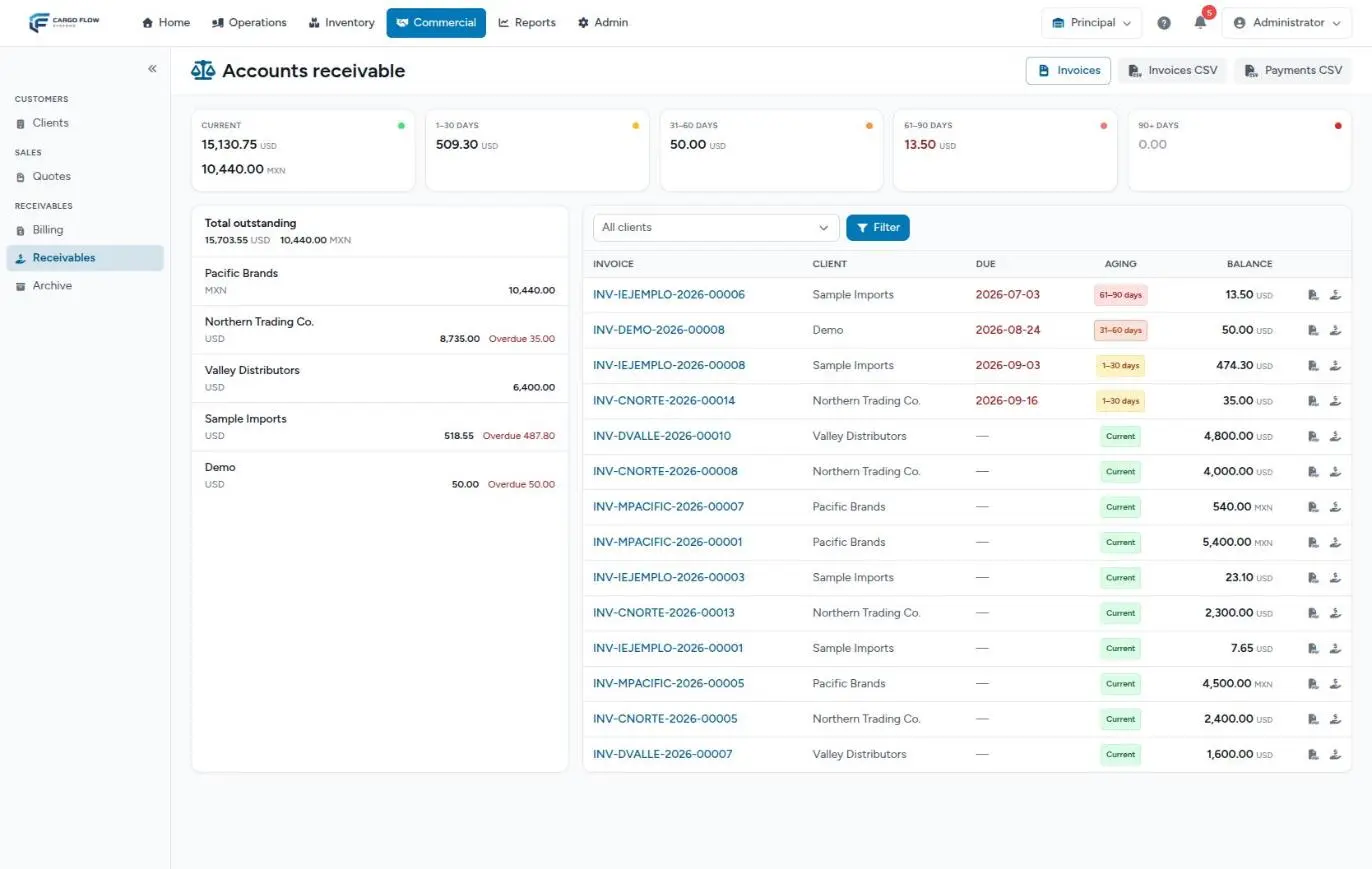
- Aging cards — Current, 1–30 days, 31–60 days, 61–90 days and 90+ days, each with its amount per currency.
- Total outstanding — per currency, and below it each client with their balance and, in red, what is overdue. Clients with the largest balance come first.
- Invoice list — invoice, client, due date, an aging indicator and the balance, sorted by due date. At the end of each row: download the PDF and record a payment.
- Client filter — pick the client and click Filter.
- Buttons — Invoices CSV and Payments CSV.
Only pending or partial invoices with a real balance count. Voided, paid and zero-total invoices don’t appear.
How aging is calculated
It is measured from the due date, not from the invoice date:
| Bucket | What it contains |
|---|---|
| Current | Invoices not yet due, due today or with no due date |
| 1–30 days | Overdue by 1 to 30 days |
| 31–60 days | Overdue by 31 to 60 days |
| 61–90 days | Overdue by 61 to 90 days |
| 90+ days | Overdue by more than 90 days |
Invoice and payment CSVs
The Invoices CSV and Payments CSV buttons download the files to import into QuickBooks. They are the same as the QuickBooks button on the invoice list; the detail is in Export to QuickBooks.
The archive of paid invoices
Commercial › Receivables › Archive keeps the paid invoices. It has the same filters as Invoices (except payment status) and lets you open the detail, download the PDF, print several and email them. You can’t consolidate or create new invoices from there. If you search for an invoice number that isn’t paid, it offers the jump to Invoices.
What happens after a payment
- The balance drops on the invoice, in Accounts receivable and on the Invoices cards.
- Paid: the invoice moves to the Archive and can no longer be voided or deleted (nor with a partial payment).
- The “Outstanding AR” KPI goes down. See Reading the KPI panel.
- The payment appears in the next Payments CSV.
- Nobody is notified: the system doesn’t send payment receipts.
What it doesn’t do yet
- A payment only records the amount: it doesn’t ask for a date, payment method or bank reference. It keeps the date and time you entered it.
- There is no way to reverse a payment from the screen. If you recorded one by mistake, contact support.
- A payment applies to a single invoice; it isn’t split across several.
- There are no automatic collection reminders or statements.
Example: a payment in two parts
Invoice INV-2026-00210 for Southern Logistics is for 1,200.00 USD. On the 5th a 700.00 transfer arrives: you record 700.00 and it becomes Partial with a 500.00 balance. On the 20th 500.00 arrives: you record it, it becomes Paid and moves to the Archive. The Payments CSV shows a single row with 1,200.00 paid and the date of the 20th.
Best practices
- Record payments the day they arrive: aging is only reliable if payments are up to date.
- Check the amount before confirming; a wrongly entered payment can’t be undone.
- Use the client filter before a collections call.
- Download the Invoices CSV only when you are really going to import it into accounting.
Troubleshooting
A paid invoice no longer shows in Invoices.
- It is in the Archive.
An invoice doesn’t show in Accounts receivable.
- It is paid, voided or its total ended at zero.
It won’t let me enter more than the balance.
- That is by design: a payment can’t exceed what is owed. Record the excess in your accounting system.
I don’t see the Record payment button.
- The invoice has no balance, is voided or your role lacks Manage Billing.
FAQ
Are pesos and dollars added together in receivables?
No. All totals are split by currency.
Where does the due date come from?
From the client’s Payment terms tab: when they pay and their credit days. See Payment terms and due dates.
The client paid several invoices with one transfer
Record a payment on each invoice for its share. If you prefer them in a single document, consolidate them before recording payments.
Need help?
If something did not work as expected, our support team can help you.
Was this article helpful?