Receipt labels and warehouse receipt
Summary
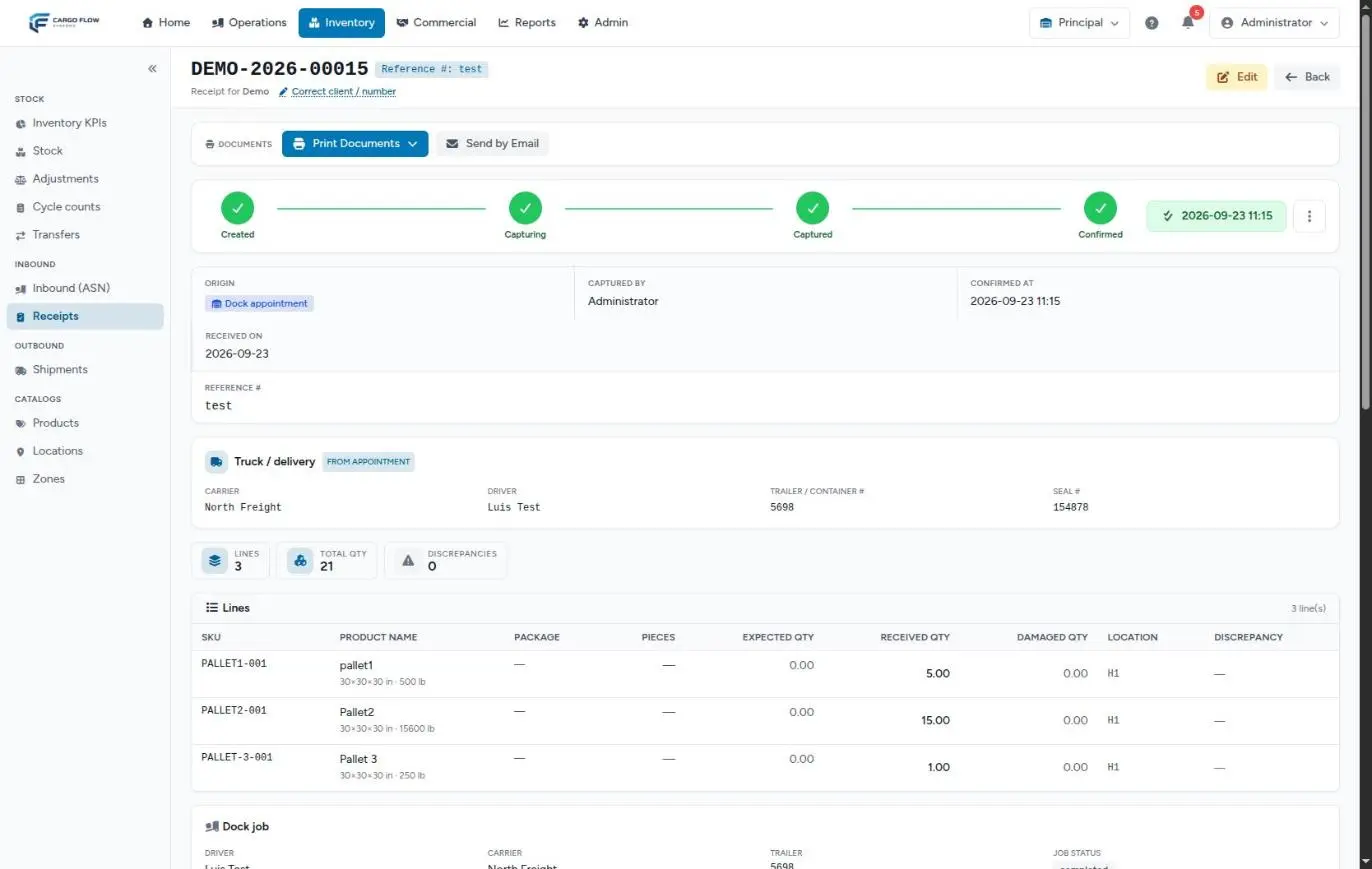
A confirmed receipt produces two kinds of documents: the warehouse receipt (goods receipt note), which states what came in, and 4×6 labels to identify the freight in the warehouse. The receipt note is generated and stored automatically on confirmation; labels are printed when you need them from Print Documents.
Before you start
- Documents module enabled for the warehouse.
- Permission: “Generate Documents” (Super Admin, Admin, Supervisor, Worker).
- Confirmed receipt: the print menu only appears on confirmed receipts.
- Pop-ups allowed in the browser: each document opens in its own tab.
- For per-pallet labels: capture package Pallet and the number of pieces on each line.
The automatically generated receipt note
When the receipt is confirmed, the system generates the receipt note in the background with the template that applies to the customer and stores it under Generated documents in the documents panel. It takes a few seconds. If it fails (for example, because there is no template), the confirmation is not affected: just print it by hand.
If you later edit the confirmed receipt, the system generates a new version of the note with the corrected quantities.
Printing step by step
- Open the confirmed receipt.
- Click Print Documents in the Documents bar.
- Check one or more documents in the menu.
- Click Print — each opens in its tab, ready for the printer. If a current one already exists, it is reused.
The five menu options
| Option (icon) | What it prints |
|---|---|
| Print Warehouse Receipt (Master) (invoice icon) | The receipt note with every line in a single document; if the lines do not fit, it continues on more pages. |
| Print Warehouse Receipt (Individual) | The same note, one page per line. |
| Print Master Label (full load) | A single label for the whole receipt. |
| Print Labels (per pallet) | For each line, one label per pallet. |
| Print Labels (per unit) | For each line, one label per received unit. |
If the customer limited which documents they want on their record (Documents tab), only those are offered.
How many labels print
| Option | Quantity |
|---|---|
| Master | 1. |
| Per pallet | Per line: if the package is Pallet and it has pieces, one per piece; otherwise one. |
| Per unit | Per line: the received quantity rounded (at least one). |
What each label contains
The built-in 4×6 label carries the receipt number, the reference, a pallet ID with a barcode and a QR code, the location, the lot, the pieces (“piece X of Y”) and the weight. The pallet ID is built from the receipt number and the line number, for example CNORTE-2026-00087-2, and repeats on every label of that line.
Which template each document uses
- If the customer has their own active template of that type (Goods Receipt Note or Pallet / LPN Label), that one is used.
- Otherwise, the warehouse’s general template.
- If there is none, the system uses the built-in design and creates it on the first print.
Templates are designed in the visual editor. See Managing templates and Designing a template. Numbering for every document is in Document numbers and documents across the flow.
Generate PDF from the panel
In the receipt’s documents panel (also in capture and review) you can pick any applicable template, including product labels or custom documents, and click Generate PDF. Each generated document is listed under Generated documents with who generated it and when, and can be viewed, downloaded or regenerated.
Example
Receipt CNORTE-2026-00087 has 3 lines: line 1 with package Pallet and 4 pieces, line 2 with Box and line 3 with no package. Luis Pérez checks Print Labels (per pallet) and prints: 6 labels come out (4 for line 1, from “piece 1 of 4” to “4 of 4”, and one for each other line). Then he prints the master warehouse receipt to file with the driver’s paperwork.
Best practices
- Capture package and pieces on the line: that decides how many per-pallet labels print.
- Print labels right after confirming, before putting away.
- Do not use per-unit labels on lines of hundreds of pieces.
- Ask the admin for a customer-specific template if the customer wants their logo or special fields.
Troubleshooting
I do not see Print Documents.
- It only appears on confirmed receipts, with the documents module on and the Generate Documents permission.
Nothing opens when printing.
- The browser blocked pop-ups. Allow them for this site and try again.
Options are missing from the menu.
- The customer limited their document types on their record.
Only one per-pallet label printed for a line with several pallets.
- The line does not have package Pallet or has no pieces. Fix it with Edit and print again.
The receipt note is not under Generated documents.
- Wait a few seconds and reload. If it still does not appear, print it from the menu: automatic generation failed without affecting the receipt.
Frequently asked questions
Can I print labels before confirming?
Not from the menu. From the documents panel you can generate a PDF with a template, but it is better to wait for confirmation so quantities are final.
Does the receipt note reach the customer?
No: generated PDFs are internal paperwork and do not travel in the email. If the customer asks for it, download it and upload it as an attachment marked “Send in notifications”, or send it yourself.
If I edit the receipt, does the note change?
Yes: saving the edit generates a new version. What you already printed or sent keeps the previous data.
Need help?
If something did not work as expected, our support team can help you.
Was this article helpful?