Partial receipts: one notice, several trips
Summary
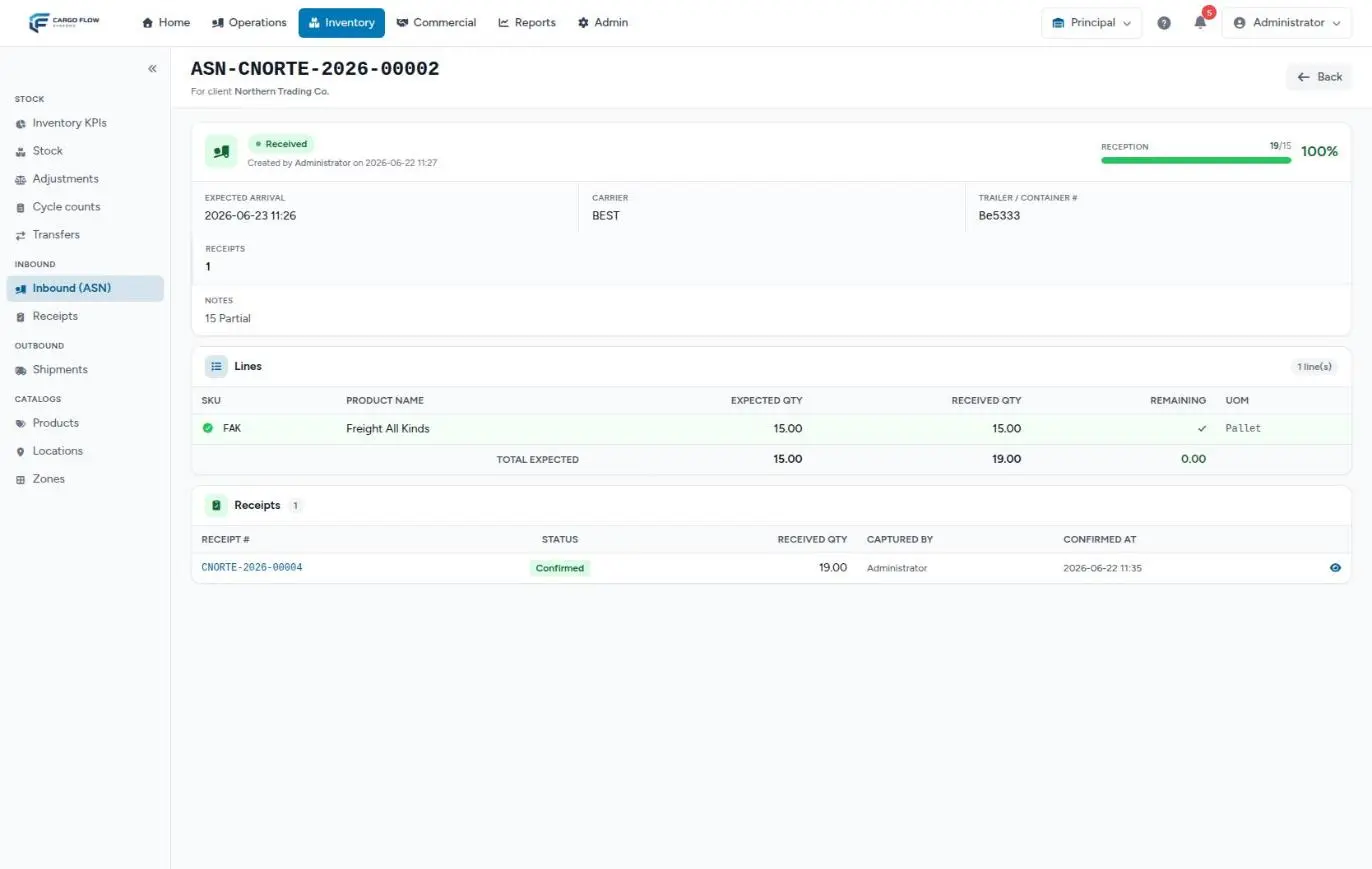
An advance ship notice can have several receipts. The first is created automatically when the notice is sent; the next ones are created with Create partial receipt on the notice detail. Each new receipt carries only what is still outstanding on each line, is captured and confirmed on its own, and the notice progress adds up all confirmed receipts.
Before you start
- Permission: “Create Arrival Notices (ASN)”. By default only Super Admin and Admin have it. If your supervisors handle the second trips, have it added in Roles and permissions.
- To capture the new receipt: “Capture Receipts”.
- The notice must be Sent or Received. A draft or a cancelled notice does not allow partial receipts.
When to use it (and when not)
| Situation | What to do |
|---|---|
| The first truck for the notice arrives. | Use the receipt created with the notice. Do not create a partial: you would duplicate the expected quantities. |
| The first receipt is already captured or confirmed and the second truck arrives. | Create partial receipt. |
| Goods arrive that were not on the notice. | Add them as a line on the receipt of the trip they came on, or use a walk-in receipt if they came alone. |
| The customer sent a new notice for the rest. | Work that new notice’s receipt; do not create partials on the old one. |
Step by step
- Open the notice — in Inventory › Inbound (ASN), or from the Origin column of the previous receipt.
- Check the Remaining column of the lines: that is what the system will put on the new receipt.
- Click Create partial receipt — the system creates the receipt and takes you straight to its capture editor with “Partial receipt … created. Capture below.”
- Fill in Truck / delivery — carrier, driver, trailer, seal: the new receipt starts without them.
- Capture what arrived — like any receipt. See Capturing receipt lines.
- Send to review and confirm — as usual.
How the remainder is computed
For each notice line: expected − what was captured as received on all non-cancelled receipts of the notice. Lines that come to 0 or less are left out.
- Receipts in any status except Cancelled count: Pending, In progress, Captured and Confirmed. If the first receipt has 60 captured, even unconfirmed, the partial brings the rest.
- The notice’s bar and “received” column, however, only count confirmed receipts. That is why they may not match while receipts are being captured.
- An over-receipt on one trip leaves that line at 0: it does not appear on the partial.
- The subtraction uses the numbers as captured, without unit conversion.
CS and the first trip was captured as 120 each, the system subtracts 120 from 10 and leaves the line with nothing outstanding, even though 10 cases were actually received. Capture each line in the same unit as the notice whenever you use partial receipts. The expected quantity cannot be changed during capture: if a partial brings a wrong expected quantity, capture what arrived, pick the right discrepancy type by hand (or “None”) and explain the difference in the line notes.What the new receipt brings and what it does not
| Brings | Does not bring |
|---|---|
| The client and the source notice. | Carrier, driver, trailer, seal, PRO, tracking and final destination. |
| A new number from the customer’s sequence. | Reference and document number of the previous trip. |
| The outstanding lines with their expected quantity and the notice unit. | Location, lot, photos or notes from the previous trip. |
| Pending status. | A link to a dock job (link it from the receipt detail). |
What happens next, in other modules
- Staff alerts — creating a partial does not send the “new receipt” alert to workers. Tell them yourself or share the number.
- Inventory — each receipt adds its stock when confirmed, with its own actual arrival date.
- Advance ship notice — moves to Received when the first receipt is confirmed; later ones do not change its status, but they do change its progress.
- Billing — each confirmed receipt creates its own receiving charge per the rate card. If the charge is a flat rate per receipt, every trip is billed. See Where each charge comes from.
- Email and documents — each receipt sends its own email and generates its own receipt note.
- Portal — the customer sees each receipt separately in their receipts list.
Example: 100 cases in two trips
Central Warehousing notifies 100 CS of SKU AC-TOA-24.
- Monday — a truck arrives with 60. The receipt created with the notice is captured and confirmed: the notice moves to Received with 60% progress.
- Wednesday — the rest arrives. Carlos Ruiz opens the notice: the line shows Remaining 40. He clicks Create partial receipt and lands in the capture of a receipt with one line expecting 40.
- Capture — Luis Pérez counts 38. The line is flagged Short, he takes the photo, sends it to review and Ana López confirms.
- Result — the notice shows 98 of 100 (98%). There are two emails to the customer, two receipt notes and, if receiving is billed per case, two charges: 60 and 38.
Special cases and limits
- Cancelling a partial — what it had captured stops counting and the notice’s remaining quantity goes back up.
- Cancelling the only confirmed receipt — the notice goes back to Sent.
- There is no way to “close” a notice that came in short: it stays Received at less than 100%. The shortage is documented on the receipt.
- A partial before capturing the first one — the partial would bring all expected quantities again. If that happened, cancel the extra one.
Messages you may see
| Message | What to do |
|---|---|
| “Cannot create a partial receipt — ASN must be sent or received first.” | The notice is a draft or cancelled. Send the draft first. |
| “Nothing remaining to receive on this ASN.” | Every line is covered by non-cancelled receipts. If something extra arrived, add it on a walk-in receipt. |
| “Partial receipt … created. Capture below.” | Done: you are in the new receipt’s capture. |
Best practices
- Put the trip reference in Reference # on each partial to tell them apart.
- Capture in the same unit as the notice.
- Create the partial when the truck is in the warehouse, not before.
- Link each partial to its dock job to bring in the driver details and photos.
Troubleshooting
The partial brings quantities we already received.
- The previous receipt was captured in another unit or still has no quantities. Capture what arrived and set the discrepancy type by hand, or cancel the extra partial.
The partial is missing a line that is still outstanding.
- Another non-cancelled receipt already has that quantity captured (even unconfirmed), or it was captured in a smaller unit. Add the line by hand during capture.
Workers did not hear about the second trip.
- Partials do not send the new receipt alert. Share the number or link it to the dock job.
Frequently asked questions
What if I do not have permission to create one?
Ask an admin to create it or to add “Create Arrival Notices (ASN)” to you. A walk-in receipt also records the goods, but it does not add to the notice progress.
How do I close a notice that came in short?
You do not need to: it stays Received with its percentage. The shortage is on the receipt (Short line with a photo) and the customer saw it in their email.
Does the customer get an email per trip?
Yes. Each confirmed receipt sends its own email with what was expected and received on that trip.
Need help?
If something did not work as expected, our support team can help you.
Was this article helpful?