Document numbering
Overview
The document number (folio) is the visible number on each document: the one printed on the invoice, the one the customer quotes on the phone. Under Admin › Configuration › Folios / Numbering each warehouse defines, document by document, its format (prefixes, date, sequence), how often it resets and what number it starts at. You can also give a customer their own format.
Before you start
- Permission: Configure Document Numbers. By default admin and super admin.
- Module: none.
- Warehouse: everything you save applies to the active warehouse, whose name appears at the top right of the screen.
- Customers: formats with
{client_code}use the folio code on each customer record. Set it first (see Add a customer).
Which documents are numbered
| Card | Format the screen shows | Default counter |
|---|---|---|
| Invoice | INV-{yyyy}-{counter:5} | Per warehouse |
| WHL Transaction | R{counter:8}, but by default it mirrors the invoice number | Per warehouse |
| Receipt | {client_code}-{yyyy}-{counter:5} | Per customer |
| ASN | ASN-{client_code}-{yyyy}-{counter:5} | Per customer |
| Shipment | SH-{client_code}-{yyyy}-{counter:5} | Per customer |
| Quote | QT-{yyyy}-{counter:4} | Per warehouse |
| Dock job | JOB-{yyyy}-{counter:5} (off) | Per warehouse |
| Special job | SVC-{yyyy}-{counter:5} (off) | Per warehouse |
| Crossdock | CD-{yyyy}-{counter:6} | Per warehouse |
| Visit | V-{yyyy}-{counter:5} | Per warehouse |
All reset yearly by default.
I-{yyyy}-{counter:4} (for example I-2026-0001), not the one shown on the card. When starting a warehouse, open Folios and click Save settings even if you change nothing.The screen
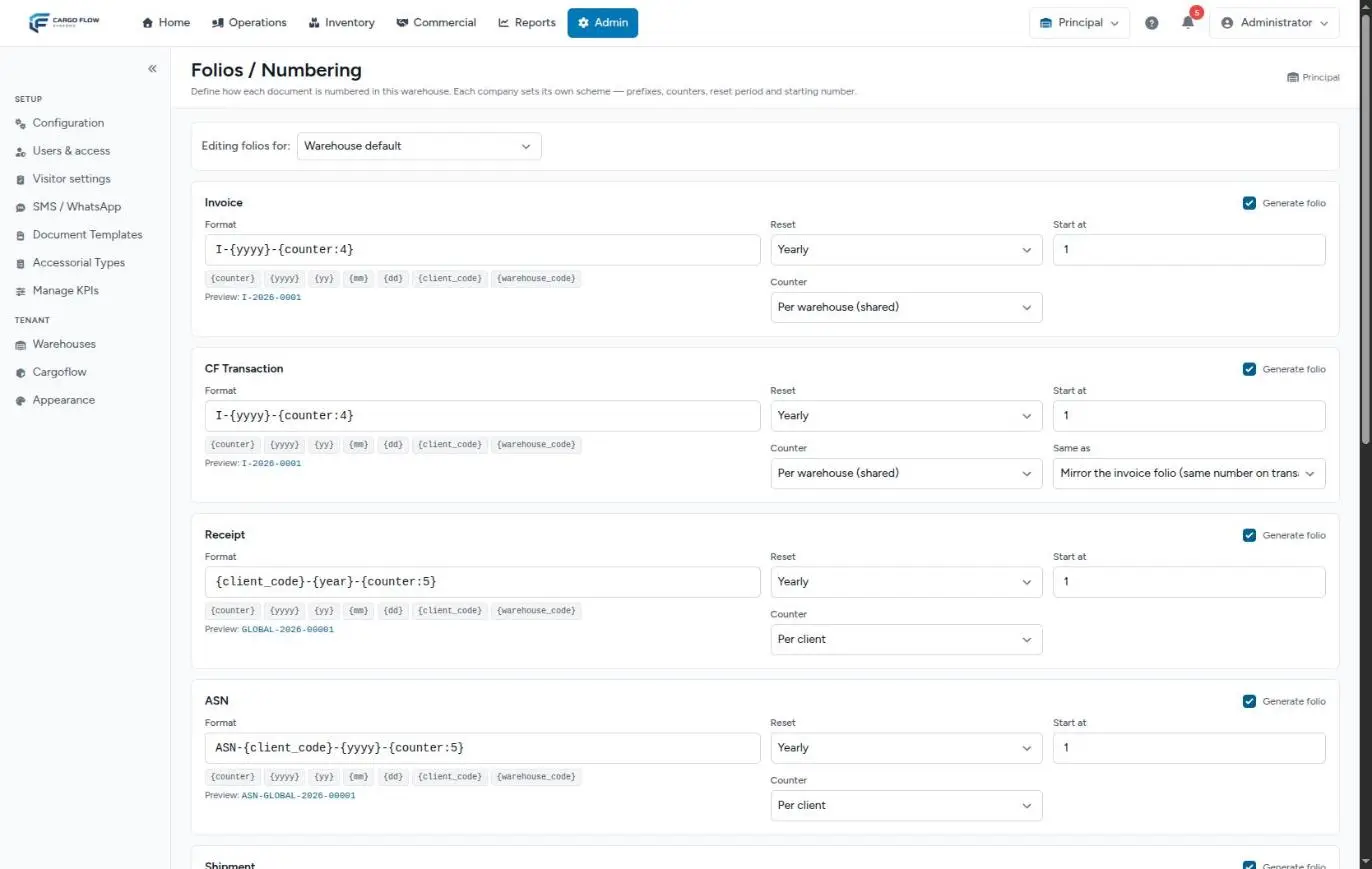
At the top is the Editing folios for list, which starts on the Warehouse default; you can also choose a customer there. Below, one card per document:
| Field | What it accepts | If left empty |
|---|---|---|
| Generate folio | Checkbox in the card corner. Warehouse default view only. | — |
| Format | Text and variables, up to 120 characters. | In the warehouse view, the built-in format is used. In a customer view, the customer follows the warehouse default. |
| Reset | Never, Yearly, Monthly or Daily. | — |
| Start at | A whole number. | Starts at 1. |
| Counter | Per warehouse (shared) or Per client. Warehouse default view only. | — |
| Same as | WHL Transaction only. | — |
When done, click Save settings at the bottom; all cards save at once and "Folio settings saved." appears.
The format and its variables
The format is fixed text plus variables in braces. The variable buttons under the field append the variable to the end of the format (not at the cursor), and the counter button adds plain {counter}: if you want zeros, type :5 yourself.
| Variable | What it inserts | Example |
|---|---|---|
{counter} | The sequence, unpadded. | 42 |
{counter:5} | The sequence padded with zeros to 5 digits (use any number). | 00042 |
{yyyy} | 4-digit year. | 2026 |
{yy} | 2-digit year. | 26 |
{mm} | Month, 2 digits. | 09 |
{dd} | Day, 2 digits. | 25 |
{client_code} | The customer’s folio code, in capitals. If the customer has none, the first 8 letters or digits of their name. | NTRADING |
{warehouse_code} | Up to 8 letters or digits taken from the internal name the warehouse got when it was created (it does not change if renamed). | PRINCIPA |
Only unaccented letters, digits, spaces and the characters - _ . / : { } are allowed. A variable that does not exist is printed as-is. Example: with F-{yy}{mm}-{counter:4} invoice 42 of September 2026 comes out as F-2609-0042.
The Preview builds the number using the Start at value as the sequence (or 42 if empty). It shows the shape, not the real next number.
{client_code} in the format. Receipts, ASNs, shipments and quotes cannot repeat a number anywhere in the system; if two customers generate the same one, the second document is not saved and the system shows a general error, not a duplicate-number message.Reset and starting number
- Reset decides when the sequence starts over. Pair it with the date in the format: if you reset monthly, include
{mm}or the number would repeat the following month. - Start at is used when a series starts for the first time, when it resets and, with a per-customer counter, for each customer’s first document. Changing it mid-series does not jump the current sequence: it takes effect at the next reset.
Per-warehouse or per-customer counter
- Per warehouse (shared): one sequence for all customers. Usual for invoices and quotes.
- Per client: each customer has its own sequence. Usual for receipts, ASNs and shipments.
The transaction number
Each invoice also carries a transaction number. On its card, Same as offers:
- Mirror the invoice folio (same number on transaction & invoice) — the default.
- Own sequence — the transaction has its own sequence with its card’s format.
The Generate folio checkbox
When unticked, the card notes that folio generation is off and the document will keep its internal ID. Today it works like this:
- Dock jobs, special jobs and visits: unticked, no number is generated and the document is identified by its internal number. Both job types are off by default.
- Transaction: unticked, it takes the same number as the invoice.
- Invoice, receipt, ASN, shipment, quote and cross-dock: always numbered. Unticking does not turn it off.
A customer’s own format
- In Editing folios for, choose the customer. A note says to leave the format empty to inherit the warehouse default.
- For the documents you want to change, type their format. Leave empty the ones that should follow the default.
- Adjust reset and starting number for those same documents (for documents left without a format they are not saved).
- Save. To return to the default view, use Back to warehouse default next to the list.
A customer’s own format always has its own sequence for that customer. Also:
- for that customer the number is always generated, even if the document is off at warehouse level;
- on WHL Transaction, that customer stops mirroring the invoice and uses its own sequence.
If you later clear their format: if the customer never numbered anything with it, it disappears without a trace; if it did, the customer returns to the default format and keeps its sequence only when the document’s counter is per customer.
Where the number shows up afterwards
- In each document’s lists, records and searches.
- In printed documents and emails: receipts, bills of lading, invoices. See Manage templates.
- In the client portal and in reports (receipt list, shipment list, transactions and invoices).
- In the QuickBooks export, as the invoice number.
Numbering across the whole flow: Document numbers and documents across the flow.
Example: continuing the previous system’s series
The North warehouse goes live on October 1, 2026. In its previous system the last invoice was F-2026-01873.
- Switch to North in the top bar and open Folios.
- On Invoice: Format
F-{yyyy}-{counter:5}, Reset Yearly, Start at 1874. - The preview shows
F-2026-01874. Save settings. - North’s first invoice is F-2026-01874; the first of 2027 would be F-2027-01874, because Start at is also used on every reset. Before January 1, change Start at to 1.
Good practices
- Set and save the numbering before the warehouse’s first document.
- Always include the year in the format if you reset yearly.
- Give each customer a short, final folio code: changing it changes their future numbers.
- Don’t change the invoice format mid fiscal year without telling accounting.
- Check the warehouse name at the top right before saving.
Troubleshooting
Saving a receipt, ASN or shipment gives a general error.
- It may be a duplicate number. Check that the format distinguishes customers (
{client_code}) and periods (year or month), and tell support the customer and time.
Saving Folios shows "The settings… field format is invalid".
- The format has a character that is not allowed (accents, #, commas, parentheses). The message shows the field’s technical name.
It says the field may not be greater than 120 characters.
- Shorten the format.
I changed Counter and when I reopen it is unchanged.
- A current limitation: that field is not saved. Contact support.
I changed Start at and the next number did not start there.
- The starting number is only used when the series starts or resets.
Invoices come out as I-2026-0001.
- Nobody saved the Folios screen before the first invoice. Save it; the following ones will use the card’s format.
I changed the numbering and another warehouse does not show it.
- Numbering is per warehouse. Switch warehouse and configure it too.
FAQ
Does changing the format renumber old documents?
No. The format only applies to documents created after saving.
Why does the preview say GLOBAL?
In the warehouse default view there is no customer chosen, so GLOBAL stands in for the code. It is also the code used by documents with no customer, such as quotes and visits.
Can there be gaps in the numbering?
Yes. If a document fails to save after taking its number, that number may go unused. Manual invoices do not leave gaps for that reason.
Need help?
If something did not work as expected, our support team can help you.
Was this article helpful?