Receipt confirmation email to the customer
Summary
When a receipt is confirmed, the customer gets an email with the subject “Receipt … confirmed — your goods are now in stock”. It goes out automatically, once, to the contacts the customer chose, in the language set for that customer. After that it can be resent manually with Send by Email. For everything the customer receives throughout the operation, read What the customer sees and when.
Before you start
On the customer record (Commercial › Clients › edit):
- Contacts tab — at least one contact with an email. See Setting up a customer.
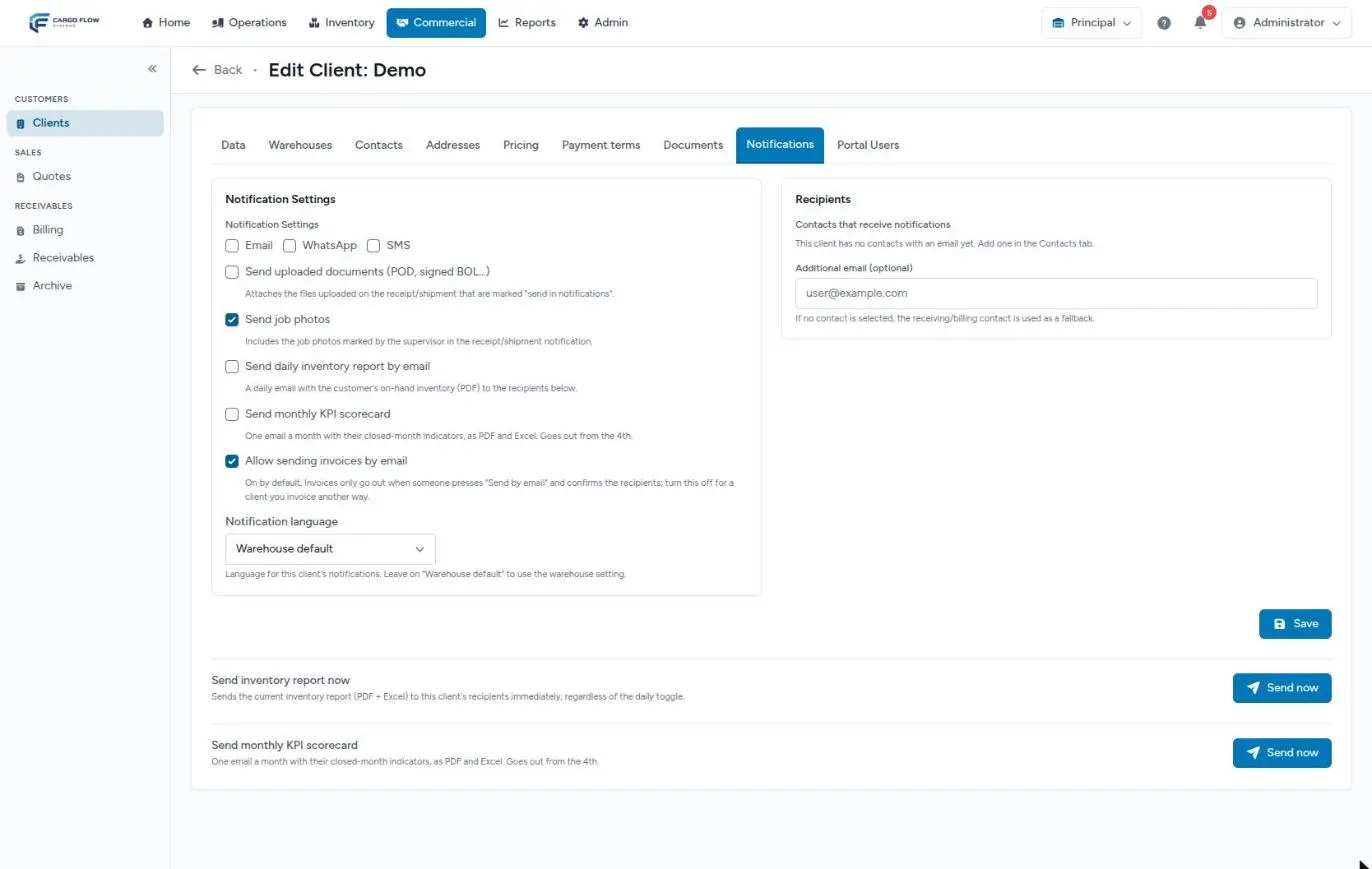
- Notifications tab — the Email box checked, the recipients chosen (or an additional email), whether photos and documents are sent, and the language. See Customer emails and reports.
Resending requires the “Confirm Receipts” permission.
When it is sent (and when not)
| Moment | Email sent? |
|---|---|
| The receipt is created or the notice is sent | No. |
| It is captured or sent to review | No. |
| It is confirmed | Yes, automatically, once. |
| A confirmed receipt is edited | No. Resend it if the customer needs the corrected version. |
| The client or number is corrected | No. |
| A confirmed receipt is cancelled | No. Tell the customer yourself. |
| Someone clicks Send by Email | Yes, every time. |
If the customer has the email channel off or nobody to send it to, nothing is sent and the confirmation goes ahead normally.
Who gets it
- The contacts the customer chose under Recipients and the Additional email, if any.
- If none were chosen, the receiving or billing contact as a fallback.
- The greeting uses the name only when there is a single recipient; otherwise it says “Dear Customer,”.
- The language is the customer’s or, if the customer left “Warehouse default”, the warehouse’s. It does not depend on the language of whoever confirms.
What it contains
- Receipt number and the “Receipt completed” badge.
- Client, reference, carrier, driver, trailer, seal and truck in and out times, when they exist.
- The Received items table: SKU, product, Expected and Received.
- If any line has a discrepancy, the “Discrepancies noted” box.
- Up to six unloading photos, if applicable.
- A button to view the detail in the portal, only if the recipient is a portal user with access to receipts.
The table does not show the damaged quantity separately: the customer learns about it from the discrepancies box. Explain it in the notes if needed.
Photos and attachments
| What | Condition for it to be included |
|---|---|
| Dock job photos | The receipt is linked to the job, the supervisor marked them (“In email”) and the customer receives photos (or the receipt forces it with “Send for this document”). Up to six, as thumbnails inside the email. |
| Uploaded attachments (POD, signed BOL, packing list) | Marked “Send in notifications” and the customer has “Send uploaded documents” on. Cap of about 15 MB per email; anything that does not fit is left out. |
| Line evidence photos | Never included in the email. |
| Generated receipt note PDF | Never included in the email. |
Resending the email
- Open the confirmed receipt.
- In the Documents bar, next to “Notified:” (date of the last send), click Send by Email and confirm.
- You will see “The confirmation email was resent to the client.” or, if there is nobody to send it to, “Could not send: the client has no contact with email, or email notifications are disabled.”
Resending respects the customer’s settings: if they turned email off, it cannot be forced.
Other receipt notifications
- Portal — the customer sees the receipt in their portal from creation, with its status. See Client portal.
- API — if the customer’s system is connected with automatic notifications, it receives the
receipt.confirmedevent. See Connecting via API. - Customer reports — the daily inventory report and the monthly KPI scorecard include what was received.
- Warehouse staff alerts — those are different (new receipt, captured, overdue) and are set per warehouse. See Three notification systems.
Example
Northern Trading Co. has Email and Send job photos checked, two chosen contacts (Ana López and purchasing) and English as language. When receipt CNORTE-2026-00087 is confirmed, both contacts get the email in English, with the general greeting, the 3-line table, the discrepancy box and the 2 photos the supervisor marked. On the receipt detail, “Notified:” shows the time. The next day purchasing asks for a resend: Carlos Ruiz clicks Send by Email.
Best practices
- Set up contacts and recipients when creating the customer, before the first receipt.
- Choose the photos before confirming.
- Enter the customer’s reference on the receipt: it appears in the email and helps them identify it.
- After correcting a receipt, resend the email if the customer already had it.
Troubleshooting
The customer did not get the email.
- Check on the record that Email is checked and there are recipients or a contact with email. Ask them to check their spam folder. Then resend it.
It arrived in the wrong language.
- Change the Notification language on the customer’s Notifications tab.
The photos did not arrive.
- The receipt is not linked to the dock job, no photos were marked, or the customer or the receipt has photos set to No.
The portal button does not appear.
- The recipient is not a portal user with access to receipts. See Portal users.
Frequently asked questions
Can I get a copy myself?
Add your address as the customer’s additional email only if it is fine for it to appear as a recipient; there is no blind copy for the receipt email.
Can it be sent by SMS or WhatsApp?
The receipt-confirmed notice to the customer is sent by email only.
What if the email went out with a mistake?
Correct the receipt (edit or amend identity) and use Send by Email. The earlier email cannot be recalled, so explain the correction to the customer.
Need help?
If something did not work as expected, our support team can help you.
Was this article helpful?