Advance ship notices (ASN)
Summary
The advance ship notice (ASN) tells the warehouse “this is coming”: for which customer, which products, how many, when and on what transport. When the notice is sent, the system creates the receipt with those lines already loaded, and the operator only confirms what arrived.
Notices can come from four places: the warehouse itself (Inventory › Inbound (ASN)), the customer from their portal, the API or EDI. They all end up in the same place and create the same kind of receipt. The full journey is in From notice to stock.
Before you start
- Module: the warehouse must have the receiving module.
- Permission to create: “Create Arrival Notices (ASN)”. By default only Super Admin and Admin have it; a supervisor needs it added.
- Permission to view: “View Receiving” (every warehouse role and Accounting have it).
- Must exist: the customer, active in the warehouse, and their products in the catalog, with the units of measure the notice will use. See Products and units.
The notices list
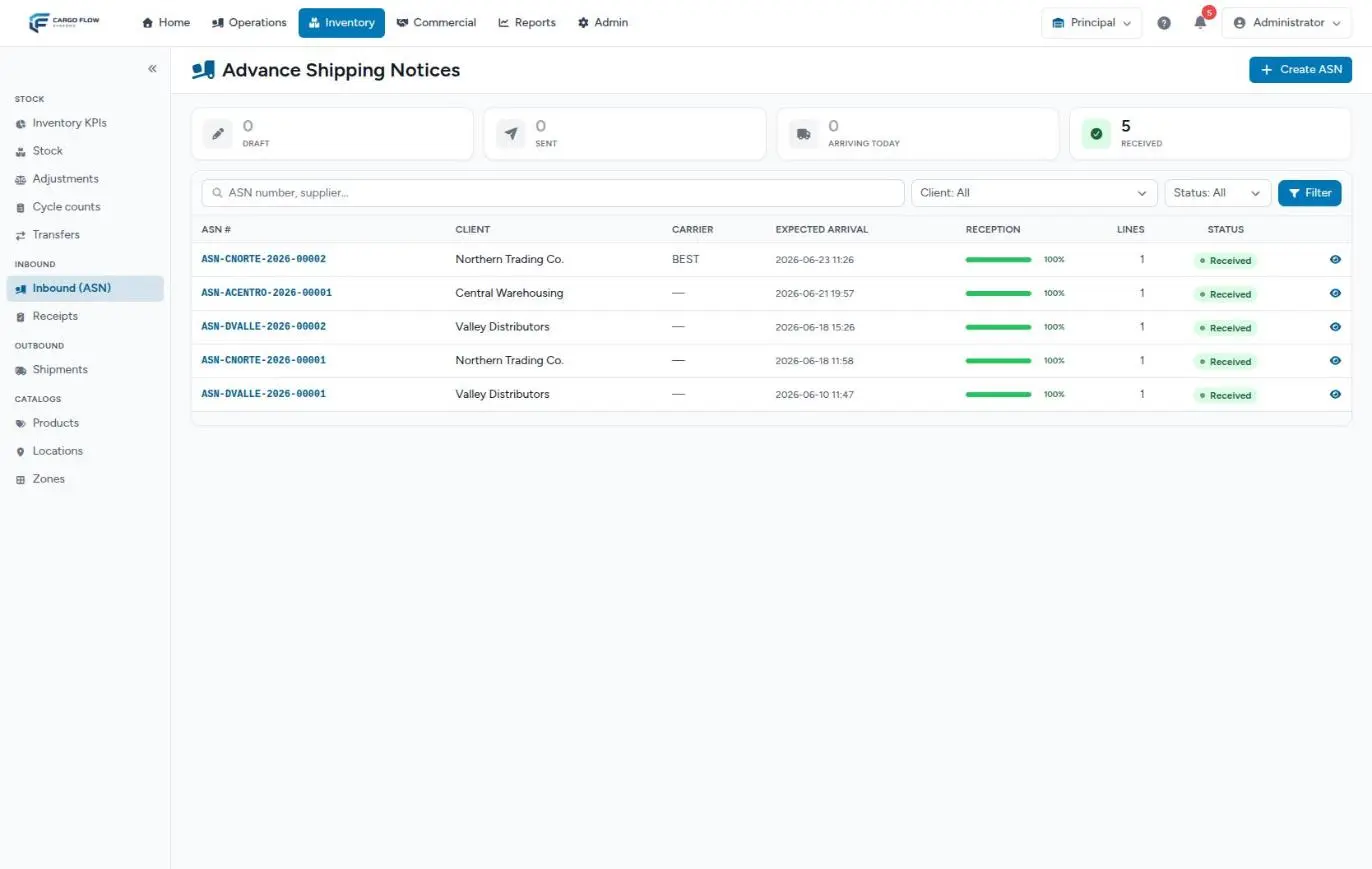
- Counters — Draft, Sent, Arriving today (draft or sent notices whose expected arrival is today) and Received.
- Search — by part of the ASN number or the carrier.
- Filters — client and status.
- Reception — a bar with the percentage received on confirmed receipts against expected. What is still being captured does not count yet.
- The list is sorted by expected arrival, most recent first, 30 per page.
Creating a notice in the WMS
- Click Create ASN — in Inventory › Inbound (ASN).
- Choose the client — type the name and pick it from the list. Pick it before adding lines.
- Expected arrival — date and time the truck is expected. It comes prefilled with tomorrow at this time.
- Transport — carrier and trailer or container number, if known. Add notes if needed.
- Add the lines — with Add line: search the product by SKU or name, enter the expected quantity and the unit of measure. The section header totals the lines and the expected quantity.
- Save — Save as draft or Save and send.
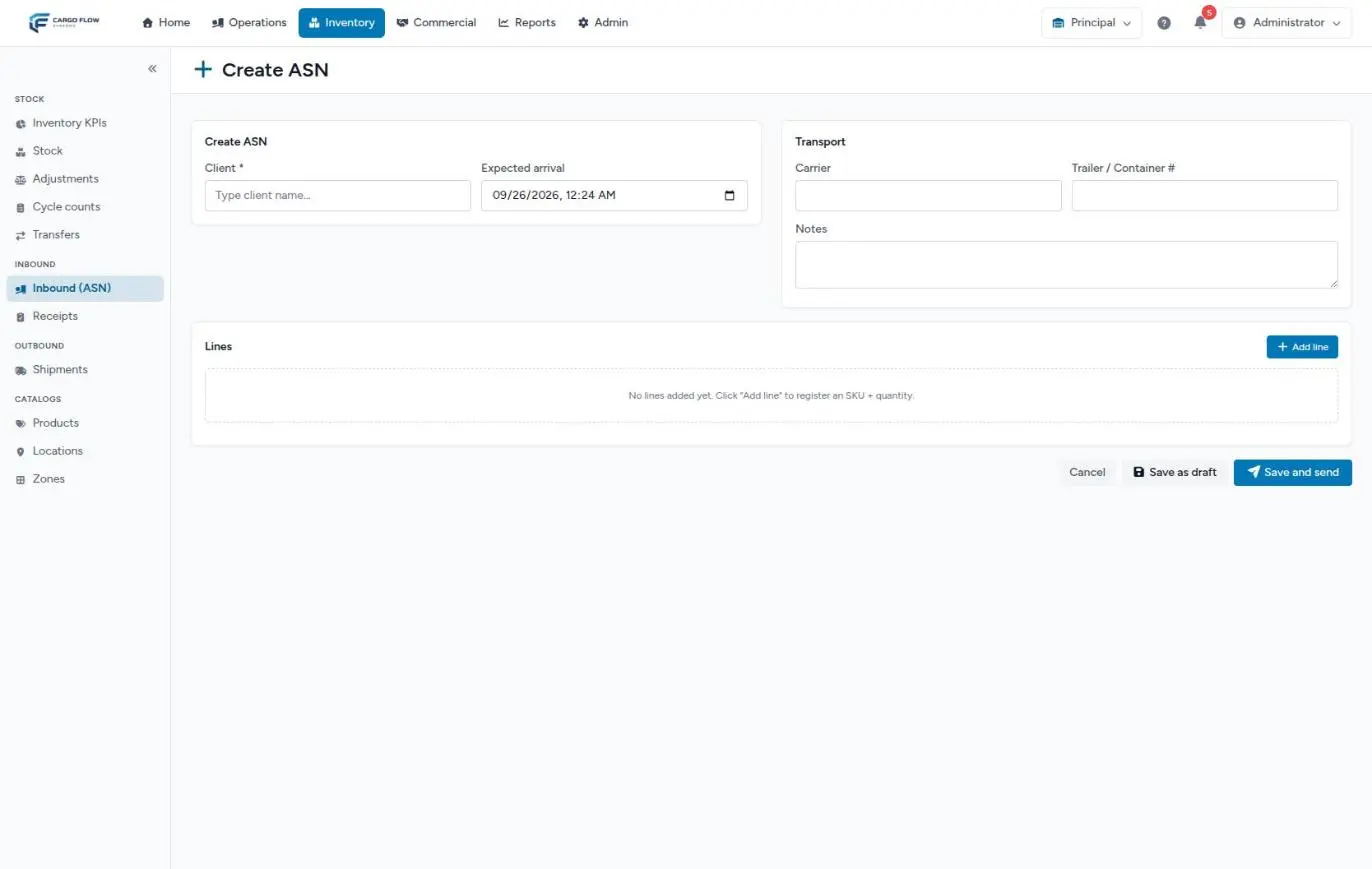
The notice number (for example ASN-CNORTE-2026-00002) is assigned from the customer’s sequence. If you try to leave with unsaved changes, the form warns you.
What each field means
| Field | Required? | What it accepts and what happens if left empty |
|---|---|---|
| Client | Always | An operational client of the warehouse. It drives the notice and receipt numbering. |
| Expected arrival | Only to send | Date and time. A draft saves without it. It feeds the “Arriving today” counter and the on-time arrivals KPI. |
| Carrier | No | Free text (up to 255 characters). Copied to the receipt. |
| Trailer / Container # | No | Free text. Copied to the receipt and helps identify the truck at the gate. |
| Notes | No | Up to 500 characters. Stay on the notice. |
| Product (per line) | Yes | A product from the customer’s catalog. |
| Expected qty | No | A number of 0 or more. Left empty it is saved as 0 and the receipt will flag no short or over for that line. |
| UOM | Yes | The unit code (up to 16 characters), for example each or CS. It is typed: write it exactly as on the product. |
case when the product uses CS), the receipt is created with that unit and the base-unit conversion may fail on confirmation. Use exactly the code shown in the product’s packaging levels, and if you see an odd unit during capture, change it in the line’s selector before sending to review.Draft, sent, received, cancelled
| Notice status | Meaning |
|---|---|
| Draft | Saved, but the warehouse is not working it yet. No receipt is created. It can be saved incomplete (no date or lines). |
| Sent | The warehouse has it. A Pending receipt was created with the notice lines and the team was alerted. |
| Received | At least one receipt for the notice has been confirmed. If that receipt is cancelled and no other is confirmed, the notice goes back to Sent. |
| Cancelled | The notice no longer applies (the customer cancelled it from the portal). |
To send a draft, open it and click Send to warehouse. The box explains: “This will notify the warehouse and create the receipt for capture.” Sending requires at least one line.
What sending does
- Receipt — a Pending receipt is created with the next number in the customer’s sequence, one line per notice line (expected quantity, unit) and the notice’s transport details (carrier, trailer, and for portal notices also driver, seal, PRO, tracking and final destination). If sending fires twice, the system does not duplicate the receipt.
- Staff alerts — if the warehouse has the “New arrival notice / receipt (ASN)” event on, the chosen roles are alerted. See Notifications per warehouse.
- Inventory and billing — nothing yet. Stock and charges are created when the receipt is confirmed.
- Portal — the customer sees the receipt in their receipts list, as Pending. See What the customer sees and when.
The notice detail
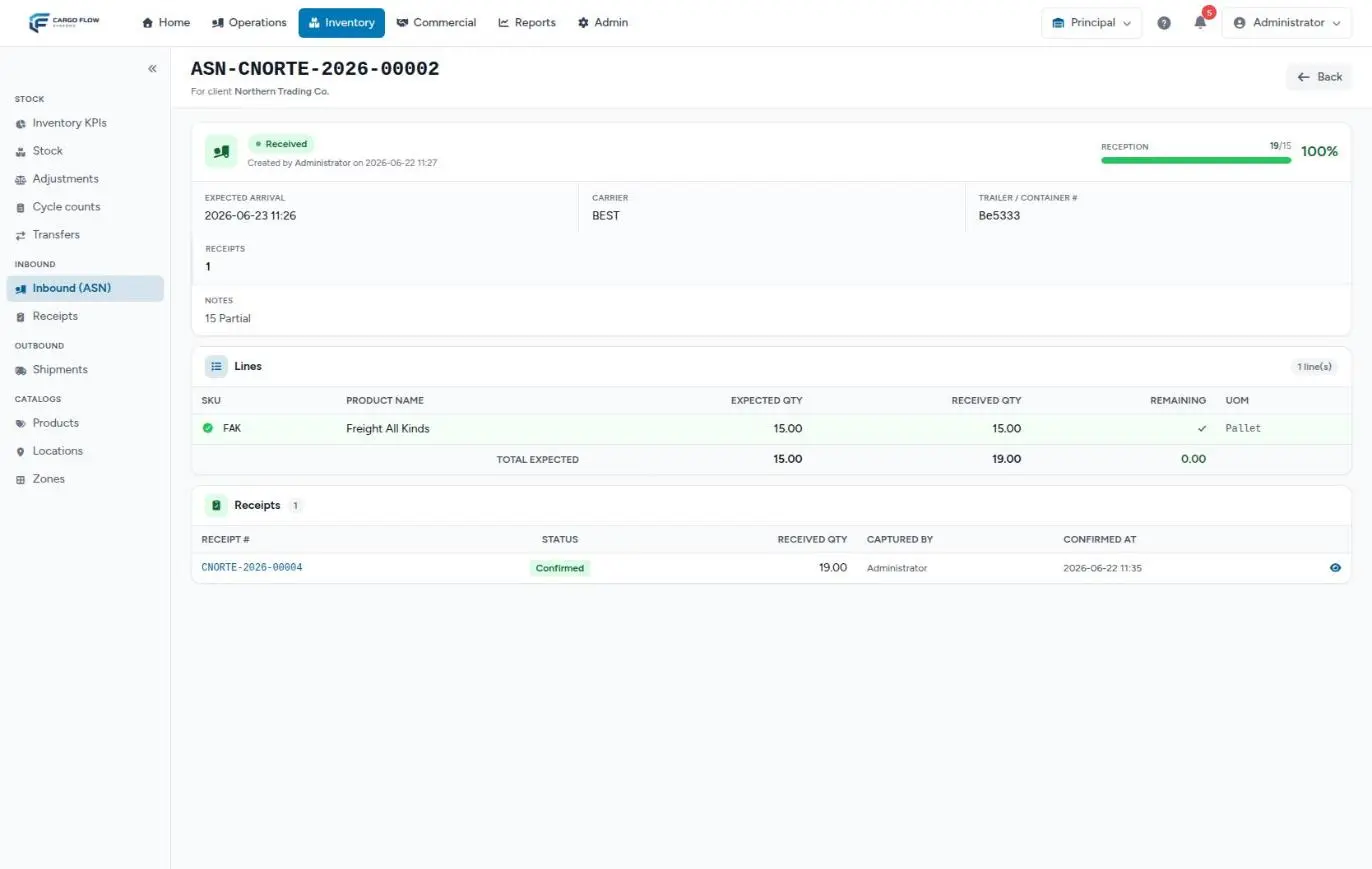
- Reception — how much has been received against expected, as a percentage.
- Lines — SKU, name, expected quantity, received quantity (confirmed receipts only), remaining and unit of measure.
- Receipts — every receipt created against the notice, with its status, received quantity, who captured it and when it was confirmed. Open each one from there.
The received quantity can exceed the expected one (in capture, the line is flagged Over-received).
Several trips for one notice
When a notice’s load arrives in several trips or days, each trip gets its own receipt, created with Create partial receipt on the notice detail. The system builds the new receipt with only what is still outstanding. All the details (how it computes the remainder, what it does not copy, what it alerts) are in Partial receipts.
Customer notices from the portal
A customer with write permission on receipts can notify the warehouse from their portal with Notify inbound. They enter the expected date (required), the reference, the truck details (carrier, driver, trailer, seal, PRO, tracking, final destination), notes and the items, one by one or importing the lines from Excel/CSV (SKU and quantity columns). They can also attach documents (PDF or image, up to 10 MB), which the warehouse sees on the receipt with the Portal badge. When they click Send notice, the notice is created already sent and the receipt appears in the warehouse’s list. See Notifying an arrival from the portal.
Notices via API or EDI
Notices that arrive through the API are created directly as Sent, with their Pending receipt, just like a portal notice. See API and EDI integrations in operations and EDI: current status.
Editing or cancelling a notice
- From the portal (customer) — the customer can Edit notice or Cancel notice (with a reason) only if they created it in the portal, it is still Sent, its receipt is Pending and it is not yet linked to a dock job. Cancelling also cancels the pending receipt and marks the notice Cancelled.
- From the WMS (warehouse) — the notice screen has no edit, delete or cancel buttons, not even for drafts. If the notice has an error, fix the receipt directly during capture (add, remove or change lines) or cancel the receipt with a reason.
Example
Valley Distributors ships a container on October 3. Carlos Ruiz (admin) creates the notice: client Valley Distributors, expected arrival 10/03 08:00, carrier Gulf Freight, container MSCU 482113-0, two lines: 200 each of SKU DV-ACE-1L and 50 CS of SKU DV-DET-5K. He clicks Save and send. “ASN ASN-DVALLE-2026-00012 created successfully.” appears, and Inventory › Receipts has a new Pending receipt with those two lines, carrier and container already filled in. On October 3 the “Arriving today” counter shows it.
Messages you may see
| Message | Meaning and what to do |
|---|---|
| “ASN … created successfully.” | Saved (as draft or sent, depending on the button). |
| “ASN … sent. Receipt is now available in the warehouse queue.” | You sent a draft; its receipt now exists. |
| “Add at least one line before sending the ASN.” | The draft has no lines. Since a draft cannot be edited in the WMS, create a new notice with its lines. |
| Error on the Expected arrival or Lines field when clicking Save and send | Sending needs the date and at least one line with product and unit. |
Best practices
- Always fill in carrier and trailer: they help identify the truck at the gate.
- Save as draft only what you will really complete soon: in the WMS a draft cannot be edited, only sent.
- Check the Arriving today counter every morning to plan the docks.
- Type the unit exactly as it is on the product.
- For loads arriving in several trips, use Create partial receipt instead of a walk-in: that keeps the notice progress right.
- Encourage customers to notify from their portal: they capture the lines and the warehouse only counts.
Troubleshooting
I sent the notice and I do not see the receipt.
- Check the notice is Sent, not Draft. In Inventory › Receipts filter by the client: the new receipt shows as Pending with the notice number in the Origin column.
It will not let me send the notice.
- A notice without lines or expected arrival cannot be sent.
I cannot find a product when adding a line.
- The product does not exist in that customer’s catalog, is inactive or is spelled differently. Search by part of the name, or set it up in Inventory › Products.
I do not see Create ASN or Create partial receipt.
- You lack “Create Arrival Notices (ASN)”, which by default only admins have.
The customer says they cannot edit their notice.
- The warehouse already started capturing, linked the receipt to a dock, or the notice was not created in the portal. From then on, differences are handled on the receipt.
Frequently asked questions
Is a notice required to receive?
No. The warehouse can receive without one using Create receipt. The notice saves capture work, lets you plan unloading and feeds the on-time arrivals KPI.
Who can create the notice?
In the WMS, anyone with Create Arrival Notices (ASN). In the portal, customer users with write permission on receipts. Notices can also arrive via API or EDI.
Can I import the lines from Excel?
Yes, but only from the client portal: it accepts .xlsx, .xls or .csv with SKU and quantity columns (header optional). SKUs not in the customer’s catalog are listed and skipped. The WMS form has no import; lines are entered one by one there.
What if the customer does not know the exact quantity?
The expected quantity is optional: left empty, the line is saved as 0 and the operator captures what arrives. That line will not produce a short or over.
Can I change a draft?
Not from the WMS: it can only be sent. If the draft is wrong, leave it unsent and create a new one, or send it and fix the lines during receipt capture.
Need help?
If something did not work as expected, our support team can help you.
Was this article helpful?