Roles and permissions
Overview
Permissions are managed at two levels: per role, on the Roles & permissions screen, and per person, as extra permissions on their user form. The role is the main source: change a role and it applies immediately to everyone who has it.
Before you start
- Permission: Manage Permissions, reserved for the super admin.
- Where: the Roles & permissions tab in Users & access, or its tile in Admin › Configuration.
- Language: this screen currently shows in the system’s default language regardless of yours. Permission names on each user form do follow your language.
How someone’s permissions are worked out
What a person can do is the sum of:
- their role’s permissions, as the matrix stands right now, and
- their extra permissions, if any.
Role permissions are not copied onto the user: they are read from the role every time. Removing a permission from a role removes it from all its users instantly, except anyone who also has it as an extra.
On top of that, each screen only exists if its module is on in the warehouse. A billing permission does nothing in a warehouse without billing. The full picture is in Modules, permissions and access.
View, do, close and configure
- View — open the screen and look: view inventory, view receipts, view billing.
- Do — create, move or change: write docks, capture receipts, adjust inventory.
- Close or approve — the final step: confirm receipts, ship (close shipments), approve cycle counts, void invoices.
- Configure — catalogs and settings: configure document numbers, configure clients, manage pricing.
Two cases worth knowing: reading your own jobs versus reading all jobs (the worker sees only theirs; the supervisor sees everything), and report permissions, which are one per report.
Default permissions, one by one
This is how roles come at installation. Your company may have changed them. SA = super admin, A = admin, S = supervisor, W = worker, C = accounting, P = client portal.
| Group | Permission | Held by |
|---|---|---|
| Docks and jobs | Read Docks | SA, A, S, W |
| Write Docks (assign doors and operators) | SA, A, S | |
| Read own jobs | SA, A, S, W | |
| Read all jobs | SA, A, S | |
| Write jobs | SA, A | |
| Yard | Read / write yard | SA, A, S |
| Read / write all special jobs | SA, A, S | |
| Read own special jobs | SA, W | |
| Inventory | View inventory | SA, A, S, W, P |
| Manage inventory catalogs | SA, A | |
| Adjust / transfer inventory; approve cycle counts | SA, A, S | |
| Cycle count | SA, A, S, W | |
| View inventory valuation | SA, A | |
| Receiving | View receipts | SA, A, S, W, C |
| Create ASNs | SA, A | |
| Capture receipts | SA, A, S, W | |
| Confirm receipts | SA, A, S | |
| Shipping | View shipments | SA, A, S, W, C |
| Create shipments / ship (close shipments) | SA, A, S | |
| Cross-dock | View / create cross-dock jobs | View: SA, A, S, W. Create: SA, A, S |
| Accessorials | View accessorials | SA, A, S, W, P |
| Capture accessorials | SA, A, S, W | |
| Configure accessorials | SA, A, S | |
| Visits | View / manage visits | SA, A, S |
| Configure visits / Visit Reports | SA, A | |
| Quoting | View quotes | SA, A, S, C |
| Manage quotes | SA, A | |
| Win/lose quotes | SA only | |
| Billing | View / manage billing | SA, A, C |
| Export billing | SA, C (not admin) | |
| Void/delete invoices | SA, A | |
| Manage pricing | SA, A | |
| Documents | Manage document templates | SA, A |
| Generate documents | SA, A, S, W | |
| Correct document identity | SA, A, S | |
| KPI | View KPIs | SA, A, S |
| Manage KPIs | SA, A | |
| Reports | Read History, Dock, Yard, Audit, Inventory, Receipt and Cargo Release Reports; Export Audit Reports | SA, A |
| Read Billing Reports | SA, A, C | |
| Configuration | Configure docks, yard, visitor registration, clients and document numbers; appearance | SA, A |
| Configure Users | SA only | |
| Reserved | Manage Permissions, toggle WMS modules, view the Cargoflow plan | SA only; cannot be given to anyone else |
Three permissions in the list do not open any screen on their own: Read Docks (the dock board opens with read own jobs, read all jobs, write docks or read yard), Read KPIs (the one that counts is View KPIs) and the yard job permissions. The appearance permission currently shows untranslated, as appearance.
Which permission opens each setup screen
| Screen | Permission | Module |
|---|---|---|
| Users & access | Configure Users | — |
| Loading Docks | Configure Users (the tile is shown with Configure Docks; see below) | Docks |
| Parking Areas | Configure Yard | Yard |
| Special Job Types | Configure Users | Yard |
| SMS / WhatsApp | Configure Users | External notifications |
| Folios / Numbering | Configure Document Numbers | — |
| Services | Manage pricing | Billing |
| Accessorials | Configure accessorials | Accessorials |
| Loading verification checklist | Create shipments | Shipping |
| Visits | Configure visits or configure visitor registration | Visits |
| KPIs | Manage KPIs | KPI |
| Notifications & email | Configure Users or manage billing | Receiving or Billing |
| Warehouse appearance | Appearance | — |
| Roles & permissions | Manage Permissions | — |
| Warehouses, Cargoflow and system Appearance | Super admin role | — |
Edit a role’s permissions
- Open Roles & permissions. Each role is a collapsed card with its name, how many users have it and how many permissions it grants. System roles carry a padlock.
- Click the role name to open its card.
- Tick or untick permissions. Groups currently show their technical names.
- Click the save button on that card. Each role is saved separately, with a confirmation message.
The super admin role is shown locked: it always has every permission. The client portal role also appears as a card; its permissions control what your customers’ users see in the portal (see The client portal).
Create a custom role
- Click the new role button.
- Type the role name (up to 50 characters), for example "Sales" or "Night receiving". It cannot repeat another role’s name or a system role’s.
- Choose a role to copy permissions from as a starting point, or start with no permissions.
- Create the role. The message asks you to tick its permissions and save.
- Adjust its permissions on its card and save the role.
- The role now appears in the role list when creating or editing users.
Delete a role
Only custom roles with no users show the trash icon on their card. Reassign their users to another role first (deleted users do not count). The six system roles cannot be deleted or renamed.
Extra permissions per user
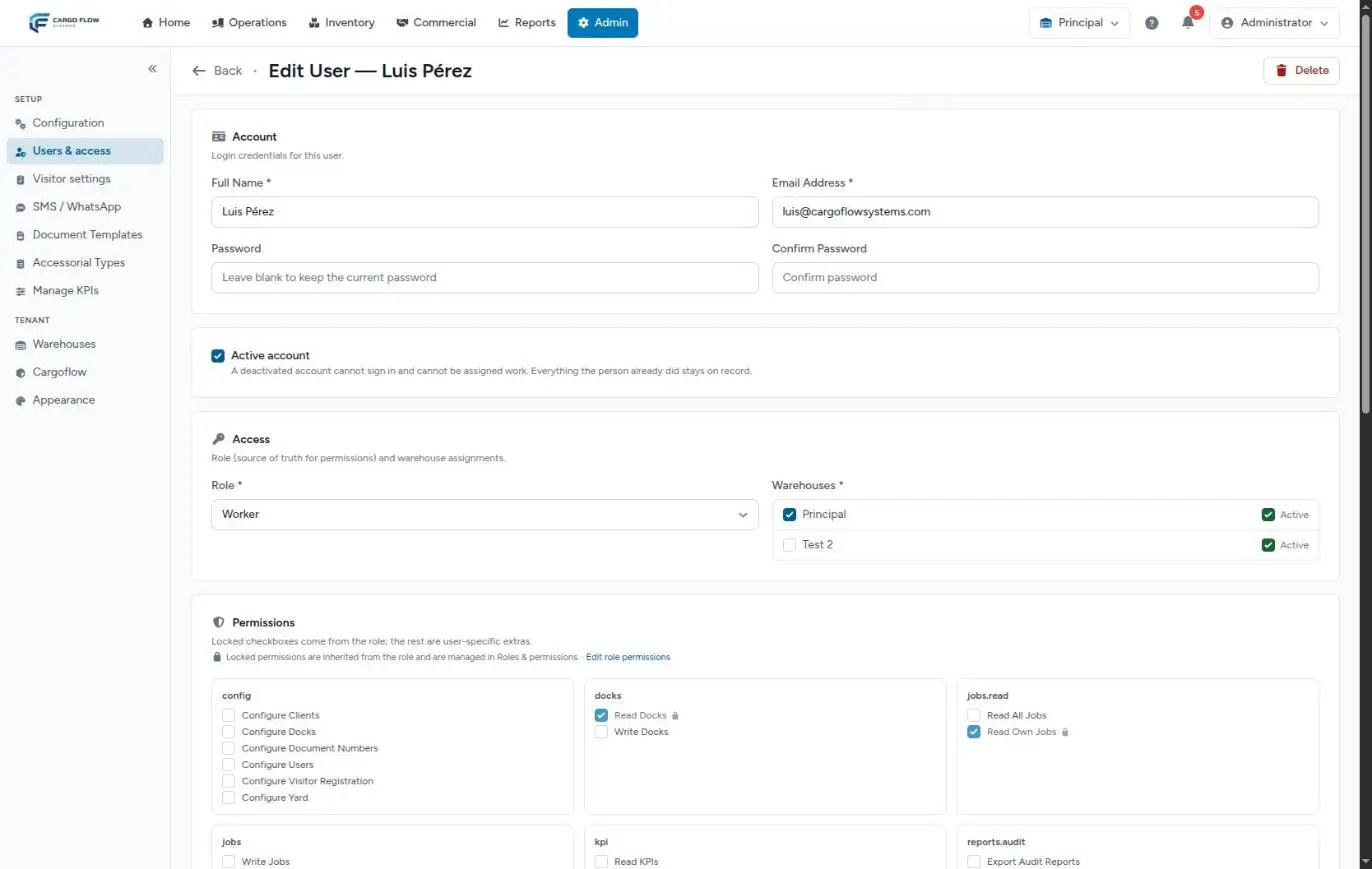
On a user’s form, the Permissions section shows every permission. Padlocked ones come from their role. Tick any other to give it to that person only.
- Use it for exceptions: the supervisor who also sees the dock report, the worker who confirms receipts on the night shift.
- Don’t use it for groups: if several people need the same thing, create a role. It is easier to maintain and audit.
Example: a Sales role
Ana López and two other sales people must quote and see customers, but not operate.
- New role: "Sales", copying permissions from Accounting (which already views receipts, shipments and quotes).
- On its card, untick the billing ones and tick manage quotes and configure clients. Save the role.
- Assign the role to the three people in Users & access.
- Since win/lose quotes is super admin only by default, decide whether Sales needs it and tick it if so. See Quote and win.
What you cannot do
- Grant the reserved permissions. In the matrix they look like normal checkboxes, but if you tick them the system silently drops them on save.
- Remove from a user a permission their role brings: change their role or remove it from the role.
- Give the same person different permissions per warehouse (see Users per warehouse).
- Give, if you are not a super admin, extra permissions you don’t have.
Messages you may see
| The message says… | What it means |
|---|---|
| The name is reserved or already exists. | There is already a role with that name. |
| A role with assigned users cannot be deleted. | Move its users to another role. |
| System roles cannot be deleted or renamed. | Create your own role instead. |
| The super admin role always has every permission. | Expected. |
Troubleshooting
I gave a permission and the person still cannot see the screen.
- The module is off in the warehouse they are working in, or the screen requires another permission (see the screens table). Ask them to reload the page.
I removed a permission from the role and someone still has it.
- They also have it as an extra on their form. Untick it there.
I ticked Manage Permissions on a role and it did not save.
- It is a reserved super admin permission.
It won’t let me delete a role.
- It is a system role, or it still has users.
Need help?
If something did not work as expected, our support team can help you.
Was this article helpful?