How shipping works
Overview
In Cargoflow a shipment is a single document that lives through the whole outbound cycle. There is no separate sales order or pick order: the customer tells you what is going out (through the client portal, EDI, API or by asking the warehouse), that notice becomes a shipment, and the same document is confirmed, reserves the stock, gets loaded at the dock and is closed.
The work is split between three people, each with their own screen:
- Whoever enters it (supervisor or admin) creates or reviews the shipment, confirms it and sorts out the reservation in Inventory › Shipments.
- The worker loads the truck at the dock and, from My Work, records what actually went on and the seal number.
- The supervisor reviews and closes the shipment. That close is the only thing that deducts inventory, creates the charges, produces the documents and notifies the customer.
To see how this fits with the customer order, the truck arriving and invoicing, read From order to ship-out.
Before you start
- Module enabled: the warehouse needs the shipping module. If Shipments doesn’t appear in the Outbound group of the Inventory menu, the module is off or your user lacks permission. See Modules, permissions and access.
- Inventory module: without it there is no reservation and no stock deduction; the shipment works as a paper record and closes from Confirmed (see Special cases).
- Customer set up in the warehouse, with its products in the catalog (or general products with no owner).
- Stock received: for the system to reserve anything, it has to have come in through a confirmed receipt (or an adjustment) and be available. See From notice to inventory.
- Optional but recommended: the docks module (to link the shipment to the truck so the worker sees it on their console), documents (BOL, packing list and pick ticket), accessorials and billing.
| What | Permission | Default roles |
|---|---|---|
| See the list and the shipment screen | View Shipping | Admin, Supervisor, Worker and Accounting |
| Create, edit, confirm, allocate, release the reservation, cancel and link to a dock job | Create Shipments | Admin and Supervisor |
| Close the shipment, resend the email and pick the email photos | Ship (Close Shipments) | Admin and Supervisor |
| Correct the customer or the shipment number | Amend Document Identity | Admin and Supervisor |
| Print and attach documents | Generate Documents | Admin, Supervisor and Worker |
| Capture accessorials | Capture Accessorials | Admin, Supervisor and Worker |
The super admin has all of them. Your administrator can change which role carries each permission; see Roles and permissions.
The shipments list
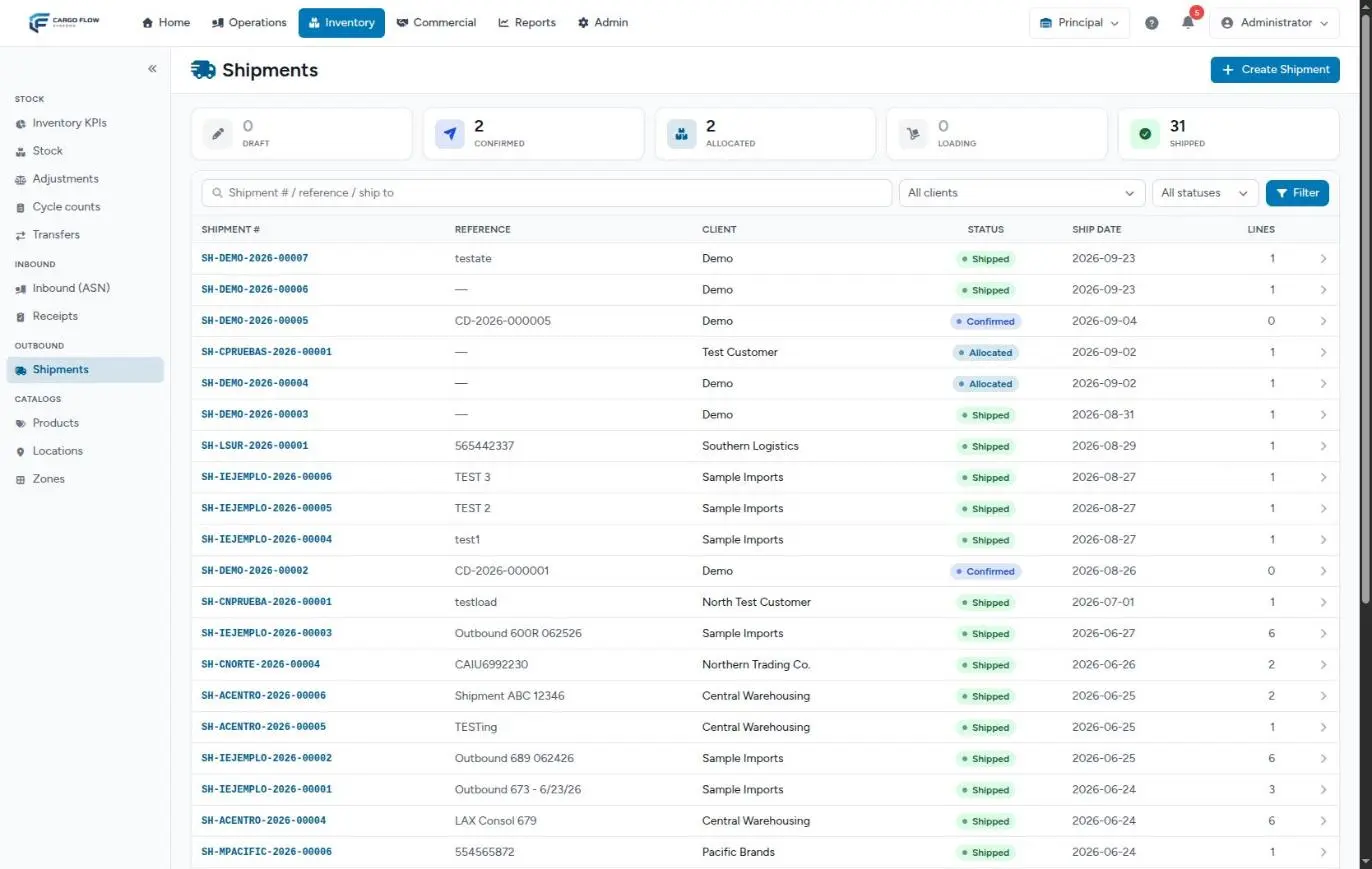
- Counters at the top: how many shipments are draft, confirmed, allocated (including partially allocated), loading and shipped.
- Search: finds by shipment number, customer reference or ship-to name.
- Filters: by customer and by status. Click Filter to apply them and the cross to clear them.
- Table: shipment number, reference, customer, status, requested ship date and line count, 30 per page, newest first.
- Create Shipment (top right): opens the form. See Create a shipment.
The shipment number (for example SH-DEMO-2026-00007) comes from the customer’s sequence: prefix, customer code, year and counter. You never type it. See Document numbers and documents across the flow.
Shipment statuses
The shipment screen shows a five-step timeline. The step in blue is where the document is; on the right you get the next-action button and the ⋮ menu with secondary actions.
| Status | What it means | What’s next | Who |
|---|---|---|---|
| Draft | Notice entered but not firm. May have no lines and no date. Reserves nothing. | Confirm Shipment | Create Shipments |
| Confirmed | The shipment is real, but no stock is set aside (none was available, or the reservation was released). | Allocate Stock | Create Shipments |
| Reserved | Stock is set aside in specific locations. If there wasn’t enough, the reservation is partial: the timeline looks the same and the gap shows in each line’s allocated column. | Load the truck or close | Worker and supervisor |
| Loading | The linked pickup dock job has started. When the worker finishes, the step changes to Loading complete and turns green. | Close Shipment | Ship (Close Shipments) |
| Shipped | Closed: the stock left inventory. The ship-out date and time show next to the timeline. | Nothing; only header details can be corrected | — |
| Cancelled | Cancelled before loading. A red banner replaces the timeline with who, when and why. | Nothing | — |
Where each shipment comes from
| Channel | Starting status | What happens automatically |
|---|---|---|
| Entered with Create Shipment | Draft or Confirmed, depending on the button | If confirmed: bell notice and an immediate reservation attempt. |
| Client portal (shipment notice) | Draft, with the catalog units of measure | Bell notice to the warehouse. Someone has to review and confirm it. While it stays a draft with no truck linked, the customer can edit or cancel it from their portal. See Request a shipment from the portal. |
| API or EDI (940 order) | Confirmed | Bell notice and automatic reservation, partial if needed. An SKU missing from the catalog rejects the whole order. See Connect through the API and Integrations in daily operations. |
| Dock board (when assigning a pickup) | Draft, no lines, with the driver’s details and today’s date | Linked to the dock job. A supervisor adds the lines and confirms it. |
| Cross-dock | Confirmed, empty | Managed by the cross-dock. See How to run a cross-dock. |
Bell notices go to the roles the warehouse chose in Admin › Notifications & emails (by default worker, supervisor and admin), and only if the new-shipment event type is ticked. See Notifications per warehouse.
The full path, step by step
- The notice arrives through any of the channels above. If you enter it yourself and don’t know the final quantities yet, save it as a draft: it can even have no lines.
- It gets confirmed with Save & Confirm or Confirm Shipment. The system notifies the warehouse and tries to reserve stock right then. With enough stock it becomes Reserved; with some, it reserves what there is; with none, it stays Confirmed with a yellow notice explaining why. How it picks: How stock gets reserved.
- It gets linked to the truck. When the pickup driver arrives, the supervisor assigns a dock in Operations › Docks and picks the shipment(s) going on that truck (the board suggests matches by reference, trailer, customer or date). It can also be linked later from the dock job card on the shipment screen. See Dock, yard and cross-dock.
- The worker loads. When the dock job starts, the shipment moves to Loading (and if it was only confirmed, the system tries to reserve it then). On their console, the Loading record panel says which location to pull each item from; the worker checks off what went on, lowers the quantity if something was short, enters the seal and clicks Save loading. See The loading record and shortages.
- The supervisor closes. On the shipment screen they check the seal and the Actual ship-out date and click Close Shipment. See Close a shipment.
- The system does the rest in inventory, billing, documents and notices (next section).
What happens next in other modules
| When | Module | What happens |
|---|---|---|
| Confirm | Notifications | Bell (and live) notice to the warehouse’s configured roles. |
| Reserve | Inventory | Each location’s reserved quantity goes up and available goes down. No inventory movement is recorded: nothing moves. Inventory › Stock shows it as reserved. See Look up stock. |
| Dock job starts | Docks | The shipment moves to Loading; the loading start time is stored. |
| Close | Inventory | One outbound movement per reserved location and lot, dated with the actual ship-out date, attributed to each line’s customer. Whatever wasn’t loaded is released. |
| Close | Billing | Outbound handling (if the customer’s rate card has it), extra services billed at ship-out, storage at ship-out (if that is their model) and the accessorials that were being held. Everything lands in the unbilled pool. See Where each charge comes from. |
| Close | Documents | The BOL and packing list are generated and stored (one per customer if the shipment has several). See Documents, photos and the dock link. |
| Close | Customer email | Shipment-closed email, in the customer’s language, to the contacts chosen for that notice, with the loading photos if applicable. See Customer emails and reports. |
| Close | EDI and API | A shipping advice (945) goes out if the customer uses EDI; a shipment-closed notice if they have an API integration. |
| Always | Client portal | The customer sees the shipment and its status in their portal at all times, from draft onwards. |
| Afterwards | KPIs | Counts in Shipments, Units shipped, On-time shipping, Complete and on time, Short lines and the line and unit fill rates. See Reading the KPI panel. |
| Every day at 05:00 | Alerts | Shipments with a requested date before today that are neither shipped nor cancelled (drafts included) trigger the late-shipments alert to the warehouse staff. |
Worked example
On Monday the 14th, Northern Trading Co. says its order PO-88120 ships Wednesday the 16th: 40 cases of SKU NT-1001 and 12 of NT-2040.
- Ana López enters it with Save & Confirm.
SH-NORTH-2026-00042is created. There are 40 ofNT-1001in two locations (25 inA-01-02, lot expiring in March; 15 inA-03-01, expiring in June) and only 8 ofNT-2040. The shipment is Reserved with 40 and 8. - On Tuesday 10 more
NT-2040arrive. Ana clicks Edit, leaves the quantities as they are and types the reason “rest arrived”: the system releases, reserves again and now sets aside 12. - On Wednesday at 10:15 the driver arrives. Luis Pérez assigns dock 4 on the board and links the shipment. When the job starts it moves to Loading.
- Carlos Ruiz, the worker, loads. One case of
NT-2040is crushed: he records 11, enters seal483920and saves. - Luis closes at 11:40. 25 leave
A-01-02, 15 leaveA-03-01and 11 ofNT-2040go out; the case that stayed is available again. Handling for 51 units is billed, the BOL and packing list are generated, and the customer gets the email with the loading photos.
The shipment screen
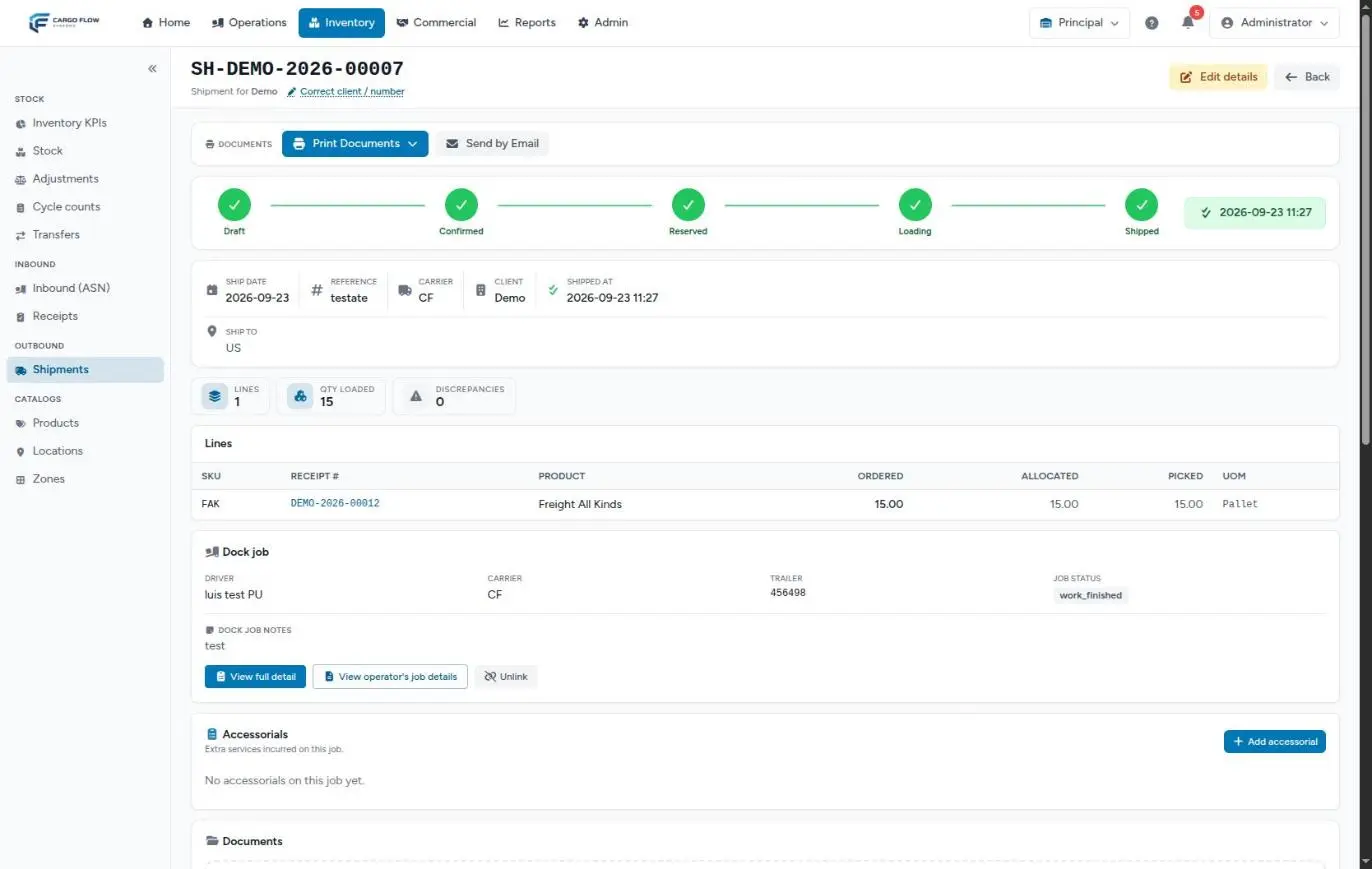
Top to bottom:
- Header: shipment number, customer, the Correct client / number link (with permission), Edit (Draft to Reserved) or Edit details (Loading and Shipped), and Back.
- Trailer mismatch notice: if the trailer the driver registered doesn’t match the planned one, a yellow notice says so. Check it and fix it with Edit or Edit details before closing.
- Documents: the Print Documents menu and, once shipped, Send by Email with the date of the last notice.
- Timeline with the next action and the ⋮ menu.
- Close Shipment panel: seal (if missing) and actual ship-out date, only when it can be closed and you have the permission.
- Header details: ship date, reference, carrier, customer, ship-out date, ship-to and notes.
- Summary: line count, quantity ordered (or loaded, as soon as loading is recorded) and discrepancies.
- Lines: SKU, source receipt of the reserved stock (linked), product with catalog dimensions and weight, ordered, allocated, picked and UOM. A multi-customer shipment groups them by customer.
- The dock job card, Accessorials, the Documents panel with attachments and photos, the pull list of reservations (location, SKU, lot, arrival, quantity and status), the Edit history and, with permission, the Correct identity panel.
Special cases and limits
- No inventory module: there is no allocate button. The shipment closes from Confirmed; what was loaded is recorded, but nothing is deducted.
- No docks module: there is no job to link. The supervisor closes from Reserved and the reserved quantity ships.
- Partial reservation: you can close with what is reserved. Read the warning in Close a shipment about lines left with nothing reserved.
- Serial-numbered stock: the automatic reservation doesn’t take it. See How stock gets reserved.
- Several customers in one shipment: possible, with limits. See Shipments for several customers.
- You can’t undo a close, reactivate a cancelled shipment or cancel one that is loading or shipped. See Cancel, release the reservation or roll back a shipment.
Best practices
- Confirm the notice as soon as it is firm: the reservation sets the stock aside so it isn’t promised twice.
- If it stayed Confirmed for lack of stock, allocate again as soon as you confirm the receipt that brings it.
- Always link the shipment to its dock job: the worker then knows where to pull each item and the close uses their loading record.
- Have the worker record the loading on the spot, line by line, with the seal.
- Close the same day the truck leaves. If you couldn’t, enter the actual ship-out date.
- Cancel drafts that won’t ship: once their date passes they trigger the daily late-shipments alert.
- Always enter the customer reference the same way: it’s what the customer searches for and what shows on their documents and invoice.
Troubleshooting
The shipment stayed Confirmed with a yellow notice that stock couldn’t be reserved.
- There was no available stock of that customer for any line. Confirm the receipt that brings it and click Allocate Stock. Also check it isn’t expired, on hold, quarantined, damaged, serial-numbered or in a non-pickable location.
I don’t see the Close Shipment button.
- It only appears in Reserved or Loading (or Confirmed if the warehouse has no inventory module), and only with the close permission.
The worker doesn’t see the shipment on their console.
- It isn’t linked to their dock job, or the job isn’t assigned to them. Link it from the dock job card on the shipment screen.
The list search doesn’t find a reference that does exist.
- Type it with the exact upper and lower case it was entered with, or search by shipment number.
I got a late-shipments alert for shipments I don’t recognize.
- They are drafts or confirmed shipments with a past date that nobody closed or cancelled. Open them from the list and close or cancel them.
FAQ
Why can’t the worker close the shipment?
It’s a deliberate control. The worker records the physical loading, but closing deducts the customer’s inventory, creates charges and emails them. So it is done by someone with the close permission: there is always a second look before stock leaves the system.
What if less is loaded than was reserved?
The worker records the real quantity (never more than reserved). On close only the loaded quantity ships; the rest stays in its location and its reservation is released, so it is available again. Check the edge cases in The loading record and shortages.
Can one shipment carry stock for several customers?
Yes, with the Add company button. Each line reserves its own customer’s stock. Before doing it, read Shipments for several customers: the email and the portal only reach one of them.
Where is the pick order?
It doesn’t exist as a separate document. The shipment’s pull list says which location each item comes from, the worker’s loading record repeats it, and Print Documents offers the pick ticket on paper. See The pick ticket.
Can I close a shipment that never went through the dock board?
Yes. From Reserved the supervisor can close directly; the reserved quantity ships. Useful for trailers left loaded in the yard or for warehouses without the docks module.
Need help?
If something did not work as expected, our support team can help you.
Was this article helpful?