Looking up stock by location
Overview
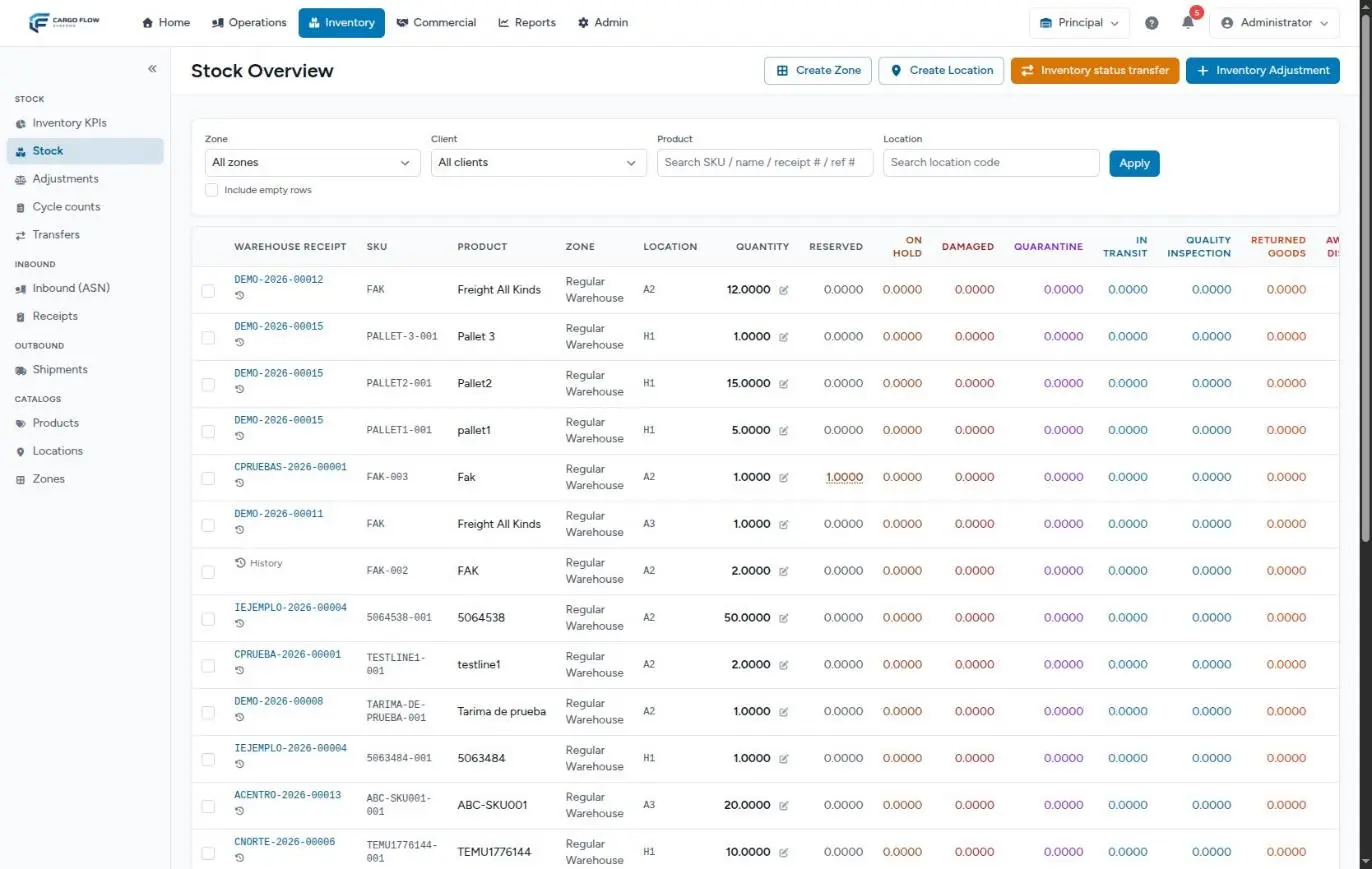
The stock by location screen is the everyday lookup: one row per combination of product, location and lot, with its total quantity, what is reserved, what is blocked in each state and what is available. From each row you can reach the source receipt, the line history, an adjustment or a status change.
It is the warehouse’s source of truth: the client portal, reports, KPIs and storage billing all read the same lines.
Before you start
- Module: Inventory enabled for the warehouse.
- Permission to look up: View Inventory (by default Super Admin, Admin, Supervisor and Worker).
- Permission to act from a line (checkboxes, pencil, adjustment and status buttons): Adjust Inventory (Super Admin, Admin and Supervisor).
- Permission for quick zone and location creation: Manage Inventory Catalogs (Super Admin and Admin).
Getting there
In the top bar open Inventory and choose Stock, the second option of the stock group (below Inventory KPIs). You can also use View Stock on the inventory dashboard.
Filtering the list
- Zone — shows only the locations in one zone. Only active zones are offered; the default is All zones.
- Client — one customer, All clients or Global only (stock that belongs to no customer). The warehouse’s internal customers are not listed.
- Product — searches by SKU, name, receipt number or the reference the goods arrived with. Partial text works. It is the fastest way to find “what came on that truck”.
- Location — searches by location code, full or partial.
- Include empty rows — by default lines with zero quantity and nothing reserved are hidden. Tick it to audit lines that emptied.
- Apply — runs the search. Clear appears when there are filters and removes them all.
The list shows 50 rows per page, starting with the ones that changed most recently. The filters travel in the page address: you can bookmark or share a search.
abc will not always find ABC-100. Type the SKU, receipt number or location code with the same capitalization as it was saved, or search only by the numeric part.What each column means
| Column | What it shows |
|---|---|
| Warehouse receipt | The receipt or receipts that line came from (taking its lot into account), as links, plus the clock icon that opens the line history. When there is no source receipt (for example, goods that came in by adjustment or transfer), only the History link appears. |
| SKU and Product | The product code and name. If the product was deleted, the SKU carries a “deleted” tag. |
| Zone and Location | Where the goods physically are. |
| Quantity | The physical total of the line, in base unit. It includes reserved and blocked quantities. The pencil next to it opens an adjustment of that line. |
| Reserved | What open shipments have set aside. When above zero, click it to see which shipments. |
| On hold, Damaged, Quarantine, In transit, Quality Inspection, Returned Goods, Awaiting Disposal | What sits in each blocked state, each in its own color. |
| Available | Quantity minus reserved and minus every blocked state. Green when above zero. It is the only thing you can promise to a new shipment or move with a transfer. |
| Client | The owner of the goods, or Global if there is none. |
On narrow screens columns are hidden so the table fits, in this order: a phone hides Reserved and the zone; a tablet also hides Client, On hold and Damaged; and only a very wide screen shows Quality Inspection, Returned Goods and Awaiting Disposal. Available is always visible and already subtracts everything hidden.
Who has the goods reserved
When the Reserved column shows an underlined number, click it: the Reserved by list appears with each shipment holding those goods, how much it holds and its status. Each shipment number links to the shipment.
A reservation cannot be released from this screen. To release it, open the shipment and release its allocation, send it back or cancel it (see Cancelling or reverting a shipment). When the shipment closes, Reserved drops together with Quantity: the goods have left.
Actions from a line
- Selection checkbox (on the left, with Adjust Inventory) — selects one line. With a line selected, the header buttons Inventory status transfer and Inventory Adjustment show a check mark and open their form already filled in with that line (product, location and lot). Click the checkbox again to clear it.
- Pencil next to the quantity — opens an adjustment of that exact line in Set quantity mode, with the current quantity loaded.
- Clock icon — opens the line’s movement history.
- Receipt number — opens the receipt the goods arrived on.
- Create Zone and Create Location (header, with the catalog permission) — quick creation without leaving the screen.
This screen has no transfer button. To move goods, use Inventory › Transfers (see Stock transfers).
Example: how much can I promise the customer?
At 10:00 Pacific Brands asks whether it can order 150 units of SKU MP-GEL-500 to ship today. You filter by the customer and the SKU and see two lines:
| Location | Quantity | Reserved | Damaged | Quarantine | Available |
|---|---|---|---|---|---|
| A-03-2-1 | 120 | 30 | 5 | 0 | 85 |
| B-11-1-4 | 80 | 0 | 0 | 20 | 60 |
There are 200 physically, but only 145 available (85 + 60). The 30 reserved belong to another shipment (click the 30 to see which), the 5 damaged await a decision and the 20 in quarantine cannot ship. The right answer is “145 today”; if the customer releases the 20 in quarantine, a status change returns them to available and you reach 165.
The same line in other modules
- Shipments: when reserving, the system takes only what is Available in locations that are active, pickable and not staging areas. See The shipment flow.
- Client portal: the customer sees their inventory added up by SKU, with its age. Their available column subtracts only what is reserved, not blocked states (see the note below). See Inventory and KPIs in the portal.
- Billing: nightly storage counts the full Quantity of every line, damaged or quarantined goods included. See How charges are generated.
- Reports: inventory by location and the customer inventory report read these same lines. See WMS reports.
Special cases and limits
- The lot is not a column. Two lines of the same SKU in the same location with different lots look alike except for their source receipt. The lot of each line shows on the receipt, in the history (which filters by lot) and on the shipment that reserves it. See Lots, serial numbers and expiry.
- Empty lines that disappear. Every night, lines at zero with nothing reserved and no movement in 7 days are deleted. Their history is kept: the movements remain in the product history.
- One line at a time. The checkbox does not allow selecting several lines for a batch action.
- Goods received from another warehouse. Today a line that arrived by warehouse-to-warehouse transfer can show a blank SKU and product (“—”). See the note in Stock transfers.
Best practices
- Before promising goods to a customer, look at Available, not Quantity.
- Use the product filter with the receipt number or the customer’s reference to trace a whole inbound load.
- To correct a line, go through its pencil or its checkbox: the adjustment then targets the exact line, with its lot.
- Now and then, use Include empty rows to look for lines with something reserved and zero quantity: those are leftover reservations.
Troubleshooting
A product does not show even though I know it is in the warehouse.
- Check you do not have a zone or customer filter on; use Clear.
- Type the SKU with its exact capitalization.
- If its quantity is zero, tick Include empty rows.
- If the goods just arrived, the receipt may not be confirmed yet.
Available is zero but the quantity is higher.
- Everything is reserved or in a blocked state. Click Reserved to see which shipment holds it, or check the state columns (on a wide screen).
I do not see the checkboxes or the pencil.
- Those actions need Adjust Inventory. With View Inventory only, the screen is read-only.
The customer says the portal shows more available than I do.
- The portal does not subtract blocked states. Check the damaged, on hold and quarantine columns of their lines.
A line shows “—” as SKU and product.
- These are goods received by transfer from another warehouse. See the note in the transfers article.
Frequently asked questions
What exactly is a line?
A unique combination of product, location and lot (and serial number when it applies). The same SKU in two locations, or with two lots in the same location, is two lines.
What does “Global” mean in the Client column?
That the goods are not assigned to any customer: they belong to the warehouse. A customer’s shipments can take global stock when the customer’s own stock is not enough.
Why does a SKU say “deleted”?
The product was removed from the catalog but some of its stock remains. Today the system no longer lets you delete a product that has stock; those lines predate that rule. Adjust them to zero; a deleted product cannot be reactivated from the screen.
Why do quantities have four decimals?
Inventory stores up to four decimals for products handled in kilos, meters or fractions. For products counted in pieces you will always see .0000; it means nothing.
Need help?
If something did not work as expected, our support team can help you.
Was this article helpful?