Managing document templates
Summary
Every paper that leaves the warehouse —the goods received note, the receiving record, the bill of lading, the packing list, the labels, the pick ticket, the invoice— comes from a template. This screen is where you see them all, decide which one is used for each type and each customer, and go in to design them.
It is in the admin menu, option Document Templates. To design one, see Designing a document template; to see where each document fits in the whole journey, Document numbers and documents across the flow.
Before you start
- Module: the warehouse must have the documents module. Without it, the option is not in the menu.
- Permission: Manage Document Templates. By default admins and super admins have it. Printing documents is a separate permission, Generate Documents, which supervisors and workers also have by default. See Roles and permissions.
- For customer templates, the customer must exist and be active.
The template list
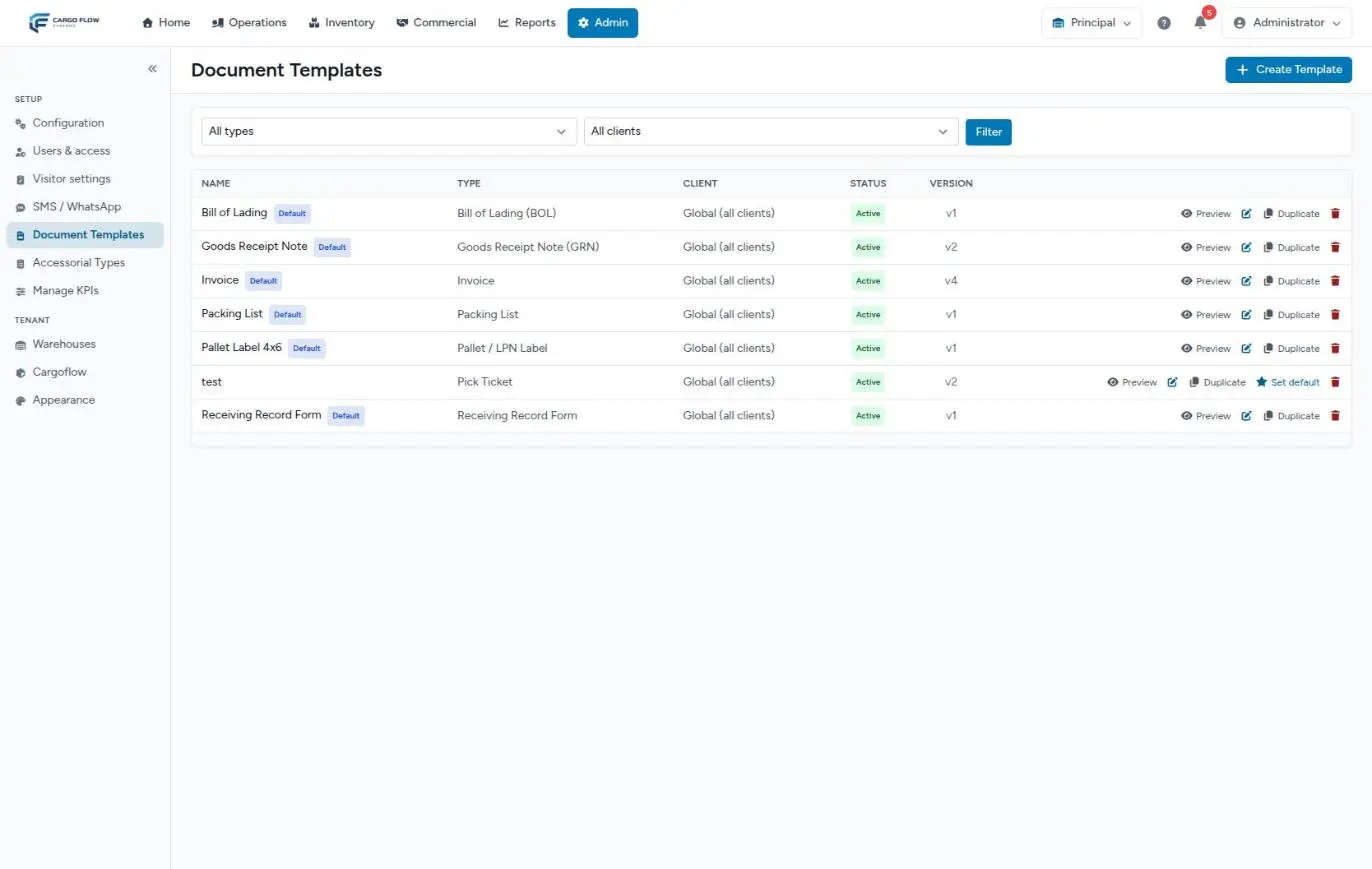
At the top there are two filters, All types and All clients, and the Filter button. The list is sorted by type, with the default first, 50 per page. Each row shows:
- Name, with the Default badge if it is the one used first for its type.
- Document type.
- Customer: Global (all customers) or the name of the customer it belongs to.
- Status: Active or Inactive.
- Version: goes up every time the design or the page changes.
- The actions: Preview, Edit (the pencil), Duplicate, Copy to warehouse (when you have access to another warehouse with documents), Set default (only on those that are not) and Delete (the bin).
With Create template, top right, you start a new one. When you save it you land straight in the editor. If the list is empty you will see "No document templates yet": write to us to seed the factory ones, or create one.
Document types
The type decides which operational document the data comes from (and therefore which fields you can use in the design) and on which screen it shows up for printing.
| Type | Comes from | When it is generated |
|---|---|---|
| Goods received note | The receipt. | Automatically when the receipt is confirmed, and again if the confirmed receipt is edited. Also on request, as a full document or one page per line. |
| Receiving record | The dock job, with what the operator entered while unloading. | On request, from the dock job. |
| Pallet / LPN label | The receipt. | On request. Three modes: one label for the whole load, one per pallet of each line, or one per unit received. |
| Product label | The receipt. | On request, one per line. |
| Custom document | The receipt. | On request. |
| Bill of lading | The shipment. | Automatically when the shipment is closed. Also on request. |
| Packing list | The shipment. | Automatically when the shipment is closed. Also on request. |
| Pick ticket | The shipment, one row per reserved lot and location. | On request. Always rebuilt, because it reflects the current reservation. |
| Invoice | The invoice. | When the invoice is printed or sent. See Sending and printing invoices. |
Which template each document uses
When the system generates a document, it looks for the template like this:
- If the document belongs to a customer that has its own active templates of that type, it uses theirs: the default first; if none is the default, the most recent.
- Otherwise it uses the active global template of that type, in the same order.
- If there is none: when printing by hand, the system creates a general factory template for that type and uses it; in automatic generation (when a receipt is confirmed or a shipment closed) the document simply is not generated, with no warning.
A customer's own templates can also be seen and created from their profile: see Logos and per-customer templates.
Example: three customers, one bill of lading
The warehouse has two active global bills of lading, "General BOL" (default) and "BOL with seals", and one of Northern Trading Co.'s own, active. When shipments are closed:
- A Northern Trading Co. shipment goes out with its own template.
- A Valley Distributors shipment goes out with "General BOL", because it is the global default.
- If someone deactivates Northern Trading Co.'s template, their next shipments also use the general one. Those already shipped keep their PDF.
Template actions
- Preview — opens in another tab the PDF drawn with the latest real document of that type (of that customer, if the template belongs to one). The system prefers a document that has lines.
- Edit — opens the visual editor.
- Duplicate — creates a copy called Copy of…, without the default mark and at version 1, and leaves you editing it with the notice "Template duplicated. You are editing the copy". It is the fastest way to make a customer's version: duplicate the global one, change the customer and adjust.
- Copy to warehouse — takes the template to another of your warehouses with the documents module on. You pick the destination warehouse and, if you like, tick Set as default in that warehouse. The copy is independent: it starts at version 1, takes its images along and uses the destination warehouse’s logo. You stay in the current warehouse; switch warehouses to see it. If the template belongs to a customer that does not operate in the destination, it arrives as a global template and is not set as default.
- Set default — makes it the default of its type within its scope (global or that customer) and removes the badge from the previous one. There is only one default per type and scope.
- Delete — asks for confirmation: "Delete this template? Generated documents are kept."
What happens in other modules
- Receiving: the generated goods received note stays in the receipt's Documents panel, under Generated documents, marked Current. See Receipt photos and documents.
- Shipping: the bill of lading and packing list stay in the shipment's panel. See Shipment documents.
- Customer emails: the receipt-confirmed and shipment-dispatched emails do not attach the PDFs generated from these templates; if the customer has it on, they attach the files uploaded by hand (POD, signed bill of lading) and the flagged photos. See Emails and reports to the customer.
- Numbering: the numbers on the documents come from the warehouse or customer numbering. See Document numbering.
Good practices
- Do not edit the global template for one customer: duplicate it and assign the customer. That way the others do not change.
- Before setting a new template as default, check its preview with a real document.
- Use names that say what it is for ("BOL — Northern Trading Co."), not "test" or "copy".
- Always keep an active global goods received note, bill of lading and packing list: without them, automatic documents are not produced.
Troubleshooting
"No receipts available to preview this template against."
- There is no document of the template's type yet in the warehouse (or for that customer), and the preview needs a real one. The message says "receipts" even when the template is for shipments or invoices: it means the same. Create a test document or wait for the first one.
I changed the template and one customer still comes out with the old design.
- That customer has its own template, which wins over the global one. Filter the list by that customer.
- Documents already issued are not rebuilt on their own; use Regenerate from the receipt or the shipment.
Confirming a receipt did not generate the goods received note.
- There is no active template of that type. Activate one, or print it by hand once so the system creates the factory one.
I do not see the Document Templates option.
- The manage-templates permission or the documents module is missing. See Modules, permissions and access.
Frequently asked questions
What happens to documents already issued if I delete a template?
Nothing: they are kept exactly as they were issued, with the template version they were generated with. Only new documents stop using it.
What is an inactive template for?
For working on it before it is used. An inactive template is never picked when generating a document, even if it is the default. When it is ready, activate it from its settings in the editor.
Some types show a Spanish name
In the Spanish interface, some types are shown with their English name and vice versa. They are the same types described in this article.
Need help?
If something did not work as expected, our support team can help you.
Was this article helpful?