Configure docks and yard
Overview
Before assigning the first truck you have to tell the system which docks the warehouse has and, if you use the yard module, which yards. Both are done from Admin › Configuration: the Loading Docks tile and the Parking Areas tile. This article covers docks in depth and yard creation; drawing spots is in Configure the yard and spots.
Before you start
- Docks: the docks module must be on in the warehouse. The screen requires the Configure Users permission, which by default only the super admin has.
- Yards: yard module on and the Configure Yard permission (admin and super admin).
- The warehouse must exist and be active in the top bar. Warehouses are created under Admin › Warehouses; see Warehouses and modules.
Docks
The dock list
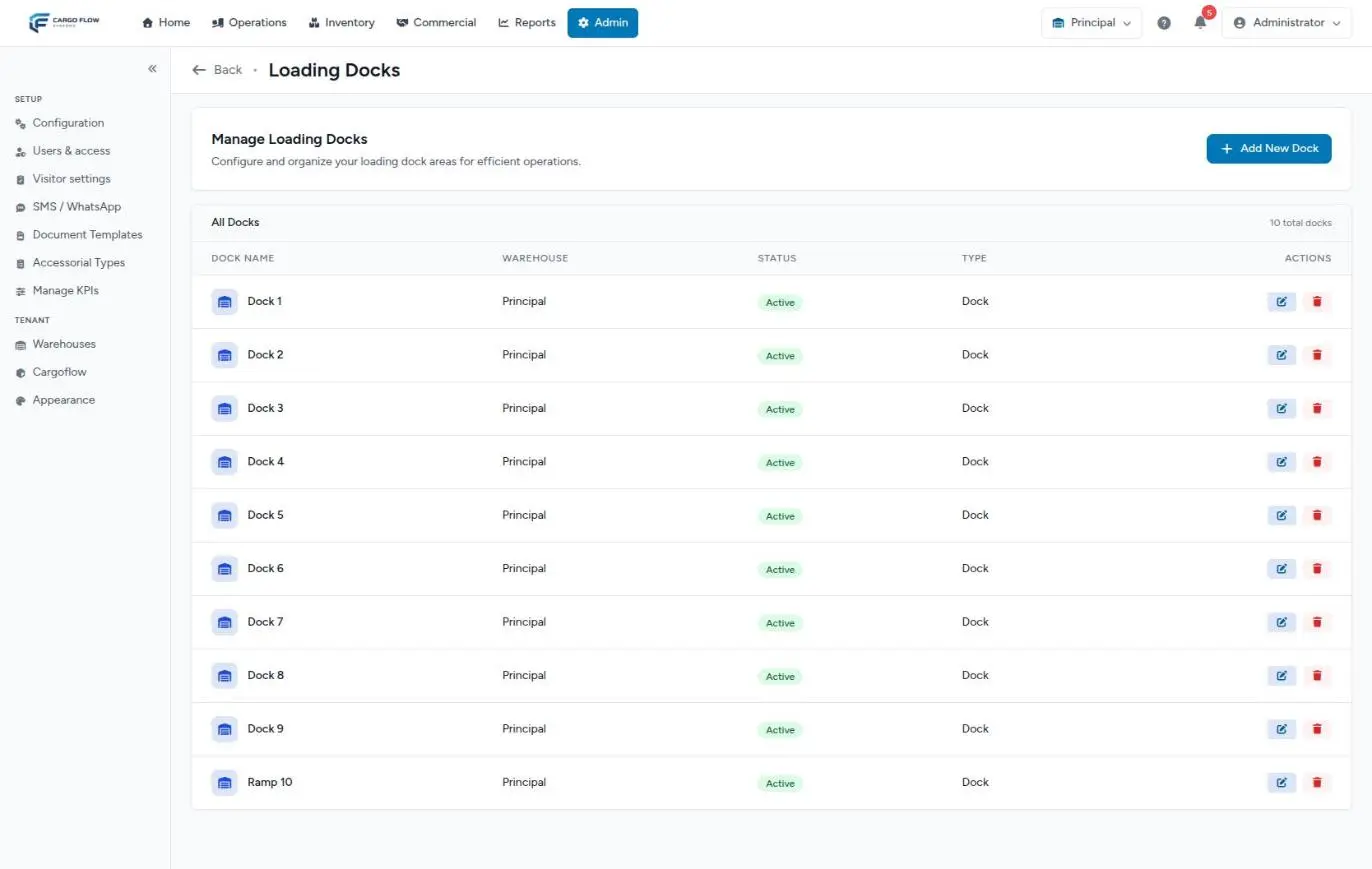
The Manage Loading Docks screen lists the active warehouse’s docks with name, warehouse, status, type and actions (edit and remove), and counts the total.
The order is: shorter names first and, among names of the same length, alphabetical. So "Dock 2" comes before "Dock 10", but a short name such as "R1" comes before "Dock 1". For a clean order, use names with the same pattern.
Each yard creates an internal dock for its moves; it does not appear in this list.
Add or edit a dock
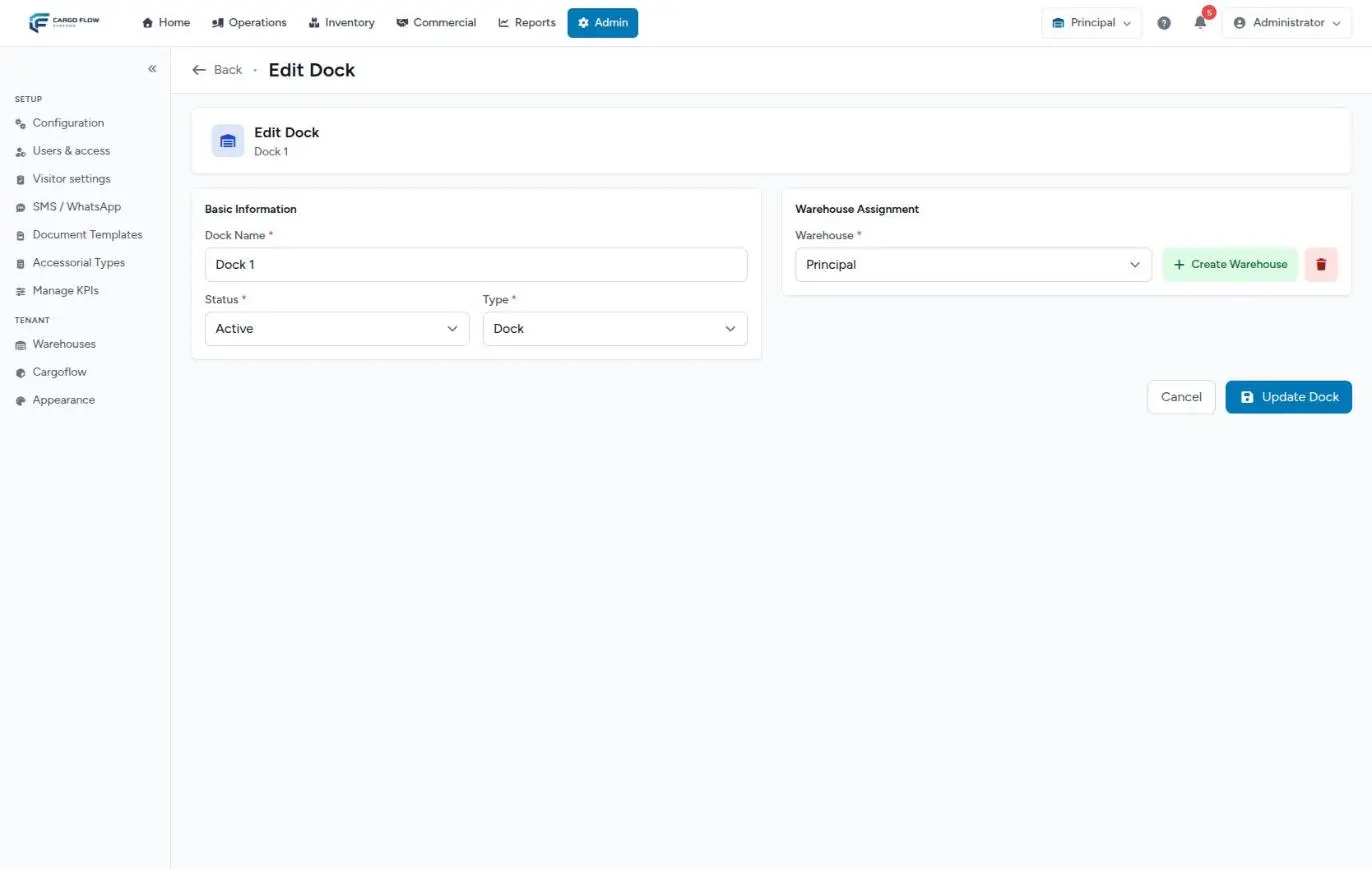
- Click the button to add a new dock.
- Fill in the form (table below) and click Save Dock.
- The system takes you to the edit screen with "Dock created successfully." When editing, the button is Update Dock.
| Field | Required? | What it accepts |
|---|---|---|
| Dock Name | Yes | Up to 255 characters. Use the name painted on the door ("Dock 5", "D-05"): it is what the driver sees in the assignment message. |
| Status | Yes | Active or Inactive. |
| Type | Yes | Dock or Waiting. |
| Warehouse | Yes | The warehouse it belongs to. |
There are no capacity, door or notes fields.
Dock or Waiting
- Dock — a real door where you load or unload.
- Waiting — a holding place until a real door frees up. In the assign-and-notify window, waiting areas are listed first and the first one is preselected. Assigning to a waiting area never sends the dock assignment SMS.
Any dock, of either type, can have several jobs queued.
Inactive
An inactive dock disappears from the dock board and from the lists for creating or moving jobs. Use it for maintenance or temporary closures.
Remove and restore
- Click the row’s trash icon. The system asks "Remove this dock? Its history is kept and you can restore it later."
- If the dock has jobs assigned, in progress, finished but not closed, or pending yard, it is not removed and a message says how many it has.
- Otherwise it leaves the list with a confirmation.
Once at least one dock has been removed, a Removed docks button appears with the count. There each dock has Restore; a link takes you back to the active docks. Reports keep a removed dock’s jobs.
Yard
The yard list
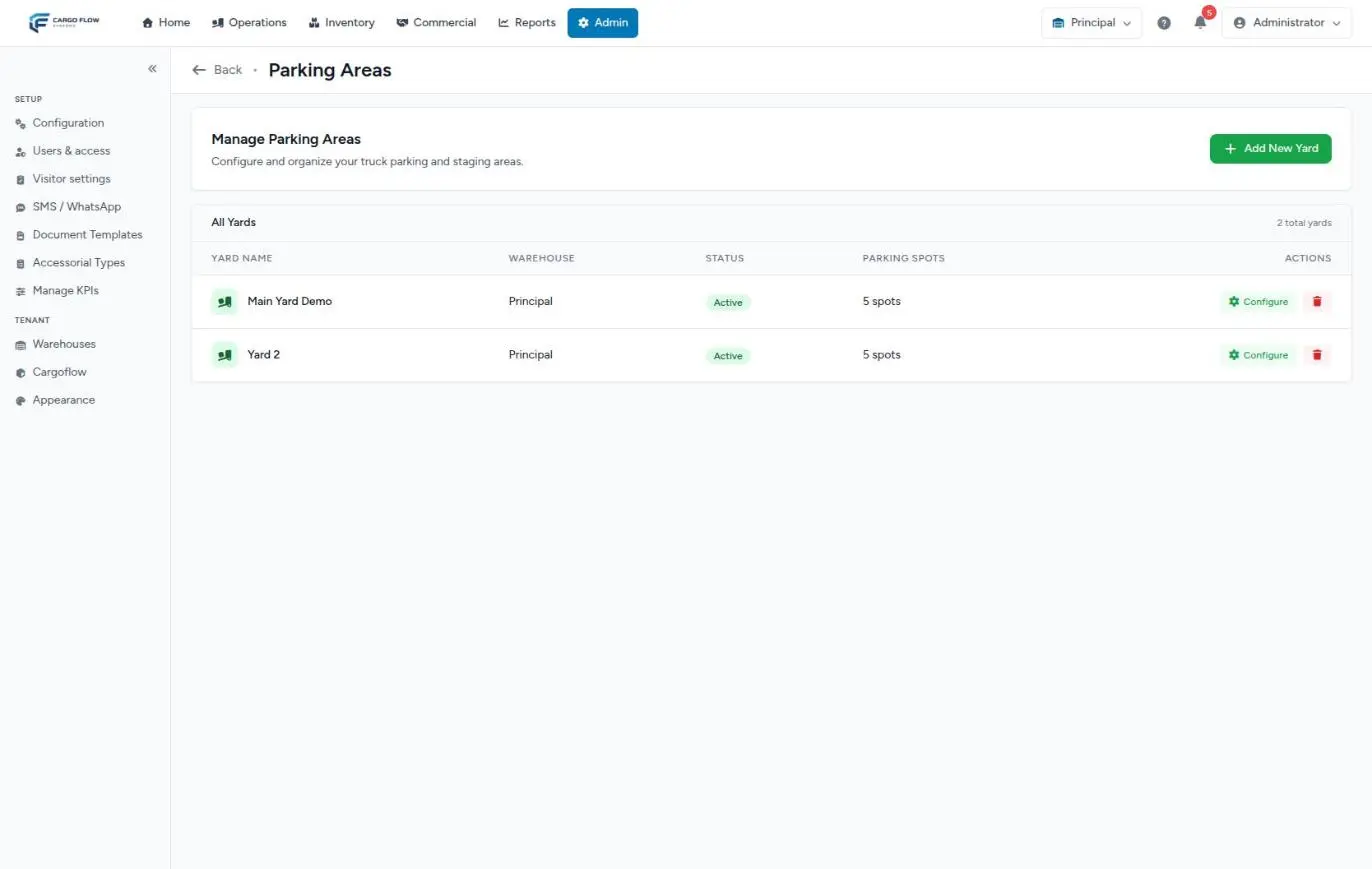
The Manage Parking Areas screen shows each yard with name, warehouse, status and number of spots, and the Configure (opens the editor) and delete actions.
Create a yard
- Click Add New Yard.
- Enter the name, warehouse and status, and create the yard.
- The system opens the editor with a success message.
A yard’s warehouse cannot be changed later. A warehouse can have several yards; people working the yard choose which one they see, and inactive ones are not offered.
The editor, briefly
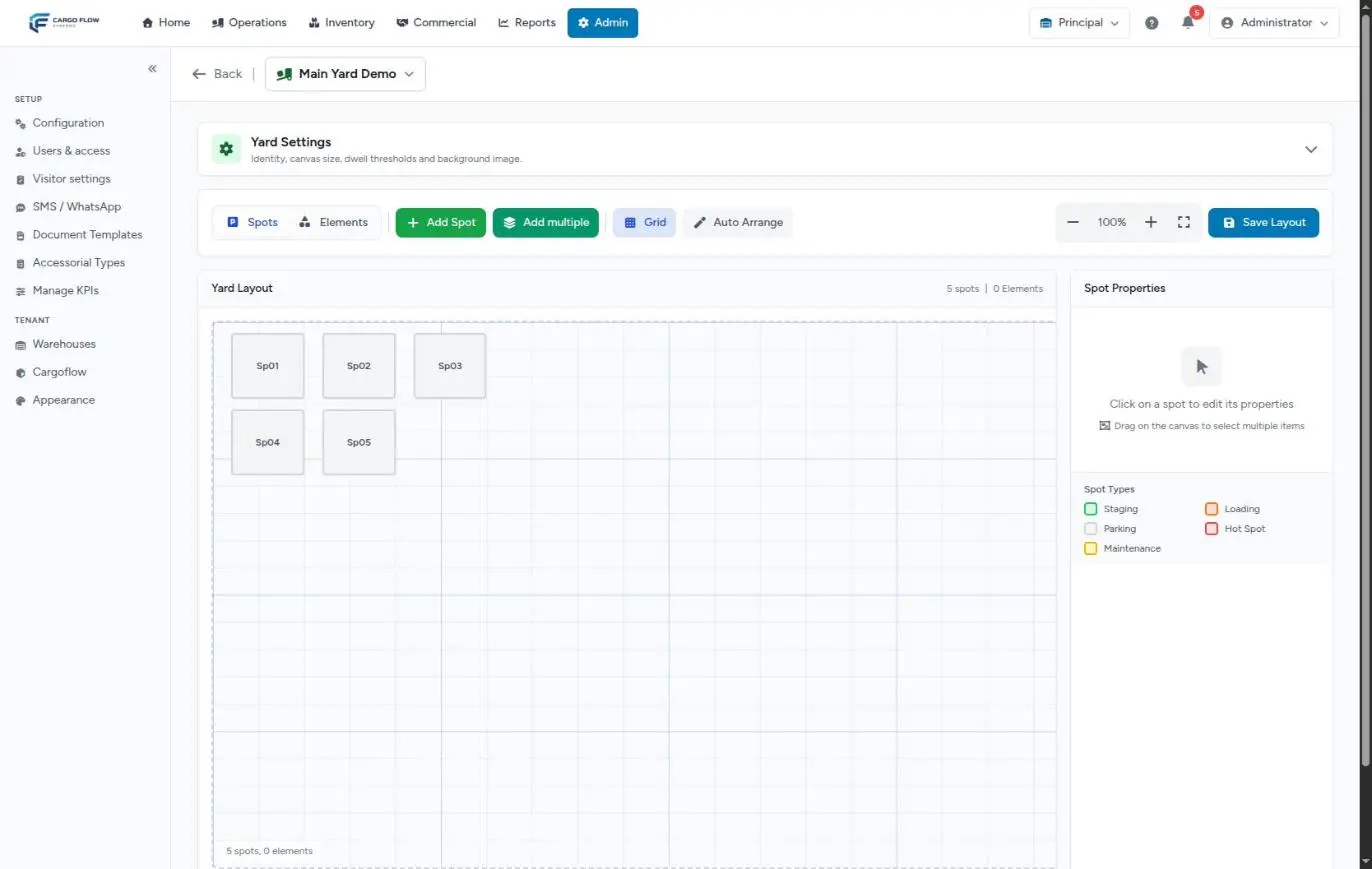
- Yard Settings (collapsible): name, status, initial view (map or list), canvas size (1000 × 600 by default), dwell warning (120 minutes by default) and critical dwell (240 minutes), and a background image up to 5 MB. Make sure critical is higher than warning: the system does not check.
- Spots: Add Spot or Add multiple (up to 50 at once).
- Elements: orientation drawings (entrance, exit, road, building, dock area, fence, label, parking area, guard house and office).
- Save Layout saves positions.
Step by step for spots and elements: Configure the yard and spots.
What happens next
- Active docks appear on the dock board and in the job, ASN and shipment forms that ask for a dock.
- The dock name travels in the driver SMS (see Driver notifications), the dock report and shipment documents.
- Active yards appear on the yard map and in its inventory report, with the dwell thresholds you set. See Yard reports.
- How jobs pass between dock and yard: Dock, yard and cross-dock.
Example: closing a dock for repair
The Dock 7 door breaks on a Tuesday at 9:00 with a Central Warehousing unload in progress.
- On the dock board, move the unload to Dock 8 (or finish it).
- Under Configuration › Loading Docks, edit Dock 7 and set Status to Inactive. Update Dock.
- Dock 7 disappears from the board; nobody can assign jobs to it.
- On Friday, repaired, set it back to Active.
If the dock is being demolished, remove it instead of deactivating: its history is kept and it no longer clutters the list.
Messages you may see
| Message | What to do |
|---|---|
| You do not have access to this page | You lack Configure Users (docks) or Configure Yard (yards). |
| This dock cannot be removed: it has N job(s) in progress. Finish or move them first. | Finish or move those jobs. |
| A spot with this ID already exists in this yard | Use another spot ID. |
| Cannot delete spot with an active job assigned | Move the trailer or finish the job. |
Good practices
- Use the same names painted on the floor and doors.
- Mark a dock under repair as inactive; remove only one that no longer exists.
- Empty a dock before deactivating it, and a yard before deleting it.
- Set dwell thresholds to what your customer considers "too long".
- Create warehouses under Admin › Warehouses, never from the dock form.
Troubleshooting
I see the docks tile but opening it says I have no access.
- The screen requires Configure Users, which by default only the super admin has.
A dock does not appear on the board.
- It is inactive, removed, without a warehouse or belongs to another warehouse.
Jobs disappeared from the board.
- Someone deactivated their dock. Reactivate it, move the jobs and deactivate it again.
It won’t save a spot of type Waiting Area.
- That type is listed but cannot be saved yet. Use Staging or Parking.
It won’t let me remove a dock.
- It has jobs in progress. Finish or move them.
Need help?
If something did not work as expected, our support team can help you.
Was this article helpful?