Portal users
Summary
A portal user is an account for someone at your customer’s company. With it they sign in to their portal and see only that customer’s information: its stock, receipts, shipments and KPIs. They never see the warehouse’s operating system or other customers’ data.
Accounts are created under Commercial › Clients › (client) › Portal Users. What the customer sees and does on the other side is explained in The client portal.
Before you start: the portal must be enabled
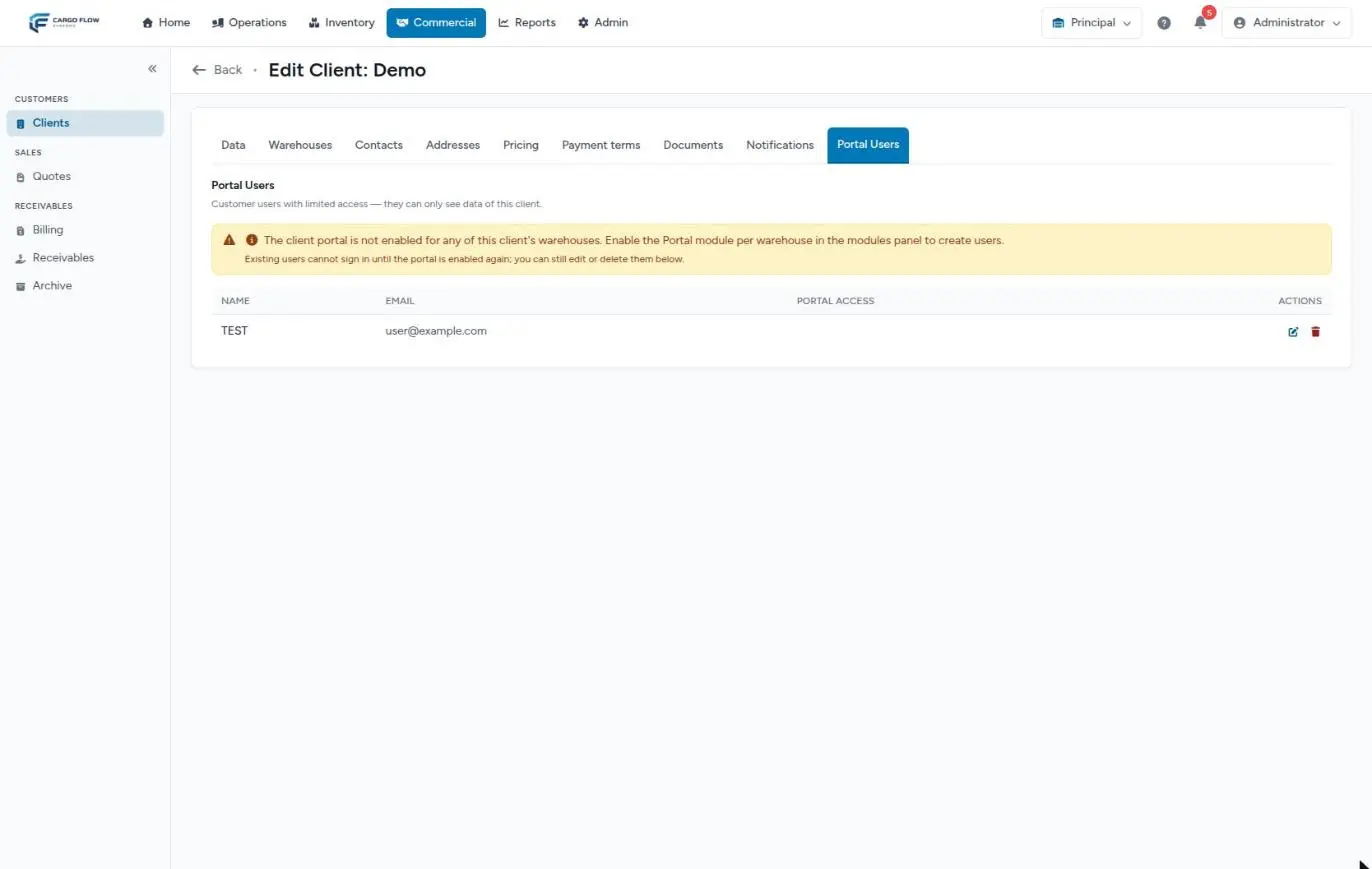
- Permission: Configure Clients (Admin and Superadmin).
- Portal module: must be contracted and enabled in at least one of the customer’s warehouses: its home warehouse or one attached on the Warehouses tab. If not, the tab shows the yellow notice «The client portal is not enabled for any of this client’s warehouses» and hides the form.
- Sections: the sections you want to offer (KPIs, inventory, receiving, shipping) must also be enabled in those warehouses.
- Plan seats: portal users count towards your plan’s user limit.
Modules are enabled per warehouse in the Cargoflow panel (Admin › Cargoflow), usually visible only to the superadmin. If you cannot access it, ask your administrator or support. See Modules, permissions and access.
Create a user
- Open the Portal Users tab of the customer.
- Name (required): the person’s name.
- Email (required): what the person signs in with. It is saved in lower case and cannot be used by any other account in the system, whether your staff or another customer.
- Password (required): at least 8 characters.
- Choose access to each section in the Portal access table (see below). By default everything is Read.
- Click «Add Portal User».
- Share the email and password with the person through a secure channel. The system sends no welcome email.
Access levels
The access table only lists sections contracted and enabled in the customer’s warehouses with the portal. If there are none you see «No portal modules are enabled for this client’s warehouses yet».
| Section | No access | Read | Write |
|---|---|---|---|
| KPIs | Not in their menu. | Sees the KPIs you published to the portal. | Does not exist. |
| Inventory | Not in their menu; the Overview inventory figures are hidden too. | Sees its stock and its age. | Does not exist. |
| Receipts | Not in their menu. | Sees its receipts and the documents it uploaded. | Also announces arrivals, edits or cancels them while pending, and uploads documents. |
| Shipments | Not in their menu. | Sees its shipments. | Also requests shipments (they arrive as drafts), edits or cancels them and uploads documents. |
The Overview (the portal home page) is always available. Invoices are not part of the portal. The table’s help text only mentions notifying shipments, but Write on Receipts also lets the user announce arrivals.
Customers with several warehouses
If the customer has the portal in more than one warehouse, each section shows which warehouses it is enabled in. Access is a single setting per section: a user with Write on Receipts can announce arrivals in any warehouse where Receipts is enabled, choosing the warehouse with the selector in their portal.
The user list
Below the form is the list, with name, email and a badge per section: struck through if no access, plain if read, and with a pencil (✎) if write. You can see at a glance who can send notices and who only looks.
Edit or delete a user
- Edit (pencil) opens a dialog with name, email, New password and the access table. To change the password type a new one; if you leave it blank («Leave blank to keep the current one») the current one is kept. Click Save.
- Delete (trash can) asks for confirmation («Delete this portal user?») and removes the account. The person can no longer sign in and stops counting towards the plan. What they did in the portal (notices, documents) remains.
How the customer signs in
The person signs in on the same login page as your staff, with their email and password. The system recognises a portal user and takes them straight to their portal, in their home warehouse (or the last one they chose). If someone from your team opens a portal link (for example, from a receipt confirmed email) and has permission to see that document, the system sends them to the equivalent warehouse screen.
What happens in the warehouse when the customer uses the portal
- Arrival notice: an advance ship notice and a pending receipt are created in the warehouse the customer had selected, and staff get the new receipt alert in the bell. See Advance ship notices.
- Shipment notice: a draft shipment is created and staff get the new shipment alert. See Create a shipment.
- Documents the customer uploads appear on the warehouse receipt or shipment.
- Emails: if a recipient of the receipt or shipment email is a portal user with access, the email carries a button to view the detail online.
More in What the customer sees and when and The bell and live alerts.
Example: three accounts for Valley Distributors
| Person | KPIs | Inventory | Receipts | Shipments |
|---|---|---|---|---|
| Luis Pérez, traffic | Read | Read | Write | Write |
| Carlos Ruiz, purchasing | No access | Read | Read | No access |
| Ana López, management | Read | Read | Read | Read |
Luis announces arrivals and requests shipments; Carlos only checks what is in stock and what arrived; Ana sees everything without changing anything. If Luis leaves the company, his account is deleted that day and one is created for his replacement with a different email.
Messages you may see
| Message | Meaning |
|---|---|
| «The client portal is not enabled for any of this client’s warehouses…» | Enable the portal in its warehouse or attach it to one that has it. |
| The email «has already been taken». | Another account in the system, active or deleted, already uses that email. |
| The password must be at least 8 characters. | Type a longer one. |
| A message saying the plan does not allow more than N users | The plan’s user seats are full. (This message always appears in Spanish.) |
| «No portal modules are enabled for this client’s warehouses yet…» | The portal is enabled, but none of its sections are. |
Best practices
- One account per person. Do not share an account between several people at the customer.
- Give Write only to whoever announces arrivals or requests shipments (usually traffic).
- When someone leaves the customer’s company, delete their account that same day.
- After creating the account, ask the customer to sign in once and confirm they see what they should.
- When the customer contracts a new section, edit its users.
Troubleshooting
The form to add users does not appear.
- The portal is not enabled in any of the customer’s warehouses. Enable it in the Cargoflow panel, or attach the customer to a warehouse that has it on the Warehouses tab.
Saving says the email «has already been taken».
- That email already belongs to another account in the system (your staff, another customer or a deleted account). Use another.
A plan user limit error appears.
- Your plan has a maximum number of users and portal users count. Delete unused accounts or upgrade the plan.
The user signs in but does not see a section.
- Check their access to that section, and that the section is enabled in the warehouse they have selected in the portal.
The user gets a «not found» page on signing in.
- The portal was switched off in their warehouse. Re-enable it or attach the customer to another warehouse with the portal.
Frequently asked questions
Do portal users count towards my plan?
Yes. The plan’s user limit adds up your staff and the portal users of all your customers. Deleted accounts stop counting.
Can I give them access to their invoices?
No. It was a product decision: the portal shows operations, not collections. Invoices are sent by email.
Can the customer change its password?
The portal has no profile screen. The warehouse changes it by editing the account and typing a new one.
Need help?
If something did not work as expected, our support team can help you.
Was this article helpful?