Customer contacts and addresses
Summary
Contacts are the people at your customer’s company: who coordinates operations, who pays, who sells. Addresses are the company’s locations: where to bill, where to ship, where it physically is.
Both matter more than they seem: contacts are where the recipients of every customer email and the billing contact printed on documents come from; addresses supply the billing address on documents and the destination suggestions when building a shipment.
Before you start
- Permission: Configure Clients (Admin and Superadmin by default).
- Module: none; both tabs exist in every warehouse.
- A saved customer: during creation the tabs are locked until you click «Create Client».
- Have at hand: name and email of whoever coordinates operations and whoever receives invoices. Those two contacts must never be missing.
The Contacts tab
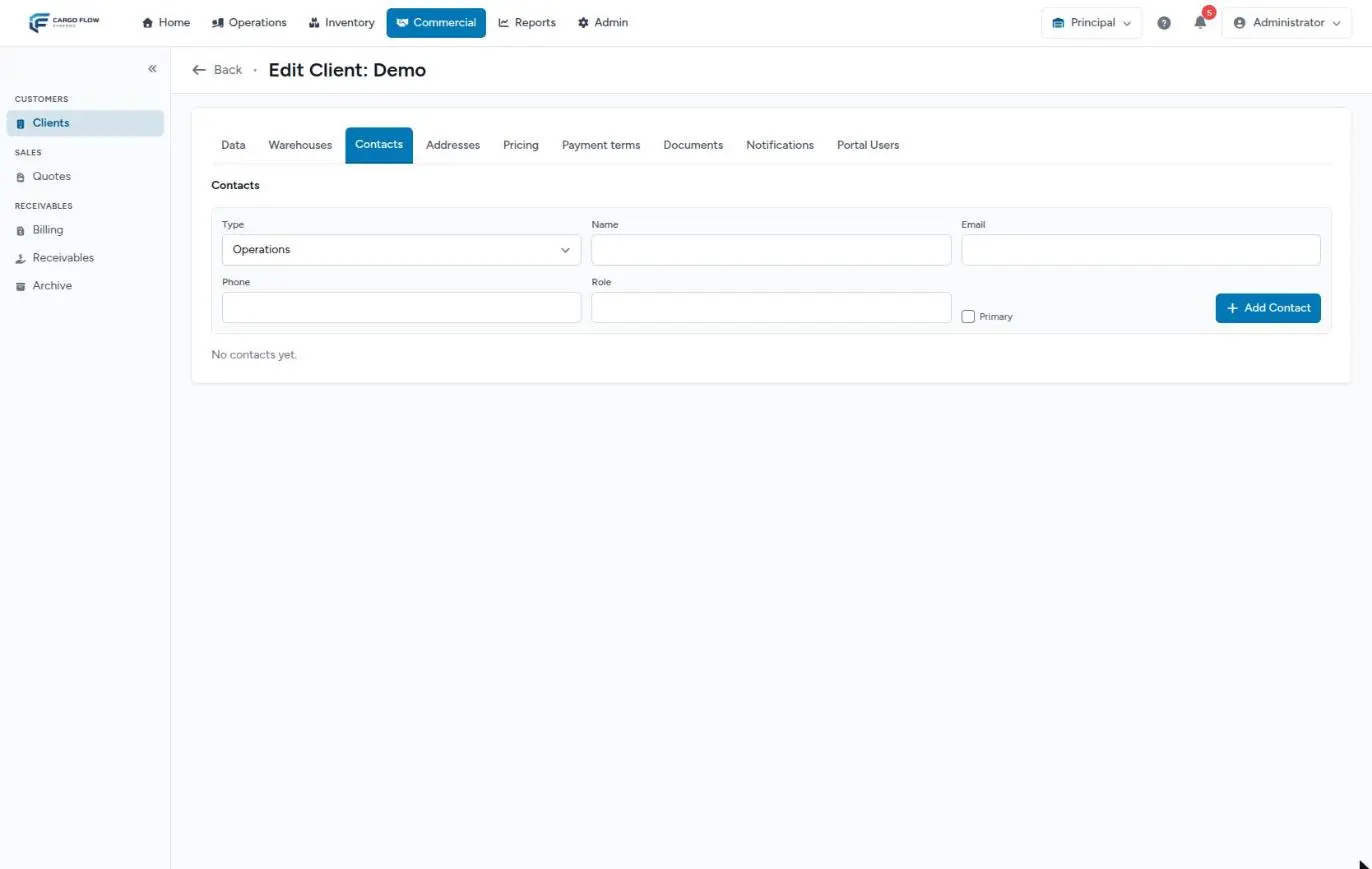
- Choose the Type. It starts on Operations.
- Type the Name and, if the person will receive emails, their Email.
- Fill in Phone and Role if you have them.
- Tick «Primary» if this is the main person of that type.
- Click «Add Contact». The contact appears in the list with its type as a badge, and a «★ Primary» star if ticked.
Contact fields
| Field | Required? | Accepts | If left blank |
|---|---|---|---|
| Type | Yes | Operations, Billing, Sales, Technical or Other. With «Other», Specify type appears, required, up to 32 characters (for example «Customs»). | — |
| Name | Yes | Up to 255 characters. | Not saved. |
| No | A valid email. | The contact exists but does not appear under Notifications and never gets emails. | |
| Phone | No | Up to 32 characters, any format. | Nothing: reference only. |
| Role | No | Up to 255 characters («Traffic manager»). | Nothing: reference only. |
| Primary | No | Checkbox. | Not the primary of its type. |
The list shows Type, Name, Email and Phone; email and phone are hidden on narrow screens.
Edit or delete a contact
- Edit loads the contact into the form above, which is highlighted; the button changes to Save and Cancel appears. Saving shows the green message «Edit» and refreshes the list.
- The trash can asks for confirmation («Delete this contact?») and removes it. If it was a recipient under Notifications, it stops receiving emails from then on.
Contact types and who gets what
The type alone does not decide who receives emails: you decide that on the Notifications tab, contact by contact. The type does matter in two cases: when nobody is chosen (the fallback) and on documents.
| Type | Gets emails if… | Also used for… |
|---|---|---|
| Billing | You choose it under Notifications, or nobody is chosen and it is the fallback. | The «billing contact» data (name, email, phone) a document template can print, for example on the invoice. |
| Operations | Only if you choose it under Notifications. | Nothing automatic. It is the type of the contact created from a quote. |
| Sales, Technical, Other | Only if you choose it under Notifications. | Nothing automatic. |
What «Primary» is for
It marks the main person of its type. When the system needs one contact of a type (the email fallback, or the billing contact printed on a document), it takes the primary of that type; with no primary, it takes the first one created. The system does not prevent two primaries of the same type, but then the oldest wins: mark only one.
The fallback contact
If under Notifications you choose nobody and type no additional email, the system looks for a fallback contact. In practice that fallback is the Billing contact (the primary, if there are several). An Operations contact never receives as fallback, and the Data tab email is not used either.
The Addresses tab
- Type a Label that identifies it («Monterrey plant», «Head office»).
- Choose the Type: Billing, Shipping, Physical or Mailing.
- Enter the address. Typing the postal code fills in city and state.
- Click «Add Address». It appears as a card with its label, type and the address on one line.
Address fields
| Field | Required? | Accepts |
|---|---|---|
| Label | No | Up to 64 characters. Without it, the card just reads «Label». |
| Type | Yes | Billing, Shipping, Physical or Mailing. |
| Address Line 1 | Yes | Street and number, up to 255. |
| Address Line 2 | No | Suite, unit, industrial park. |
| Postal Code | No | Up to 32. Fills in city and state when recognised. |
| Country | No | From the list (it starts on United States: change it if needed). |
| State and City | No | Up to 128 each. |
Where each address type is used
| Type | Where it is used |
|---|---|
| Billing | The «bill to» address printed by document templates, such as the invoice. See Design a template. |
| Shipping | The «ship to» address on templates, and the suggestions under Use a saved address when entering the destination of a shipment for this customer. See Create a shipment. |
| Physical | Reference. It is created automatically when the customer comes from a quote with an address. |
| Mailing | Reference. |
When a template needs an address of a type and there are several, it uses the first one entered of that type. The screen has no checkbox to choose the default address.
Example: Northern Trading Co.
- Contacts: Luis Pérez (Operations, primary,
user@example.com), Carlos Ruiz (Billing, primary) and «Customs» as type Other for the customs broker. - Addresses: «Head office» as Billing and «Apodaca DC» and «Downtown store» as Shipping.
Result: the invoice prints the Head office address and Carlos as billing contact. When creating a shipment for Northern Trading Co., the operator types «Apodaca» in Use a saved address and the destination fills itself in. If nobody were chosen under Notifications, emails would go to Carlos, never to Luis.
Special cases and limits
- Correcting an address: the screen has no edit button. Delete it (trash can, «Delete this address?») and enter it again. If it is the billing address that gets printed, enter the new one after deleting the old one, because the first of each type is used.
- Addresses saved from a shipment: the shipment checkbox «Save this address for future shipments» saves them in the warehouse address book, not in the customer’s addresses.
- The saved address search looks at label, line 1 or city. On some installations it is case-sensitive: if «apodaca» finds nothing, try «Apodaca».
- Contact with no email: does not appear on the Notifications tab. Add the email to be able to choose it.
- Portal people: contacts are not portal accounts. Someone who needs the portal gets a separate user.
Best practices
- Always at least one Billing contact with an email, marked primary.
- One primary per type.
- Use shared mailboxes (traffic@…, ap@…) when the customer has them: they survive staff turnover.
- Enter at least one Billing address before the first invoice.
- Give Shipping addresses clear labels: they are what operators search for when building a shipment.
Troubleshooting
A contact does not appear on the Notifications tab.
- It has no email. Edit it and add one.
The invoice has no address or no billing contact.
- The customer has no Billing address or Billing contact. Add them and generate the document again.
The invoice prints an old address.
- The first Billing address entered is used. Delete the old one.
Saving the contact shows an error on the type.
- You chose «Other» and left Specify type empty, or typed more than 32 characters.
The contact’s email is rejected.
- Its format is invalid (spaces, missing @ or domain). Enter a single email per contact.
Frequently asked questions
Can a contact sign in to the portal?
Not with the contact record. Portal accounts are created on the Portal Users tab, with their own email and password. See Portal users.
Does the contact’s phone receive messages?
No. SMS and WhatsApp messages are for drivers and visitors; customer contacts only get email. See The notification systems.
How do I correct an address?
Delete it and enter it again. The screen cannot edit it yet.
Need help?
If something did not work as expected, our support team can help you.
Was this article helpful?