Customer documents, templates and custom fields
Summary
The Documents tab of the customer record brings together four different things, each with its own save button:
- Documents this client uses: which documents are offered for printing on its receipts and shipments.
- Custom fields: extra data captured per line when receiving its goods.
- This client’s templates: its own formats that replace the general ones.
- The file store: the customer’s contracts, quotes, certifications and other files.
Before you start
- Permission: Configure Clients for allowed documents, fields and files. To see and create customer templates you also need Manage Document Templates (Admin and Superadmin).
- Module: the templates block only appears if the warehouse has the documents module. The print buttons on receipts and shipments also depend on that module.
- A saved customer.
Documents this client uses
One checkbox per document type that can be printed for it: goods receipt note (GRN), pallet or LPN label, product label, custom document, bill of lading (BOL), packing list, pick ticket and invoice.
- Nothing ticked (the usual case): every document that applies to each receipt or shipment is offered.
- Some ticked: only those. For example, ticking only the goods receipt note and the bill of lading, its receipts only show the note button and its shipments only the bill of lading.
- The dock’s receiving record form is not in the list: it is an internal operations document and cannot be switched off per customer.
Click Save documents; you see «Document settings saved.»
Custom fields
These are data the customer needs on every received line and that do not exist in the system: its part number, a work order, a date code. They are defined here and captured on the receipt capture screen, in the Custom fields block of each line.
- Click «Add Field».
- Label: what the operator sees («Customer part number»).
- Field Name: the internal name. It is saved in lower case with underscores instead of spaces or symbols («customer_part_no»). It is what templates use.
- Type: Text, Number, Text Area, Select (with its Options, one per row with «Add Option») or Checkbox (yes/no).
- Required: marks the field with an asterisk on capture.
- Click «Save custom fields».
Captured values (up to 255 characters each) are stored on the receipt line and can be printed on any template with the line.custom.<name> fields, for example on the goods receipt note or the pallet label.
- A field without a label or name is dropped on save.
- If you change a field’s name, values captured under the old name no longer show under the new one. Change the label, not the name.
- Deleting a field removes it from capture; old values are no longer shown.
This client’s templates
If the customer needs its own format (its logo, its column order, a field the others do not have), it gets its own template. A customer template replaces the general one for that document type, only for this customer and only in this warehouse.
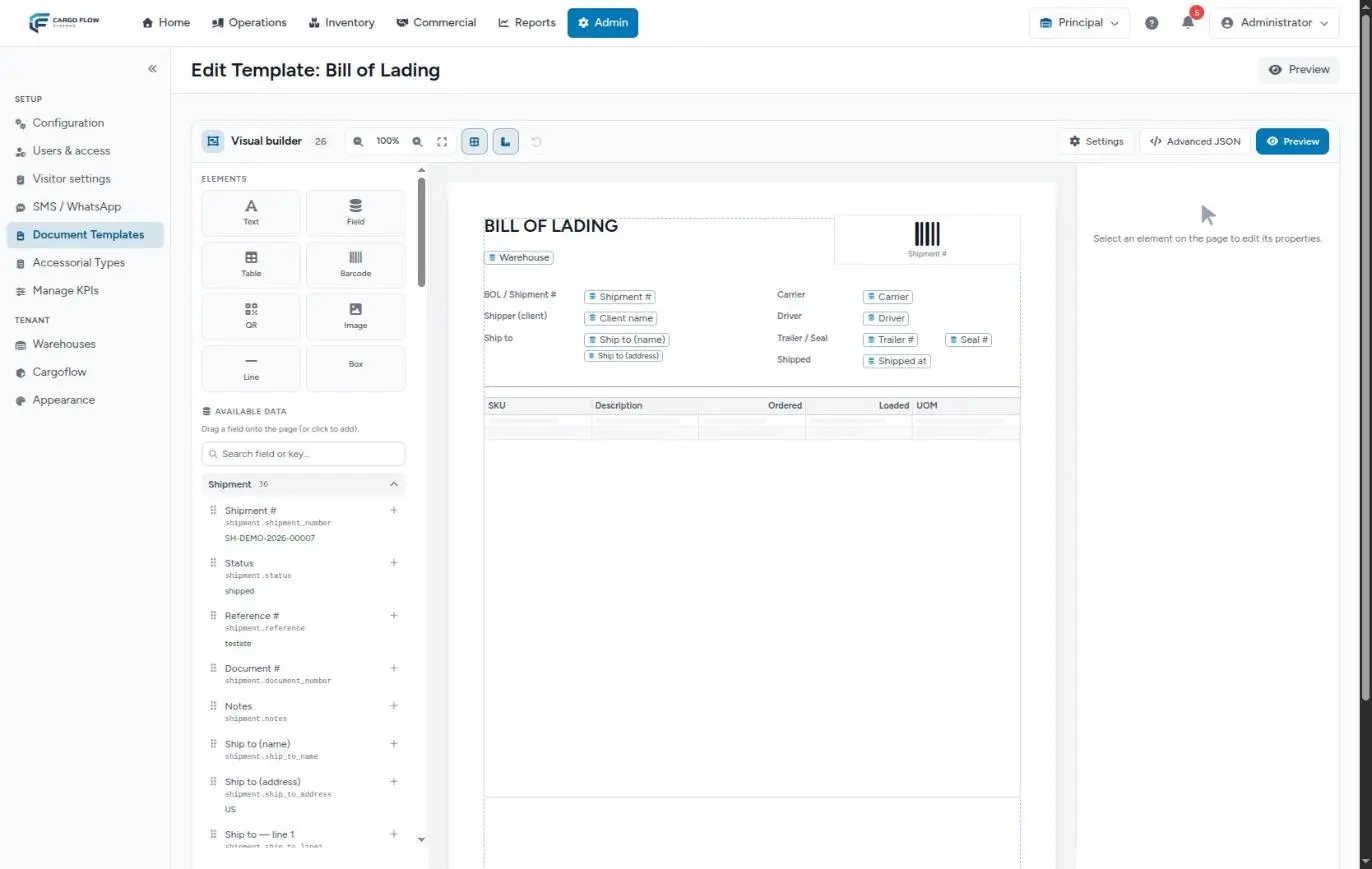
- New template for this client opens the visual editor with the customer already chosen. How to design it is in Design a template.
- The list shows each template with its type, name, the default mark (the one used first) and the inactive mark if switched off. The pencil opens it for editing.
- With no templates of its own, the block says it uses the global ones.
When someone prints a document for this customer, the system first looks for an active customer template of that type (the one marked default, otherwise the most recent); if there is none, it uses the general one. See Manage templates.
The customer file store
At the bottom there are four folders: Contracts, Quotes, Certifications and Other, each with its file count.
- Upload: choose a PDF, image (JPG, PNG), Word or Excel file of up to 10 MB and click Upload. You see «Document uploaded.»
- The name opens the file in a new tab; the arrow downloads it.
- The trash can asks for confirmation («Delete this document?») and removes it: «Document deleted.»
These files are internal: they are kept in private storage, never sent in an email and not visible to the customer in its portal.
What happens next on receipts and shipments
- On a receipt of this customer, the documents panel only shows the allowed types that apply to the receipt, each with the customer template if there is one. See Receipt photos and documents.
- The same happens on the shipment with the bill of lading, packing list and pick ticket. See Shipment documents.
- Each receipt line shows its custom fields when capturing.
- The numbering and documents produced at each step are covered in Numbering and documents across the flow.
Example: Sample Imports
Sample Imports wants every pallet to carry its part number and work order, and only uses the goods receipt note and the bill of lading.
- Under Documents this client uses only the goods receipt note (GRN) and bill of lading (BOL) are ticked.
- Under Custom fields «Part number» (
part_no, Text, required) and «Work order» (work_order, Text) are added. - Under This client’s templates its own goods receipt note is created, printing
line.custom.part_nonext to each SKU. - The signed contract is uploaded to Contracts.
Result: when capturing an 8-line receipt, the operator fills in the part number on each line, and the printed goods receipt note shows it next to the SKU.
Special cases and limits
- Customer templates are per warehouse: if the customer works in two warehouses, each needs its own.
- Ticking the invoice in the documents list does not change how invoices are sent: that is controlled under Notifications and in billing.
- The file store has no custom folders: use «Other» for anything that is not a contract, quote or certification.
- There is no limit on files per folder, but each one is 10 MB at most.
Best practices
- Leave the documents list empty unless the customer explicitly asks to limit it.
- Define custom fields before its first receipt: earlier receipts will not have them.
- Use short, stable field names; only change the label.
- Upload the contract and signed quote on setup day: they back up its rates.
Troubleshooting
I do not see the «This client’s templates» block.
- The warehouse lacks the documents module, or you lack the Manage Document Templates permission.
The receipt has no button to print the pallet label.
- The customer has a documents list that does not include it. Tick it, or leave the list empty.
Custom fields do not appear when capturing.
- Did you click «Save custom fields»?
- Does each field have a label and a name?
- Is the receipt for this customer?
Uploading a file fails.
- It is over 10 MB or not a PDF, image, Word or Excel file.
Frequently asked questions
Does the customer see these files in its portal?
No. The customer file store is internal. In the portal the customer only sees the documents it uploaded itself to its receipts and shipments.
Where do I upload the customer’s logo?
In the template editor, when adding a customer logo image. That logo is then available to all of its templates.
Need help?
If something did not work as expected, our support team can help you.
Was this article helpful?