Attach a customer to warehouses
Summary
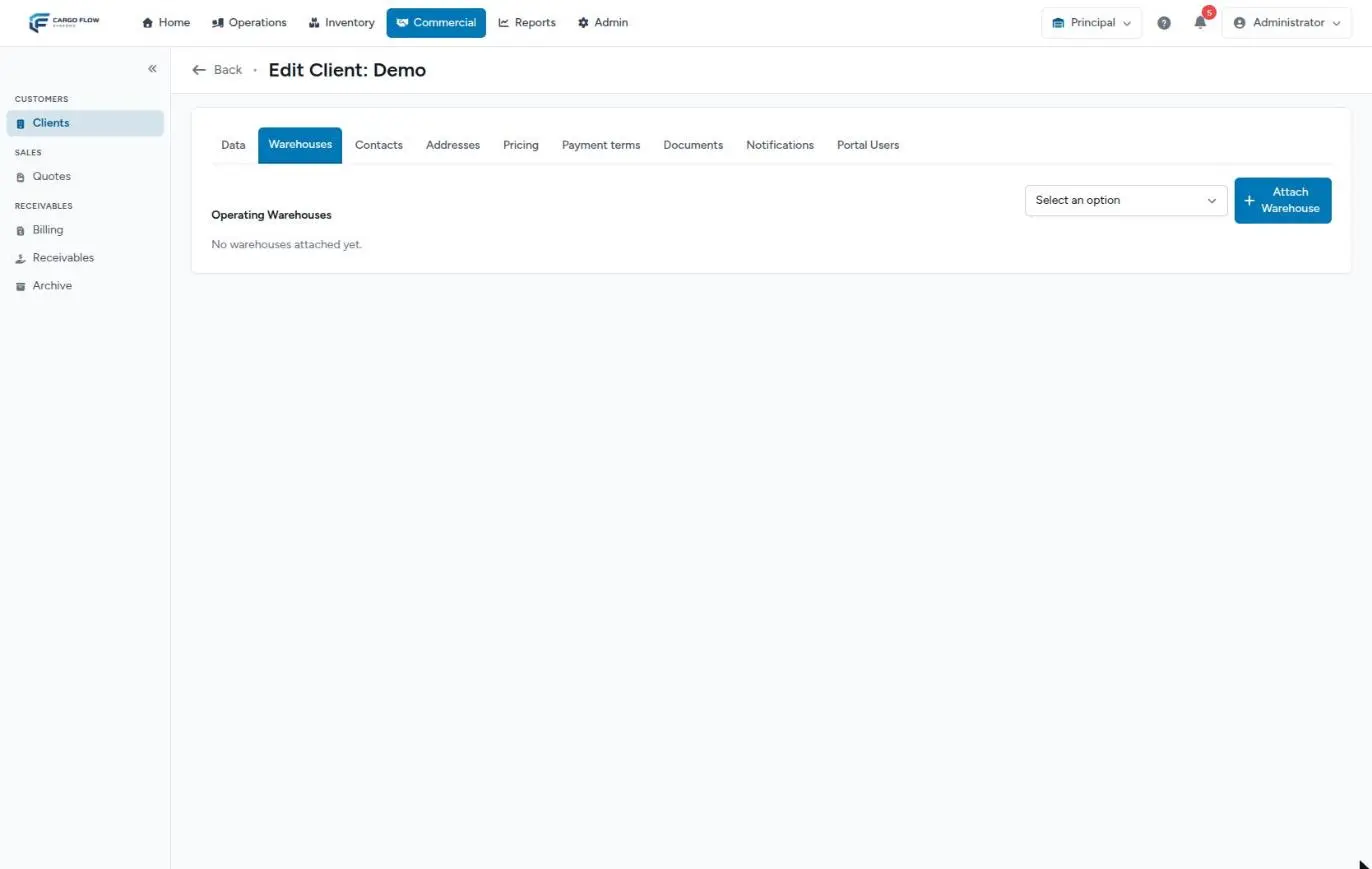
The Warehouses tab of the customer record lists its Operating Warehouses: the warehouses, besides its own, where it also has goods or activity. Attaching a warehouse does two things: the customer appears in that warehouse’s customer list and staff pickers (receipts, shipments, docks, products, billing), and its portal can switch to that warehouse.
This article explains exactly what attaching does and, just as important, what it does not do.
Before you start
- Permission: Configure Clients (Admin and Superadmin by default).
- Warehouse access: you can only attach or detach warehouses you belong to. The superadmin can do it with any.
- A saved customer: during creation the tab is locked until you click «Create Client».
- For it to matter in the portal: the attached warehouse must be active and have the client portal module enabled. See Modules, permissions and access.
The home warehouse and attached warehouses
Every customer has a home warehouse: the one selected when it was created (or the one on the quote it came from). It cannot be changed from the screen. The customer always appears in its home warehouse’s list and pickers, and also in those of every active attached warehouse.
Attached warehouses are the ones you add on this tab. For the portal they count just like the home warehouse: the customer’s portal moves between its home warehouse and its active attached warehouses, as long as they have the portal switched on.
The tab, column by column
| Column | What it shows |
|---|---|
| Operating Warehouses | The warehouse name. |
| Joined | The date it was attached (or re-attached). Hidden on narrow screens. |
| Status | Active (green) or Inactive (grey, detached). |
| Actions | Detach, only on active rows. |
An empty list reads «No warehouses attached yet». That is normal for a customer that only works in its home warehouse.
Attach a warehouse
- Open the Warehouses tab of the customer.
- Pick the warehouse in «Select an option». Only warehouses that are not already attached and active are offered.
- Click «Attach Warehouse». It appears in the table as Active, with today’s date.
If you pick a warehouse you do not belong to, the system returns an access error and attaches nothing; ask someone from that warehouse or the superadmin.
Detach a warehouse
- Click «Detach» on the warehouse row.
- Confirm «Detach this warehouse from the client? History is preserved.»
The row stays in the table as Inactive. Nothing is deleted: the customer’s receipts, shipments, stock and invoices in that warehouse remain. The only change is that the portal stops offering that warehouse.
What changes in other modules
- Staff screens: in the attached warehouse, the customer appears in the customer list and can be picked in receipts, shipments, docks, products and billing, just as in its home warehouse. Once detached, it no longer appears.
- Client portal: if the customer has two or more warehouses with the portal (home plus attached), its portal shows a warehouse selector top right. Everything it sees and sends (inventory, receipts, shipments, KPIs) belongs to the selected warehouse. See The client portal.
- Portal users: the Portal access table offers the sections active in any of the customer’s warehouses and shows next to each which ones. If the portal is active in none, the Portal Users tab does not let you create accounts. See Portal users.
- Notices from the portal: an arrival or shipment notice is created in the warehouse the customer has selected in its portal. That is how an attached warehouse can receive notices from this customer.
- Quotes: when a quote is accepted, the new customer is attached automatically to the quote’s warehouse.
What attaching does not change
- It does not duplicate the customer: the folio code, contacts, addresses and its rates are the same in all its warehouses.
- It does not copy document templates: they belong to each warehouse. To take one to the attached warehouse, use Copy to warehouse in the template list.
- It does not move goods: that is what transfers are for.
- Automatic emails are calculated per warehouse. The daily inventory goes out from each warehouse where the customer has goods and the checkbox on; the monthly scorecard only from its home warehouse.
More context in Working with several warehouses.
Example: Pacific Brands in two warehouses
Pacific Brands was created in the Principal warehouse. In March it also starts sending goods to the North warehouse, which has the portal enabled.
- Luis Pérez, admin of both warehouses, opens the customer, Warehouses tab, picks «North» and clicks Attach Warehouse. The row shows Active, joined 03/03/2026.
- Under Portal Users he edits Pacific Brands’ user: the table now says Receipts applies to «North, Principal». He leaves Write.
- The user signs in, sees the warehouse selector, picks «North» and announces an arrival of 24 pallets. A pending receipt with its lines is created in North.
In October they stop using North: Luis clicks Detach. North disappears from the portal, but the 14 receipts made there can still be looked up in North.
Best practices
- Create the customer in the warehouse where most of its work will happen.
- Attach a warehouse when the customer will have goods or operations there; do not create it twice.
- After attaching, set up its SKUs in that warehouse and, if it uses them, copy its document templates.
- After attaching, review each portal user’s access: the table may offer new sections.
- Detach warehouses the customer no longer uses, so it does not send notices to the wrong one.
Troubleshooting
I attached a warehouse and its staff cannot find the customer.
- Check that the row is Active: a detached warehouse does not count. If it is active, ask them to reload the page or switch warehouses and come back.
Saving a product, receipt or shipment in the attached warehouse says “The selected client id is invalid.”
- The link to that warehouse is not active. Attach it again on this tab.
The customer does not see the warehouse selector in its portal.
- Is the attached warehouse Active on this tab?
- Does that warehouse have the portal module enabled?
- Is the warehouse itself active?
Attaching returns an access error.
- You do not belong to that warehouse. Ask to be added or have the superadmin do it.
The warehouse I want is not in the picker.
- It is already attached and active. If it shows as Inactive, pick it again to reactivate it.
Frequently asked questions
Do I need to attach the warehouse where I created the customer?
No. The home warehouse always counts for the portal, listed here or not. Attaching it does no harm but changes nothing.
Can I attach a warehouse I detached again?
Yes. Pick it again and click «Attach Warehouse». It becomes Active again and the joined date moves to today.
I only have one warehouse. Do I need this tab?
No. With a single warehouse the home warehouse covers everything, portal included.
Need help?
If something did not work as expected, our support team can help you.
Was this article helpful?