The dock board
Summary
The Dock Operations board is the screen where the supervisor sees, in real time, which truck is at which dock, who is working it and how far along it is. From here you assign drivers who just arrived, create jobs by hand, open each job’s details and decide what happens when the operator finishes: release the driver or send the trailer to the yard.
The board has two views: Dock Management (one card per dock) and FIFO View (a single queue sorted by arrival time). This article covers the first one in depth; the second has its own article, The FIFO View of the board.
To see the driver’s whole journey —kiosk, dock, yard and exit— read The driver, from gate to exit.
Before you start
- Module: the warehouse must have the Docks module enabled. Without it the option does not appear and the board address does not open. See Modules, permissions and access.
- Permission: Write Docks. By default the Supervisor, Admin and Super Admin roles have it. The Worker role does not: the operator works from My Work.
- Docks set up: the board shows the warehouse’s active docks. They are configured in Admin › Configuration (see Configuring docks and the yard). Internal yard-type docks do not appear here.
- Staff who can receive jobs: only people with the Read Own Jobs permission in this warehouse are offered as operators (Worker, Supervisor and Admin have it). Accounting does not appear.
- Customers with maximum times (recommended): the color of jobs in progress is measured against each customer’s maximum loading or unloading time. See Adding a customer.
How to open it
In the Operations menu, choose Docks in the sidebar (In progress section). If you work with several warehouses, check the warehouse selector in the top bar first: each warehouse has its own board, its own docks and its own bell.
The top bar
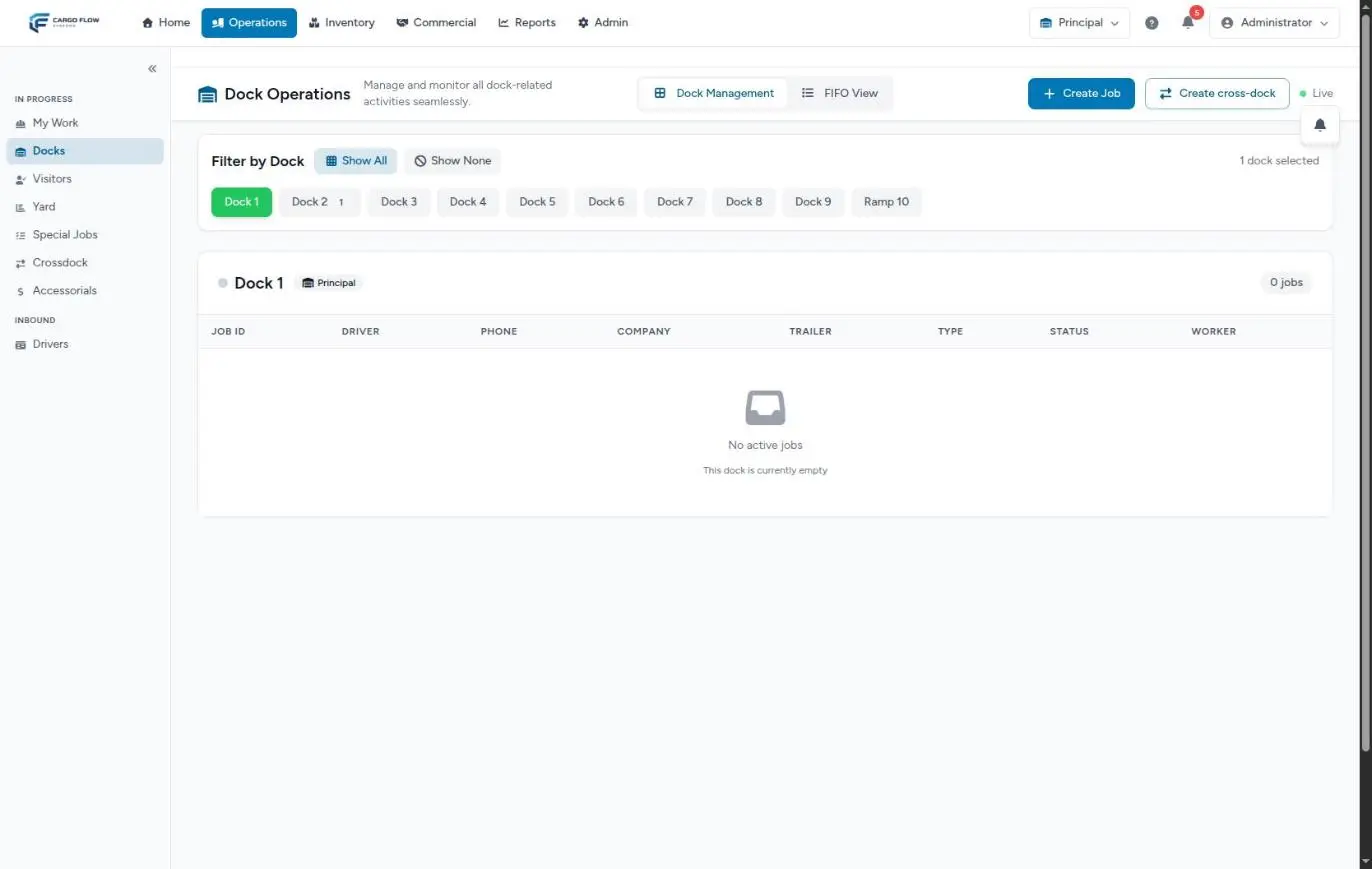
- Dock Management and FIFO View — switch between the two views. The browser remembers the last one you used.
- Create Job — opens the Create Internal Job window to add a job by hand: a driver who did not use the kiosk, or an internal move. See How to create a dock job.
- The cross-dock button (the two arrows, next to Create Job) — takes you to the screen for creating a cross-dock: goods that come in through one dock and leave through another without being stored. It only appears if the warehouse has the cross-dock module and your user can create them. See How a cross-dock works.
- Live — tells you whether the board is receiving changes instantly (see below).
The Dock Management view
Filtering by dock
Under Filter by Dock there is one button per dock, with the number of jobs it has right now (including today’s completed ones). The button’s color tells you its state:
- Green — the dock has no active jobs.
- Red — the dock has at least one job that is neither completed nor cancelled.
- Show All — shows every dock’s card.
- Show None — hides all cards so you can pick only the ones you care about.
- Click a dock — if you were seeing all, it leaves only that one; if you already had a selection, it adds or removes it. Shift + click selects a continuous range (for example, docks 3 to 8).
On the right you can read how many docks you have selected. The selection is saved in the browser: if each supervisor looks after a group of docks, each one sees theirs when they come back, even after signing out.
Each dock’s card
Each dock has a card with its name, its warehouse and how many jobs it has. Inside, a table with one row per job:
| Column | What it shows |
|---|---|
| Job ID | The dock job number. It is the same number shown on the operator report and on the card of the linked receipt or shipment. |
| Driver / Phone / Company | The driver’s data as registered at the kiosk or as captured when the job was created. |
| Trailer | The trailer number the driver entered. If none was entered, it shows N/A. |
| Type | Delivery (unloading), Pickup (loading), Load (an empty yard trailer that will be loaded), Internal or cross-dock. |
| Status | How far along the job is (see below). |
| Worker | The assigned operator, or Unassigned. |
Click any row to open the Job Details: driver data, photos, times, assignments, notes and the action buttons. Everything you can do from that window is explained in The life cycle of a dock job.
If the dock has nothing, the card reads No active jobs — This dock is currently empty, as in the screenshot above.
Statuses and colors
The card shows active jobs and jobs completed today, by the warehouse’s local time:
| Status | Meaning |
|---|---|
| Assigned | The driver already has a dock (and usually an operator), but nobody has started. |
| In Progress | The operator started loading or unloading; the clock is running. |
| Work Finished | The operator is done; the supervisor still has to release the driver or send the trailer to the yard. Next to the status you see whether the trailer ended up Empty or Loaded. |
| Pending Yard | Someone decided to send the trailer to the yard but it has no spot yet: it is physically still at the dock until someone from the yard moves it. |
| Completed | The job closed and the driver left (or the trailer already left the dock for the yard). |
Cancelled jobs are not shown on the board.
The customer’s maximum time
While a job is In Progress, the color of its label (and of the button that finishes it) changes according to the time elapsed since it started, compared with the maximum time of the job’s customer:
- Blue — under 70% of the time.
- Orange — past 70%.
- Red — past 90%: about to run over, or already over.
| Job type | Time it is compared against |
|---|---|
| Pickup and Load | The customer’s maximum loading time. |
| Delivery | The customer’s maximum unloading time. |
| Cross-dock | The sum of both times, because the same job unloads and loads. |
| Internal, or a job without a customer | 120 minutes. |
If the customer has no time entered, 120 minutes is used too. These same times drive the dock compliance indicator (see below).
When a cross-dock is open, the outbound dock also shows an amber row that only mirrors the cross-dock job: it makes that dock look occupied, but you cannot operate the job from there.
The FIFO View, in short
FIFO View gathers the jobs from every dock into a single list, the FIFO Queue: first come, first served. You can filter it by worker, by customer and by trailer number, and with a worker selected you can drag rows to change the order in which that operator will do the jobs. The full detail —the ordering, each row’s buttons and the limits— is in The FIFO View of the board.
The bell for newly arrived drivers
The floating bell button (top right on a computer, bottom right on a phone) carries a counter of drivers who registered at the kiosk today and have not been assigned yet. Open it to see the list; if there is nothing, it says there are no new notifications.
Click a driver to open Assign Driver and give them a customer, a dock and an operator. When a driver registers while you have the board open, that window opens by itself, unless you already have another window open. The full walkthrough is in Assigning a driver from the bell.
The bell receives warehouse delivery and pickup drivers. Drivers who come to drop off or pick up a trailer in the yard go straight to the yard screen, not here. This bell is different from the general bell in the system’s top bar, which gathers other notifications.
The Live indicator
The board does not refresh every few seconds: it receives changes the moment they happen (a driver registers, a supervisor assigns, an operator starts or finishes, someone reorders). Each change reloads the docks, the queue and the bell.
- Blinking green dot — connected; what you see is current.
- Amber dot — the real-time connection was lost. The message Real-time connection lost. Data may be out of date; retrying… appears and, in the meantime, the board refreshes itself every 30 seconds (unless you have a window open, so it does not wipe what you are typing). When the connection comes back, the board catches up on its own.
What the board feeds in other modules
The board is not just a screen: every move made here is recorded and used elsewhere in the system.
- Receiving and shipping: if the job is linked to a receipt or a shipment, starting it moves the receipt to in progress and the shipment to loading. See Linking the job to its receipt or shipment.
- Yard: a job sent to the yard appears on the yard screen. See From the yard to the dock and back.
- Visitors: if the warehouse uses Visitors, each driver appears in the visitor log and their exit is recorded when the job closes.
- Indicators: the KPI panel has a dock section built from these jobs: dock cycle time (start to end), carrier wait time (arrival to end), transactions per day, per user and per customer, and compliance against the customer’s maximum time. See Reading the KPI panel.
- Reports: the Dock Management Report keeps the history of every job (filterable by date, status, operator and customer, with photos) and exports to Excel. It requires the Read Dock Reports permission. See The system reports.
Example: a morning on the board
- 7:40 — Luis Pérez, from Northern Transport, registers at the kiosk for a Northern Trading Co. delivery with trailer 48213. The Assign Driver window opens by itself on the office board.
- 7:42 — The supervisor picks the customer, dock 4 and Ana López as operator, and agrees to notify the driver. Dock 4 turns red and the row appears as Assigned.
- 7:55 — Ana taps START JOB on her phone. The row changes to In Progress in blue. Northern Trading Co. has 60 minutes to unload: at 42 minutes (70%) the label turns orange and at 54 (90%), red.
- 8:45 — Ana finishes and answers that the trailer stays. The row changes to Work Finished · Empty.
- 8:50 — The supervisor clicks Send to Yard and picks spot A-07. The job closes, the driver is checked out and dock 4 turns green again.
Special cases and limits
- Waiting docks: if your warehouse has Waiting-type docks, they appear on the board like any other. In the Assign Driver window they are listed first and the first one comes preselected; change it if the truck goes straight to a door.
- Several warehouses: the board and the bell belong to the active warehouse. A driver who registered at another warehouse does not appear here.
- Cancelled jobs: they disappear from the board immediately. To look them up, use the Dock Management Report.
- Cross-docks: a cross-dock is a single job anchored to the inbound dock; the outbound dock only mirrors it in amber.
- What is not done here: adding or removing docks (that is configuration), or closing receipts and shipments (that is done in Receiving and Shipping).
Best practices
- Keep the board open on a fixed screen in the dock office: new drivers show up on their own.
- Always assign an operator: a job without a worker does not show up in anyone’s queue in My Work.
- Always pick the customer: without one, time is not measured against what was agreed and the receipt or shipment cannot be linked.
- Do not leave jobs in Work Finished: until they are released, the driver still counts as on site and the dock looks busy.
- Use the FIFO View filtered by operator at the start of the shift to arrange each operator’s order of work.
- If the Live dot stays amber for more than a minute, reload the page before making decisions.
Troubleshooting
I don’t see Docks in the menu.
- The warehouse does not have the docks module, or your user lacks the Write Docks permission. Ask an administrator to check your role.
A driver registered and does not appear.
- Check the Live indicator: if it is amber, wait a few seconds or reload the page.
- Make sure you are in the right warehouse: each warehouse has its own bell.
- If the driver chose to drop off or pick up a trailer in the yard, they are on the yard screen, under Jobs to Assign.
- The bell only shows today’s registrations; one from yesterday that was never handled no longer appears.
Every job in progress shows red.
- The customer has no maximum times and jobs are being measured against 120 minutes, or the times are too short. Check them on the customer record.
I don’t see the Release or Send to Yard buttons.
- They only appear for the Supervisor, Admin and Super Admin roles, and only when the job is in Work Finished (Release also in Pending Yard).
After starting, restarting or cancelling a job, a message with technical text appears (for example dock.job_cancelled_successfully).
- That text is not translated in the system yet. The action did happen: the board already shows the change.
Frequently asked questions
How long do completed jobs stay on the board?
Until the day ends in the warehouse’s local time. The next day they disappear from the board; the full history is in the Dock Management Report.
Does the operator see this board?
No. The operator works from My Work, which shows only their current job and the ones that follow. See The operator app.
Can I put two trucks on the same dock?
Yes. By default every dock is offered when assigning, and a dock can have several jobs lined up: the second truck waits its turn. Some installations have the option to offer only free docks turned on; in that case a busy dock does not appear in the list (Waiting-type docks always appear).
Need help?
If something did not work as expected, our support team can help you.
Was this article helpful?