How visitor management works
Summary
The visitors module keeps track of who is inside the warehouse right now and who has been. It serves three very concrete purposes: letting the host know their visitor has arrived without anyone going to find them, knowing who is inside during an emergency, and having an exportable log when someone asks for it (an audit, a customer, security).
The key thing to understand is that there are four different ways in, all ending in the same log. They are not separate modules: they are four ways to create the same visit, and they all show up together on the board.
Before you start
- Module: the warehouse must have the visitors module. Turning it on creates the four reserved types (Delivery, Pickup, Visitor and Internal).
- Permissions: see the who can do what table.
- Minimum setup: at least one host (Hosts and notifications) and someone who gets the reception notice (Visitor settings).
- The warehouse logo, so the kiosk and emails carry your brand: see Logos and per-customer templates.
The four ways in
- The kiosk — the reception tablet or the QR code on the door. The person taps their visit type tile, enters their details and, if the type asks for it, takes a photo. See The visitor kiosk, step by step.
- Reception enters it — from the Register visitor button on the board. It is the kiosk form plus one key question: Was this visit expected? See Registering a visit at reception.
- The invitation — scheduled ahead. With the Invite button you choose type, host, date and time, and add the visitors (up to 50 at once). Each gets an email with the appointment, a QR code and a six-character code. See Inviting visitors and The invitation page and express check-in.
- The driver — does nothing different. They check in at the driver kiosk as always and the system copies them into the visitor log. Their check-out and returns are copied too. See The driver, from arrival to departure.
The daily board
Go to Operations › In Progress › Visitors. At the top are the two main buttons, Register visitor and Invite, and a search by name, company, host or number.
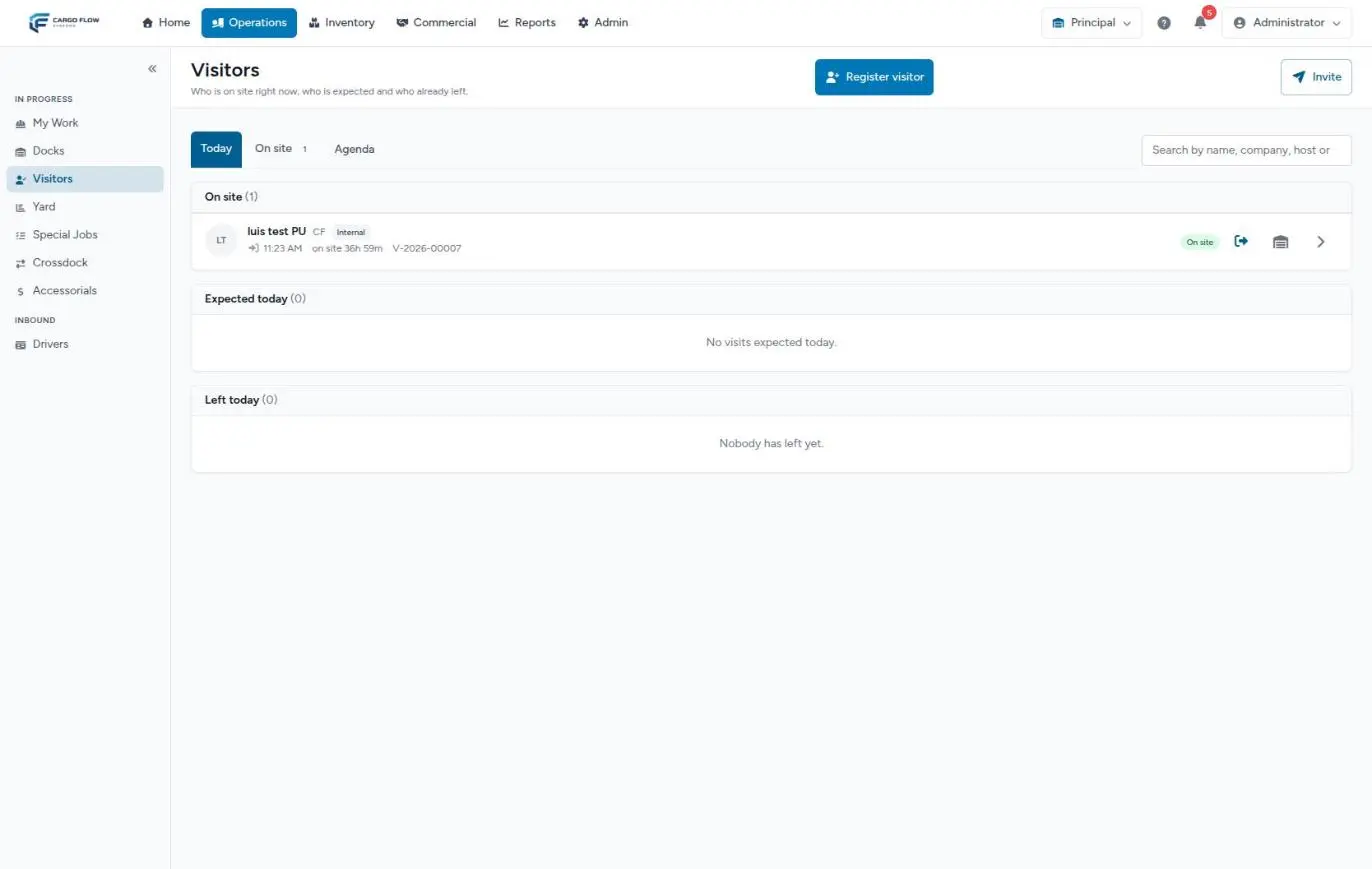
It has three tabs:
- Today — three blocks: On site (who is inside and for how long), Expected today and Left today.
- On site — only those inside, with a counter. It is the list you want at hand during an evacuation.
- Agenda — what is scheduled for the next two weeks.
Each row shows the name, company, type, arrival time, time on site and visit number, with the status on the right and, if the host has answered, an On my way or Please wait chip. The action icons change with the status. The arrow opens the detail. Drivers only show if Show drivers on the visitor board is on.
The board updates itself. If the live connection drops, the notice "Live updates are down — the board refreshes every 30 seconds instead" appears and it keeps working with a small delay.
The visit detail
Opening a visit shows its details, arrival and departure times, time on site, its code and, if it came as a group, Group of N with the other members. The buttons depend on the status: Check in, Check out, No-show, Cancel, Edit (expected or confirmed only), Resend invitation (if it has an email) and Copy invitation link.
Below are tabs: History (each step, who did it and when: staff, the visitor, the host or the system), Details, Notifications (which emails and messages went out, to whom and whether they failed) and Dock, the last one only for drivers when the warehouse has docks.
Notifying the host and reception
When a visitor arrives, their host gets an email with two one-click buttons: I'm on my way and Ask them to wait. No sign-in or account needed: the link is signed and valid for 12 hours. Their answer shows on the board so reception knows what to tell the person waiting. At the same time, reception roles get the bell (and the email, if on). The detail is in Hosts and notifications.
Check-outs
People leave without saying so, so there are three ways to record a check-out:
- The visitor, at the kiosk, with Check out and their phone.
- Reception, with the check-out icon on the board or the Check out button on the detail. It asks for confirmation: "Check this visitor out?".
- Automatically, at the time you set or after a number of hours on site. See Visitor settings.
The kiosk tells drivers to check out with the guard on duty: their check-out comes from dock management. If you check out a driver from visitors while they still have open dock jobs, the system asks you to confirm first. If you confirm, the visit and the driver record are closed, but the dock jobs stay open: close them from the dock board.
:jobs instead of the list of open jobs. Before confirming, check the Dock tab on the detail to see which ones they are.Visit statuses
| Status | Meaning | Can move to |
|---|---|---|
| Expected | Scheduled with an invitation, not here yet. | Confirmed, On site, Cancelled, No-show |
| Confirmed | The visitor confirmed from the invitation link. | On site, Cancelled, No-show |
| Pending approval | The visit type needs approval. See the FAQ below. | Approved, Denied, Cancelled (today only Cancelled is possible) |
| Approved | Approved and not here yet. Today there is no way to reach this status. | On site, Cancelled, No-show |
| On site | Inside. | Left |
| Left | Gone (manual, automatic or dock management check-out). | On site (only if dock management reopens the driver) |
| No-show | The time passed and they did not come. | On site (if they arrive after all, from reception) |
| Cancelled and Denied | Final. | — |
If you try a change not in the table, the system answers "This visit cannot go from "…" to "…"", with the statuses in their internal names.
What the system does on its own
| Task | How often | What it does |
|---|---|---|
| Reminders | Every 15 minutes | Sends the reminder to expected or confirmed visits entering the configured window of hours (24 by default). |
| No-show | Every 30 minutes | Marks as no-show scheduled visits whose expected end passed more than the configured grace (120 minutes by default). |
| Automatic check-out | Every 15 minutes | Checks out whoever is still on site past the cut-off time or the maximum hours. |
What happens in other modules
- Docks: drivers registered at the kiosk show up as visits; their check-out is set by dock management. See The dock board.
- Text messages: if the warehouse has the messaging module, the host can get an SMS or WhatsApp, and the visitor their arrival confirmation, invitation and reminder. See Setting up SMS and WhatsApp.
- Reports: the full log is searched and exported in the visit history. See Visit history and export.
- Numbering: if the warehouse numbers visits, each one carries its number. See Document numbering.
Who can do what
| Action | Permission | Roles that have it by default |
|---|---|---|
| See the board, the detail and the history | View Visits (or Manage Visits) | Admin, supervisor |
| Register, invite, edit, check out, cancel, no-show | Manage Visits | Admin, supervisor |
| Configure types, hosts, kiosks and settings | Configure Visits | Admin |
| Export the history to Excel | Visit Reports | Admin |
Workers and accounting have none of them. For a receptionist, the recommended setup is a custom role with View Visits and Manage Visits. See Roles and permissions.
Example: a Tuesday at reception
- 8:40 — an auditor from Sample Imports, invited yesterday by Ana López, scans their QR at the kiosk. They go On site; Ana gets the email and taps I'm on my way; reception sees it on the board.
- 9:15 — a technician arrives without an appointment. Reception registers them with the Visitor type and host Luis Pérez.
- 10:00 — a Southern Logistics driver checks in at the driver kiosk. They show up in the log as a driver.
- 13:30 — the auditor leaves and checks out at the kiosk with their phone.
- 18:00 — the technician left without saying so. At 23:00 automatic check-out closes the visit; the history shows it as Automatic.
Troubleshooting
Nobody is notified when someone arrives.
- Check Visitor settings › Settings › Reception: the "Who would be notified today" box tells you exactly who would get it.
- Check that the host is active and has an email.
- Notifications go through a background queue; if the whole warehouse stopped getting emails at once, write to us.
My supervisors do not see the Visitors menu.
- Check that their role has the view visits permission and that the module is active in that warehouse. See Modules, permissions and access.
A person shows up twice on the board.
- They registered at the kiosk or reception without being linked to their invitation. Cancel the leftover expected visit; next time, at reception use Was this visit expected?.
I cancelled a visit and the visitor was not told.
- That is how it works today: cancelling or marking no-show from reception notifies nobody. If it matters, call or write to them yourself.
Frequently asked questions
I saw a "Needs approval" checkbox. How do I approve?
Today you cannot. If you check that box on a visit type, visits of that type arriving through the kiosk or reception stay Pending approval, and there is no screen or button to approve or deny them. Nobody is notified, and those visits do not appear on the board: only in the history. Neither automatic check-out nor no-show touches them, so they stay pending forever. Leave it off.
Can I delete a visit type?
Only if it was never used. If it has visits, the system says "This type already has visits. Deactivate it instead of deleting it." The four reserved types cannot be deleted or change their code. See Visit types and their kiosk flow.
I changed the date and the visit went back to "Expected"
That is on purpose. If you move the date of a visit the visitor had already confirmed, it goes back to Expected: the person confirmed for another day and has to confirm again. When editing you can check Resend the invitation with the new details so they get the right date.
Need help?
If something did not work as expected, our support team can help you.
Was this article helpful?