Set up SMS and WhatsApp
Summary
This screen controls the messages the system sends to the phone of drivers, visitors and hosts, by SMS or WhatsApp. It is the part of alerts that costs per message, so this is also where you set caps so that a mistake does not turn into a large bill.
The settings are per warehouse: what you see belongs to the warehouse picked in the selector at the top. Which messages the driver gets at each point of their visit is covered in Driver text messages and in The driver from arrival to departure.
Before you start
- Module: the warehouse needs the external notifications module (SMS/WhatsApp). Without it, the option is not in the menu.
- Permission: Configure Users, which by default only the super administrator has.
- Messaging account: the sending number and the provider account are set up by the Cargoflow team. So are the WhatsApp templates.
- Phones: the driver’s or visitor’s phone must be entered with its country code (for example
+15551234567).
Open it from Admin › SMS / WhatsApp (left menu) or the SMS Settings card in Admin › Configuration. The page is titled Messaging Settings.
Status and usage
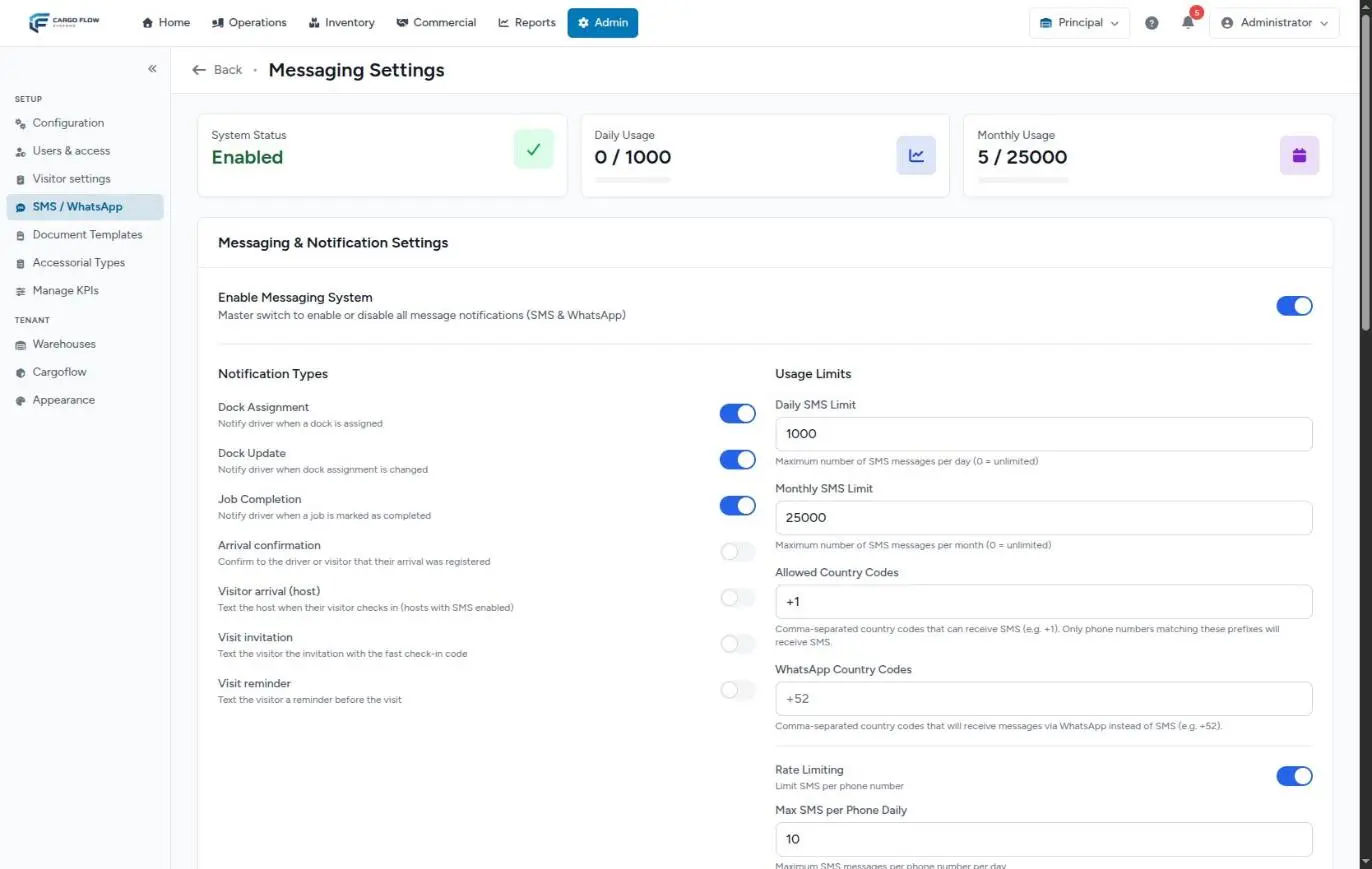
Three cards at the top:
- System Status — Enabled or Disabled.
- Daily Usage — messages sent today against the daily cap (for example, 0 / 1000).
- Monthly Usage — messages this month against the monthly cap (for example, 5 / 25000).
The counters reset by themselves at the start of each day and month. The Reset Counters button, next to Save, zeroes them by hand after you confirm («This will reset the daily and monthly SMS counters to zero. Are you sure?»). Use it with care: zeroing the counter frees up the cap, but it does not change what was already consumed with the provider.
The master switch
Enable Messaging System turns every message, SMS and WhatsApp, on or off for this warehouse. When off, nothing goes out even if the types are on, and each attempt is logged as blocked.
Notification types
| Type | To whom, and when |
|---|---|
| Dock Assignment | To the driver, when a dock is assigned: which door to go to, chock the wheels and disconnect the air line. |
| Dock Update | To the driver, when the dock is changed. |
| Job Completion | To the driver, when their job is marked completed: wait for paperwork and for clearance to leave. |
| Arrival confirmation | To the driver or visitor, when their arrival is registered, with their document number. |
| Visitor arrival (host) | To the host who has text messages turned on, when their visitor arrives. |
| Visit invitation | To the visitor, with the invitation and their fast check-in code. |
| Visit reminder | To the visitor, before the visit, as far ahead as the visitor settings say. |
The last three only matter if the warehouse has the visits module. Each message goes out in the driver’s or visitor’s language, not the operator’s.
Usage limits
- Daily SMS Limit (up to 10000) and Monthly SMS Limit (up to 100000) — once a cap is reached, nothing else goes out until the next day or month. SMS and WhatsApp count together.
- Rate Limiting — when on, the next field applies.
- Max SMS per Phone Daily — cap on messages to the same number in one day, from 1 to 100. It stops a mistake from sending the same message twenty times to one driver.
Country codes: SMS or WhatsApp
Two fields, with codes separated by commas:
- Allowed Country Codes — the prefixes that get SMS, for example
+1. Required. - WhatsApp Country Codes — the prefixes that get WhatsApp instead of SMS, for example
+52.
The system checks the WhatsApp list first, then the SMS list. A phone whose prefix is in neither gets nothing. The match is on the start of the number, so +1 covers both the United States and Canada.
The order in which each message is checked
Before sending any message, real or test, the system checks in this order. If one check fails, the message does not go out and is logged as blocked:
- The master switch is on.
- The phone prefix is in the WhatsApp list or the SMS list.
- That message type is on.
- The daily cap has not been reached.
- The monthly cap has not been reached.
- That phone has not hit its daily maximum (if rate limiting is on).
Send a test message
Further down are Test SMS and Test WhatsApp. Type the number with its country code (for example +15551234567), a message of up to 160 characters and click Send Test SMS or Send Test WhatsApp.
- If it goes out: «Test SMS has been sent successfully» or «Test WhatsApp message has been sent successfully».
- The test goes through the same checks as a real message. If something blocks it: «Test message was blocked by system settings or limits».
- If the provider rejects it: «Failed to send test message», with a reference number. Give it to support.
- The test counts toward the day’s and month’s usage.
- The WhatsApp test sends free text, not a template. WhatsApp only delivers free text to a number that wrote to your line in the last few hours, so it may not arrive even when the setup is right.
The log and export
Recent Message Logs shows the last 50 messages: date and time, phone, type, status, driver and the text. The statuses you will see:
| Status | Meaning |
|---|---|
| Sent | The provider accepted the message. |
| Delivered / Undelivered | The confirmation that the provider sends later, when available. |
| Failed | The provider rejected it, or there was no WhatsApp template for that type and language. |
| Blocked | The settings stopped it: switch, country, type or caps. |
It is the first place to look when a driver says nothing arrived. The Export button downloads a CSV with the whole log: date, phone, type, status, message, driver, job, user and error.
Example setup
The Principal warehouse gets drivers from the United States and Mexico. It is set up like this:
- Enable Messaging System: on.
- Types: Dock Assignment, Dock Update and Job Completion on; the visit ones off because the warehouse has no visits module.
- Limits: daily 1000, monthly 25000, rate limiting on with 10 per phone.
- Countries: SMS
+1; WhatsApp+52. - Click Save and send a test to a
+1phone.
A driver with a +52… phone gets the dock assignment by WhatsApp; one with +1…, by SMS; one with +44… gets nothing and shows up as blocked in the log.
Known limitations
Best practices
- Set realistic caps, never 0.
- Keep per-phone rate limiting on.
- Add only the country codes your drivers come from.
- Send a test after every change.
- Check the log whenever a driver says nothing arrived.
- Export the log at month end to reconcile it with the provider’s usage.
Troubleshooting
The SMS / WhatsApp option is missing.
- The warehouse lacks the external notifications module, or your user lacks Configure Users.
Nothing goes out and the log says «blocked».
- Is the master switch on?
- Is the phone prefix in one of the two lists?
- Is that message type on?
- Is the daily or monthly limit at 0 or already reached?
- Did that phone hit its daily maximum?
WhatsApp numbers never get one message type.
- The approved template for that type in that language is missing; the log marks it as failed. Tell support.
Nothing shows up in the log.
- The message was never attempted: check that the driver has a phone on file and that the event (dock assignment, etc.) really happened in this warehouse.
Saving shows an error on the country codes.
- The SMS field is required. Write the codes with the plus sign and separated by commas:
+1, +52.
Frequently asked questions
Does 0 in the limit mean unlimited?
No, even though the screen says so. With 0 no message goes out. Use a high number.
Why does WhatsApp need templates?
Because WhatsApp requires business-initiated messages to use templates approved in advance. Each message type needs its own in each language.
What happens if the driver replies STOP?
The system replies, in the driver’s language, that they will no longer get messages. Careful: that opt-out is not recorded today, so if the driver checks in again the system will try to message them again. If a driver asks not to get messages, do not enter their phone.
Which language is the message in?
The language the driver or visitor chose when checking in, or the one on their invitation, not the language of whoever operates the system.
Need help?
If something did not work as expected, our support team can help you.
Was this article helpful?