Registering a visit at reception
Summary
Registering at reception is the path for someone who arrives and does not use the kiosk: an older person, someone in a hurry, a group reception prefers to log, or simply a warehouse without a tablet. The form asks for almost the same as the kiosk, but the receptionist fills it in.
When you save, the visit is On site right away, the host and reception are notified, and you land on the visit detail.
Before you start
- You need the Manage Visits permission (by default: admin and supervisor).
- There must be at least one active visit type of kind Visitor or Internal. If not, the form tells you.
- Hosts must be set up and active. See Hosts and notifications.
Step by step
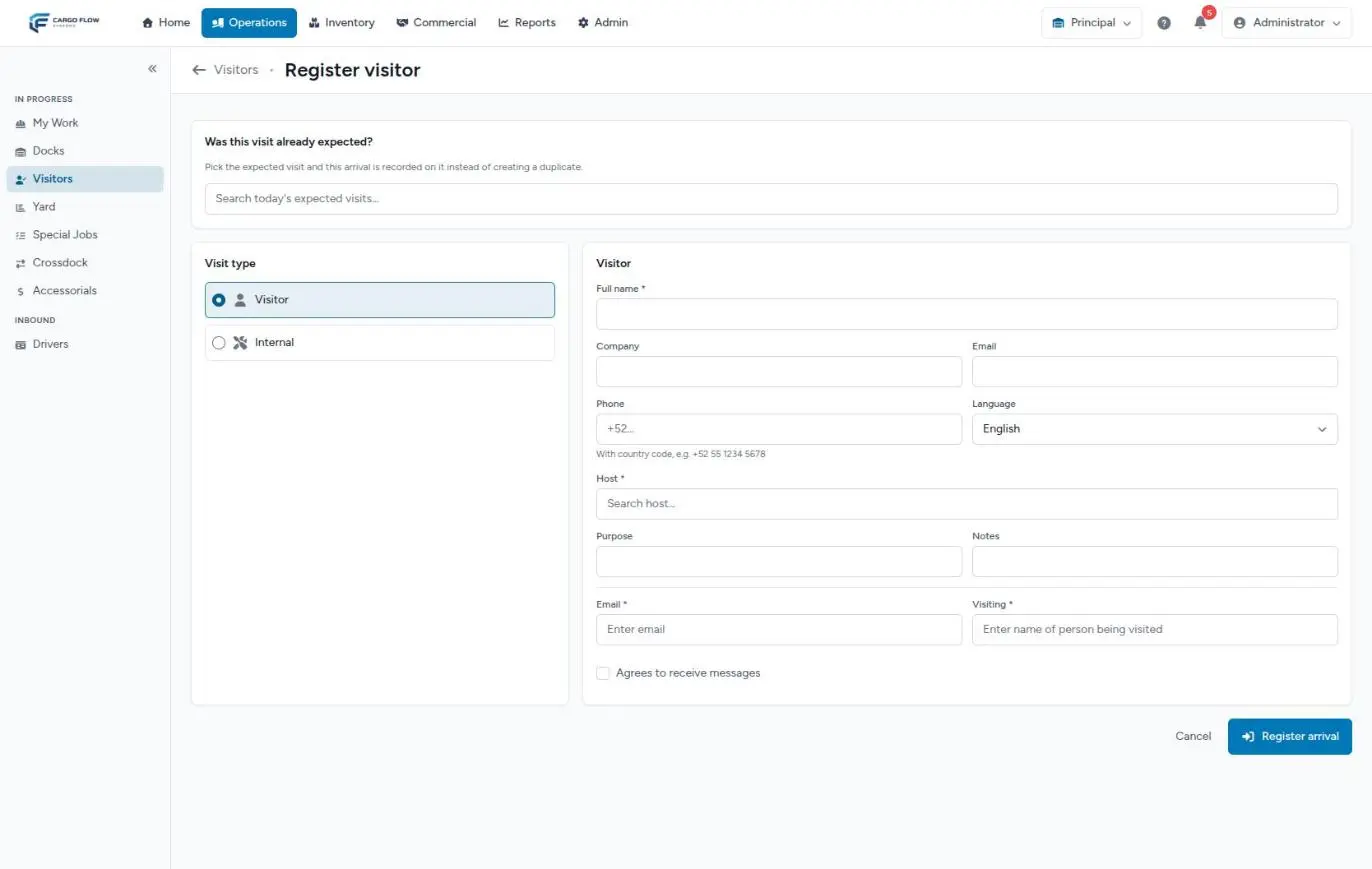
- Open the form — on the visitor board, tap Register visitor.
- Ask whether they were expected — in Was this visit expected? type their name or company to search today's expected visits. If it shows up, select it: the arrival is recorded on THAT visit and no new one is created. If you picked the wrong one, Cancel next to it releases it.
- Choose the visit type — Visitor for outsiders, Internal for your own staff or on-site contractors, or the types your warehouse created. The type decides which fields are required.
- Type the full name — as you type, the system checks whether the person came before. If you pick them from the list, their details fill in and "Returning visitor — details taken from their last visit" appears.
- Complete the details — company, email, phone, language, host, purpose and notes (see the table below).
- Fill in the extra fields, if your warehouse set them up for that type: they appear below a line, after the notes.
- Check consent if the person agrees to receive messages.
- Tap Register arrival. You will see "[name] is on site" and land on the visit detail.
What each field asks for
| Field | Required | What it is for |
|---|---|---|
| Full name | Always | How they appear on the board, in the host email and in the history. |
| Company | If the type asks for company | Where they come from. |
| If the type asks for email | For notifications to the visitor and to recognize them next time. | |
| Phone | No | With the international code, for example +1 214 555 0100. Without the + and code, the system rejects it. It is what the visitor will use to check out at the kiosk. |
| Language | No | Which language messages go out in: English or Spanish. |
| Host | If the type asks for it (asterisk) | Who they are visiting. Gets the arrival notice. Only active hosts show. |
| Purpose and Notes | No | Free text. Notes stay on the visit: badge handed out, area they are going to. |
| Agrees to receive messages | No | Consent to send them text notifications, if the warehouse has that module. |
What happens next
- The visit shows in the On site block of the board, with its arrival time and time inside. Its source is Reception in the history.
- The host gets their notice with the I'm on my way and Ask them to wait buttons; their answer shows on the board.
- Reception gets its notice as configured. The reception email says the visitor "checked in at the kiosk" even when you registered them: it is the same text for every path.
- If the visitor gave a phone and consent, and the warehouse has text messages, they get their arrival confirmation.
- If the visit type has approval turned on, the visit stays Pending approval instead of On site and does not appear on the board (see How visitor management works).
Check-out, no-show and cancel
Everything is done from the board (icons to the right of each row) or the detail (buttons at the top). Each action asks for confirmation.
| Action | When it appears | What it does |
|---|---|---|
| Check in | Expected, confirmed or no-show visits. | Moves it to On site and notifies the host. From reception there is no time restriction. |
| Check out | On-site visits. | Moves it to Left and records the time. If configured, tells the host their visitor left. |
| No-show | Expected or confirmed visits. | Marks the absence. If the person arrives later, you can still check them in. |
| Cancel | Visits not yet arrived. | Cancels it for good. It does not notify the visitor or the host. |
Example
Carlos Ruiz from Central Warehousing arrives for a meeting with Luis Pérez. He has no invitation. Reception searches "Ruiz" in Was this visit expected?: nothing. They pick the Visitor type, type his name (the system recognizes him from a previous visit and fills company and phone), choose Luis Pérez as host, write "Badge 12" in notes and tap Register arrival. Luis gets the email and taps Ask them to wait; reception sees the chip on the board and asks Carlos to take a seat.
Good practices
- Always ask whether they had an invitation and search for it before entering anything. It is the only way to avoid a duplicate.
- Enter the phone with the full country code: it lets them check out at the kiosk and be recognized next time.
- At the end of the shift check the On site tab: anyone still there who has left needs a check-out.
Troubleshooting
The host does not come up in the search.
- They are not set up or are inactive. An admin can add them in Visitor settings › Hosts.
Saving says the phone is not valid.
- The
+and country code are missing. Type it as+1…, 7 to 15 digits.
"This visit type requires a host."
- The chosen type requires a host. Pick one from the list or change type. The message appears next to the visit type, not the host.
"This visit is already on site."
- Someone already checked them in (maybe the visitor at the kiosk). Nothing else to do.
Frequently asked questions
Can I register a driver here?
No. This form only offers visitor and internal types. Drivers check in at their kiosk or through dock management, and the system copies them into the visitor log.
The form asks for the email twice
The extra fields below the line come from the Fields tab of the visitor settings. If someone added an "Email" or "Visiting" field there, it duplicates the form's fixed fields. An admin can hide it or make it optional from that tab.
Why is there no photo here?
Reception registration has no photo step, even if the type asks for one. If photos are mandatory in your warehouse, ask the person to check in at the kiosk.
Need help?
If something did not work as expected, our support team can help you.
Was this article helpful?