Visitor settings
Summary
Visitor settings are per warehouse and are changed by an admin (Configure Visits permission) in the admin menu, option Visitor settings. The page has six tabs: Settings, Visit types, Hosts, Kiosks, Fields and Messages. This article covers Settings, Fields and Messages; the rest are in Visit types, Hosts and notifications and Setting up kiosks.
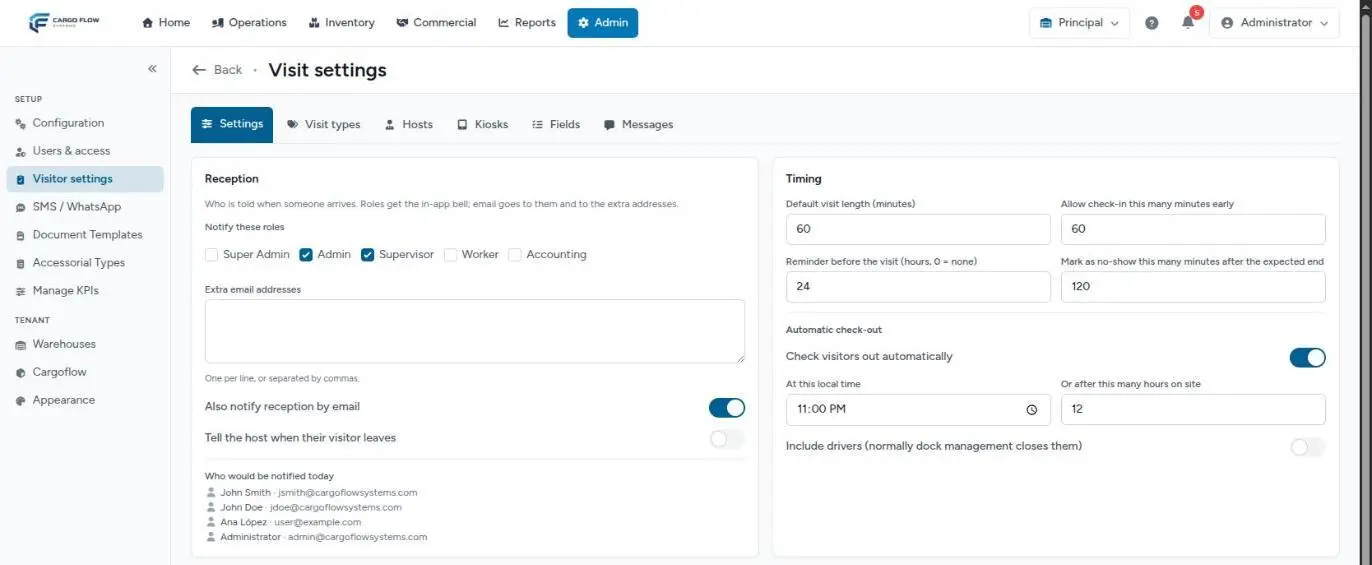
Everything is saved with the Save settings button at the bottom of the page: "Visit settings saved."
Reception: who is notified
- Notify these roles — by default, supervisor and admin. Users with those roles in the warehouse get the bell when a visitor arrives, and the email if the switch below is on.
- Extra email addresses — loose addresses (one per line or comma-separated), for example the shared reception mailbox. If one is not valid, the system says "These addresses are not valid emails: …" and does not save.
- Also notify reception by email — on by default. Off, the roles only get the bell.
- Tell the host when their visitor leaves — off by default.
Below, the Who would be notified today box lists by name and email everyone who would get the notice. If it says "Nobody yet", the module works but nobody hears about arrivals.
Timing
| Setting | What it does | Default |
|---|---|---|
| Default visit length (minutes) | How long a visit lasts when its type does not say otherwise. Used for invitations and to compute the expected end. | 60 |
| Allow check-in this many minutes early | How long before the scheduled time an invitee can check in with their code. Reception has no such limit. | 60 |
| Reminder before the visit (hours, 0 = none) | How many hours before the reminder goes to the invitee. | 24 |
| Mark as no-show this many minutes after the expected end | The grace before a scheduled visit that did not arrive is marked no-show. | 120 |
Automatic check-out
So the log does not wake up with people "inside" who left yesterday:
- Check visitors out automatically — the main switch. On by default.
- At this local time — after that time, visits that came in before it are closed. Default 23:00.
- Or after this many hours on site — closes a visit that has been inside longer than that (1 to 72). Default 12.
- Each type can also have its own auto check-out hours; they only count if the main switch is on.
- Include drivers — off by default, because drivers are normally checked out by dock management. If you turn it on, automatic check-out also closes drivers with open dock jobs (without closing those jobs).
The system checks every 15 minutes, so the check-out may be recorded a few minutes after the exact time. In the history, these check-outs show as Automatic.
Kiosk options
They apply to the general kiosk; each custom kiosk also has its own languages, welcome and extras.
| Option | Default |
|---|---|
| Take a photo by default | Off |
| Show driver types (delivery / pickup) | On |
| Show "I have an invitation" | On |
| Show "Check out" | On |
| Recognize returning visitors by phone or email | On |
| Languages offered | English and Spanish |
| Welcome text (up to 500 characters per language) | Empty |
The warehouse Kiosk address also shows here.
Board, branding and text messages
- Show drivers on the visitor board — if your reception also controls driver entry, turn it on; if only the guard sees them, leave it off.
- Branding — the kiosk and emails use the warehouse logo. If there is none, the page says to upload one in the warehouse settings; today the actual place is the template editor: see Logos and per-customer templates.
- Text messages — a notice says whether the warehouse has SMS and WhatsApp, with a link to their settings.
The Fields tab
Here you add your own questions to each visit type, on top of the fixed ones: a badge number, a car plate, the area visited. For each field you set the visit type, the data type (text, number, email or phone), an internal key, the label and help text in English and Spanish, whether it is required and whether it is visible. On driver fields you can also choose to show the data on the warehouse receipt and shipment, and it becomes available in document templates.
These fields appear at the kiosk, on the invitation page and in Register visitor, below the fixed details.
This tab still shows some text in English even with the interface in Spanish, and vice versa.
The Messages tab
Sets the final message a driver sees at the driver kiosk after checking in, by type and language. It does not affect visitors: their final message is set on each visit type (Final message on the kiosk).
Example: a one-shift warehouse
Central Warehousing works 7:00 to 17:00. It sets automatic check-out at 19:00 and 10 hours on site; leaves drivers out; adds reception@example.com as an extra address; raises the reminder to 48 hours because its auditors travel; and lowers early check-in to 30 minutes so nobody gets in before reception opens.
Troubleshooting
"These addresses are not valid emails."
- There is a typo in Extra email addresses. Fix the address it names and save again.
Visits do not close on their own.
- Check that Check visitors out automatically is on and that there is a time or number of hours. For drivers, also Include drivers.
Invitees get no reminder.
- The reminder is set to 0, the visit has no email or phone, or one had already gone out before rescheduling.
Need help?
If something did not work as expected, our support team can help you.
Was this article helpful?