Inviting visitors
Summary
An invitation is a visit scheduled ahead. It is for audits, supplier meetings, interviews or anyone you know is coming. The benefit is twofold: the person arrives with a QR code or a code and is in within seconds, and reception sees on the board who is expected today.
You can invite several people at the same time with the same host (up to 50 at once): each becomes their own visit, with their own code, linked as a group.
Before you start
- Manage Visits permission (admin and supervisor by default).
- An active visit type, of kind Visitor or Internal, with Can be pre-registered on. See Visit types and their kiosk flow.
- The host set up and active.
Step by step
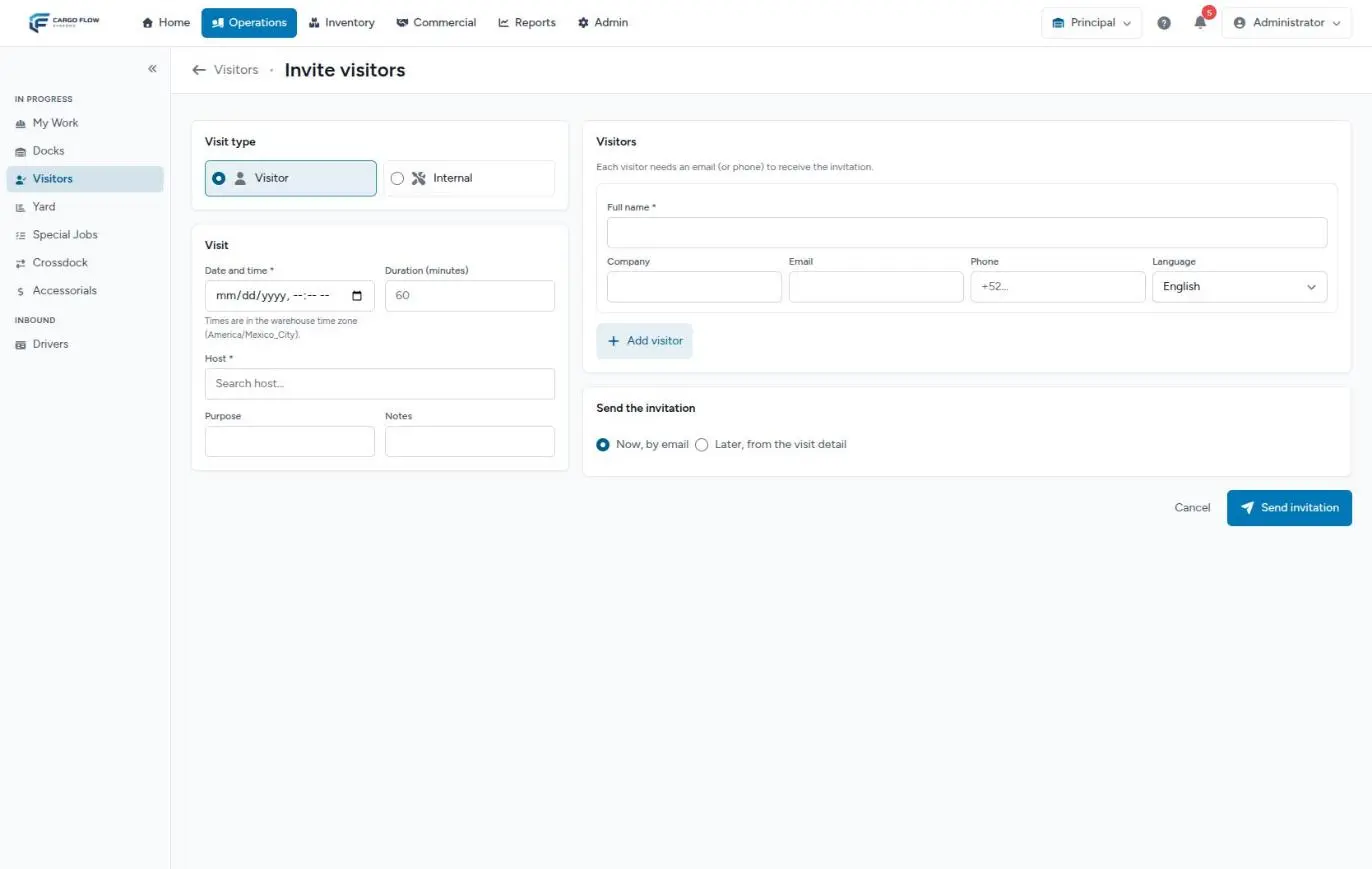
- Open the form — on the visitor board, tap Invite. There is no menu option: you get there from the board.
- Choose the visit type — only visitor and internal types that allow pre-registration show. Driver types are not invited.
- Set the date and time — in the warehouse time zone, shown under the field (for example, America/Chicago). If you invite someone from another city, think in warehouse time, not yours.
- Adjust the duration in minutes (5 to 1,440). It comes filled with the visit type duration or, if the type does not set one, the default from the settings. It is used to compute when the visit should end.
- Choose the host and, optionally, write the purpose and some notes.
- Add the visitors — full name (required), company, email, phone (with country code,
+1…) and language. Each one needs an email or a phone. Add visitor adds another row; Remove deletes it. - Decide when to send the invitation: Now, by email or Later, from the visit detail.
- Tap Send invitation. You will see "Invitation sent to N visitor(s)" (or that they were scheduled, if you chose Later) and land on the detail of the group's first visit.
What the visitor receives
An email in their language, subject "Your visit to [warehouse]", with:
- The date, time, duration, host, purpose and directions.
- A calendar file to add the appointment in one click.
- The Confirm and pre-register button, which opens their visit page. See The invitation page and express check-in.
- The express check-in: a QR code and a six-character code.
- A reminder to bring valid ID.
If the visitor gave a phone and the warehouse has text messages, they also get a message with the code and the link.
On the day of the visit
- At the kiosk, the person taps I have an invitation and scans their QR code or types their code.
- If they arrive too early, the kiosk does not let them in yet: the window is set by Allow check-in this many minutes early in the settings (60 minutes by default). After the day of the appointment, the code no longer works.
- If they do not use the kiosk, reception searches for them in Was this visit expected? when registering, or taps Check in on their row on the board.
Edit, resend or cancel
While the visit has not arrived, from its detail you can:
- Edit — change date, time, duration, host or details. Check Resend the invitation with the new details so they get the correction, with a "…was rescheduled" subject. If you change the date of a confirmed visit, it goes back to Expected.
- Resend invitation — sends the same email again. Only shows if the visit has an email.
- Copy invitation link — to send it yourself another way (a chat, for example).
- Cancel — the visit is cancelled for good. The visitor is not notified: tell them yourself.
Automatic reminders and no-shows
- Reminder: every 15 minutes the system sends a reminder to expected or confirmed visits whose time falls within the next hours set in Reminder before the visit (24 by default; 0 turns it off). It is sent only once.
- No-show: every 30 minutes, if the visit's expected end plus the grace in Mark as no-show this many minutes after the expected end (120 by default) has passed, the visit is marked no-show.
Example: an audit with three people
Ana López invites three auditors from Pacific Brands for Thursday at 9:00, two hours, Visitor type, sending Now. Each gets their email with their own code. On Wednesday at 9:00 the reminder arrives. On Thursday, two check in with their QR code at 8:45; the third does not come. At 13:00 (expected end 11:00 plus 120 minutes) the system marks them no-show. The detail of any of the three shows Group of 3.
Troubleshooting
"[Name] needs an email or a phone to receive the invitation."
- That row is missing a contact. Add at least one of the two.
The visit type I want does not show.
- The type has Can be pre-registered off, is inactive or is a driver type.
The visitor says they did not get the email.
- Check the Notifications tab on the detail: it says whether it was sent and whether it failed. If it was sent, have them check spam; then use Resend invitation or Copy invitation link.
"It is too early to check in for this visit."
- The kiosk respects the early window. Wait, or register it from reception, which has no such limit.
Frequently asked questions
Can I invite someone who only has a phone?
Yes, but carefully. With Now, a text only reaches them if your warehouse has that module; otherwise nothing reaches them even though the screen says "Invitation sent". With Later, the Resend invitation button never appears, because it needs an email. In both cases, use Copy invitation link and send it yourself.
How long does the invitation link last?
At least seven days from creation, and until one day after the appointment. After that, the page says the link has expired and asks for a new invitation.
They arrived late and the kiosk says the invitation was already used
It happens when the system already marked them no-show: the kiosk rejects the code with that message even though it was never used. Reception can still check them in from the board or the detail.
Need help?
If something did not work as expected, our support team can help you.
Was this article helpful?