Invoices: edit and correct
Overview
Generating the invoice doesn’t freeze it. As long as it is not voided, you can add charges, correct quantities and rates or remove lines, and the system recalculates the total, minimums and maximums and the payment status. Every change is recorded with who made it and the previous value.
Before you start
- Viewing the invoice: View Billing (Super Admin, Admin, Accounting).
- Correcting it (charges, lines, notes, documents, payments): Manage Billing (Super Admin, Admin, Accounting).
- Voiding or deleting it: Void/Delete Invoices (Super Admin, Admin).
- To add charges, the service must exist and be active in the catalog.
The invoice detail
From Commercial › Billing › Invoices (or the Archive, if it is already paid), open the invoice number.
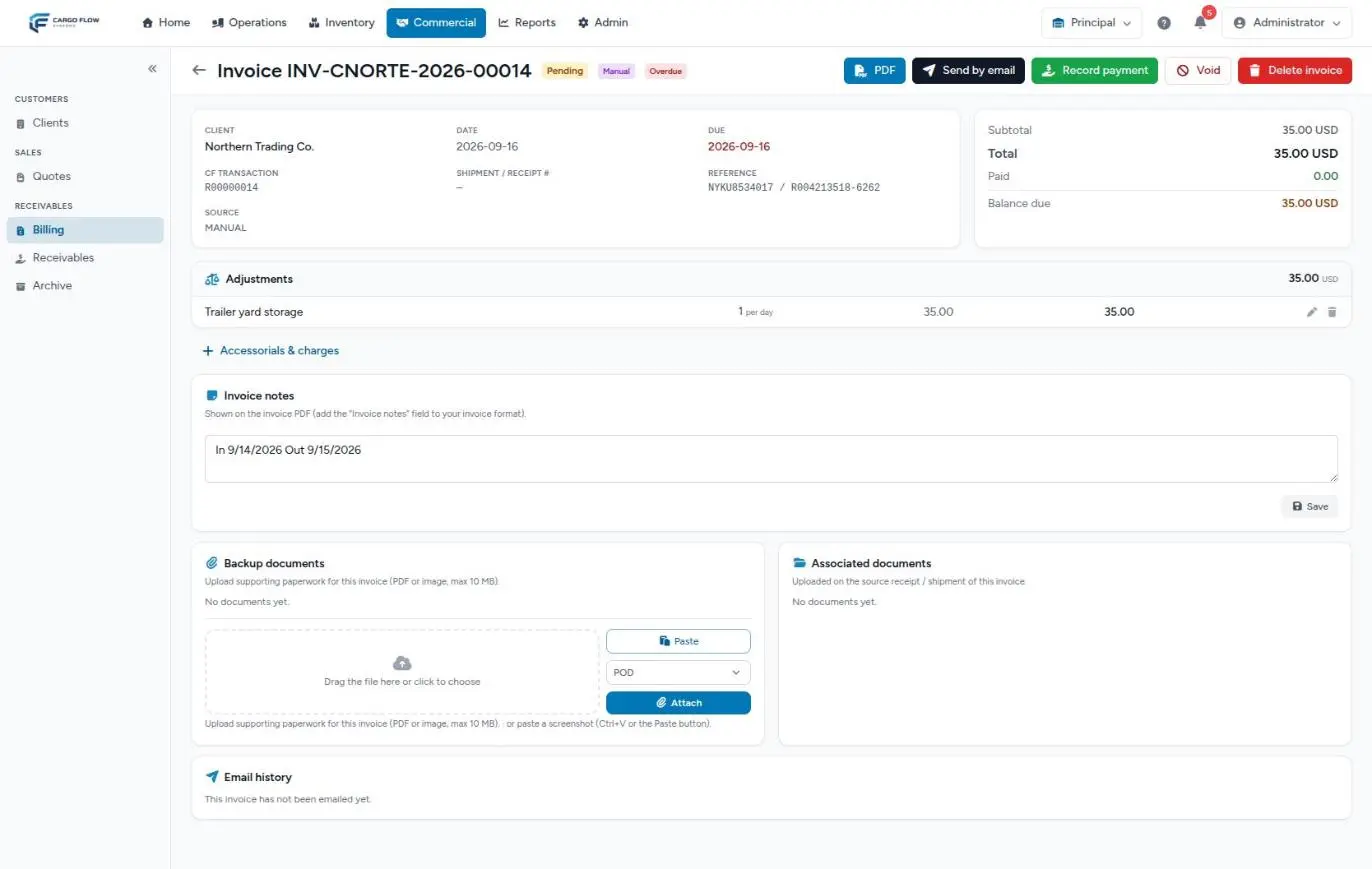
- Header — the number, the payment status (Pending, Partial, Paid, Void) and marks such as Manual or Overdue. On the right: PDF; and, if not voided, Send by email, Record payment (if there is a balance) and, if it has no payments, Void and Delete invoice.
- Details — client, date, due date (red if overdue), the transaction (only if different from the number), the source shipment or receipt with a link, the reference (with “Previously: …” if it changed when the shipment was edited) and the source (system-generated or manual, with the Exported mark if it already went to accounting).
- Totals — subtotal, total, paid and balance, plus the list of payments.
- Lines grouped by operation — shipment, receipt, dock job, special job, storage; minimum and maximum adjustments and manually entered charges go under Adjustments. Each group shows its subtotal and links to its document; each line has a pencil (edit) and a bin (remove). Storage shows its day breakdown.
- Accessorials & charges, Charges to capture, Invoice notes, Backup documents, Associated documents and Email history (see Send and print invoices).
Add catalog charges
- Click + Accessorials & charges below the lines.
- Search the service in the catalog; you can filter by category. General services and this client’s exclusive ones appear.
- Enter the quantity (above 0). The rate fills in with the client’s rate or, if none, the base price; you can change it.
- Add it. The window stays open for the next one; what you added appears under Added to this invoice. Click Done when finished and the page reloads.
For cost plus services, enter the cost: the window says so (“Enter the COST — the invoice adds the N% markup automatically”). See At-cost and cost-plus services.
The line goes in the invoice’s currency and with the service’s unit.
Charges to capture
If the client has services on their rate card set to charge at receipt or shipment whose quantity can’t be derived from the document (hours, days, at cost, cost plus), the invoice shows the Charges to capture block. Type the quantity and click Add to invoice: the line goes in at the agreed rate. For per-day services the system suggests the calendar days from the goods’ arrival to the shipment, minus free days (the suggestion is the same even if you capture it days later).
A service that already has a line on this invoice, or on another invoice of the same operation, is no longer offered.
Edit a line
With the pencil you change the quantity (above 0) and the rate (0 or more). The service can’t be changed: if it is wrong, remove the line and add the right one. The first edit stores the original value, who and when, and the source charge is updated too, so the pool and exports match the invoice.
Remove a line: void or return
When removing a line that came from a system charge, you choose where it goes:
- Void the charge — it will never be billed again, not even if someone later edits the accessorial it came from. The shipment keeps its settled status.
- Return it to pending — it goes back to Services to Invoice and will go out on the next run (probably that same night, on this same invoice if it is still open). If it is a shipment’s handling, the shipment stops showing as settled.
Manually entered lines are simply deleted. The source document’s number stays recorded on the invoice even if you remove its last line.
What is recalculated after each change
- Minimums and maximums — the adjustment lines are recalculated on what remains of each service.
- Total and balance.
- Payment status — a Paid invoice you add a charge to becomes Partial and moves back from the Archive to Invoices.
- Export — if the invoice had been exported to accounting, it loses that mark and the message says “it will be re-exported corrected on the next QuickBooks run”.
Void or delete the whole invoice
Void keeps the number and returns charges to the pool for rebilling; Delete removes the invoice and its charges for good. Neither is possible with recorded payments. Full detail: Void or delete an invoice.
What you can’t do
- Modify a voided invoice: it becomes read-only (“This invoice cannot be modified”).
- Change the client, currency, date or due date of an issued invoice: void it and generate again.
- Add a free-text charge: everything comes from the catalog.
- Reverse a payment: there is no button to undo a recorded payment. If you recorded one by mistake, contact support.
Example
Pacific Brands’ shipment invoice carries handling 70.00, storage 14.40 and shrink wrap on 3 pallets (15.00). The client objects: it was 2 pallets of shrink wrap and a strap was also used.
- Pencil on the shrink wrap: quantity 2. The line becomes 10.00 and keeps the original value.
- + Accessorials & charges: Strap, quantity 1, rate 65.00 (base price).
- The total goes from 99.40 to 159.40. If it had been exported, it goes out again on the next CSV.
Best practices
- Check lines, notes and documents before sending the PDF.
- When in doubt between voiding and deleting, void: it keeps the number and the trail.
- When removing a line, think whether the charge applies later (return) or never (void).
- If you correct an exported invoice, tell accounting about the adjustment.
- If a price is wrong on many invoices, fix the rate card first so it doesn’t repeat.
Troubleshooting
I removed a line and the charge is nowhere to be found.
- You chose to void it. If it should be billed, add it again from + Accessorials & charges.
I returned a line to pending and it came back on the same invoice.
- That is correct: the next run adds it to its operation’s open invoice. If it shouldn’t be billed, remove it by voiding.
I don’t see the Void or Delete invoice buttons.
- Your role lacks the void permission, or the invoice already has payments.
“The charge must be a service from the configured catalog.”
- The service is inactive or exclusive to another client. Activate it or pick another.
“This invoice cannot be modified.”
- It is voided. Correct on the invoice that comes out when you generate again.
FAQ
Can I add a free-text charge?
No. Every charge comes from the service catalog, so prices and reports stay consistent. If the item is missing, add it to the catalog first (see Service catalog) or create an exclusive service for the client.
Why does my manual charge show under Adjustments?
Manually entered lines have no source document, so the detail groups them with the minimum and maximum adjustments. On the PDF they appear like any other line.
Can I correct an invoice already exported to QuickBooks?
Yes. When edited it loses its exported mark and goes out again, corrected, on the next export. Record the matching adjustment in QuickBooks. See Export to QuickBooks.
Need help?
If something did not work as expected, our support team can help you.
Was this article helpful?