The home dashboard
Overview
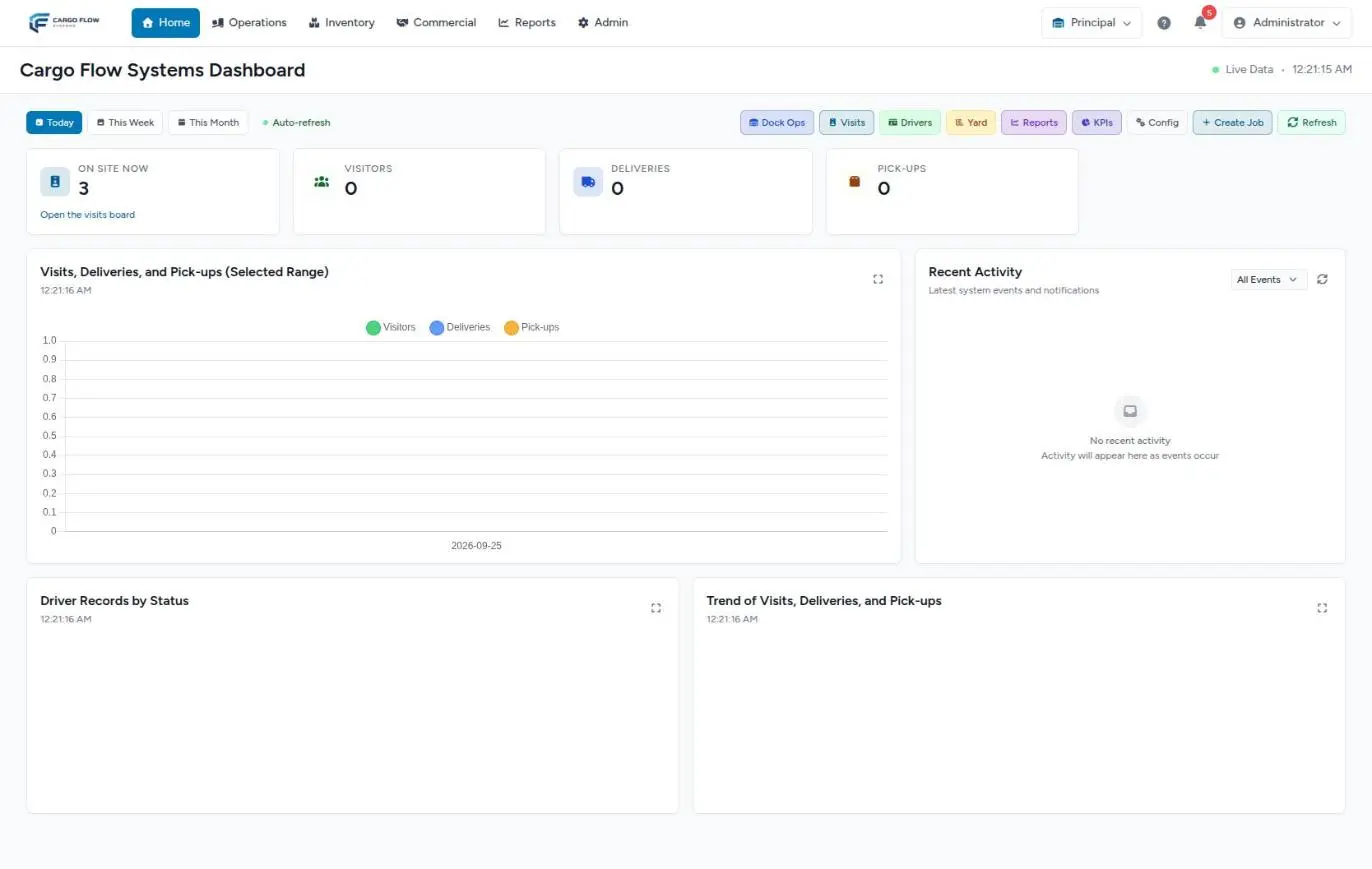
The home dashboard is the screen for the warehouse gate: how many people are inside right now, how many visitors, deliveries and pick-ups there were in the period, and the latest dock, yard and visit events. You reach it with Home in the top bar or by clicking the logo, as long as your role has it; otherwise the system sends you straight to your working screen.
Before you start
- Permission: to see the dashboard you need at least one of these three: Read History Reports (the driver log), Read Dock Reports or Read Yard Reports. By default the admin and super admin have them. Supervisor, worker and accounting do not.
- Modules: the dashboard has content when the active warehouse has at least one of these modules: docks, yard or visits. The cards and charts depend only on the visits module; without it the dashboard shows only recent activity.
- Data: what the dashboard counts is born at the gate: drivers registered at the kiosk or guard house, visitors, and dock jobs. If the site does not register arrivals, the dashboard stays at zero. See Driver registration.
To understand why one person sees a screen and another does not, see Modules, permissions and access.
Who sees it and where everyone else lands
When you click Home or the logo, the system checks your permissions in this order and takes you to the first destination that applies:
- Home dashboard — if you have any of the three report permissions above. Note that it does not check modules: if the warehouse has no docks, yard or visits you will see No operational modules active.
- Docks — if you can operate docks (Write Docks) and the docks module is on. The typical supervisor case.
- Yard — if you can operate the yard and the yard module is on.
- My Work — if you can see your own jobs and the docks or yard module is on. The worker case.
- The first screen in your menu — in the order Operations, Inventory, Commercial, Reports and Admin. Accounting, for example, usually lands on the first Inventory screen available to it.
Signing in works similarly: users with the worker role go straight to My Work, and everyone else follows the rule above. See Finding your way around.
The header
- The title is the dashboard name your company has configured; if none, it reads Dashboard.
- Live Data and a time. That time is your computer’s clock when the page opened and it does not advance: do not use it to tell when the dashboard last refreshed.
Period and refresh
- Today, This Week and This Month change the period of the cards (except On site now), the charts and the activity.
- The week starts on Monday; the month on day 1.
- "Today" is the day in the warehouse time zone, not your computer’s. If the warehouse has none, the system time zone is used.
- Auto-refresh is an indicator, not a switch: the dashboard reloads its data every 5 minutes. It is hidden on phones but still refreshes.
- Refresh reloads the data right away. While loading, an overlay covers the screen.
The shortcuts
To the right of the period are buttons to the most used screens. Each one appears only if the module is on and your role has the permission:
| Button | Goes to | Shown when… |
|---|---|---|
| Dock Ops | The dock board. | Docks module and permission to operate docks. |
| Visits | The visits board. | Visits module and permission to view or manage visits. |
| Drivers | The driver registration screen (the kiosk). | Visits module and permission to see your own jobs. |
| Yard | The yard map. | Yard module and permission to operate the yard. |
| Reports | The report list. | An operational module and a dock, yard or driver log report permission. |
| KPIs | The KPI board. | KPI module and permission to view KPIs. |
| Config | The Configuration screen. | Permission to configure docks, yard or users. |
| Create Job | — | Docks module and permission to operate docks. |
| Refresh | Reloads the dashboard data. | Always. |
The cards
They appear only if the warehouse has the visits module.
| Card | What it counts | Depends on the period? |
|---|---|---|
| On site now | Visitors and drivers inside the site right now. Its link opens the visits board on the on-site tab. | No: always "now". |
| Visitors | Visits registered (people who are not drivers) in the period, plus older kiosk records marked as visits. | Yes |
| Deliveries | Registered drivers who said they came to deliver. | Yes |
| Pick-ups | Registered drivers who said they came to pick up. | Yes |
Deliveries and pick-ups come from what the driver chose when registering. They do not count inventory receipts or shipments: a driver who registered as a delivery and ended up not unloading still counts.
The charts
- Visits, deliveries and pick-ups for the selected range — bars per day of the period, one series per type. Axis dates appear as year-month-day.
- Driver registrations by status — a donut of drivers registered in the period by status: in progress, entered, exited, assigned to door and worker assigned.
- Visits, deliveries and pick-ups trend — the same series as lines, to see the trend across the week or month.
The donut legend currently shows the internal status names. Their meaning is in Troubleshooting below.
Recent activity
Shows the latest 20 events in the period, newest first. Only things created within the period are included:
- Dock jobs — a new job arrived or assigned (it is titled as a new delivery even when it is a pick-up), in progress, job completed, and delayed when an in-progress job has been running for 2 hours or more.
- Drivers — each driver registration. If the driver already left, it appears only as a departure, not both.
- Yard — trailer moves.
- Visitors — registered visits.
The list at the top filters by event type: All Events, jobs (with the docks module), drivers (with the visits module) and system (yard moves and visitors; only with the yard module). The arrows button reloads the list. The footer shows how many events are displayed.
Where each number comes from
| On the dashboard | Born in | For the detail |
|---|---|---|
| On site now, Visitors | Visit registration (kiosk, guard house or invitation). | The visits board and the visitors report. See How Visits works. |
| Deliveries, Pick-ups, the donut | Driver registration. | The driver log. |
| Job events | The dock board. | The dock management report. |
| Yard events | Yard moves. | Yard reports. |
The driver’s full journey, from the kiosk to departure, is in The driver from gate to departure.
Example: reading the dashboard mid-morning
It is 10:40 at the Principal warehouse. Ana López, the manager, opens the dashboard on Today and sees:
- On site now: 6 — four drivers and two visitors.
- Visitors: 3, Deliveries: 9, Pick-ups: 4 since 00:00 warehouse time.
- In the activity, a delayed job: the Northern Trading Co. unload started at 8:25 and is still in progress at 10:40 (2 h 15 min).
Ana clicks Dock Ops, sees that Luis Pérez is working that door alone, and assigns him help. Switching to This Week, the trend chart shows 31 deliveries on Tuesday against 12 on Monday: Tuesday needs one more worker. For the actual time of each unload she opens the dock report, which has waiting and cycle times per job.
What the dashboard does not measure
The home dashboard is about the gate and the docks. It does not show yard occupancy, free docks, average times, stock or billing. For those there are:
- the KPI board (Reports › KPIs), built to measure. See Reading the KPI board;
- the inventory indicators, under Inventory. See The inventory dashboard;
- yard inventory, with occupancy and dwell. See Yard reports;
- the warehouse reports. See Warehouse reports.
Known limitations
- The expand icon in each chart corner does nothing yet.
- The link to view all activity does not open another screen; it only scrolls back to the top. For more history use the driver log or the dock report.
- Some activity texts include the internal type name.
- With the visits module but no yard module, visitor events cannot be filtered on their own; they only show under All Events.
Good practices
- Check the active warehouse in the top bar before reading any number.
- Use the dashboard to react during the shift (who is inside, what is running late) and the reports to measure and bill.
- Make sure every driver registers: each unregistered driver is a gap in the dashboard and in the driver log.
- If someone needs the dashboard without being an admin, give them Read Dock Reports as an extra permission instead of changing their role. See Roles and permissions.
Troubleshooting
Everything is zero even though there was activity.
- Check the active warehouse and the period. If drivers do not register in the system, there is nothing to count. Without the visits module the cards do not exist.
"Today" numbers do not match my clock.
- The day is cut in the warehouse time zone. If it is wrong, ask the super admin to fix it under Admin › Warehouses.
The donut shows technical status names.
- A current limitation. Meanings:
in_progressin progress,enteredinside,exitedleft,assigned_to_doorassigned to a door,assigned_workerworker assigned.
I click Create Job and nothing happens.
- From the home dashboard it does not open the form. Go in with Dock Ops and create the job from the dock board.
After clicking Drivers I am in a different warehouse.
- That shortcut opens the kiosk of the first active warehouse and switches your active warehouse. Switch back with the selector in the top bar.
I see No operational modules active.
- The warehouse has no docks, yard or visits. If you are the super admin, the Open Cargoflow Panel button takes you to the modules. Otherwise ask your admin to review the warehouse.
Clicking Home takes me to the dock board, not the dashboard.
- Your role has no dock, yard or driver log report permissions. That is expected for supervisors.
FAQ
Why doesn’t my supervisor see the dashboard?
Because the supervisor role has no report permissions by default, so Home takes them to Docks. If they need it, give them Read Dock Reports or Read History Reports as an extra permission.
Can I see inventory or billing on the dashboard?
No. Build cards on the KPI board for that (see Building the KPI board) or use the inventory dashboard.
Can I see two warehouses at once?
No. The dashboard always shows the active warehouse. Switch warehouses in the top bar to see the other one. See Working with several warehouses.
Need help?
If something did not work as expected, our support team can help you.
Was this article helpful?