Cycle counts
Overview
A cycle count checks the warehouse piece by piece without stopping operations. A supervisor creates a plan; the system creates a task for each stock line in the plan; the team counts; large differences require a second count; and a supervisor other than the counter approves or rejects each difference. On approval, the adjustment is recorded automatically.
Before you start
- Module: Inventory enabled for the warehouse.
- Viewing plans and counting: Cycle Count (Super Admin, Admin, Supervisor and Worker by default).
- Creating plans: also Adjust Inventory (Super Admin, Admin and Supervisor).
- Approving or rejecting differences: Approve Cycle Counts (Super Admin, Admin and Supervisor), and not having counted that task.
- Coordinate with operations: ideally no receipts, shipments or transfers touch the plan’s locations between generation and approval (see the cautions below).
Creating a count plan
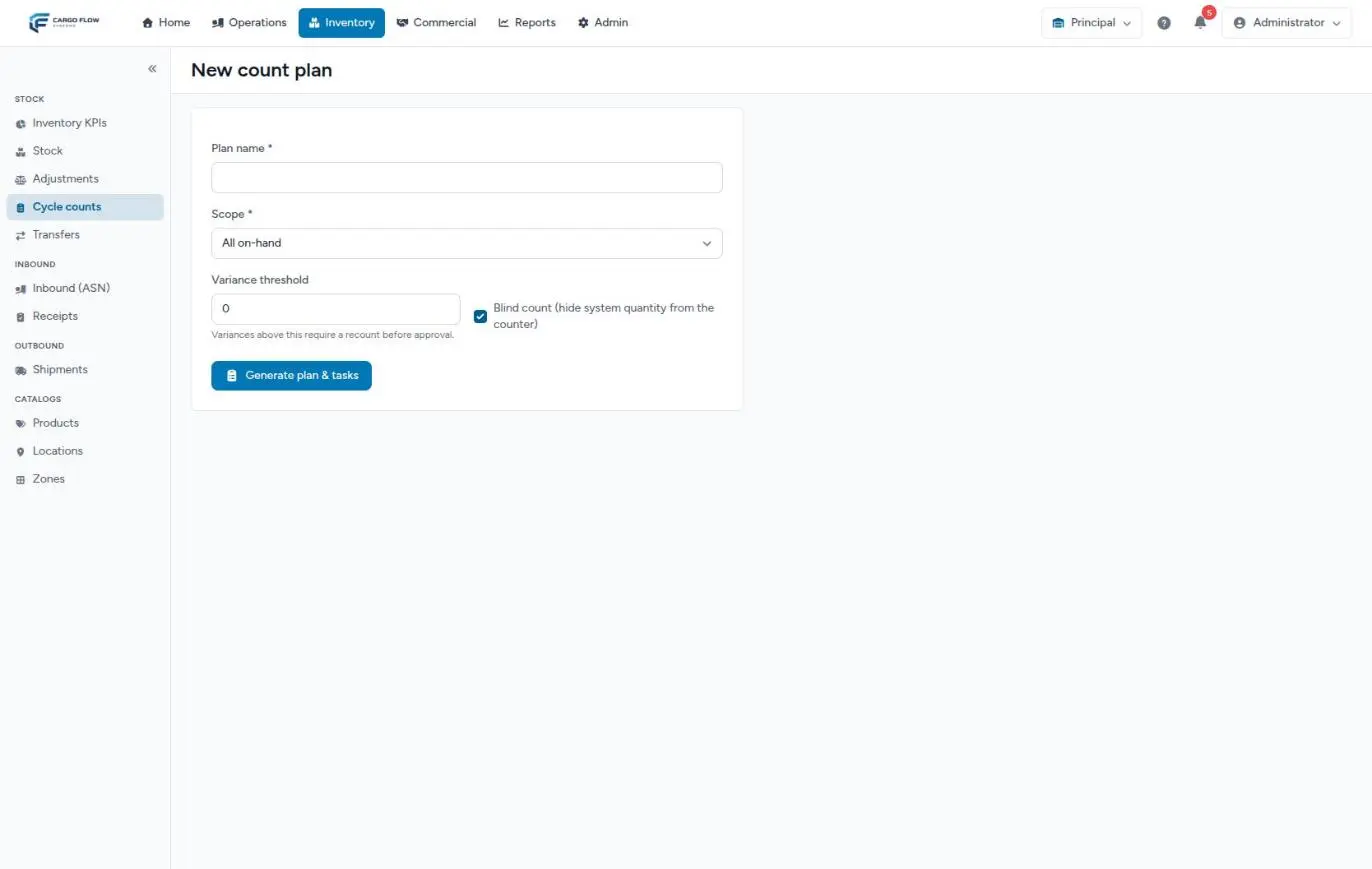
- New count plan — button in Inventory › Cycle counts.
- Plan name (required, up to 200 characters) — for example “Zone B, week 38”.
- Scope — All on-hand, By ABC class or By zone. Depending on your choice, the class or zone field appears.
- ABC class (for the class scope) — A (fast movers), B or C (slow movers). How it is calculated is in ABC classification.
- Zone (for the zone scope) — the list has every zone in the warehouse.
- Variance threshold — a difference larger than this on the first count requires a recount before approval. In base units; zero or more; empty means zero.
- Blind count — ticked by default: the counter does not see the system quantity. Clear it for a guided count.
- Generate plan & tasks — the plan is Active and opens with the message “Plan created with N tasks.”
What goes into the plan
- One task per stock line (product, location and lot) with quantity above zero at generation time.
- The task stores the system quantity at that moment: the line total, including goods reserved or in blocked states, which are counted too.
- Every location in the scope goes in, active or not, pickable or not, including the cross-dock location if it holds goods.
- Lines of every customer go in.
- Empty locations create no task: the plan cannot find goods where the system has nothing.
Counting
- Open the plan from the list (name, scope, tasks, mode and status). At the top you see whether it is blind or guided and the threshold.
- Go to each location on the list (SKU, location and lot).
- Enter what you counted in the row’s Counted field (zero or more, up to four decimals) and click Save. Count in base unit: if the product lives in pieces, count pieces.
In guided mode the table shows the System column; in blind mode it does not. The variance is not shown while the task waits for a count or recount; it appears once the task goes to approval.
What happens with each count
| Result | The task moves to |
|---|---|
| The count equals the system. | Approved, no adjustment. |
| First count with a difference above the threshold. | Recount: the row asks for another count, marked “Recount”. |
| First count with a difference within the threshold. | Pending approval. |
| Second count equal to the system. | Approved, no adjustment. |
| Second count with any difference. | Pending approval. |
The second count replaces the first for the adjustment, and whoever made it becomes “the counter”.
Approving or rejecting differences
Users with Approve Cycle Counts see, on each task pending approval, the variance and two buttons. Users without it see the text “Awaiting approval”.
- Approve — records an adjustment with reason Cycle Count that takes the line from the system quantity to the counted one (the recount, if there was one). The adjustment is signed by the approver. The task becomes Adjusted.
- Reject — closes the task with no adjustment (Rejected). Use it when the count is wrong and you would rather count in another plan.
Task and plan statuses
- Tasks: Pending → (Recount) → Pending approval → Adjusted or Rejected. Tasks that match go straight to Approved.
- Plan: born Active and becomes Completed only when all its tasks are Approved, Adjusted or Rejected.
Example: counting zone B
Ana López creates “Zone B, week 38”: by zone, zone B, threshold 2, blind. Three tasks are created:
| SKU / location | System | 1st count (Luis) | 2nd count (Carlos) | Result |
|---|---|---|---|---|
CN-ACE-1L / B-01-1-1 | 720 | 720 | — | Approved, no adjustment |
DV-JAR-750 / B-02-1-1 | 200 | 199 | — | Pending approval (1 ≤ 2) |
SL-VAS-12 / B-03-2-1 | 196 | 180 | 184 | Recount → Pending approval |
Ana approves both pending tasks (she counted neither). Two adjustments with reason Cycle Count are recorded: −1 and −12. The plan becomes Completed. Luis could not have approved the second task; Carlos could not have approved the third.
What changes in other modules
- Stock and history: each approval with a difference is an adjustment visible in the line history and in the adjustments history, with the code
cycle_count. - Client portal: the customer sees the corrected quantity as soon as it is approved. No notification is sent.
- Billing: storage on the following nights counts the corrected quantity. The count itself creates no charge; if you bill it as a service, record it as an accessorial.
- ABC classification: adjustments do not count as outbound, so they do not change a product’s class.
Special cases and limits
- Tasks cannot be added or removed once a plan is generated.
- There is no cancel plan button: a plan that will not be finished stays Active.
- A plan with no tasks (empty scope) stays Active forever; it affects nothing.
- Reject does not ask for a reason on screen; note it yourself.
- Several plans over the same locations create duplicate tasks; approving both would apply the adjustment twice.
Best practices
- Count class A more often than B and C: it moves the most and drifts the most.
- Prefer blind counts: the counter is not influenced by the system number.
- Set a sensible threshold (for example 1 or 2 units) so only large differences need a recount.
- Small plans (one zone, one class) finish the same day and reduce the risk of movements mid-count.
- Assign counting to workers and approval to a supervisor who did not count.
Troubleshooting
The plan was created with zero tasks.
- No stock matched the scope: the zone is empty or there are no products in that ABC class.
Approving shows The counter cannot approve their own count (segregation of duties).
- You counted that task (or its recount). Ask another supervisor with approval permission to approve it.
Approving shows a message starting with Adjustment would make stock negative.
- The line went down after the plan was generated and the adjustment would take it negative. Reject the task and count that location in a new plan.
Saving a count shows a message containing is not awaiting a count.
- Someone already recorded that task. Reload the plan.
I do not see the approve buttons.
- You are missing Approve Cycle Counts; the row shows “Awaiting approval”.
I do not see the New count plan button.
- Creating plans also needs Adjust Inventory.
Frequently asked questions
What if I leave the threshold at zero?
Any difference on the first count requires a recount. It is the strictest option and also the slowest.
Can I count from the tablet?
Today counts are entered on the plan screen, which opens in the tablet’s browser. The operator app does not have a count screen yet.
Can I cancel a plan?
There is no button to cancel a plan today. To close tasks that will not be counted, record a count and reject the difference.
Can I count only one customer’s goods?
Not from the screen: the plan takes every line in the scope, for every customer. If the customer has its own zones, use the zone scope.
Need help?
If something did not work as expected, our support team can help you.
Was this article helpful?