Building a KPI board
Summary
A KPI here is a card: a metric from the catalog, a way to chart it, a target and a rule for who sees it. You do not write queries or formulas: you pick from a closed list of forty metrics and the system does the calculation, always the same way, so this month's number compares with last year's. To read the dashboard, see Reading the KPI dashboard.
Before you start
- Permission: Manage KPIs, which only admins have by default.
- Modules: the KPI module, and the module each metric comes from. The form only offers metrics from modules the warehouse has.
- To limit by customer or zone, they must exist. For per-customer dock targets, the customer needs their maximum times entered (see Dock and billing KPIs).
The KPI list
Get there from the dashboard with Manage KPIs, from the admin menu (Manage KPIs), or from the KPIs card in configuration. The list shows each card with its name (and the Preset badge), the metric, the chart type and whether it shows in the portal. On the right, the pencil to edit and, only on your own cards, the bin to delete.
Creating a KPI
- In the list, tap New KPI.
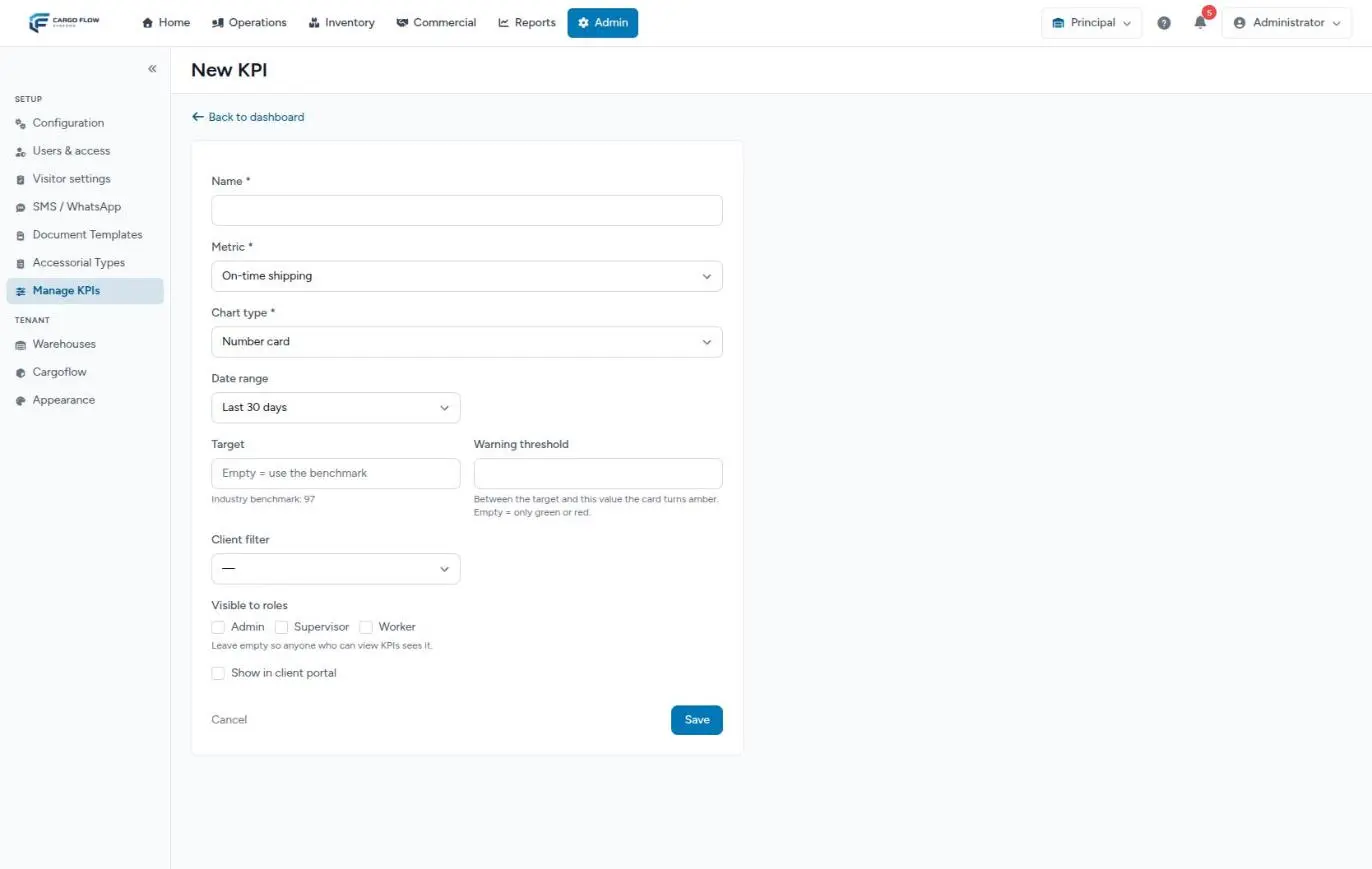
- Fill in the fields (table below). The form changes with the metric: range, grouping, client filter, zone filter and the portal checkbox appear or disappear.
- Tap Save. "KPI saved." appears and you stay on the same card's edit page to keep adjusting it; with Back to dashboard you see it in place.
What each field asks for
| Field | Required | What it accepts and what happens if left empty |
|---|---|---|
| Name | Yes | Up to 120 characters. It shows on the dashboard, the Excel, the portal and the monthly summary. "On-time shipments this month" says more than "SLA". |
| Metric | Yes | One from the catalog, grouped by category. Only metrics from subscribed modules appear. |
| Chart type | Yes | Number card, line, bar or donut, depending on what the metric supports (see below). |
| Date range | — | Last 7, 30 or 90 days, month to date or year to date. Default 30 days. Not shown for point-in-time metrics. |
| Group by | Only for per-period charts | Day, week or month. |
| Target | No | A number in the metric's unit (97 = 97%). Empty: the industry benchmark is used, shown under the field. |
| Warning threshold | No | Between the target and this value the card turns amber. Empty: only green or red. |
| Client filter | No | Only for metrics that can be split by customer. Empty: all customers. |
| Zone filter | No | Shown for inventory metrics. See the warning below. |
| Visible to roles | No | Admin, Supervisor, Worker. Empty: anyone who can view KPIs sees it. |
| Show in client portal | No | Only for metrics that can be split by customer. |
Which chart to use
| Metric kind | Examples | Charts that make sense |
|---|---|---|
| A single number | On-time shipping, receiving accuracy, days on hand. | Number card only. |
| Per period | Receipts, shipments, units received, revenue. | Line or bar. |
| By type | Discrepancies by type, aging, ABC, transactions by client. | Donut or bar. |
Target and warning threshold
Example: on-time shipping with target 97 and threshold 94. At 98% it is green, at 95% amber and at 90% red. For metrics where lower is better (hours, late shipments), the threshold goes above the target: dock-to-stock with target 3.5 and threshold 5 shows 4.2 h in amber.
- The threshold only works if you also type the target. With the target empty the benchmark is used and the threshold is ignored: only green or red.
- The system does not check that the threshold is on the right side of the target. If you set it backwards, amber never appears.
- If the dashboard is filtered by a customer with an agreed target, that target wins over the card's.
Who sees it
Several keys, and all of them have to open:
- The module of the metric must be active in the warehouse.
- The metric's own permission, if it has one (valuation or billing).
- The permission to view KPIs.
- The card's visible roles: if you checked "Supervisor", an admin without that role does not see it. Super admins always see every card.
Showing it to the customer
The Show in client portal checkbox makes your customers see the card in their portal, always limited to their goods, and includes it in their monthly summary email. Before checking it, read KPIs for the customer: it explains which metrics never reach the portal and an important caution with money cards.
Editing, hiding and deleting
- Edit: the pencil. You can change everything, presets included: name, chart, range, target, roles, portal.
- Delete: the bin, only on your own cards. It asks for confirmation and only removes the card from the dashboard; operational data is untouched.
- Hiding a preset: it cannot be deleted. Edit it and leave only a role nobody in your warehouse uses under Visible to roles; also uncheck Show in client portal.
Troubleshooting
"The name field is required" or "The selected metric key is invalid".
- Messages on this form show the internal field name. name is Name; metric key is Metric; chart type is Chart type.
- "Invalid metric" when editing an old card: its module is no longer active in the warehouse. It cannot be saved until it is reactivated.
The new card does not show on the dashboard.
- You checked roles and yours is not among them.
- The metric needs a valuation or billing permission you do not have.
I set a threshold and it never turns amber.
- The target is missing, or the threshold is on the wrong side.
Frequently asked questions
Can I delete a preset card?
No. Cards with the Preset badge are seeded by the system and have no delete button. Hide them as explained above, or use them by changing their name, target or chart.
Can I set a different target for each customer?
The system already knows how to use a per-customer agreed target over the card's, but there is no screen to enter it yet. Write to us if you need it. Meanwhile, create your own card limited to that customer with their target. At the dock, SLA compliance does use the maximum times you enter on each customer profile.
Can I change the order of the cards?
There is no control for that. Presets come first, in factory order; your own cards come after, in the order they were created.
Need help?
If something did not work as expected, our support team can help you.
Was this article helpful?