Rate card and prices
Overview
Each service’s price is resolved on two levels: first the client’s rate (Pricing tab on their record) and, if there is none, the warehouse catalog’s base price. On the client’s rate card you only fill in what was negotiated differently; everything left empty inherits from the catalog and updates on its own when the catalog changes.
Before you start
- Permissions — editing the client record, including the Pricing tab, requires the clients permission (Super Admin and Admin by default). Creating an exclusive service also requires Manage Pricing (Super Admin and Admin by default).
- Module Billing enabled in the warehouse.
- A built catalog: the client’s rate card only shows active catalog services. See Service catalog.
- The client’s Pricing tab, seen from another angle, is also covered in Client rates.
The warehouse catalog
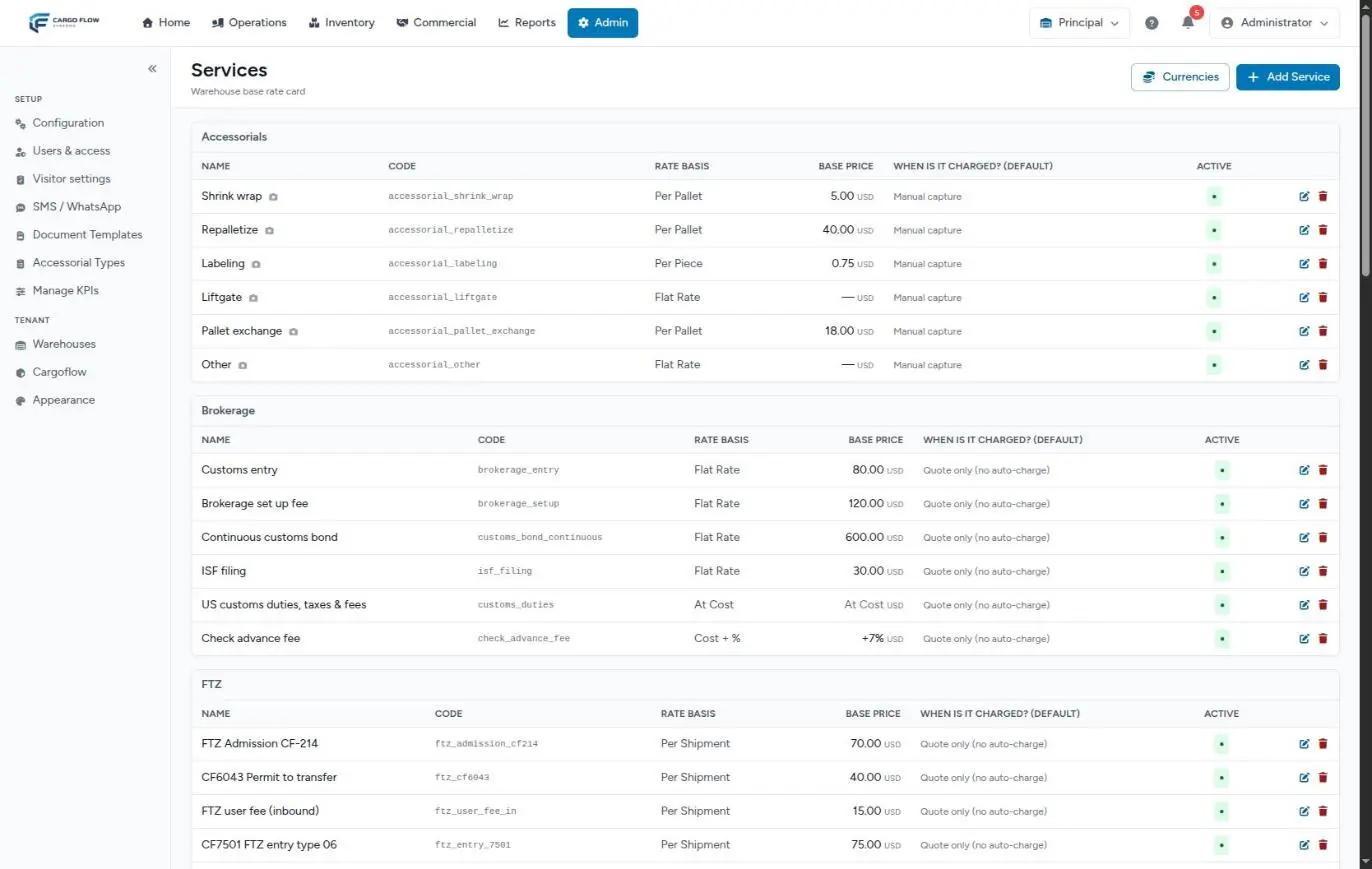
It is under Admin › Configuration › Services. For each service it defines the rate basis, base price, minimum, maximum, free days, currency and when it is charged. Changing a base price affects every client without their own rate for that service, from that moment on.
The client’s rates
- Go to Commercial › Clients, open the client and go to the Pricing tab.
- Find the service with the search box or browse the categories. Only this client’s own rates hides what inherits from the catalog.
- Type what was negotiated on the service row. The row is marked Negotiated.
- Click Save rates (bottom right). Only the rows you changed are saved: “Rates saved” appears.
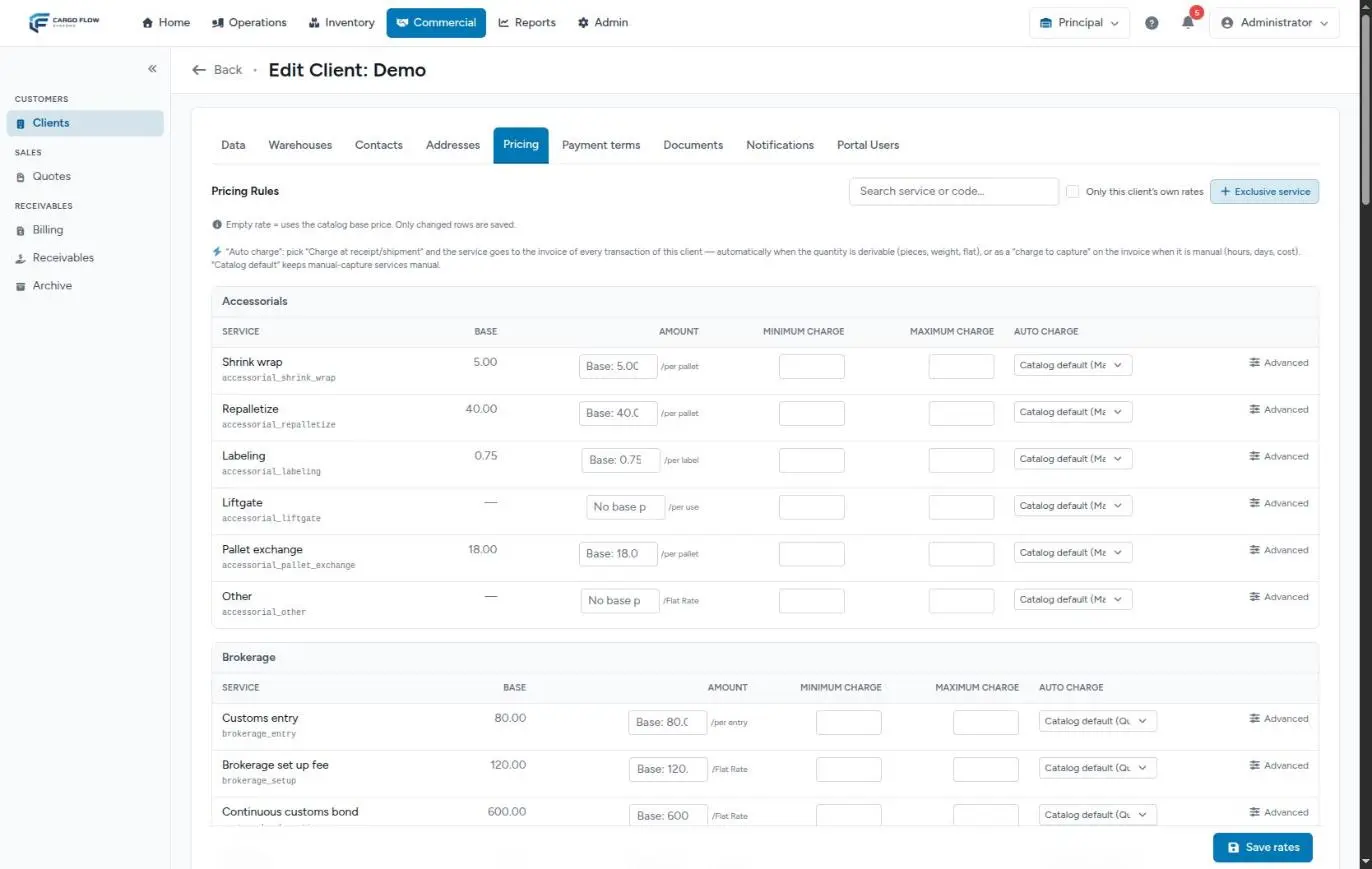
What each column means
| Column | What it is | Empty means |
|---|---|---|
| Service | Name and internal code. | — |
| Base | The catalog base price, for reference. | — |
| Amount | The negotiated rate; next to it, the unit. Per-day services also show Free days. | Shows “Base: …” and bills the base price (or “No price” if the catalog has none). |
| Minimum charge | The floor: if what is billed on an invoice falls below it, an adjustment up to the minimum is added. | The catalog minimum. |
| Maximum charge | The cap: if what is billed goes over it, it is trimmed with a negative adjustment. It cannot be below the minimum. | The catalog maximum. |
| Auto charge | When the service is billed. | Whatever the catalog says. |
| Advanced | Opens currency, validity, notes and Reset to base. | — |
The Auto charge column
- Catalog default (the first option, which shows in brackets what the catalog says) — the service behaves as set in the catalog.
- Charge at receipt — the service goes automatically onto the invoice of each of this client’s receipts.
- Charge at shipment — goes automatically onto the invoice of each shipment.
If the quantity can be derived from the document (pallets, cartons, pieces, weight, flat rate or per shipment), the charge is created automatically. If not (hours, cost), it shows on the invoice as a charge to capture so you enter the quantity. Per-day services are calculated with the shipment’s stay. See Services charged automatically.
On the storage row (with the per-pallet-per-day basis) the options change: Charge at shipment, Daily (accrual) and Do NOT charge storage. See Storage in detail.
On rows for services outside the general catalog (for example, exclusive ones), the first option is Manual / no auto-charge.
Advanced: currency, validity and notes
- Currency — if the client’s rate is in a different currency from the catalog. Validated against the international currency catalog. See Currencies.
- Effective From / To — to schedule a price change or close a rate. “To” cannot be before “From” (“The end date must be on or after the start date”). If two rates for the same service are in effect, the one with the latest start wins.
- Notes / quote reference — where the price came from. Rates from a quote carry “Seeded from quote …” here.
- Reset to base — clears what was negotiated to go back to the catalog price.
A client’s exclusive service
The + Exclusive service button creates a service that exists only for that client: it doesn’t appear in other clients’ catalogs or in new quotes, and in the catalog it carries the Exclusive badge. It asks for:
- Service name (required).
- Type — Service (billed by capturing it or by setting it to charge at receipt or shipment) or Accessorial (ready to be captured on jobs).
- Rate basis, Amount (required), minimum, maximum (not below the minimum) and free days.
It is created with the rate effective today and the client’s billing currency (Payment terms tab). The message reads “Exclusive service … created with its rate”.
Cost, cost plus and weight
- At cost — the service is billed at actual cost; the row is read-only (“Billed at cost”).
- Cost plus — the cost is entered on the invoice and the catalog markup is added. If you type a negotiated rate, that flat rate replaces cost plus. See At-cost and cost-plus services.
- By weight — always in pounds. See Handling charges.
The new version: Rate card
In warehouses on the new billing version, the tab is called Rate card and the form changes, not the pricing rules:
- Only contracted services appear. With Add services you pick from the catalog the ones to contract; they come in inheriting the base price.
- Each line says When is it charged?: When receiving, When shipping, Storage days charged when shipping, Storage days accrued daily, When a job is completed, Manual capture or Do not charge (excluded). What you see is what runs.
- Remove takes a line back to catalog behavior (base price). If what you want is to not bill that service to the client, keep the line and pick Do not charge (excluded).
- A client with no rates of their own is billed at the catalog base price (storage and any captured service); handling only if you add it.
Rules worth knowing
- A 0 is not free: a 0 rate bills the base price (“A 0 does NOT mean free”). Exception: on the classic version, accessorials and special-job services with a row at 0 come out at 0.
- Clearing the whole row (amount, minimum, maximum and auto charge) removes it from the rate card. For handling that means it is no longer billed.
- Handling is only billed if its row exists. To contract it at the base price, just pick an Auto charge option.
- Changes apply to charges created afterwards; existing ones keep their price.
- Rates that came from a quote can be edited here, but a later renegotiation overwrites them.
What happens after saving
- The client’s next receipt, shipment, accessorial or special job takes the new rates. See How charges are generated.
- When adding charges by hand on an invoice, the rate is prefilled with the client’s.
- Pending charges in the pool don’t change: if they should go out at the new price, fix them on the invoice.
- The full journey, from rate to payment: From quote to first invoice.
Example
Valley Distributors negotiated receiving handling at 12.00 per pallet with a 60.00 minimum and no storage charge for the first 10 days. On their Pricing tab:
- Receiving handling row: Amount 12.00, Minimum charge 60.00, Auto charge on the catalog option.
- Storage row: Amount empty (takes the base), Free days 10.
- Handling Advanced: Notes “Agreement of October 1, email from Carlos Ruiz”.
- Save rates.
A 3-pallet receipt gives 36.00 and the invoice adds 24.00 of minimum charge.
Best practices
- Only enter what was negotiated differently; empty values update on their own when you change the catalog.
- Use notes to record the quote or agreement each price comes from.
- Schedule increases with validity dates instead of changing the price on the day.
- Check products’ catalog weight and packaging before turning on weight or pallet billing.
- To not bill storage use the do-not-charge option; to not bill handling, don’t have it on the rate card.
Troubleshooting
The charge used the catalog price instead of the negotiated one.
- The client’s row is empty, at 0, or its validity doesn’t cover the charge date.
I saved and nothing changed.
- Rows you didn’t touch are not saved. Check the row shows the Negotiated mark before saving.
“The maximum charge cannot be below the minimum charge.”
- Fix one of the two values on the row.
“The end date must be on or after the start date.”
- Check Effective From and To under Advanced.
I don’t see the Exclusive service button.
- Your role lacks Manage Pricing.
A service doesn’t appear on the client’s rate card.
- It is inactive in the catalog or exclusive to another client.
FAQ
Which wins, the client’s rate or the catalog?
The client’s, as long as it is in effect on the charge date and has an amount. Whatever is empty inherits from the catalog.
What happens to rates that came from a quote?
They can be edited here, but if the quote is renegotiated later, the quote wins and overwrites what you changed by hand (the system shows the detail). See Renegotiate a won quote.
How do I schedule a price increase?
Under Advanced on the current row, set Effective To to the last day of the old price. Then, for the new price, the simplest way is to wait for that day and change the amount; or ask support to load the second rate with its Effective From, since the tab shows one row per service.
Need help?
If something did not work as expected, our support team can help you.
Was this article helpful?