Importing products from CSV
Overview
When a new customer arrives with hundreds of SKUs, there is no need to create them one by one: Import products (CSV) loads the catalog from a comma-separated text file. Each row is validated with the same rules as manual creation; rows with errors are rejected and reported without stopping the rest of the load.
It is a typical step when onboarding a customer, after creating the customer and before their first ASN (see From quote to first invoice).
Before you start
- Permission: Manage Inventory Catalogs (Super Admin and Admin).
- Module: Inventory enabled for the warehouse.
- The customer must exist in this warehouse. If the products are global, no customer is needed.
- You are in the right warehouse: products are created in the active warehouse. If the customer operates in two warehouses, import the file in each.
Preparing the file
- The format is CSV (comma-separated text), not an Excel workbook. In Excel use “Save as” and choose “CSV UTF-8”.
- The first row is the header and it is required. Column names are case-insensitive and can use spaces or dashes instead of underscores (
Lot Trackedandlot-trackedmean the same aslot_tracked). - Column order does not matter. Any column the system does not recognize is ignored without error.
- The file can be up to 5 MB. Fully blank rows are ignored.
- The Download template button downloads a CSV with the correct header and one sample row. It is the safest way to start.
SKU-001. Delete it before importing; if you leave it, that sample product is created in the customer’s catalog.Recognized columns
| Column | What it holds | If left empty |
|---|---|---|
sku (required) | Product code, up to 64 characters. Unique per customer in the warehouse. | The row is rejected. |
name (required) | Product name, up to 200 characters. | The row is rejected. |
unit_of_measure | Base unit code, up to 16 characters. | each (piece) is used. |
description | Free text. | No description. |
weight | Piece weight. A number of zero or more; read as pounds. | No weight (weight charges will come out at zero). |
volume | Piece volume, a number of zero or more. Stored as given; not calculated from dimensions. | No volume. |
length, width, height | Piece length, width and height, numbers of zero or more. | No dimensions. |
dim_unit | Dimension unit: in (inches) or cm. | Inches. |
lot_tracked, serial_tracked, expiry_tracked, hazmat | Lot, serial, expiry and hazmat flags. True with 1, true, yes, si, sí, y or x; any other value is false. | False. |
What each flag does today is in Lots, serial numbers and expiry.
A sample file
Northern Trading Co.’s catalog, ready to import:
sku,name,unit_of_measure,weight,length,width,height,dim_unit,lot_tracked
CN-ACE-1L,Vegetable oil 1 L,each,2.1,3,3,10,in,yes
CN-ACE-5L,Vegetable oil 5 L,each,10.4,7,5,12,in,yes
CN-VIN-750,White vinegar 750 ml,each,1.8,3,3,11,in,
CN-SAL-1K,Table salt 1 kg,each,2.2,,,,,
All four rows import. The first two become Lot tracked; the last one has no dimensions.
Importing step by step
- Open Inventory › Products and click Import products (CSV).
- CSV file (required) — choose the file.
- Client — every product in the file will belong to it. If you leave it blank, the SKUs are created as warehouse-global, with no customer.
- Tick Dry run the first time — it validates the whole file and shows the result without writing anything.
- Click Import and review the result.
- Fix and repeat without the dry run — when the dry run comes back clean, clear the box and import for real.
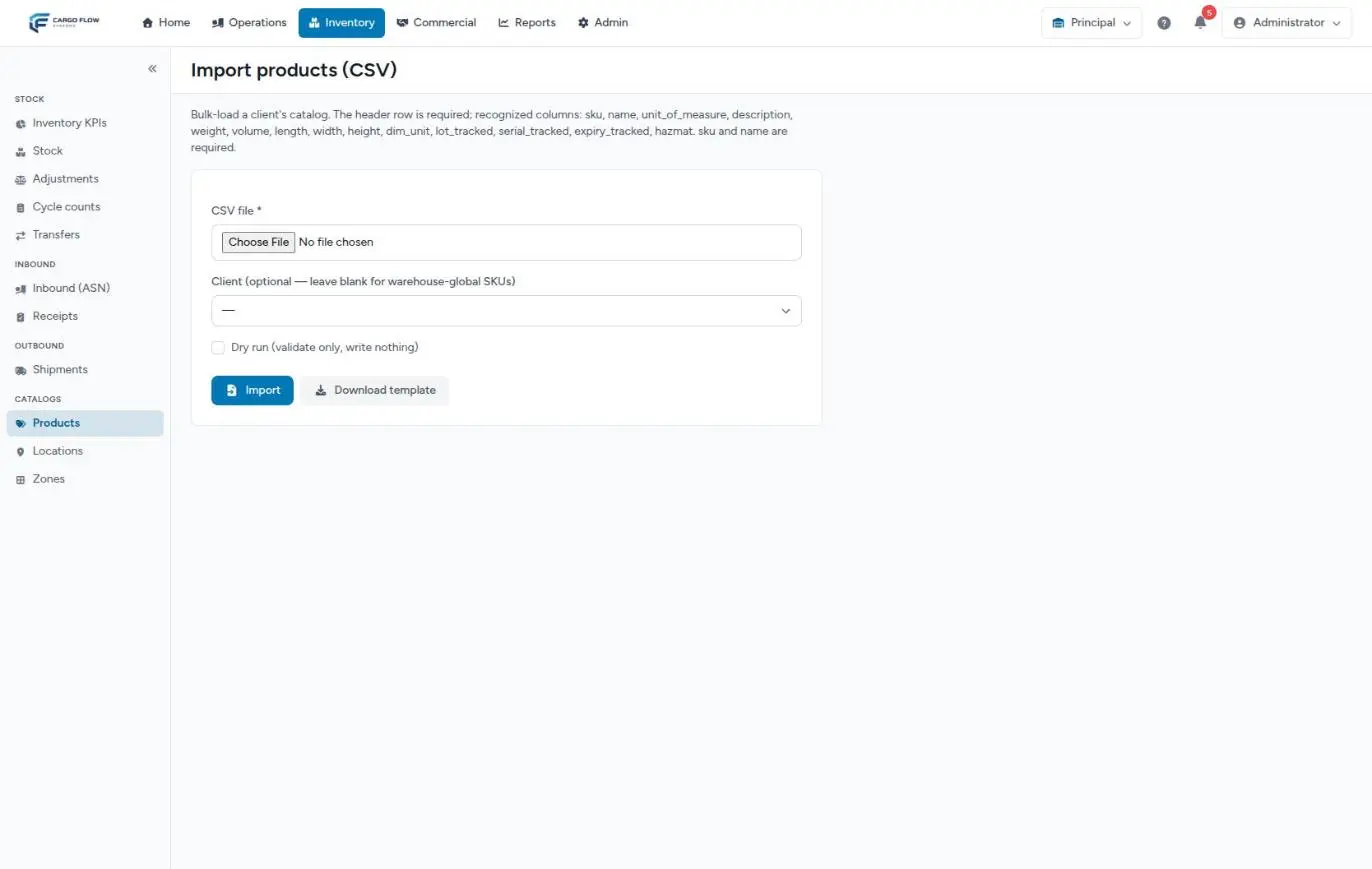
Reading the result
After importing, the Import result box appears:
- A summary: how many were imported, how many were rejected and how many rows the file had (not counting the header or blank rows).
- If it was a dry run, a badge says so: nothing was written.
- The Rejected rows table with the file line (the header is line 1), the SKU and that row’s errors.
The most common rejections and how to read them:
| Error | Cause |
|---|---|
| The sku has already been taken. | A product with that SKU already exists for that customer in this warehouse, active, inactive or deleted. |
| Duplicate SKU within the file (first seen on line N). | The same SKU appears twice; the first was accepted and the rest are rejected. Capitalization does not count: ab-1 and AB-1 are the same. |
| The name field is required. | The row has no name. |
| The weight field must be a number. | There is text in a numeric column (for example 2 lb). Keep only the number. |
| The selected dim unit is invalid. | The dimension unit is neither in nor cm. |
What to complete afterwards
The import creates the basics. Before the first invoice, open every product that needs it and complete:
- The packaging levels (standard pack and pallet) of everything charged per case or per pallet.
- The reorder point, if the customer wants to watch minimums.
- The unit cost, if valuation is kept.
- Photos and spec sheets.
All of that is in Products and packaging levels.
What the import does not do
- It does not update existing products: a SKU that already exists is rejected.
- It does not load packaging levels, reorder point, cost, photos or documents. A
reorder_pointcolumn in the file is accepted but ignored. - It does not create stock: it only creates the catalog. Goods come in with receipts (see From notice to stock).
- It does not pick the weight unit: all weights are read as pounds.
Best practices
- Ask the customer for their catalog in Excel, clean up the columns and save it as CSV UTF-8.
- Always dry run first. A clean dry run guarantees the real import will reject nothing (unless someone creates a SKU in between).
- Import per customer, in their warehouse, with the customer selected.
- Keep the file you imported: if questions come up later, it is the record of what was loaded.
Troubleshooting
Importing shows an error page instead of the result.
- It happens when the file is empty or the header lacks the
skuandnamecolumns. Check the first row or start from the template. Nothing was written.
The file is not accepted.
- It must be CSV or text and under 5 MB. An Excel workbook (.xlsx) is not accepted.
Accented characters come out garbled.
- Save the CSV as UTF-8 (in Excel: “CSV UTF-8”).
Everything landed in a single column or fields are missing.
- Your Excel saved with semicolons instead of commas. Change the separator, or open the file in a text editor and replace them.
Every row is rejected as an existing SKU.
- The catalog was already loaded, or you picked the wrong customer. Check the product list filtered by that customer.
A product called “Sample widget” appeared.
- The template’s sample row was imported. Delete it from the product list.
Frequently asked questions
Can I upload the Excel file directly?
No. Save it as CSV first. The template you download is already in that format.
Can it update products that already exist?
No. The import only creates new products; changes to existing products are made on their edit screen.
What if the import fails halfway?
Rejected rows stop nothing: they are reported and the rest is imported. If the whole file fails (header, format), no row is written.
Need help?
If something did not work as expected, our support team can help you.
Was this article helpful?