Special job types and billing
Summary
Special job types are templates for recurring warehouse tasks: relabeling, rework, counts, cleaning. Each type carries its color, max time, description, the data asked for when creating the job and, if it is billed, the linked accessorial. On top of that, each special job can carry billable services from the warehouse catalog. This article covers both; daily operation is in Special jobs.
Before you start
- Yard module: special jobs and their types are part of it.
- Permission to set up types: Configure Users. By default only Super Admin has it; Admin does not. If an administrator needs to maintain types, add that permission to their role (see Roles and permissions).
- For the linked accessorial: the Accessorials module and accessorial types set up (see Accessorials and extra charges).
- For billable services: services in the warehouse catalog and the Billing module so the charge is created.
- Customers with rates (recommended): see Rate cards and prices.
Where types are set up
In Admin › Configuration, open the Special Job Types card (only visible with Configure Users).
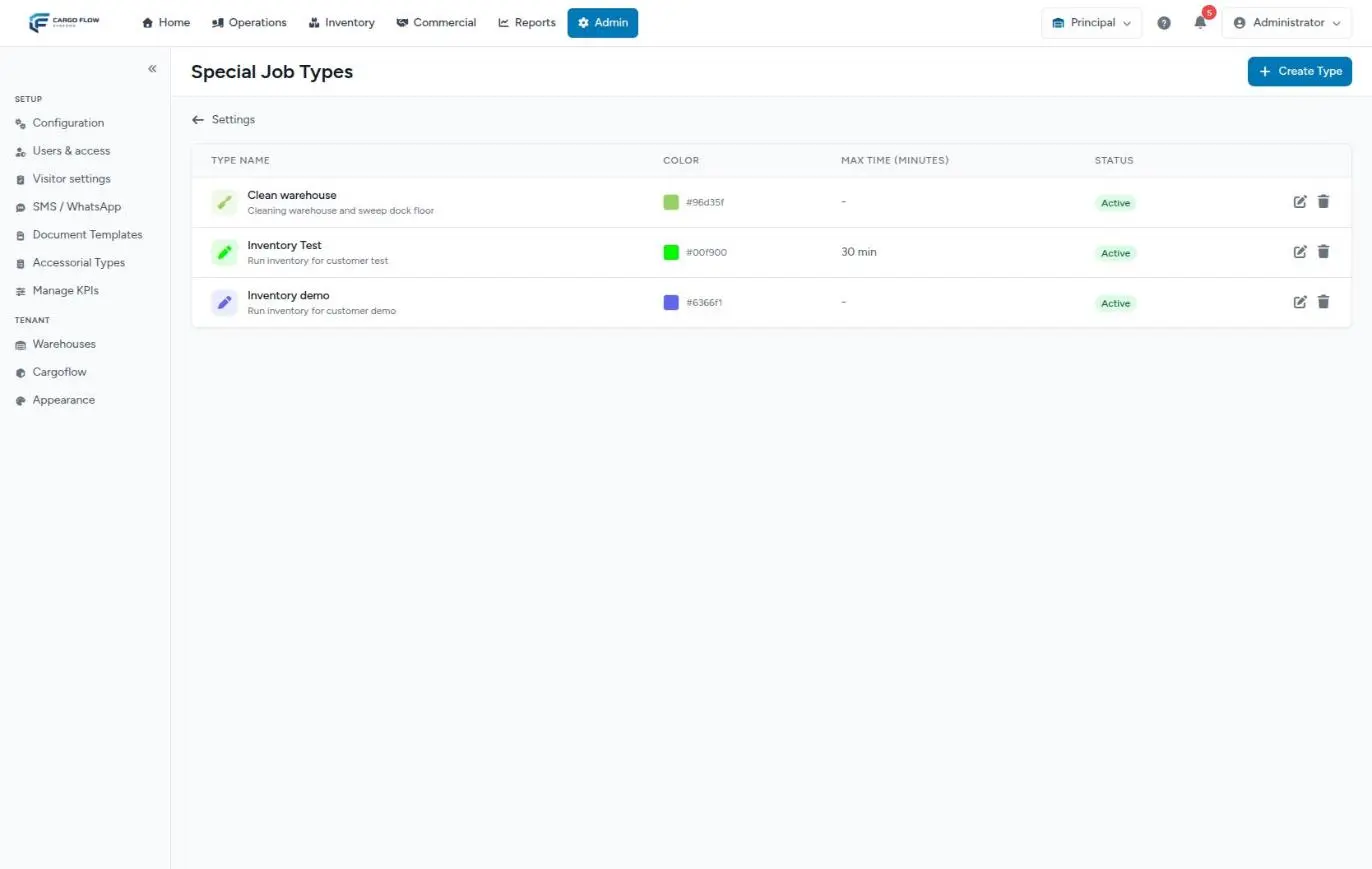
The list shows the name, color, max time and whether the type is active or inactive, with edit and delete buttons. If there are none, you see No special job types configured.
Creating or editing a type
Press Create Type (or edit an existing one):
| Field | Required | What it does |
|---|---|---|
| Type Name | Yes | For example Relabeling, Rework, Inventory Count. |
| Description | No | For whoever maintains the setup. |
| Color | Yes | The color the type shows with in the list and in the worker’s app. |
| Icon | Yes | An icon name (for example tags, boxes, clipboard-check). |
| Max Time (minutes) | No | Blank = no limit. With a value, the worker’s clock changes color at 75% and when exceeded. |
| Default Description | No | This text fills the description when a job of the type is created. |
| Custom Fields | No | Extra data asked for when creating the job (see below). |
| Linked accessorial (billable) | No | Only with the Accessorials module. Not billable by default. If you pick one, jobs of this type create that charge for the chosen customer. |
| Active | — | Inactive types are not offered when creating jobs or in the list filter. |
On save you see Special job type created successfully. (or updated).
Custom fields
With Add Field you define each data item:
- Label — what the person creating the job sees.
- Field Name — the internal key, no spaces.
- Type — Text, Number, Text Area, Select (with its Options, added with Add Option) or Checkbox.
- Required — if checked, the job will not save without it.
The values entered appear on the job detail as Additional Information. Changing a type’s fields does not modify existing jobs.
Deactivating or deleting a type
Deactivating is the recommended option: the type is no longer offered and old jobs keep it. If you delete it, jobs that used it are left without a type and show as Custom, with no color or max time; charges already created are not touched.
The two ways to bill
| Accessorial linked to the type | Billable services | |
|---|---|---|
| Where it is defined | On the type. | When editing each job. |
| When the charge is created | When the job is saved with a customer. | When the job completes. |
| Quantity | Always 1. | Whatever you enter (decimals allowed). |
| Module needed | Accessorials. | Billing. |
Both can be used on the same job.
The accessorial linked to the type
- The type has a linked accessorial.
- When creating or editing the job you choose the customer in Bill to client and save.
- An accessorial charge with quantity 1 is created for that customer, captured by whoever saved. It shows in the job detail’s Billing section and in the accessorials list, and follows the normal accessorial path to the invoice (see Capturing an accessorial).
Saving again does not duplicate it: if you change the customer, the same charge moves to the new customer. The charge is created even if the job has not been done yet.
Billable services
- Open the job and press Edit. The Billable services section appears if the warehouse has services in its catalog.
- Pick the Service (general services and those exclusive to the job’s customer are listed, with their base price), the Quantity (greater than zero) and notes if you want, then press Add service. You see Service added to the job.
- To remove one, use its button and confirm Remove this service line?.
- When every worker completes their part, each line becomes a charge waiting to be invoiced.
Where the price comes from
- Billable services: first the customer’s rate rule for that service; if there is none, the catalog base price. If the customer’s rate card marks the service as excluded, it is not charged. If there is no price anywhere, the charge is created unpriced, flagged for review in Billing, and stays out of the invoice until someone sets a rate.
- Accessorial: the accessorial type’s price according to the customer’s rate card, like any accessorial.
How a price is resolved is detailed in How charges are generated.
What voids a charge
- Removing a service line voids its charge if it has not been invoiced yet.
- Cancel Job and Delete Job void the accessorial charge and the unbilled service charges.
- What was already invoiced is not touched: correct it on the invoice (see Editing and correcting invoices).
What happens in Billing
The charges reach the customer’s To invoice pool with their source (the special job) and are grouped on the job’s invoice when invoices are generated. The full path of each kind of charge is in Where each charge comes from.
Example with amounts
The Rework type has the Special handling accessorial linked. Sample Imports has special handling at $350 and the Repack per case service at $12 on its rate card; the catalog has repacking at a $15 base price.
- The job Repack 120 damaged cases is created with customer Sample Imports. On save the accessorial charge is created: 1 × $350.
- In edit, Repack per case is added, quantity 120.
- When the job completes, the charge 120 × $12 = $1,440 is created (the customer’s rate wins over the $15 catalog price).
- The customer’s To invoice pool adds $1,790 for this job.
Special cases and limits
- No customer, no charge: neither accessorial nor services. A service line added to a job with no customer is skipped on completion.
- Each line’s customer is fixed when it is added. If you later change the job’s customer, lines already added are billed to the previous customer: remove them and add them again.
- Custom type: has no linked accessorial; it can only be billed with billable services.
- No Billing module: lines are saved but create no charges.
- Accessorial quantity: always 1; to bill per piece, use a billable service.
Best practices
- Link an accessorial only to types that are always billed; everything else, with services.
- Add to the customer’s rate card the services you use in special jobs, so they are not left unpriced.
- Add the services before the last worker completes: that way the charge is created at that moment.
- Deactivate types instead of deleting them.
Troubleshooting
I don’t see the Special Job Types card.
- You lack the Configure Users permission (only Super Admin by default), or the warehouse lacks the Yard module.
The Linked accessorial field is missing.
- The warehouse lacks the Accessorials module.
No charge was created on completion.
- The job has no customer, no service lines, or the warehouse lacks Billing. If the service had no price, look for it among the unpriced charges in Billing.
The Billable services section is missing.
- It only shows when editing the job and only if there are active services in the catalog.
The accessorial charge appeared before the job was done.
- That is expected: it is created on save. If the job is not done, cancel or delete it and the charge is voided.
Frequently asked questions
What happens if I change the job’s customer?
The accessorial charge moves to the new customer on save. Service lines already added keep the previous customer: remove them and add them again.
Can I add a service to a completed job?
Not from the screen: a completed job can no longer be edited. If something else needs to be billed, capture it as an accessorial or ask Billing to add the charge.
Need help?
If something did not work as expected, our support team can help you.
Was this article helpful?